# Welcome to Total Materia Horizon

Total Materia Horizon is an online materials database for engineers and materials teams. Use it to find trusted material properties for selection, design, and simulation. Export material data to CAE/CAD workflows.

With Total Materia Horizon you can:

* Search and compare material properties across standards and regions
* Find equivalent materials (cross-reference grades internationally)
* Support labs with metal identification from spectrometer chemical composition
* Check compliance information and find trusted suppliers

### New: Optimizer (material selection optimization)

Use [Optimizer](/search-tools/optimizer) to optimize material selection against requirements like performance, cost, and region. It ranks candidates and helps you find alternatives and equivalents across standards.

### Key features of Total Materia Horizon

* **Extensive materials database**: 540,000+ materials including metals, polymers, ceramics, and composites
* **Material properties search**: Find materials by designation, standard, chemical composition, and property requirements
* **Advanced search and filtering**: Narrow results by properties, conditions, forms, heat treatments, temperature, and sources
* **CAE/CAD integration**: Import and export material data for simulation and design workflows
* **Material comparison**: Compare multiple materials side-by-side to choose the best option
* **Material compliance**: Access standards and compliance-related information to support regulated industries
* **Supplier information**: Connect with verified suppliers to source materials quickly and reliably

### Start here: common workflows

{% hint style="info" %}
Best starting point: use [Quick Search](/search-tools/quick-search) when you have a material designation.
{% endhint %}

* Find materials fast with [Search Tools](/search-tools) (Quick Search, Advanced Search, standards, suppliers)
* Explore detailed data on [Material Pages](/material-pages) (properties, conditions, equivalents, missing data)
* Find the best materials for your application with [Optimizer](/search-tools/optimizer)
* Manage, compare, and export with the [Material Console](/material-console)
* Identify metals from spectrometer composition with [SmartComp](/smartcomp)

### Other Total Materia products

You might want to check out the documentation of our other products. Use the top-left navigation dropdown or use one of the following links:

* [Green Line](https://docs.totalmateria.com/green-line/): compliance and environmental footprint workflows (REACH, RoHS, ELV, SARA).
* [Predictor](https://docs.totalmateria.com/predictor/): estimates material properties when measured data is missing.
* [Integrator](/total-materia-integrator): manages internal material data, access control, and exports to 25+ CAx formats.


# Search Tools

#### Total Materia Search Tools for Engineers

Total Materia offers a variety of search tools to assist engineers in finding material properties and standards:

* [**Quick Search**](/search-tools/quick-search): Easily find materials by name, standard, or composition.
* [**Advanced Search**](/search-tools/advanced-search): Filter materials based on specific properties and requirements.
* [**Standard Search**](/search-tools/standard-list): Search for materials according to specific standards and specifications.
* Other search:
  * [**Supplier Search**](/search-tools/other-search-tools): Find suppliers for specific materials
  * [**Module-Specific Searches**](/search-tools/other-search-tools): Search for materials with specific data on fatigue, corrosion, or forming
  * [**Cross Reference**](/material-pages/find-equivalent-materials): Identify equivalent materials across different standards.
* [**Green Line Material Search**](/green-line/search-find-compliant-material): Start your material selection with compliant materials

These tools streamline the selection process of materials and help engineers access the material information needed to complete their work with the highest confidence.


# Quick Search

Quick Search is the main way of accessing material information in Total Materia.

Quick Search offers numerous benefits for users seeking material information. Its simplicity ensures that users can quickly input minimal information—just the material designation—and receive comprehensive results, making it a highly efficient tool. Additionally, understanding how Quick Search works allows users to fully leverage its capabilities, ensuring that they obtain the most relevant and accurate material data swiftly. This efficiency saves time and effort, enabling users to focus on their core tasks with the necessary material information readily at hand.

### Make your first Quick Search

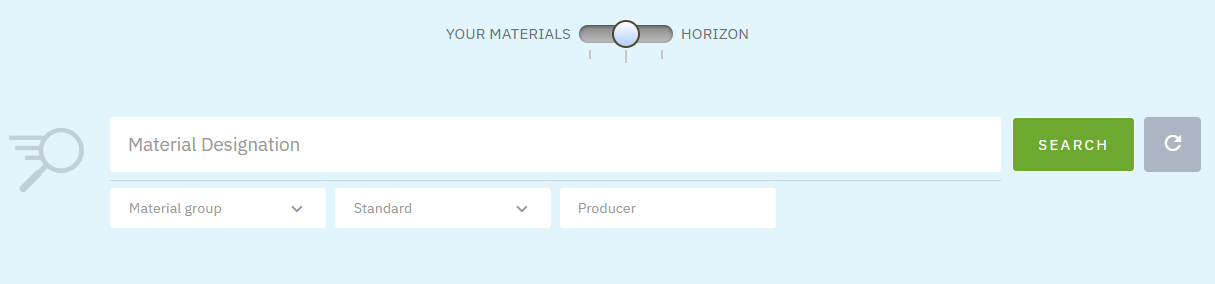
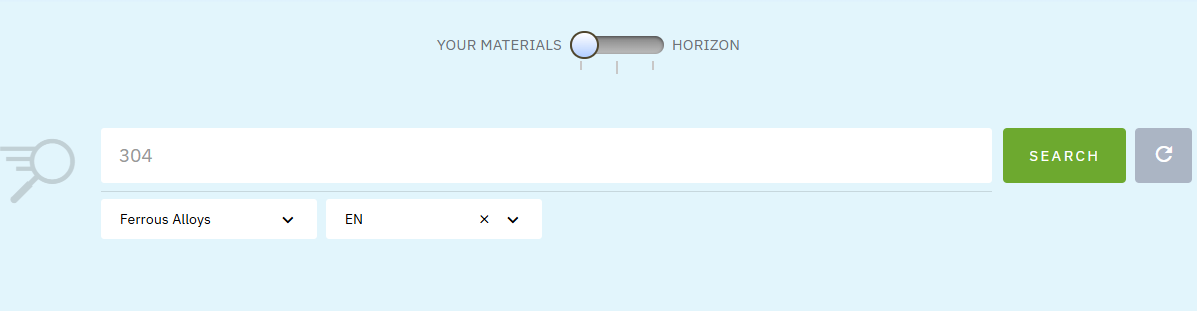
Making a Quick Search is as simple as entering the material **Designation** (e.g. *S235JR, 1.4404 or Makrolon 2405*) and clicking on the Search button.&#x20;

<figure><img src="/files/P6eCYFmXBddx5DtGy6kR" alt=""><figcaption></figcaption></figure>

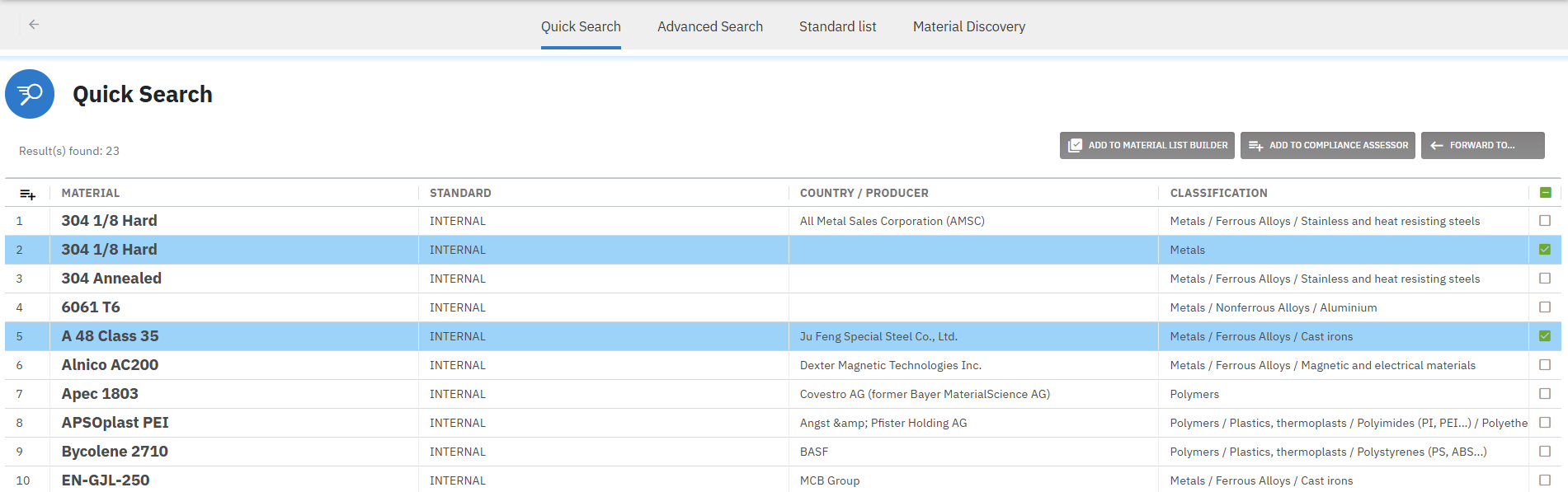
The list of results will then be presented to you in an organized format (see [Results and Material lists](/search-tools/results-and-material-lists) for more details)

### Do More with Quick Search

Quick Search does not only allow you to search by designation but also permits you to add common criteria to narrow down the results:

* **Material Group**: Is your material a Magnetic Steel, an Aluminum, or a Polyamide (PA)? Use this dropdown to add some more criteria to make sure that you find what you are looking for
* **Standard**: Is your designation standardized by SAE, ASME, or a German DIN material? Add here this information to remove any confusion in the results
* **Producer**: Or is your material a proprietary grade from BASF or Arcelor Mittal?

### Q\&A

#### My results have nothing to do with what I was looking for !

Although rare such cases are typically caused by:

* An incorrect Designation: make sure that only the material designation is entered in the given field. It is common that engineers attach the standard, heat treatment or surface finish to the designation. Remove these terms and relaunch the search
* The Designation is too specific: some polymer grades have a color code attached to the end of the designation at delivery. In such cases, remove the last letters or digits from your designation and search again.
* The search terms are incompatible: If you use a EN designation (e.g AW 6061) but specify the search to be done in GB (China) standard, the search will present you the materials most similar in designation i.e. EN material but no GB material will presented. In order to find a GB material similar to the EN AW 6061, try rather to go through the Cross Reference tables available on EN AW 6061 (see [Find Equivalent Materials](/material-pages/find-equivalent-materials))

#### I have a set of criteria or properties, can I use Quick Search to find compatible materials?

Quick search is mainly meant to find material by designation, not by properties for this purpose use [Advanced Search](/search-tools/advanced-search)

#### I have entered a Designation and the name of my supplier and I get no results

Your supplier might not be the producer of the material, you can search for him using our [Suppliers](/search-tools/suppliers)

Your supplier might also be supplying you a material according to the specifications defined in a standard. In this case, to access the material details, search simply the material Designation without any term in the producer field.

#### How does this search work?

Quick search functions by initially matching the entered designation and subsequently filtering the results using other specified fields. When a designation is only partially entered, the matching process occurs from left to right, meaning that materials will be presented only if the partial designation corresponds to the beginning of a "word." For instance, if you search for "EN AW-6061," you can find it by entering "AW 6061." However, if you only enter "6061," this specific material will not appear in the results because there are other materials that align more closely with the search criteria such as 6061 from SAE. Therefore, to ensure optimal and accurate search results, it is recommended to enter the most precise and complete designation available.

Spaces are recommended, but they are treated as wildcards. Unlike Google search, quotation marks "", plus +, and dash/minus - are not recognized and are ignored by the search engine

Quick search assists in finding materials from a specific producer by providing a dedicated field where you can enter the producer's name. When you input the producer's name, the search mechanism filters the results to display materials exclusively supplied by that producer. This is particularly useful when dealing with materials that conform to specific standards or when you have multiple suppliers for similar materials. To achieve the best results, it is recommended to input the most precise and complete material designation alongside the producer's name, which ensures that the search engine can match and present the correct materials accurately. This approach streamlines the identification process and helps in quickly locating the exact material from the desired producer.


# Advanced Search

Advanced Search is designed to help you identify the best materials for your designs. As explained below the search possibilities are virtually limitless, this search allows you to combine constraints on mechanical or physical properties while also taking into account constraints on the chemical composition or on the sustainability of polymers. With all these possibilities, this search also requires its user to be alert, make sure to carefully follow this help page.

Advanced search can be accessed from Total Search's top Menu.

## Configuring your first Advanced Search

<figure><img src="/files/9pt4UGHpYMB8En81Xzvo" alt=""><figcaption></figcaption></figure>

First, it is important to understand how to combine your search criteria. Every block represents one of your search criteria. They can be combined two ways, either as an **AND** condition by adding your criteria to a new line or by adding a new criteria on the same line as another to obtain an **OR** combination with the criteria already on that line. On the screenshot above, we are searching a tool steel under EN standard that has a hardness of either HB>170, HR>30 or HV>172.

Use the "Add Search Criteria" button to place a new criteria at the desired position. This will open a new popup window allowing you to configure your new criteria. The criteria are organized into five main categories:

{% tabs %}
{% tab title="General Information" %}
The General Information tab permits the user to add criteria on the material:

* designation, to find materials with the specified chain of characters in their designation
* standard **or** producer
* classification to search for materials in specific material groups. Important to note that for Polymer groups supplementary properties relating to fillers, flame retardants or recycled/bio content.
* the free text field at the bottom allows the users to search through the material description to filter materials by their recommended application/industry, or welding class according to ISO/CR 15608 (2000).

<figure><img src="/files/0Ze16ITNB4H0kFxqn9XA" alt=""><figcaption></figcaption></figure>
{% endtab %}

{% tab title="Chemical Composition" %}
The chemical composition tab allows the user to select the different elements and add a constraint on their proportion in the material's composition. This proportion can be defined as a minimum and/or maximum content or as "not allowed" meaning that the element should be absent from the composition of the desired material.

<figure><img src="/files/Xy61zoWonFvz9B3miqNp" alt=""><figcaption></figcaption></figure>

*Note: If only a maximum value is set for the content of an element, the search algorithm will still try to find material containing that element. Materials without that element in their composition will not be considered. To search for materials with a maximum value of an element or this element not present in the composition, add 2 criteria in your search one where you set a max and a second where you exclude this element, be vigilant in placing these 2 criteria on the same line to combine them with an OR criteria,* [*as explained above*](#configuring-your-first-advanced-search)*.*
{% endtab %}

{% tab title="Mechanical Properties" %}
The mechanical properties are properties related to the material's strength and ability to withstand structural constraints. This drop-down lists the common yield and tensile strengths, hardness, and impact but also some composite or polymer/elastomer-specific properties.

See the [paragraph below](#defining-a-criteria-on-a-mechanical-or-physical-property) to understand the details for setting your criteria.

<figure><img src="/files/bnwpHqq2rp7GYHXEfQkk" alt=""><figcaption></figcaption></figure>
{% endtab %}

{% tab title="Physical Properties" %}
The physical properties are defined as all the properties relevant to material behavior that do not relate directly to material mechanical or structural constraints. Typically from this drop down the user will be selecting the density, the modulus of elasticity, or thermal, rheological, or optical properties.

The criteria for each property are defined in the same manner as for mechanical properties and details in the [paragraph below](#defining-a-mechanical-or-physical-criteria)

<figure><img src="/files/e7j6o9g9XOaWjxGsbj6k" alt=""><figcaption></figcaption></figure>
{% endtab %}

{% tab title="Special Search" %}
The Special Search tab includes criteria specifically for metallic materials, such as Heat Treatment Diagrams, metallographic or magnetic data.

<figure><img src="/files/1b2oS8IUbtZNi5eF0COx" alt=""><figcaption></figcaption></figure>
{% endtab %}
{% endtabs %}

## Defining a criteria on a Mechanical or Physical property

It is important to understand how to use and define your criteria on mechanical and physical properties.

<figure><img src="/files/Hzyblkgt2FkT1NlTyQiE" alt=""><figcaption></figcaption></figure>

For these kind of properties, the user is asked to define:

* the property, as in the 'Tensile Strength' example below, the user can choose if he is searching for the 'Ultimate Tensile Strength', the 'Tensile Strength at break', the 'Tensile Strength at 100% strain'...
* The unit in which the user defines the criteria on this property
* The type of definition of the property that the algorithm will consider and search through:
  * *Min: the algorithm will search through materials having a UTS defined as a minimum. The UTS minimum should be between the min and the max defined in the next fields*
  * *Max: the algorithm searches through materials where the UTS is presented as a max value*
  * *Value: the algorithm searches through materials where UTS is an exact value*
  * *All: Any type of UTS will be considered*
* Min and Max are the values in between which the property should be contained\
  *Note: Leave empty if you simply want to filter out materials having a value for that property*
* T, Min, and Max: the unit and temperature range in which the property is searched


# Optimizer

Optimizer is a tool for selecting the most suitable materials based on your project requirements. Setting your criteria and prioritizing these according to your needs and constrains. Once established, the system will analyze the material data and provide you with a ranked list of materials that best match your designated criteria, ensuring you make informed and efficient choices. The degree of matching is provided both in terms of rank and score on a base 100 for the number of matched criteria.

Moreover, Optimizer offers advanced plotting options that enhance your decision-making process by allowing you to visualize the results in various formats. These visualizations provide an intuitive understanding of how each material aligns with your needs, facilitating clearer communication and stronger rationale for your selection.

## Modes

Optimizer offers several operating modes to make material selection easier

<figure><img src="/files/qzqtYVHXBQxLL4RubkTh" alt=""><figcaption></figcaption></figure>

* Total Materia Mode\
  Lets you place your criteria to select the most suitable material among all materials available in Total Materia
* Material List Mode\
  Lets you load one of your materials lists and rank these materials on their match with your use case. This mode is especially useful if you have a predefined list of materials made by a colleague or when you are constrained to use materials from a specific standard.
* Equivalent Mode\
  Permits you to start with the properties of a material of which you want to identify an equivalent in another region, a replacement or to find a better performing material.
* Forwarded List\
  Materials forward from search results, list of cross-references and many more places are loaded in this mode allowing you to find your best material from anywhere in the platform

{% hint style="warning" %}
The following material types and groups are currently not available in Optimizer :\
Composites, Additive Manufacturing, Coatings, Adhesives and Joints, Lubricants/Coolants, Ferroalloys and Sintered metals.
{% endhint %}

## Criteria

#### Adding editing your criteria

Adding criteria can be done using the "Add New" button in the left panel.

<figure><img src="/files/S46GyIqf9owfly1USdRW" alt=""><figcaption></figcaption></figure>

The modification of existing criteria can be directly done from the left panel. Do not forget to press apply to run the algorithm again.

#### Setting your criteria

Criteria are sorted in categories for easier identification. The settings available depends on the type of your criterion:

<table data-view="cards"><thead><tr><th align="center"></th><th></th><th></th><th data-hidden data-card-cover data-type="image">Cover image</th></tr></thead><tbody><tr><td align="center"><strong>Numerical Properties</strong></td><td><strong>Target:</strong><br>- Lower is better<br>- Higher is better<br>- Range (min and/or max needed)</td><td><strong>Min and Max</strong> for specific constrains [optional]</td><td data-object-fit="contain"><a href="/files/aZMo0g0iiVOBPfrPHKlh">/files/aZMo0g0iiVOBPfrPHKlh</a></td></tr><tr><td align="center"><strong>Multi Attributes</strong></td><td><strong>Drop down</strong>:<br>Select item(s), e.g. forms, regional availability...<br>The algorithm treats links them in OR, so at least one of the items selected will be fulfilled in the results</td><td><strong>Importance:</strong><br>Define how much weight (0.1 to 10) a criteria has compared to the others </td><td data-object-fit="contain"><a href="/files/gWTzCiGEY3yuejizJ2Cl">/files/gWTzCiGEY3yuejizJ2Cl</a></td></tr><tr><td align="center"><strong>Simple Attributes</strong></td><td><strong>Importance:</strong><br>Define how much weight (0.1 to 10) a criteria has compared to the others </td><td><strong>Mandatory</strong>:<br>if the criteria must be fulfilled.</td><td data-object-fit="contain"><a href="/files/myMB0ruhBXWi68uYFVJf">/files/myMB0ruhBXWi68uYFVJf</a></td></tr></tbody></table>

{% hint style="warning" %}
In Equivalent mode, Drop-downs or Min and Max field are prefilled with the origin material data, feel free to modify these to match your search, e.g.:

* Change the region or standard if you search for an equivalent in a different region of the world
* In the case you search for a better alternative, remove one or both boundaries. Remove the Max boundary if your criteria is set to higher is better to find better performing materials. Remove Min density if you search lighter materials ("lower is better").
  {% endhint %}

#### Criteria available by categories

<details>

<summary>General</summary>

* Material Group\
  Used to target a specific group of materials
* Standard\
  Used to limit the search to a selection of standards due to industry or regional specificity, e.g. ASME for pressure vessels or EN for European Standards
* Form\
  The general form in which the material is available: e.g. Flat products for sheets or Long products for bars
* Indicative Price\
  :warning: Actual price always depends on your supplier, location and quantities.
* Regional availability\
  Availability based on producer declaration and list of know supplier offices.

</details>

<details>

<summary>Mechanical</summary>

* Yield Strength
* Tensile Strength
* Elongation/Strain at break

:information\_source: Properties at room temperature

</details>

<details>

<summary>Physical</summary>

* Density
* Modulus of Elasticity
* Poisson ratio
* Thermal expansion
* Thermal conductivity
* Heat Capacity
* Volume resistivity

:information\_source: Properties at room temperature

</details>

<details>

<summary>Performance Indicators</summary>

* Specific stiffness: E/ρ
* Tensile ratio: Rm/Rp
* Specific Rp: Rp/ρ
* Specific UTS: Rm/ρ
* Thermal Stability: K/CTE
* Thermal Diffusivity resistance: ρ.Cp/K
* Thermal density: ρ/K
* Thermal Mechanical strength: K.Rp
* Environmental specific stiffness: E/(ρ.CO₂)
* Environmental specific Rp: Rp/(ρ.CO₂)
* Environmental specific UTS: Rm/(ρ.CO₂)
* Environmental thermal resistance: ρ.CO₂.Cp/K
* Environmental thermal density: ρ.CO₂/K
* Cost specific stiffness: E/(ρ.$)
* Cost specific Rp: Rp/(ρ.$)
* Cost specific UTS: Rm/ (ρ.$)
* Cost specific thermal resistance: ρ.$.Cp/K
* Cost specific thermal density: ρ.$/K

</details>

<details>

<summary>Green Line - Compliance</summary>

51 compliance regulations available in [Compliance Assessor](/green-line/compliance-assessor), including the common REACH, RoHS, PFAS but also:&#x20;

* **Australia** (AICS)
* **Canada** (DSL, NDSL)
* **China** (IECSC, RoHS, ELVs)
* **European Union** (REACH, RoHS, ELVs, CLP, CRM, ED Lists, (PIC) Prior Informed Consent, Fluorinated-GHGs, Ozone-depleting, POPs, Ship recycling)
* **International** (Conflict Minerals, GADSL, Rotterdam Convention, Stockholm Convention, Montreal Protocol, IEC 62474, IMO, AD-DSL, SIN List, PFAS, EMRT)
* **Japan** (ENCS, RoHS, PACSs)
* **Korea, South** (KECI, ELVs, RoHS)
* **Mexico** (INSQ)
* **New Zealand** (NZIoC)
* **Russia** (RoHS)
* **Turkey** (ELVs, RoHS)
* **United Kingdom** (UK REACH)
* **United States** (SARA, TSCA, California Proposition 65, CAA, Maine Public Law LD1503 (PFAS), NAS 411-1)

</details>

<details>

<summary>Green Line - Sustainability</summary>

* Climate Change (GWP100)\
  Manufacturing Global Average Carbon Footprint combining our composition knowledge and EcoInvent impact (recommended for metals).
* For Polymers and Elastomers:
  * Biodegradable
  * Bio-based: contains some bio-based content
  * Recycled: contains some recycled content
  * Recyclable

</details>

## Viewing the results

On the right side of the screen, the results of the algorithm are presented. They can be viewed in 2 forms: a table ranking the materials fulfilling your criteria and a configurable plot to analyze the results.

### Understanding the results

Each material receives a score and a rank based on its overall performance in fulfilling the chosen criteria. The score is calculated as a weighted sum, where the importance of each criterion affects its contribution to the total score. For attribute-based criteria (see [above](#criteria)), materials either receive full amount of points or zero, depending on whether they meet the condition specified. For numerical properties, there are three scenarios:

* **Target "Range":** Materials within the specified range of minimum and maximum values receive the full amount of points.
* **Target "Lower is Better":** The algorithm identifies both the highest and lowest property values among the materials. Points are assigned using a linear equation, where the material with the lowest value receives full points, while the one with the highest value receives none.
* **Target "Higher is Better":** The algorithm identifies both the highest and lowest property values among the materials. Points are assigned using a linear equation, where the material with the highest value receives full points, while the one with the lowest value receives none.

### Result Table

The table allows view the ranked list of materials. As for any [Material List](/search-tools/results-and-material-lists),  columns can be added or reorganized, a part or the full list can be saved, forwarded to other search tools, added to Green Line [Compliance Assessor](/green-line/compliance-assessor), [LCA ](/green-line/life-cycle-assessment)or [Carbon Footprint](/green-line/carbon-footprint), or simply added to [Report Builder](/material-console/report).

<figure><img src="/files/yj2BoRItZ3cSkd04BUXL" alt=""><figcaption></figcaption></figure>

The table presents a ranked list of materials, offering users a variety of options for interaction and customization. Users have the flexibility to add new columns or reorganize existing ones to better suit their needs. The table enables the saving of either a part or the entire list, which can be effortlessly forwarded to other search tools for further research. Additionally, items can be seamlessly forwarded into the Green Line [Compliance Assessor](/green-line/compliance-assessor), [LCA ](/green-line/life-cycle-assessment)or [Carbon Footprint](/green-line/carbon-footprint). Integrate results into the [Report Builder](/material-console/report) to document the material selection process. Users can compile selection criteria, scores, and rankings with [visualizations](#plot). [Customize ](/material-console/report#add-elements-to-your-report)reports by including specific data, graphs, and insights for clearer communication and decision-making.

Hover the score of each material will display a tooltip showing how well the material has performed in each criteria. The criteria are ordered by importance.

<figure><img src="/files/ljBdTTxw1pWzkOrKTAQa" alt="" width="194"><figcaption></figcaption></figure>

### Plot

This option allows to visualize the results in different ways to either refine your criteria and identify the best materials. Plots can be added to a [Report ](/material-console/report)or directly exported in png format. Several plots types are available:

<figure><img src="/files/3TRmEIU4PXKGy7ewzpHT" alt="" width="250"><figcaption></figcaption></figure>

{% hint style="success" %}
The materials plotted are by default the Top 20 best scoring materials. \
The user can however select other materials from the list of results to plot these instead. To regenerate the graph with different materials enter the graph setting and press Apply.
{% endhint %}

#### Bi-plot

This type of plot is designed to give users the capability to explore and analyze materials by allowing the selection of two specific properties. By doing so, users can observe how the materials are distributed in relation to the properties and different material groups. This can be particularly useful for identifying alternative materials that might have been overlooked due to the criteria initially set. Likewise, it allows for the configuration of more restrictive filters, which can further refine and narrow down the selection of materials based on specific requirements.

<figure><img src="/files/IccQUHilKt7JlxfOfic0" alt=""><figcaption></figcaption></figure>

Material groups are organized and presented visually using convex hulls, providing a clear boundary around each group. At first glance, only the top-level groups are visible, but users can interact with the plot by clicking on a group or expanding it via the legend to reveal deeper subgroups. This hierarchical view enables users to drill down into more detailed layers of material selection.

Each material is represented as a point plotted at the coordinates that correspond to the values of the properties used for calculating its score. To help users easily identify these materials, a legend is available along with call-outs that displays the material’s designation and its property values when hovered over. This facilitates a comprehensive understanding of the data points represented on the plot.

The plot is fully interactive, allowing users to zoom in and out or pan across the plot area. This interactivity permits an in-depth exploration of material data. The plot’s legend is also interactive, enabling users to toggle the visibility of specific items or groups on the plot, thus personalizing the view according to their preferences.

Within the settings menu, users can customize the plot further. They have the option to select which properties they would like to plot and choose between a regular or logarithmic scale. Additionally, users can decide whether to display the material group hulls and material points, tailoring the visualization to meet specific analytical needs and clearer reporting.

<figure><img src="/files/TOvz9OQXKRra1bhpiJmQ" alt="" width="249"><figcaption></figcaption></figure>

#### Parallel Coordinates

This type of graph is designed to easily compare the attributes and properties of up to 20 materials across 10 criteria. Each material is represented by a line connecting the value of the material in criteria displayed vertically

<figure><img src="/files/vHcE6XZ1GHZYMv1uuc7d" alt=""><figcaption></figcaption></figure>

Using Parallel coordinates,  the user can easily compare up to 20 materials across 10 criteria. Material properties are presented each as vertical scales and each material is a line passing through these, permitting for a quick identification of the best performing material across a wide range of criteria.\
In the settings, the user can select which criteria from their Optimizer to include, these can be numerical but attributes such as compliance as well.

<figure><img src="/files/GNOoDmfcFOSOwmqL3ylr" alt="" width="249"><figcaption></figcaption></figure>


# Example 1: Lightweight Structural Component for a Drone Frame

## Context:

You're a design engineer at a drone manufacturing startup. Your current project involves developing a new, high-performance drone frame. The primary objective is to maximize flight time and payload capacity, which directly correlates to minimizing the frame's weight. The frame needs to withstand typical operational stresses without deforming excessively, ensuring stable flight. Furthermore, the company is targeting the European market for this first model and committed to source the component on the local market, the material selected will have to comply with the regulations for electronics components within the EU.

## Objective:

Identify low density materials, available in Europe, that provide the best combination of high strength (>250MPa) and stiffness (>20GPa) at room temperature, while also complying with specific regulations (e.g., RoHS).

***

{% stepper %}
{% step %}

### Select Total Materia Mode

Without a specific list or equivalent, the recommended approach is to use Total Materia mode to search the extensive 500,000 material database.
{% endstep %}

{% step %}

### Select the Regional Availability

In specifying the geographic scope for material procurement, define Europe as the key region of focus. This strategic choice is aimed at optimizing supply chain logistics, fostering relationships with European suppliers, and adhering to regional trade standards and regulatory frameworks. Additionally, focusing on Europe may aid in minimizing transit times, reducing overall transportation costs, and enhancing sustainability practices by decreasing the carbon footprint associated with long-distance shipping. Thus, Europe serves as our designated region for procuring materials to enhance operational efficiency and local engagement.
{% endstep %}

{% step %}

### Best Tensile Strength

Adding a criterion for tensile strength at a minimum of 250 MPa is essential to support the load requirements of the drone. By setting the target to "higher is better," materials with superior tensile strengths are favored. This approach allows for the use of less material while maintaining the same load-bearing capacity, thereby optimizing the drone's structural efficiency. The importance of this criterion should be set to medium high (5), and it should be defined as mandatory, ensuring that this condition is consistently met in material selection.
{% endstep %}

{% step %}

### Best Stifness

To ensure that the selected material offers significant resistance to deformation under stress, set a criterion for the modulus of elasticity with a minimum threshold of 20 GPa, favoring values that are higher for optimal stiffness. This measure will help identify materials that maintain structural integrity with minimal deflection. While a high stiffness is advantageous, prioritize this criterion with medium importance relative to other factors, allowing a balanced approach.
{% endstep %}

{% step %}

### The lightest material

To prioritize lightweight materials in the selection process, introduce a criterion based on density with a maximum threshold of 2 kg/dm³. By setting the target to "lower is better," you effectively score lighter materials higher, aligning with the objective to enhance the design's efficiency. Given its critical role in optimizing performance and ensuring the efficacy of the drone design, assign the highest level of importance (10) to this criterion and classify it as mandatory. This approach ensures that the lightest possible materials are considered, contributing significantly to the overall objectives of your project.
{% endstep %}

{% step %}

### Ensure RoHS Compliance

Incorporating RoHS 2015 compliance as a mandatory criterion ensures that the selected material adheres to essential environmental and safety standards by restricting the use of certain hazardous substances in the manufacturing process.

{% hint style="success" %}
Given that compliance does not directly influence the material's physical or mechanical properties, its importance can be set very low, at 1 or even 0.1, ensuring the final score predominantly reflects the material's performance characteristics. This approach ensures adherence to regulatory requirements without compromising the focus on the drone's structural and performance objectives.
{% endhint %}
{% endstep %}

{% step %}

### Modulate your parameters

Experiment with adjusting criteria weights, such as setting density and tensile strength to equal importance, to observe how the results differ and explore alternative materials.
{% endstep %}
{% endstepper %}

## Going Further

Your company would like to reduce its carbon footprint although already sourcing materials locally, materials with some recycled content could be considered of higher importance

:arrow\_right: Add a criteria on recycled content (Green Line - Sustainability)


# Example 2: High-Strength Fastener for Automotive Assembly

## Context:

You're a material specialist working for an automotive supplier specializing in engine components. You need to select the ideal material for high-strength bolts used in a critical engine assembly. These fasteners must withstand significant tensile loads to ensure the integrity of the engine block connection. Since engine compartments can experience vibrations, the material must also possess good ductility to prevent brittle fracture. Additionally, the company has set aggressive sustainability goals, requiring new components to have a demonstrably lower carbon footprint in their material production. All relevant mechanical properties, such as tensile strength and elongation, are considered at room temperature for design purposes.

## Objective:

Find a material that offers high tensile strength (> 800 MPa) and good ductility (A > 10%) at room temperature, suitable for manufacturing robust fasteners, while also demonstrating a lower carbon footprint in its production and .

{% hint style="info" %}
Fasteners are often manufactured by forging wires or bars, a process that enhances their strength and durability. This method involves shaping raw materials under extreme pressure and heat to achieve the desired form and function.
{% endhint %}

***

{% stepper %}
{% step %}

### Select Total Materia Mode

When beginning with a clean slate, explore the vast database of over 500,000 materials in Total Materia to identify the one that perfectly suits your requirements.
{% endstep %}

{% step %}

### Select the desired form

Two options are available in this scenario:

* **Option A:** Search for materials reaching the desired strength after forging. You then ensure that the material is both forgeable and reaching the desired strength.\
  In this case, we will set the desired form to "Forgings".&#x20;
* **Option B:** Search for malleable materials in wire or bar form in order to forge them\
  This option is valid, however the results might include materials which are not reaching the desired strength after forging. In this case, select
  * Wire and Long product as desired forms
  * Further you will also set Elongation >10% and Tensile strength > 800 MPa as if the material is stronger than your target in raw form it will at least retain this strength after the forging.

Option A will be followed for the rest of this exercise, feel free to try out the Option B on your own and tell us about your results.

{% hint style="success" %}
The importance on form criteria can be decreased to 0.1 as long as it is kept mandatory to be fulfilled.
{% endhint %}
{% endstep %}

{% step %}

### Strong enough material

Add a criterion requiring a minimum tensile strength of 800 MPa to ensure your fastener is sufficiently strong. Use the "higher is better" setting to prioritize stronger materials. Setting this as mandatory guarantees all selected materials meet the >800 MPa criterion. You can adjust the importance weight: use a value of 0.5 to keep some influence of strength, or decrease it to lessen its impact on the score.
{% endstep %}

{% step %}

### Carbon Footprint

To emphasize environmental responsibility, include a criterion focused on the carbon footprint, quantified by the Climate Change GWP100 metric. Set this criterion with a "lower is better" target, ensuring priority is given to materials with the smallest environmental impact. By assigning this criterion an importance weight of 1, it becomes 2 times more influential than previously set criteria, highlighting the commitment to reducing climate impact while maintaining product performance and cost objectives.
{% endstep %}

{% step %}

### Cost

Let's not forget to put a target on the cost of the material. Similar to the carbon footprint, set the cost criterion with a "lower is better" target to help prioritize economical materials without compromising on other important factors. Assign an importance weight of 1 to this criterion to ensure it is factored significantly in the selection process, balancing performance with financial sustainability.
{% endstep %}

{% step %}

### Your manufacturing site

Running the algorithm at this stage, will get you a lot of materials from everywhere around the world. Lets consider that your production site is located in India. We will then select materials either by their regional availability or directly following Indian Standards IS which will ensure sourcing your materials locally.

Define Standard IS as a criteria.
{% endstep %}

{% step %}

### Automotive Industry

When manufacturing parts for the automotive industry, one critical requirement is compliance with the Global Automotive Declarable Substance List (GADSL). This list outlines substances that are of particular concern for automotive parts and must be reported if used. To ensure compliance, add GADSL as a criterion in your materials selection process, setting it as "mandatory" to guarantee that only compliant materials (with no declarable substances) are considered.&#x20;

{% hint style="success" %}
Decrease the importance to 0.1 so that the overall score continues to prioritize key constraints: cost efficiency and minimal carbon footprint.
{% endhint %}
{% endstep %}
{% endstepper %}

## Going Further

Utilizing the plotting functions such as biplots can be incredibly beneficial for visualizing key relationships, like Tensile Strength versus Carbon Footprint or Cost. By plotting these criteria against each other, you can easily identify materials that perform well in both categories, thus making data-driven decisions more straightforward. Furthermore, the ability to modulate the importance of each criterion allows you to see how adjustments might affect the ranking and selection of materials. This dynamic approach aids in optimizing material choices to align with your specific goals, whether they be environmental, economical, or performance-centric.


# Example 3: Aluminum Sheets for Architectural Cladding

## Context:

An architectural firm is preparing a detailed specification for the exterior cladding of a new landmark high-rise building in Belgrade, Serbia. The design emphasizes sleek, large-format panels that are visually appealing and highly durable. The material needs to be lightweight for ease of installation and to reduce structural loads on the building. Crucially, the sheets must possess excellent formability to allow for intricate bends and curves specified by the design, without cracking or excessive springback during fabrication. The final product needs to maintain its structural integrity and aesthetic over many decades in an outdoor environment, with all relevant mechanical properties considered at room temperature for design and fabrication purposes. The availability of the chosen aluminum alloy in a sheet form is a non-negotiable requirement.

## Objective:

Identify an aluminum alloy specifically available in sheet form that provides an optimal balance of strength, formability (ductility), and low density for modern architectural cladding.

***

{% stepper %}
{% step %}

### Select Total Materia Mode

Begin your search among the 500,000 materials in Total Materia to find the perfect match for your requirements.
{% endstep %}

{% step %}

### Define the region or standard

To ensure timely availability and compatibility with local manufacturing processes, add a criterion focusing on adherence to European standards by selecting materials defined under EN (Euro Norms). This strategic choice aligns with the preference for locally available materials, minimizing lead times and simplifying compliance with regional regulations. By integrating this criterion, you emphasize the importance of sourcing materials that meet local industry standards, reinforcing the project's commitment to efficiency and sustainability.
{% endstep %}

{% step %}

### Select the Product Form

Include a criterion for the product form, selecting "Flat Products" to specifically target sheet materials. Set this criterion as mandatory to ensure relevance in material form but assign a low importance level (0.1) to allow the final score to emphasize the cost-effectiveness and mechanical performance attributes of the materials.
{% endstep %}

{% step %}

### Define the Yield strength

Establish a minimum yield strength criterion of 100 MPa to ensure that the material is sufficiently strong for its architectural application. This threshold guarantees that selected materials can withstand necessary loads and stresses. Mark this requirement as mandatory, but with a medium importance level (1), to ensure strength is balanced with other selection factors in the overall material evaluation process.
{% endstep %}

{% step %}

### Good formability

By incorporating a criterion for elongation, you can effectively assess the formability of materials. Setting the target such that "higher is better" ensures that materials with superior ductility are preferred. A minimum threshold of 12% elongation is recommended, helping to identify materials that can be formed as per design requirements. This criterion can be marked as mandatory with a medium importance level (1) to balance its influence in the overall material selection process.
{% endstep %}

{% step %}

### Light materials

Incorporating a criterion for lower density is beneficial not only for reducing the overall weight on the building structure but also for simplifying the installation process of the panels. Set a density target with "lower is better" and a maximum density threshold of 3kg/dm³. This criterion is set with a medium importance level (1).
{% endstep %}

{% step %}

### Cost

Obviously, cost cannot be ignored. For projects of this scale, small differences per kilogram can quickly lead to exceeding the budget. Include a cost criterion with a "lower is better" approach and assign it a high importance level (5). This ensures that cost-effectiveness is prioritized in the material selection process, keeping the project financially viable.
{% endstep %}

{% step %}

### Modulate your parameters

Adjust the importance of the different criteria, and visualize how your results are varying.
{% endstep %}
{% endstepper %}

## Going Further

Your company might want to reduce the carbon footprint of this project although already sourcing materials locally, low manufacturing carbon footprint could also be considered as an additional criteria in the selection.


# Example 4: Processor Heat Sink

## Context:

As a thermal management engineer specializing in the electronics industry, your mission is to design an efficient heat sink specifically for high-performance microprocessors. These processors are known to generate substantial amounts of heat during operation, thus making effective heat dissipation a vital priority. Proper management is essential to prevent "thermal throttling," a condition where excessive heat causes the processor to reduce speed to avoid damage. The goal is to maintain optimal performance to ensure both the processor's longevity and reliability over time.

The choice of heat sink material is of utmost importance. It must possess a high thermal conductivity to efficiently draw heat away from the processor's integrated heat spreader and transfer it to the cooling fins. This process is crucial for maintaining a consistent processor temperature. Additionally, the material should have a low coefficient of thermal expansion. This attribute is critical to minimize stress and potential damage caused by continuous thermal cycling, thereby offering stability and enhancing the operational durability of the heat sink.

Moreover, the design must comply with RoHS (Restriction of Hazardous Substances) directives, ensuring that the part adheres to specified environmental and safety standards. By concentrating on these key elements, you are tasked with engineering a heat sink that not only delivers superior thermal performance but also stands in line with industry regulatory requirements.

## Objective:

Identify a material that offers superior thermal conductivity, low thermal expansion and compliant with electronic regulatory requirement (RoHS)

***

{% stepper %}
{% step %}

### Select Total Materia Mode

Begin your search among the 500,000 materials in Total Materia to find the perfect match for your requirements.
{% endstep %}

{% step %}

### Source Locally

Adding a criterion for regional availability is crucial for sourcing materials locally, particularly within North America. By prioritizing materials that adhere to US standards, it ensures compatibility with industry regulations while also supporting regional suppliers. This approach not only minimizes transportation costs and delivery times but also reduces the carbon footprint associated with long-distance shipping. Moreover, using materials that comply with established US standards can enhance quality control and streamline coordination between manufacturers and suppliers, fostering a more efficient and sustainable supply chain.
{% endstep %}

{% step %}

### Define the Thermal Conductivity

Establish a Thermal Conductivity criterion of 150 W/(m.°C) to ensure that the material is sufficiently heat conductive for this application. This threshold guarantees that selected materials can enable the processor to run in normal load conditions. Setting the target to "higher is better" will allow to better rate materials with higher values. Marking this criterion as mandatory will ensure that the resulting materials reach the minimum threshold. As thermal conductivity is critical setting the importance to a high level (10), will ensure it is made the prominent component of the final score.
{% endstep %}

{% step %}

### Low Thermal Expansion

Incorporate a criterion for a maximum Thermal Expansion Coefficient of 25 E-06/°C, emphasizing a "lower is better" perspective. Mandatory with a low importance level (1), this criterion ensures that the chosen material will not exert excessive mechanical stress on the processor as it heats up. By maintaining controlled thermal expansion, the risk of structural strain or damage is minimized, supporting the longevity and reliability of the heat sink and processor interface.
{% endstep %}

{% step %}

### RoHS compliance

Incorporating RoHS (Restriction of Hazardous Substances) compliance as a Green Line Compliance criterion is essential for every electronic device. This ensures that the selected material is permissible for use in the end product, adhering to environmental standards that limit hazardous substances. Although this criterion is mandatory to meet regulatory requirements, its importance can be set to a minimal level of 0.1, ensuring the final score primarily reflects the material's performance characteristics while still maintaining compliance.
{% endstep %}

{% step %}

### Cost

Considering cost is crucial in any project, regardless of its focus on performance. For large-scale endeavors, even minor variations in cost per kilogram can significantly impact the budget. To maintain financial viability, include a cost criterion with a "lower is better" approach, and assign it a high importance level, ideally around (5). This strategy ensures that cost-effectiveness is a primary focus during the material selection process, thereby supporting the project's overall financial health.
{% endstep %}

{% step %}

### Modulate your parameters

Adjust the importance of the different criteria, and visualize how your results are varying.
{% endstep %}
{% endstepper %}

## Going Further

You can add other criteria, such as carbon footprint, or adjust the configuration of existing parameters to see how these changes influence the final scores. For instance, try reducing the importance of cost and removing its mandatory status; you may observe that while materials like aluminum or copper are generally preferred, the absolute best performance can be achieved with silver. However, silver is not financially viable for most applications, demonstrating how parameter adjustments can balance performance with budgetary constraints.


# Example 5: High-Pressure Industrial Gas Pipeline

## Context:

You are a pipeline design engineer working for a major industrial gas supplier based in Belgrade, Serbia. Your current project involves designing a new segment of a critical pipeline intended to transport high-pressure industrial gases (e.g., nitrogen, oxygen, or natural gas) within a sprawling manufacturing facility. The pipeline is engineered to operate continuously at very high internal pressures, which necessitates a material with exceptional strength to prevent any risk of rupture or significant plastic deformation under sustained load. Given the hazardous nature of the gases and the importance of uninterrupted supply, the material must also exhibit good ductility. This is crucial to accommodate minor stresses from ground movement or vibrations, ensuring that the pipe deforms gracefully rather than fracturing catastrophically, thereby enhancing the overall safety and reliability of the system over its projected operational lifetime. All material properties for selection, including strength, ductility, and stiffness, are considered at room temperature for design calculations and practical installation processes. Furthermore, considering the extensive lengths and structural requirements of industrial pipelines, selecting a material that minimizes weight while still providing the necessary strength is advantageous for reducing installation costs, easing logistics, and minimizing the demands on supporting structures.

## Objective:

Identify a material that offers a very high yield strength and good ductility, combined with sufficient stiffness and a reasonable density, making it suitable for a robust, high-pressure industrial gas pipeline.

***

{% stepper %}
{% step %}

### Select Total Materia Mode

Begin your search among the 500,000 materials in Total Materia to find the perfect match for your requirements.
{% endstep %}

{% step %}

### Form

Add a Form criteria for "Tubular Products". This criterion should be set as mandatory to ensure all selected materials are available in tubes. Assign it the lowest importance score of 0.1, so while it ensures compatibility with the product form, it minimally influences the overall material score. This approach maintains a focus on key performance attributes while guaranteeing that the chosen materials meet basic form requirements.
{% endstep %}

{% step %}

### High Yield Strength

Configure it as "Higher is better" with "High" importance (5). Set a high minimum constraint, for instance, 450 MPa, to ensure the pipe can safely withstand the extreme internal pressures without yielding or permanent deformation. Make this criterion mandatory
{% endstep %}

{% step %}

### Elongation at Break

Configure it as "Higher is better" with "Medium" importance (2). Set a minimum constraint, 15%, to ensure the material possesses sufficient ductility. This is critical for preventing brittle fracture, and absorbing energy from minor impacts.
{% endstep %}

{% step %}

### Modulus of Elasticity

Setting a minimum value of 180 GPa and a target to "Higher is better," ensure that the pipeline maintains adequate stiffness, limiting elastic deformation under pressure. This helps maintain dimensional stability and prevents excessive sagging over long distances. Since other factors might be prioritized, this criterion does not necessarily need to be assigned high importance or be mandatory.

{% hint style="info" %}
*This could be replace by a criteria limiting the material groups considered to structural steels or even stainless steels.*
{% endhint %}
{% endstep %}

{% step %}

### Cost

For all projects, it's crucial to keep costs low. However, in applications where safety is paramount, the cost criterion should not be set as mandatory, allowing flexibility in evaluating solutions.
{% endstep %}

{% step %}

### Standards and Regions

Working with local standards offers the dual benefit of simplifying logistics and ensuring regulatory compliance. By being able to source materials locally, companies can significantly reduce potential delays related to shipping and customs processes, ensuring faster project timelines. Furthermore, selecting materials that adhere to local standards can simplify the qualification and approval of the project.

Adding a standard at this stage can help reduce the list of results. However, it is advised to make a pre-selection of the materials to use as input in Optimizer.

1. Use [Standard search](/search-tools/standard-list) to find the materials included in the standard that you would like to follow
2. [Create a list](/search-tools/results-and-material-lists) with these materials
3. Load them in Optimizer by using the [Material List Mode](/search-tools/optimizer#modes)
   {% endstep %}

{% step %}

### Modulate your parameters

Adjust the importance of the different criteria, and visualize how your results are varying.
{% endstep %}
{% endstepper %}


# Example 6: Upgrading a Propulsion Shaft

## Context:

An engineering consulting firm is collaborating with a European shipbuilder to design a new, larger class of vessel to be manufactured in the shipyards of Saint Nazaire, France. The legacy design uses a main propulsion shaft made of **AISI 4340**.\
Due to the increased size of the new vessel, the shaft must handle higher torque loads. Additionally, the project has strict sustainability targets; continuing to import heavy steel bars from the US (AISI standard) is flagged for high lead times, risk on tariffs and excessive transport-related carbon emissions.

## Objective:

Find a material defined by **EN Standards** (European Norms) available in **Bar** form that offers **higher Yield Strength**, **Tensile Strength**, and **Elongation** than the original AISI 4340, while minimizing **Carbon Footprint** and keeping **Price** under control. The switch must support local French manufacturing to reduce the project's carbon footprint.

***

{% stepper %}
{% step %}

### Select Equivalent Mode

Search for AISI 4340 and select it as your reference material. This selection will pre-fill the criteria on the next steps to help you define your needs and will be pinned at the top of the results for easy comparison.
{% endstep %}

{% step %}

### Form

Add a Form criteria for "Long products". This criterion should be set as **mandatory** to ensure all selected materials are available in bars. Assign it the lowest importance score of 0.1, so while it ensures compatibility with the product form, it minimally influences the overall material score.
{% endstep %}

{% step %}

### Standard

Select EN standard to ensure selecting a material that could be found more easily in the European market.
{% endstep %}

{% step %}

### Cost

Set this criteria to "Lower better" and delete the Min value to enable Optimizer to find materials potentially costing less than 4340 AISI.\
While the cost of a project is always crucial, the focus of our material selection should rather be the mechanical performance, for this reason keeping the importance to 1 will allow price to remain influential in final score.&#x20;
{% endstep %}

{% step %}

### High Yield Strength

Configure it as "Higher is better" with "High" importance (5) as this is the decisive criteria in our material selection. The Min and Max fields are prefilled with the range of 4340 AISI. In order to enable us finding a material with a higher yield, it is recommended to remove the upper boundary of the range (Max) and simply keep the Min in order not to be suggested under-performing materials.
{% endstep %}

{% step %}

### Elongation at Break

Following the same logic as for Yield, configure it as "Higher is better" and remove the higher bound of the range.  Ductility is a desirable property but it is largely less important than yield so a medium importance (1) should suffice to take it into account.
{% endstep %}

{% step %}

#### European Shipbuilding Regulations

The European Union has implemented stringent regulations on materials used in shipbuilding to promote sustainability and environmental protection. These regulations necessitate that materials are selected not only for their performance but also for their recyclability. Adding the No 1257/2013 -EMSA regulation to your selection will ensure that your material is compliant with these recyclability constrains. The criteria should be set as mandatory so that material respect it but it importance can be minimal (0.1) in order to keep the score solely on the performance of the materials.
{% endstep %}

{% step %}

### Reduced Carbon Footprint

Reducing the carbon footprint of shipbuilding being one of the main criteria triggering the selection of a new material. Climate Change (GWP100) can be added a criteria with an aim for "Lower Better" in such a case it is as well advised to remove the Min boundary so that materials with lower footprint can be found. The importance of this criteria not over-passing the mechanical or cost constrains, it can be left with a standard importance of 1.
{% endstep %}

{% step %}

### Apply

{% endstep %}

{% step %}

### Compare your results

Create a Parallel Coordinate plot containing all the relevant properties to compare the top results with 4340 AISI reference material.

There are clearly better alternatives to this material in all properties, note 41Cr4 outperforms 4340 in all categories.

<figure><img src="/files/LjB6ugdJD338JNNNQ6tq" alt=""><figcaption></figcaption></figure>
{% endstep %}
{% endstepper %}


# Standard List

When working on projects that are restricted to using materials prescribed by particular standards, the Standard List search is an indispensable tool. This is frequently the situation in industries such as manufacturing and engineering, especially when dealing with pressure vessels and similar components. Having a comprehensive and precise method to locate these standardized materials can significantly streamline the project workflow and ensure compliance with all relevant specifications. This tool not only aids in maintaining quality and safety standards but also helps in achieving regulatory adherence efficiently.

<figure><img src="/files/vU5kG19lNS0U9sdcyqrZ" alt=""><figcaption></figcaption></figure>

This search allows you to search by standard organization, standard number, ICS number, or keywords present in the standard descriptions.

The results, a list of standards, are presented differently from the typical material lists resulting from other searches. The columns in this case cannot be customized but allow you to access different types of information, in the order of the columns:

* Standard presents the SDO and the standard description on a second-line
* the Standard number
* the version that can either be a code or simply the release year
* the ICS (International Classification for Standards) number
* Status informs the user if the standard has be replaced by another one, amended, corrected or withdrawn.
* The 4 columns M/D/C/R allow the user to directly access respectively the list of materials defined/mentioned, the dimension table, the coating definitions, or the other standards listed in the document.

Typically users would access the list of materials included in a standard and further work using the [functionalities available ](/search-tools/results-and-material-lists)for these lists.


# Suppliers

This module features two distinct search options for users to explore. The first option allows the user to search for materials in combination with supplier name, location and type. The second option focuses on finding the suppliers based on their name, location and/or type.

## Search Suppliers by Materials

<figure><img src="/files/SxPwYXWKOdYCyRzxerCd" alt=""><figcaption><p>Search for Copper wire supplier in France</p></figcaption></figure>

This search functionality allows you to search a supplier for a specific material by providing details on the material. You can refine your search by entering a standard number, identifying the material's specific form, and selecting the country or region where the material is produced or distributed. This comprehensive approach ensures you can find a supplier for the material you need, meeting precise criteria.

The material designation is not mandatory, often this search is used to identify producers or distributors of a type of material or materials from a specific group as shown in the screenshot above.

## Search Suppliers by Name

<figure><img src="/files/lPAMeeXrXG2tkWDHGLR0" alt=""><figcaption></figcaption></figure>

This search enables you to find a supplier by name, by type (producer and/or distributor) and country/region where that supplier is located. The result page would present you a list of suppliers corresponding to your search criteria.

## The Supplier page&#x20;

The supplier page will present you:

* the location and website of the head office,&#x20;
* the name and location of their branches around the world
* The materials listed in the producer catalog, this list includes the standard name, the supplier specific designation and the forms of delivery.

<figure><img src="/files/7gX2WoRcX4x3Ok7oZSF7" alt=""><figcaption></figcaption></figure>


# Results and Material lists

On many pages of the platform you will find material list, they often are the results of searches but they are also present in the form of Cross-reference list on material pages or saved material lists inside Material Console. These lists offer many possibilities, often unknown to user, in this chapter we will introduce them to help your work more efficiently with them.

<figure><img src="/files/ofi5LIArWQqbhnIl4lDd" alt=""><figcaption></figcaption></figure>

The screenshot above represents a typical material list resulting from a search:

* Clicking on any material in the list will open the corresponding material page.
* The list contains 96 materials, to view all the materials in the list use the page navigator (1) at the bottom. The material lists are limited to 2000 materials, use the available filters or add search criteria to reduce the list and narrow down your material selection.
* To quickly overview and compare the materials present in the list, the user can add or remove columns using the top left button (2). Each column can be sorted by clicking on its title.
* Materials of the list can be selected using the checkboxes on the right (3) and:
  * Forwarded to other search tools available on Total Materia to further narrow down your search or identify which of the selected materials possess data for a specific case or condition
  * added to [Material List Builder](/material-console) to share the list with a colleague, compare the materials, or send the materials to the Compliance and Sustainability tools included in [Green Line](https://docs.totalmateria.com/green-line/).


# Other Search tools

Other search tools are available in Total Materia Horizon, they are spread across the different modules.

{% hint style="info" %}
Many of the following searches allow you to either limit the search to materials with directly the data available or to include the material having the data available through its [Cross-references](/material-pages/find-equivalent-materials).

Use the <img src="/files/dy9WeK95j593mED6RdUV" alt="" data-size="line">switch at the bottom of the search to choose the type of data availability that should be included in the results.

*Note: the materials with data available through their Cross-references are marked with an asterisk (\*) in the search results.*
{% endhint %}

## Extended Range

The searches in the Extended Range module are primarily designed to filter materials from lists according to the availability of specific data. In order to efficiently use these searches we recommend [forwarding lists](/search-tools/results-and-material-lists) of materials to these searches. These searches can also be used to identify materials with data in a specific range as often materials tested in certain conditions are usable in these conditions, i.e. stress-strain in a specific temperature or strain-rate range.

{% tabs %}
{% tab title="Stress-Strain" %}
The stress-strain search feature allows you to find stress strain curves. It allows you to filter a list of materials or query Total Materia to find available stress-strain curves under given conditions for their simulation activities. The search functionality is divided into two main sections:

1. **Left Section**:
   * **Designation**: Specify material designation to narrow down the search.
   * **SDO**: Identify the material by the standards-developing organization that defines it.
   * **Producer**: Filter by the producer of the material.
   * **Type**: Select the type of material.
   * **Material Group**: Choose the material group to which it belongs.
2. **Right Section**:
   * **Stress-Strain Curve Conditions**:
     * Define the specific conditions under which the stress-strain curve was established.
     * This includes temperature, strain rate, type of test, testing conditions, and material condition.

**Material Condition**

Define the material condition by specifying details such as heat treatment and the form of the material to narrow down the search results to the correct material state.

**Testing Conditions**

Input the details regarding the testing conditions to ensure the results match the specific environment and parameters the materials were subjected to.

* **Filter by Type of Test**: Choose between static tensile, compression, or dynamic tensile tests to refine your search to the specific type of test performed on the materials.
* **Filter by Temperature Ranges**: Specify the temperature ranges to narrow down the search results to materials tested under specific thermal conditions.
* **Filter by Strain Rate Ranges**: Select the appropriate strain rate ranges to find materials that have been tested at desired deformation speeds.

<figure><img src="/files/VNFErnO6WAOQ4RIzl4V7" alt=""><figcaption></figcaption></figure>
{% endtab %}

{% tab title="Formability" %}
This search is specifically made to assist engineers in finding data necessary for metal forming activities.

**Types of Data in Formability Search**

The data types searchable through the formability search include:

* **Bendability Tables**: These tables provide comprehensive information on the bendability of different metals, essential for understanding material deformation limits.
* **R-factors**: This parameter reflects the material's deformation characteristics, crucial for analyzing how a metal may behave under different stress conditions and directions.
* **Forming Limit Curves (FLCs)**: FLCs plot the strain limits of sheet metals, helping engineers predict potential failure points in the forming process.
* **High-strain Stress-strain Curves**: These curves are integral for understanding the behavior of metals under high strain, aiding in predicting material performance during extreme forming operations.

**Comparing Formability Search to Stress-Strain Search**

While the formability search is similar to the traditional stress-strain search, the primary distinction lies in the scope of data it encompasses. Unlike the stress-strain search which focuses solely on stress and strain relationships, the formability search broadens its horizons to include additional parameters essential for metal forming analysis.&#x20;

Overall, the formability search empowers engineers with a deeper understanding of material properties, ensuring more accurate and effective design and simulation outcomes in metal forming processes.

<figure><img src="/files/QlWAB6HATut2FxPNhuSa" alt=""><figcaption></figcaption></figure>
{% endtab %}

{% tab title="Fatigue" %}
**Fatigue Search** provides filters the tools necessary for finding the Fatigue data you need in the extensive Total Materia database, locate available fatigue records (S/N, E/N and more) under specific conditions. This tool is essential for users involved in simulation activities who require accurate and detailed fatigue data. Similar to other advanced search functions, it facilitates the selection of various parameters such as the type of fatigue, mean stress, heat treatment, and delivery form. Users can tailor their searches to accommodate specific testing conditions, material forms, and processing techniques, ensuring they obtain the most relevant and precise data necessary for their analytical needs. This functionality streamlines the process of identifying suitable materials and understanding their fatigue behaviors under assorted conditions, which is critical for high-fidelity simulations and reliable material performance assessments.

<figure><img src="/files/wX2fcccTo9xqCCs9TyHP" alt=""><figcaption></figcaption></figure>
{% endtab %}

{% tab title="Fracture Mechanics" %}
**Fracture Mechanics search** on Total Materia Horizon enables users to locate materials by considering their Heat Treatment, form of delivery, and Kic values at specific temperatures. Kic, or the fracture toughness value, is a critical property that helps engineers predict how a material will behave under stress and complete accurate simulations. By finding materials with the appropriate Kic values, engineers can select the correct materials for applications requiring high resistance to crack propagation, ensuring safety and performance in their designs.

<figure><img src="/files/UjKNWPc22aUbzOBpjw1q" alt=""><figcaption></figcaption></figure>
{% endtab %}

{% tab title="Creep Data" %}
Creep data is essential for engineers working in fields where materials are subjected to prolonged stress at high temperatures. This data, which includes creep rupture stress, creep limit (1%), isochronous stress-strain, and allowable stress, helps engineers predict material behavior over time, ensuring safety, reliability, and performance in critical applications.

The **Creep Data search** in Total Materia Horizon allows users to define their material with filters similar to those in Quick Search ([Quick Search](/search-tools/quick-search)), complemented with additional specific filters. These include the selection of heat treatment conditions, the form of delivery, and crucially, the temperature and creep rupture strength range. This detailed search functionality enables a comprehensive selection process for materials subjected to long-term stress and high-temperature conditions.
{% endtab %}
{% endtabs %}

## Data Plus

The searches in Data Plus are oriented to search for different types of materials such as:

* Welding consumables
* Adhesives
* Coatings
* Lubricants
* Coolants

This search also enables the user to find dimensions or coating tables based on Standard Numbers or materials.

{% tabs %}
{% tab title="Joints" %}
Joints can be defined either as a welded, brazed, or glued area connecting two parts. Choosing the right joining method requires engineers to consider aspects such as materials to assemble, the methods accessible internally or via suppliers but also the achievable joint mechanical properties. Joint search helps in this process by permitting the search of either the materials compatible with a given joining method or the materials used for the assembly (welding filler, brazing metal, or adherents).

The parameters are adapted for each joint type therefore this parameter is mandatory. The second parameter, the type of material searched - material to assemble or consumable, is not mandatory but important as well and helps define more clearly the search. The other parameters are similar to the ones used for Quick Search ( [Quick Search](/search-tools/quick-search)).

<figure><img src="/files/302a0jaoLgaxh1DIYx7W" alt=""><figcaption></figcaption></figure>
{% endtab %}

{% tab title="Coatings" %}
The coating search permits to find coatings by:

* Designation, this field&#x20;
* Standard or standard number
* Producer
* Coating group/type
* Coating process: the deposition method
* the availability of a given coating Property. In order to search by property value it is recommended to use Advance Search ([Advanced Search](/search-tools/advanced-search)) and set, on the General Description page, the material *Type* to *Coating.*

<figure><img src="/files/W5YGeSuwCNrYApScA2xR" alt=""><figcaption></figcaption></figure>
{% endtab %}

{% tab title="Dimensions" %}
**Dimension tables** concerning materials are typically defined by standards to ensure consistency, compatibility, and interoperability. These tables provide detailed information on the standard dimensions, tolerances, and measurements of materials, allowing for accurate specification and verification across various applications. This search allows the user to easily search for these tables either by material or by standard number.

<figure><img src="/files/PervxWsgTDGtiCKyXG97" alt=""><figcaption></figcaption></figure>
{% endtab %}

{% tab title="Lubricants" %}
This search permits the user to search for lubricants and coolants efficiently. The search combines several criteria:

* the Designation if you already know the exact designation or the product line of the lubricant/coolant that you are searching
* the SDO defining the lubricant/coolant or the Producer
* The Material Group if you are searching for a specific type of Lubricant (liquid, semi-liquid, or solid) or Coolant (mineral, natural or synthetic oils...)
* The application field if you are searching for a lubricant specifically designed for marine application or use in a gearbox.
* Additionally, ranges of values for five usual properties (density, kinetic viscosity, viscosity index, pour and flash point) can be set to further narrow down your selection.

<figure><img src="/files/IsZM0jQhiR3eGx6oi5eV" alt=""><figcaption></figcaption></figure>
{% endtab %}

{% tab title="Tribology" %}
This search allows you to find materials having tribology data.

<figure><img src="/files/yNesdeyCDAKPmvF7x61r" alt=""><figcaption></figcaption></figure>
{% endtab %}
{% endtabs %}

## Enviro

In the same manner as Extended Range, the primary goal of the searches available in the Enviro module is to enable the user to filter material lists resulting either from an other search&#x20;

{% tabs %}
{% tab title="Corrosion" %}
**Corrosion search** lets you search for materials with corrosion data by medium and/or corrosion property type. Additionally, the fields on the left provide some additional filtering options by reproducing the Quick Search fields.

The corrosive medium is defined:

* by the medium itself, classified in a tree structure allowing to look for a very specific environment (i.e. "Tomato Juice") or to stay at a higher level by selecting a type (i.e. "Food and Beverages"). In most cases, it is recommended to select the corrosive medium to obtain relevant results; the "Salt Spray" test method being a fairly common exception.
* The concentration and temperature are optional environmental parameters but they will help narrow down the search to very specific cases.

It is very easy for non-experts to wrongly set the definition of the corrosion property that they are looking for, often the selection of one of the fields is sufficient to define the corrosion type or property the user is looking for, explore the drop-downs to select the most appropriate configure their request.

<figure><img src="/files/BIpGZ31IeJGLkf68VDvw" alt=""><figcaption></figcaption></figure>
{% endtab %}

{% tab title="Ageing" %}
**Ageing search** engines allow you to find materials with data on how the material properties are affected either by prolonged exposure to a certain temperature or to a given fluid. The first applies to most material groups while the second is mostly applicable to polymer materials.

While Time-Temperature ageing search lets you define the temperature range at which the ageing is to be evaluated, the fluid ageing search allows you to also define the fluid and the concentration.

<figure><img src="/files/chyTj4WdyutCqDSaEX1U" alt=""><figcaption></figcaption></figure>
{% endtab %}

{% tab title="Weatherability" %}
**Weatherability** **search** allows users to find materials that have data on how they perform when exposed to weathering conditions. This includes exposure to atmospheric conditions, UV radiations, or pollutants (i.e. ozone). These parameters can significantly affect the durability, appearance, and mechanical properties of materials. The search can be refined by selecting specific environment temperatures to match the user's needs.

<figure><img src="/files/0SOupPm5yH3EG3eFrx1V" alt=""><figcaption></figcaption></figure>
{% endtab %}

{% tab title="Irradiation" %}
**Irradiation search** allows users to find data on how the materials and their properties are affected when exposed to radiations. Using the search parameters, the users can set the irradiation type and sub-type.

<figure><img src="/files/NQfeyGHXW0Qz3jjII8d6" alt=""><figcaption></figcaption></figure>
{% endtab %}
{% endtabs %}


# Material Pages

This part provides an overview of the Horizon material page, detailing how to access and interpret material information under various conditions. It covers the available tools and options for filtering and searching for specific properties, products, or heat treatments. Additionally, the document explains how to use the Equivalents Finder to locate similar or equivalent materials and the Advanced Search feature to find missing data.

## Material Pages Overview for Total Materia Horizon

The Material Pages in Total Materia Horizon serve as the central hub for accessing and analyzing detailed material properties. Each material page offers you an intuitive interface to explore the key characteristics of materials, which is vital for engineering design, material selection, and verification.&#x20;

Here is a breakdown of the key features across a Material Page and how to interpret them:

***

### Material Identification and General Information

On each material page, you can view key material identification details:

* *Material Number*: (e.g., "304", "7075").
* *Country/Standard*: This section informs you of the governing standard for the material (e.g., United States/AISI).&#x20;
* *Material Group*: Provides the classification of the material (e.g., "Ferrous Alloys / Stainless Steels"), helping you easily identify the material type.&#x20;
* *Indicative Price*: This provides a rough estimation of the material cost, which can aid in budgeting and procurement processes.

***

### Navigating Material Properties

You can explore various types of material data, broken down in different sections on the material page.&#x20;

#### Mechanical and Physical Properties

* Mechanical Properties: Detailed breakdowns of strength, ductility, and hardness. Includes properties such as Yield Strength, Tensile Strength, Elongation, etc.
* Physical Properties: Information on thermal, or optical behavior. Includes properties such as Density, Modulus of Elasticity, Thermal Conductivity, etc.
* Heat Treatment and Metallography: Understanding how heat treatment alters the material structure is crucial for tailoring the material for specific uses.

For each property, you can toggle between different views:&#x20;

* *Synthetic View*: Offers a summarized, condensed overview of the most essential material properties, across a range of temperatures.
* *Details View*: Presents an in-depth breakdown of properties across varying conditions.

**Composition, Heat Treatment, Metallography, and Machinability**

* **Composition**: provides the chemical makeup of the material, detailing the percentages of key elements, helping you assess its suitability for various applications and compliance with standards.
* **Heat Treatment:** details the effects of different heat treatments (e.g., annealing, quenching) on the material's properties, offering crucial data for optimizing mechanical performance.
* **Metallography**: offers insights into the material's microstructure, helping predict performance based on grain structure, phase distribution, and other microscopic features.
* **Machinability**: outlines how the material responds to machining processes, offering data on cutting speeds, tool wear, and overall machinability to guide efficient manufacturing.

***

#### Cross Referencing and Equivalents Finder

The Cross Referencing section offers the capability to identify material equivalents across various international standards. This section shows you the number of equivalent materials which indicate how many matching or similar materials exist for that particular material according to different standards. This tool is particularly useful for engineers working in international projects where local material standards differ, ensuring material compatibility in different engineering contexts.&#x20;

***

### Additional Information from Individual Modules

You can also find additional information on the material page from different modules of Total Materia Horizon:\
\
***Extended Range***

Extended Range provides critical data for advanced analysis:

* **Stress-Strain Diagrams**: Visualize material deformation under load.&#x20;
* **Formability**: Predict behavior in forming processes like bending.&#x20;
* **Fatigue Data**: Evaluate performance under repeated stress cycles.&#x20;
* **Fracture Mechanics**: Assess crack initiation and material failure.&#x20;
* **Creep Data**: Understand long-term strength under high temperatures.

***Data Plus***

Data Plus provides advanced material data including:

* **Joints**: Welding, brazing, and bonding data.&#x20;
* **Coatings**: Surface treatments for durability and protection.&#x20;
* **Dimensions**: Detailed material dimensions for precise planning.&#x20;
* **Tribology**: Friction and wear characteristics, vital for moving parts in machinery.

***Enviro***

Enviro focuses on environmental factors:

* **Corrosion**: Resistance in various environments.
* **Aging & Weatherability**: Long-term durability under outdoor exposure.
* **Irradiation**: Material behavior in radiation-heavy environments, essential for aerospace or nuclear industries.

***Suppliers***

The Suppliers module allows you to find verified suppliers for the materials you are viewing, helping you source materials quickly and efficiently.


# Overview

<figure><img src="/files/E7S89ApysndVOrjoYXxL" alt=""><figcaption></figcaption></figure>

## Overview of Material Page

1. **Material Overview Section**

This section provides critical details about the material, including its official designation, alternative names, and its classification within global standards (highlighted in Number 1 in the image). \
\
Specifically, this section includes:

* Material Name/Designation: The primary numerical or alphanumerical identifier for the material (e.g., "1.4404").
* Material Designation: A more detailed name, including the chemical composition or alloy type (e.g., "X2CrNiMo17-12-2").
* Alternative Designations: Any alternative or historical names the material may be known by in various regions or standards (e.g., "16Cr-12Ni-2Mo").
* Country/Standard: The governing standard body and the country for this material specification (e.g., "United States / ASME").
* Material Group (Taxonomy): The category or group this material falls under, typically based on its alloy family (e.g., "Ferrous Alloys / Stainless Steels").

2. **Action Buttons**

   In the top right corner, you’ll find various buttons that allow for quick actions related to the material (highlighted in Number 2 in the image). These include:

   * **Add to Material List Builder**: Adds the current material to your customized list, helping you keep track of multiple materials for comparison or reporting.
   * **Add to Report Builder**: Includes this material in your report, making it easy to generate documents or summaries for your projects.
   * **Export to CAx**: Allows you to export material data in different formats, ensuring compatibility with various software or engineering tools.
   * **Bookmark page**: Saves the current material page for easy access later, making it convenient for you to revisit frequently used materials.
3. **Right Menu**

The right-hand menu provides an organized structure for accessing different material properties (highlighted in Number 3 in the image).&#x20;

Each section represents a property group, next the numbers indicate how many specific properties are available within that group. This is always the first place to check when you are looking for data on a material:

* Material Description: a list of all standards, and other producer documents defining the material sometimes along with a comment or applications in which it used
* Cross Referencing: here you will find Cross Reference tables and Equivalent Finder [Find Equivalent Materials](/material-pages/find-equivalent-materials)
* Properties: the most commonly used properties for many available at Room Temperature but also with temperature dependency
  * Composition: the known composition of the material
  * Mechanical properties: the strength related properties such a yield, tensile, elongation, hardness, impact energy and more. Often dependent on form and heat treatment
  * Physical properties: intrinsic material properties such as density, elasticity, thermal, rheology, electrical material properties
  * Some more specialized categories such Heat treatment details with some CCT and TTT diagrams; Machining and Manufacturing details as well as for metals a section dedicated to Metallographical images.
* Extended Range: The curve data necessary for some advanced simulations
  * Stress-Strain curves engineering and true available for numerous test conditions
  * Formability: high strain curves, Forming Limit Cuves (FLC), R-value (Lankford), bending radius
  * Fatigue: both stress life with SN curves and strain life EN curves can be found in many different conditions
  * Fracture Mechanics and Creep data from both standards and trusted literature.
* Data Plus: Electrode for welding, brazing. Coating details, dimension tables and tribology
* Enviro: all about the impact the environment can have on the material with Corrosion in many environments, Ageing both temperature or fluid dependent, Weathering (temperature, UV...) or even radioactive in Irradiation.
* Compliance provides the material regulatory status in 300+ regulations worldwide
* Supplier can help you find a supplier for your materials although shelf availability will remain a challenge.


# Look Deeper: Filter the Data

Horizon allows you to find material properties under various conditions and customize your search using the selector tool for specific heat treatments, forms, dimensions, temperatures, and sources.

When you open a material, it defaults to the Mechanical Properties section, displaying an overview in Synthetic View, which shows properties with average values. To view specific properties and temperature dependencies, switch the slider at the top left to Details View.

<figure><img src="/files/uTExJaDA7mJn3JbzPzlX" alt=""><figcaption></figcaption></figure>

In Total Materia Horizon, you'll find various properties tested under different conditions. Each entry includes the material’s heat treatment, form, and data source (references). The selector tool allows you to choose the heat treatment, form, dimensions, and properties needed for a specific material. Note that not every entry includes data for all forms.

<figure><img src="/files/feJWYXXnqZw9g3qNb47B" alt=""><figcaption></figcaption></figure>

The condition selector enables you to view specific properties at various temperatures. Simply leave fields blank and choose only those pertinent to your search. For instance, to find all high-temperature properties for 'Plates, strips,' check the relevant temperature boxes on the left, and on the right, only select 'Plates, strips' under form.

<figure><img src="/files/wS7Wf9RcNw78TCz3yfS9" alt=""><figcaption></figcaption></figure>


# Find Equivalent Materials

The Find Equivalent Materials page offers a Cross-Reference Table that helps you identify similar materials to the one you have selected.

## Cross-Reference Table

The Cross-Reference Table is a useful tool to find similar materials to the one that has been selected.&#x20;

### Accessing the Cross-Reference Table

To access the Cross-Reference Table and explore similar materials, navigate to the Material Property Groups section and click on the "Cross-Reference" tab.

<figure><img src="/files/iWqVrwGF8kYO0Z4RYEuP" alt=""><figcaption></figcaption></figure>

### Selecting Materials Using Equivalency Categories

To filter the list of similar materials, use the equivalency categories displayed at the top. The degree of equivalency reduces as you move through the categories from left to right, with Identical being the most similar and SmartCross being the least similar.

1. **Identical**: Materials defined as identical by SDOs.
2. **Official**: Equivalent materials according to SDOs.
3. **Composition 100%** - Alloys which have 100% identical chemical composition.
4. **Other Sources** - Producers’ catalogs, books, brochures, analysis published on the Internet etc.
5. **Implicit** - Equivalents defined in a transitional form.
6. **SmartCross**: Smart Cross - Generate global cross-references based on fuzzy sets.

For the most reliable results, prioritize the Identical or Official categories. More details on these categories can be found ......

***

## Equivalents Finder

If the material you need is not available on the market, or you want to replace it, the Equivalents Finder tool allows you to find similar and equivalent material options based on critical properties for your application.

<figure><img src="/files/KUgBqOzDQBw87qSW7PfM" alt=""><figcaption></figcaption></figure>

Clicking on the Equivalents Finder menu will display a range of mechanical and physical properties. You can define parameters by selecting properties to find similar materials to your original selection, then set the range type (min, max, approx.) and temperature range, or leave it as is.

You can also adjust the influence of chemical composition on your result list by selecting a value for the Threshold.

It is recommended to add and combine multiple properties before searching and to filter results by standards and sensitivity for the best results.


# Find missing data

If direct data for your material isn't available, you can often find the necessary information in similar materials. Use equivalent categories and comparison tools to aid your selection.

While viewing the page, you may notice that some material groups have numbers indicating the amount of available properties for that group. This means that direct data is available for those properties.

For property groups marked with asterisks, direct data is not available. However, you can potentially find data for these properties in similar materials.

<figure><img src="/files/uX3TOzEgdw87qDGKEkCH" alt=""><figcaption></figcaption></figure>

When you click on a property group marked with an asterisk, the page will display all similar materials that have direct data for the required property group.&#x20;

To find a specific property or group of properties, you can filter the list by clicking the button in the top left corner of the table (number 1. picture below). This will open a checklist where you can select the desired properties. For more information about Master List click <mark style="color:red;">here.</mark>

<figure><img src="/files/eyWBTwKNIW0iQ7SJf26y" alt=""><figcaption></figcaption></figure>

In the Material List, there is an Equivalent category column that aids in material selection. For a detailed explanation of Equivalent categories, refer to the previous section (Find Equivalent materials).

<figure><img src="/files/8aDzR7uGo1QovV4MMUZz" alt=""><figcaption></figcaption></figure>

Clicking the equilibrium arrows opens a pop-up window, letting you compare your material with similar ones for easier selection. This pop-up window provides a comparison of Chemical Composition, Mechanical Properties, and Physical Properties in either a Synthetic view or a Detailed view.

<figure><img src="/files/oshdEMqZYpdDvWDbifTJ" alt=""><figcaption></figcaption></figure>

After selecting a similar material, clicking on it will bring you to the direct data for the chosen property group.

<figure><img src="/files/9CZujV0GvZkUmHWR4gex" alt=""><figcaption></figcaption></figure>

If a specific property is not available for a material, you can find it in similar materials using the Cross Reference table and the advanced search tool. By selecting all materials from the Cross Reference table and forwarding them to Advanced Search, you can search for the specific property you need.

<figure><img src="/files/s1mqs4aQUcZllyPSfBD0" alt=""><figcaption></figcaption></figure>

Adding criteria in Advanced Search will narrow down the list, making it easier to find the desired information.

<figure><img src="/files/sUtwEJqQ2znzgTZn0Xn3" alt=""><figcaption></figcaption></figure>


# Material Console

The Material Console in Total Materia is an additional module specifically designed to aid users in managing, organizing, and analyzing material data with greater efficiency and precision. This module offers a comprehensive suite of features that can significantly enhance the workflow for engineers, researchers, and anyone involved in material science.


# Save and share

The Material Console in Total Materia serves as a central hub for managing and organizing your materials as well as all related activities. With its robust saving features, you can streamline various tasks, ensuring efficiency and ease of access across multiple use cases. Here’s how the saving options offered by the platform can assist you:

* **Save Lists**: Utilize the Material List Builder to compile and save comprehensive lists of materials. This feature allows you to keep track of essential materials for your projects or research.
* **Save Materials**: Use the favorite option to bookmark individual materials. This allows you to quickly return to frequently used materials without having to search for them each time.
* **Save Searches**: Save your search queries to quickly rerun them as needed. This is particularly useful for setting up searches for a colleague or customizing search parameters for future use.
* **Save Properties**: Bookmark specific property records. This enables you to return to particular properties quickly or share them with colleagues, ensuring that everyone has access to the exact data needed for their work.

These saving options collectively enable you to work more efficiently by reducing redundancy and ensuring quick access to essential information. Additionally, they facilitate faster collaboration with colleagues by providing a streamlined way to share materials, searches, and specific property records.

## Access and Share Your Saves

**My Console** is the place where you will find all your saved items, classified in the different types. From here you can see your favorite materials, bookmarks, saved searches, saved material lists, reports as well as elements saved from our Green Line and Predictor products.

In **My Console** you can access your saved elements<img src="/files/cDfhSGrmWhYB8AguLpee" alt="" data-size="line">, edit their name for more clarity<img src="/files/M9zpQVhO2UPLDfzZ5V4u" alt="" data-size="line">, share them with a colleague <img src="/files/UN8qmb7kup33CYnwQJlS" alt="" data-size="line"> or delete them when you do not need them anymore.

<figure><img src="/files/ee2sZiLj1rp0KIMP9ubM" alt=""><figcaption></figcaption></figure>

Favorites and Saved Searches can be accessed from the main Total Search Page.

<figure><img src="/files/8BNaXNOOEBzccPq187bH" alt="" width="375"><figcaption></figcaption></figure>

## Create and Save Material Lists

Material List are created through the Material List Builder Tool in Material Console. You can add materials to list from:

* Any  search results or material lists (e.g. cross references) [Results and Material lists](/search-tools/results-and-material-lists)
* or a single material from the "Add to Material List Builder" <img src="/files/wKloMKyHMrTzfQsw8X8L" alt="" data-size="line"> icon on the top of each material page

Saving a list is as simple as clicking the save button in the Material list Builder. You will then be asked if you want to create a new list of materials or add these materials to an existing list.

<figure><img src="/files/JbGeWiuStvRyvFtruxBC" alt=""><figcaption></figcaption></figure>

## Save a Material

Single Materials can be saved by clicking on the star icon next to the material designation <img src="/files/FzP1TaYVeZJ7hNZS00hQ" alt="" data-size="line">

{% hint style="success" %}
Easily share a material with a colleague either by sharing a link to your favorite from My Console or simply copy the URL from the material page
{% endhint %}

## Save a Search

Saving searches can be a real time saver in cases where you often need to run similar searches or set up the search for a colleague less experienced in material selection. To save a search:

* [ ] Configure a search
* [ ] Run the search
* [ ] Click on "Save Search" above your search criteria

<figure><img src="/files/3D6EozsCliArjZ6Y4HWJ" alt=""><figcaption></figcaption></figure>

{% hint style="info" %}
On the contrary to Material Lists which are a static selection of materials, saving searches allows you to always find the suitable materials based on the latest data published on Total Materia (regularly scheduled data updates)
{% endhint %}

## Save a Property Record

Materials commonly have several records defining their properties for different delivery conditions or because the values are defined according to different sources. It can be useful to remember which values and sources were used for a specific project or to share the values to use to a colleague.

To save a specific property record, the first step is to filter and display the condition(s) you are interested in and then save them using the Bookmark icon <img src="/files/j35t06Px0IE7f6kYGhse" alt="" data-size="line"> in the top right corner.

<figure><img src="/files/Z5bciQua1uv3lPtIdHhL" alt="" width="563"><figcaption></figcaption></figure>

{% hint style="info" %}
Other methods for saving property values are available:

* The property record can be added to a report and assembled with others to create a PDF. [Report](/material-console/report)
* The values can also be directly exported to be used in your CAD/CAE tools [Export](/material-console/export)
  {% endhint %}


# Report

Reports in Total Materia provide a convenient way for users to generate PDFs containing comprehensive information necessary to facilitate their daily tasks related to materials. This feature allows for the creation of easy-to-read documents that assist engineers in justifying their material choices. Each decision is backed by trusted sources such as Standards, Producer datasheets, and scientific publications. These reports can include detailed comparisons of materials, which is particularly useful for material selection or replacement decisions.

One of the key advantages of this feature is its ability to compile all relevant data into a single document, allowing engineers to present their findings clearly and efficiently. The inclusion of references makes these reports invaluable, as they draw on well-established sources to validate the information provided. This not only aids in the decision-making process but also ensures that all selections are grounded in reliable and authoritative data.

Furthermore, reports generated through Total Materia are used by Computer-Aided Engineering (CAE) engineers. These reports serve as supporting documents that can be attached to simulation reports, thus providing a robust dataset that underscores the accuracy and reliability of their simulations. By including all necessary references and comparative information, these reports enhance the credibility of the CAE engineer's work and contribute to a more thorough and justified analysis.

In summary, the Reports featured in Total Materia is an essential tool that enhances the capability of engineers to make informed and justified material choices, backed by a wealth of trusted and authoritative sources.

## Add Elements to Your Report

In the same manner as [bookmarks](/material-console/save-and-share#save-a-property-record), the first step is to filter the properties and conditions that you would like to integrate in your report. Send then the properties to your report using the Add to Report Builder button <img src="/files/cjuiQcAEsHMinbeMATG2" alt="" data-size="line">. There are many other elements that can be added to a report so make sure to always look for this icon. Other elements that can be added to a report are:

* One on One Material comparisons from Cross Reference
* Material Comparisons
* Life Cycle Assessments
* ...and many others

## Organize your Report

The Report Builder tool in Material Console enables you to compose your report in a clear WYSIWYG (What You See Is What You Get) interface.

<figure><img src="/files/kgj9CN4oPXvFPM5c3Uj0" alt="" width="563"><figcaption></figcaption></figure>

On the left side, a drag-and-drop menu enables you to order the different elements and insert simple elements such as page breaks or blank spaces to improve readability. You can also add your own text, which is editable using the pen tool <img src="/files/sR2zvnYNaW9DKS3PAhiW" alt="" data-size="line">.

The central part of the screen is view only, the edit are performed on the left side menu.

The top bar allows you to:

* Save the report on your Total Materia account
* Export it as PDF
* Share the report with a colleague (only available if the report is saved on your profile)

## Edit a Previous Report

Previous reports can be loaded from the saved report section in My Console. Once loaded you can edit the report as described above and even add elements from a tool or a material page as described above.


# Compare

Total Materia offers comprehensive and highly effective material comparison tools designed to meet diverse users' needs. With these tools, users can perform precise one-on-one material comparisons or gain a comprehensive overview of multiple materials' compositions and properties side-by-side. For a more detailed analysis, the property comparison feature enables users to evaluate materials visually with a radar chart for easy understanding. Additionally, the analytical comparison tool allows users to contrast materials using a bi-axial diagram, offering the flexibility to set specific desired ranges. This feature facilitates focused and refined material selections, making it easier for users to identify the most suitable materials for their specific applications.

The diagram comparison feature further enhances the material selection process by allowing users to compare any type of data, including stress-strain diagrams, yield stress, or thermal conductivity at different temperatures. This feature proves invaluable when users need to meticulously analyze the behavior of multiple materials or consider various heat treatments. By enabling such detailed comparisons, users can make more informed decisions, ensuring the chosen material meets all specified performance criteria under diverse conditions.

## How to use Material Comparison

### One-to-One comparison

<figure><img src="/files/7gzmMeq3qJGLJcVSpHvX" alt=""><figcaption></figcaption></figure>

Typically from Cross-references and Equivalents Finder, the One-to-One comparison <img src="/files/wu0bVBbpBtOnKZpQRjdb" alt="" data-size="line"> allows for an overview of two materials' chemical, mechanical, and physical properties. This comparison is especially useful when considering equivalents in different geographic areas or when searching for replacements.

### Multiple Materials Comparison

Multiple materials can be compared in the same manner (chemical, mechanical and physical) using Material Comparison.

#### Gather the materials to compare

The desired materials should first be added to the Material List builder ([Results and Material lists](/search-tools/results-and-material-lists)), then selected and added to the Comparison View/Materials. Up to 100 materials can be compared in this manner.

<figure><img src="/files/CmTjyL7sgWNvTFI4dp7o" alt=""><figcaption></figcaption></figure>

#### Comparison features

<figure><img src="/files/kcuWvL5Mic1XcFAxvtzq" alt=""><figcaption></figcaption></figure>

The comparison displays up to 5 materials simultaneously on the screen but up to 100 materials can be loaded into the tool. To view the other materials, use the top central arrows to scroll left or right in your list <img src="/files/xZ1irZJQytpoxQM1O1gn" alt="" data-size="line">.&#x20;

To keep one or more materials for reference while scrolling, the materials can be pinned to keep them always visible <img src="/files/ILCAklC8BdOE32Nn2ehE" alt="" data-size="line">.

A material can be removed from the comparison by clicking on the icon in its top right corner <img src="/files/ji54ldpXaVZ1a27TYd0t" alt="" data-size="original">.

By default, the property values are presented in their synthetic form at room temperature, with ranges of all known values regardless of a specific shape or heat treatment. To view a more specific form or the values prescribed by a specific standard, switch to Details View and use the drop-downs to select the desired reference or delivery condition of the material <img src="/files/yOzpTyrDOLh6CVhUaTtV" alt="" data-size="original">.

{% hint style="info" %}
Exporting material comparison is done by first pinning the materials for exporting. The export can be done either to report builder to combine it with different other information or directly in PDF. <img src="/files/bcLO80FGTyl2Yas6Vj2T" alt="" data-size="line">
{% endhint %}

## How to use Property Comparison

This tool becomes particularly useful once a first selection has been made and the material performances should be observed from a more comprehensive point of view. Property Comparison allows the user to compare up to 20 materials based on 8 properties. The materials are loaded in this comparison in the same manner as for material comparison ([#gather-the-materials-to-compare](#gather-the-materials-to-compare "mention")).

The comparison can be performed property by property using a scatter chart view, or a radar chart can be used to provide an overview of all the properties at once.

<figure><img src="/files/AsnWaqQNlWrG84XaFKDG" alt=""><figcaption></figcaption></figure>

{% hint style="info" %}
Use the checkboxes and red crosses to help you narrow either your view or your selection.
{% endhint %}

## How to use Analytics

The Analytics view is very similar to Property Comparison, with the key difference being that this comparison focuses on two properties displayed on a biplot. The ability to view averages (points) or ranges (rectangles), set limits (min-max), and switch to logarithmic scales allow for clearer visualizations and optimal material selection.

<figure><img src="/files/r79YuCudr7vpUixkXKRO" alt=""><figcaption></figcaption></figure>

## How to use Diagram Comparison

The Diagram Comparison is slightly different from Property Comparison. Instead of loading materials into the comparison, the user must load diagrams.

### Load a Diagram Comparison

To load a diagram into the Diagram Comparison use the "Add to Diagram Comparison" button located next to the graphs.

<figure><img src="/files/vB69fNb9Anzliwmco0qA" alt=""><figcaption></figcaption></figure>

{% hint style="info" %}
Currently the Diagram Comparison is available for mechanical and physical temperature-dependent properties and stress-strain diagrams.
{% endhint %}

### Diagram Comparison Features

The comparison interface can be accessed either through the popup banner that appears when a curve is added or by navigating to Material Console > Comparison View > Diagrams.

In this interface, curves of the same type are added to the same plot, each identified by an ID number. The table located next to the plotting area displays, for each ID, the corresponding material, its condition, and the reference providing the information. Below the plot, tables with the data points are presented to assist in the comparison process.

{% hint style="success" %}
In the case, different types of diagrams have been added to the tool, the navigation between the different types is done using a drop down located over the plotting area.
{% endhint %}

<figure><img src="/files/afvDXzyhv4yKzTu0D4CH" alt=""><figcaption><p>Comparison of different heat treatments of 6061 SAE based on the yield strength at cryogenic temperatures.</p></figcaption></figure>


# Export

### Export data for CAx

Total Materia offers a versatile range of export options to seamlessly transfer material data into your CAE software. Instead of manually entering the data into the simulation software, the export functionality allows you to select the values of interest for a simulation and generate a file that is directly compatible with the simulation software. Here is a general guideline:

The exporter is accessed using the dedicated icon <img src="/files/rC18FrHsa7GoZvEm9bSW" alt="" data-size="line">, located at the top of every material page.

<figure><img src="/files/5pkiOMG1TiSoikYl1cT0" alt=""><figcaption></figcaption></figure>

The first step is then the selection of the format in which to export. More than 25 formats are available.

<details>

<summary>Export formats available in Total Materia Horizon</summary>

* Generic: XML, Excel
* CAD: SolidWorks, CATIA, Creo, Siemens NX, SolidEdge
* Simulation tools: Abaqus, Ansys Workbench, Fluent, Electrical Desktop, Comsol Multiphysics, Femap, LS-DYNA, Nastran (MSC, Inventor), nCode, Optistruct, Radioss, Simcenter and Star CCM+
* Manufacturing: Autoform, ColdForm/Forge, Deform, Hyperform, Pam-Crash, Pam-Stamp, ProCast, QForm, Simufact

</details>

Then select the properties to include in the export before moving to the next steps <img src="/files/G1qwGlnBPkApxQCQto3Q" alt="Next Steps" data-size="line">. The next steps will take you through each property to select the values to be exported. The condition search and list permits a quick and simple selection of the necessary values. The values to include in the export have to be selected from the presented list.

<figure><img src="/files/CcCxQJkCcwBlACmH1g33" alt=""><figcaption></figcaption></figure>

Once the values have been selected for all the properties, a summary screen will be presented, allowing you to verify the selected data before proceeding with the export.

Clicking on <img src="/files/Sxak89hGJ3GpQMlxKHB3" alt="EXPORT" data-size="line">  will generate and download the file to be imported into the CAE software.

<figure><img src="/files/JoXjRgxtClUdTS8wq1oL" alt=""><figcaption></figcaption></figure>

### Previous exports

You can access your previous exports for CAx software through the Material Console by navigating to **My Console > Previous Exports**. In this section, you can utilize filters based on format and material to easily locate specific exports. This page allows you to download past files for reuse or verification of the values used. If necessary, you also have the option to delete previous exports to keep the area organized.

<figure><img src="/files/poN0gUrynLykulpPLSwn" alt=""><figcaption></figcaption></figure>


# SmartComp

**SmartComp**, the add-on module from Total Materia, allows intelligent metal identification using chemical compositions obtained from a spectrometer or other analytical sources.&#x20;

Using a patented algorithm, **SmartComp** can eliminate a significant amount of time dedicated to research and increases the efficiency and functionality of laboratory and inspection business activities by enabling fast, multi-criteria material identification. Owing to its integration with Total Materia, material property details and cross-referencing can be viewed in seconds and compared with other alternatives if needed.

## The Challenges

* Carrying out complex material identification studies based solely on chemical composition, as a highly experienced expert would.&#x20;
* Reducing thousands of hours spent in research to identify materials, which is sometimes in vain.
* Driving down high costs associated with acquiring specifications and standards.&#x20;
* Minimizing rework and scrap in the manufacturing environment through effective root cause identification of plant process errors.

## The Solution: Total Materia - SmartComp

The new generation of spectrometers can generate a material chemical analysis in seconds, but how do you identify other critical information about the material, such as its grade, origin, properties, and equivalents? Starting from a simple chemical analysis obtained from a spectrometer, and using a patented algorithm, **SmartComp** is able to identify matching grades from around the world, dramatically increasing the usability of the analysis and enhancing the overall functionality of the laboratory.


# Standard Mode

Designed to “think” like an expert, **SmartComp** carries out what would be extremely time consuming manual research work in a matter of seconds. Using a patented algorithm, SmartComp ensures that problematic trap elements, impurities and oligo-elements do not bog the identification process down and focuses the search on the most important elements to the user.

## Example

<figure><img src="/files/PJL18lgKKnHOHxhxV0Y1" alt=""><figcaption><p>Composition obtained from spectrometer</p></figcaption></figure>

Based on the composition obtained from a spectrometer, enter the composition in SmartComp screen.

<figure><img src="/files/7DFlLIb3OOX8UXmPBXUp" alt=""><figcaption><p>Enter composition</p></figcaption></figure>

After the composition has been entered, click on the Search button to find materials that match that composition.

<figure><img src="/files/EeaVLJDGVeoxhtkvBLZF" alt=""><figcaption><p>SmartComp results</p></figcaption></figure>

The results list shows matched materials, together with their similarity to the entered composition. Similarity goes from 0 to 1, so materials with similarity closest to 1 are a better match.

Some of the elements could be completely ignored from the search (if they have very low value), so they will be considered as impurities by SmartComp.

## Additional Options

Additionally, the result list can be filtered by standard (such as DIN / Germany, AISI / USA, JIS / Japan etc.) and/or similarity threshold (to show materials that meet or exceed a certain level of similarity).

After quickly reviewing materials by click on them, additional options in the result list can be used, like forwarding materials to Advanced Search or adding them to the Material List Builder.


# Expert Mode

In addition to Standard identification mode, the advanced **Expert mode** offers the possibility to set the relative importance for each alloying element individually, thus obtaining matching alloys that may be more appropriate for the specific problem.

<figure><img src="/files/ojNbr9prejpQTCowZKed" alt=""><figcaption><p>Move slider to right or left to increase or decrease importance</p></figcaption></figure>

The sliders next to each element allow different weightings to be applied depending on the importance of each specific element. For example, if it is very important that the carbon percentage is precise in terms of its match to the analysis result, then the slider should be moved towards x10.

## Threshold sensitivity

This option defines how the selected threshold sensitivity affects the final search results. This setting impacts thresholds for elements that have been predetermined by the **SmartComp** algorithm.

<figure><img src="/files/ZnJycHSQgwlNoBV9eb5e" alt=""><figcaption><p>Threshold sensitivity selection</p></figcaption></figure>

Only values above these thresholds are used in calculation of similarity for a specific material and so it maybe advantageous to increase or decrease the sensitivity to attain different search results.

* High - thresholds are as they are in the database
* Medium - thresholds values multiplied by 2
* Low - thresholds values multiplied by 3
* Off - all thresholds values are set to 0

## Use virtual limits

Virtual limits for minimum and maximum can be used if one of these values does not exist in the material's chemical composition.

<figure><img src="/files/IizRUzrrMZCVrnc9CsX7" alt=""><figcaption><p>Virtual limits switch</p></figcaption></figure>

Virtual limits are automatically employed and created through the SmartComp algorithm by calculating the average minimum or maximum for that specific element based on other materials in the database.&#x20;

If the option to exclude virtual limits is selected, 0 will be employed when the minimum does not exist, and 100 will be used if the maximum in the range is not available.

## Ignore missing elements

If Ignore missing elements is checked, the search engine will ignore elements that are not present in the material composition when calculating the final similarity between the original inserted composition and the materials in Total Materia.

<figure><img src="/files/VE1D4shgyIpAvL5Oec88" alt=""><figcaption><p>Ignore missing elements switch</p></figcaption></figure>

If this option is unchecked, missing elements will generally impact final similarity by lowering it.


# QA Mode

**QA mode** allows the user to check the conformity of selected materials with a chemical composition  typically measured by a spectrometer. Between 1 and 5 materials (maximum) can be added for conformity checking within the QA mode.

This mode should be used when the user wants to understand if the composition of a material matches an expected and predefined specification, one typical example being inspection and control of incoming materials delivered by an external supplier.

<figure><img src="/files/KGBVmViCw5T8ON5xCj4N" alt=""><figcaption><p>Inserted composition and selected material that is expected</p></figcaption></figure>

In the result list, materials will be shown with their calculated similarity. You can see the details on the right side.

<figure><img src="/files/lHlTOkCFIEjl22nPLecV" alt=""><figcaption><p>SmartComp result for selected material</p></figcaption></figure>

In QA mode, the user can apply similar filtering options as in Expert mode to achieve more precise results.

<figure><img src="/files/7qfDDmsTYjLhM83qyTHS" alt=""><figcaption><p>QA mode options</p></figcaption></figure>


# Welcome to Total Materia Green Line

**Total Materia Green Line** is a comprehensive solution designed to ensure material compliance and promote sustainability. It provides extensive data on materials, including environmental impacts and regulatory information, helping organizations make informed decisions that align with green initiatives. Whether you're looking to comply with international regulations or reduce the carbon footprint of your products, Total Materia Green Line is an invaluable tool for advancing sustainable practices in manufacturing and product development.

#### Key Features of Total Materia Green Line

* **Regulatory Compliance Validation**: Instantly validate material compliance with over 300 international regulations such as REACH, RoHS, and more. This ensures materials adhere to environmental and safety standards, helping you avoid legal issues and product recalls.
* **Compliance Assessor**: Evaluate up to 1000 materials at a time against global regulations. The tool provides instant compliance statuses and exemption details, streamlining the management of regulatory requirements.
* **BOM (Bill of Materials) Assessment**: Ensure that your entire Bill of Materials complies with relevant regulations. The BOM Assessor helps identify compliant alternatives and calculates the carbon footprint of materials from the substance level to individual parts.
* **Carbon Footprint Assessment**: Measure and assess the CO<sub>2</sub> footprint of materials based on production, processing, and supply chain parameters. This feature helps organizations lower their environmental impact and align with sustainability goals.
* **Sustainable Material Selection**: The platform supports identifying greener material alternatives during the selection process, making it easier to reduce the environmental footprint of products.
* **Lifecycle Assessment (LCA)**: Benchmark environmental impacts using over 40 indicators. This tool helps guide sustainable decisions by providing detailed lifecycle assessments, contributing to more eco-friendly product designs.
* **Instant Substitution Decisions**: Quickly find more sustainable or compliant equivalent materials, helping you make faster, more environmentally responsible decisions.

Explore **Total Materia Green Line** today to revolutionize your approach to compliance and sustainability!


# Search: Find Compliant Material

The Green Line Materials Page is designed to assist users in finding materials that meet specific regulatory requirements. It offers various search filters and options to narrow down search results based on material designation, regulations, compliance status, and more.

### 1. Quick guide

On the Green Line Materials Page there are search filters that help in narrowing down the number of results for materials by selecting a specific search criteria.

In order to find a compliant material for a certain regulation follow the next steps:

***Step 1: Select what to search***

The Search Filters section allows you to input criteria like Material Group (e.g., Polymers, Aluminum, Copper), Standard, and Producer to define your search.&#x20;

If you know the designation of the material, you can also search directly by entering it. The compliance status of the material can then be assessed using the Compliance Assessor

***Step 2: Select the Regulation(s)***

From the Regulations drop-down, select one or more regulations (e.g., REACH, RoHS, WEEE) to find materials compliant with those standards.

***Step 3: The results***

Define the compliance status by using the Compliant/Not Hazardous, and/or Exclude undefined chemical criteria checkboxes to filter compliant materials. Results are shown in a table listing the materials that match your search criteria.&#x20;

<figure><img src="/files/qzNIm3TtCkAzd3iXLPDz" alt=""><figcaption></figcaption></figure>

***Step 4: Browse the results***

The results presented in a table listing are all the materials fulfilling your search criteria, showing the first 2000 results.

<figure><img src="/files/s6Vy4IkoDZx6EAEWrx0T" alt=""><figcaption></figcaption></figure>

To quickly evaluate the compliance status, open the material and view its compliance section which is available only for non-metal materials (See [Material Compliance page](/green-line/search-find-compliant-material/material-compliance-page) for more details) or select and view materials in the Compliance Assessor for evaluating different regulations at once and viewing details of the statuses on the substance level (See [Compliance Assessor](/green-line/compliance-assessor) for more details).

### 2. Advanced options

The Green Line Materials Page offers several advanced filters to narrow your search:

* **Material Designation**: Directly search for a specific material by its designation.&#x20;
* **Standard**: Search for materials that comply with international standards such as ASME, DIN, or SAE.&#x20;
* **Producer**: Focus your search on materials from a specific producer (e.g., BASF, Celanese).&#x20;
* **Type**: Filter by specific categories such as **Bulk Materials**, **Adhesives**, **Coatings**, and more.&#x20;
* **Material Group**: Narrow your search by selecting broader material groups, such as Stainless Steel, Aluminum, or specific polymers like **Polyamide 12** **(PA12)**.

***Step 1: Select what to search***

In the Search filters the most common searching criteria is **by the designation of the material**. If there is no specific material in mind, or there is a need to define the search more closely to get better results, the material can be defined more closely by other search filters such as:

1. **Material group** which is most commonly done by selecting metallic or non-metallic materials, or as a multiple selection of different material groups.

<figure><img src="/files/WsxIiL92fSOpqAN2feXB" alt=""><figcaption></figcaption></figure>

Each material group can be further defined in more detail, whether there is a need to define a nonferrous alloy, such as Aluminum or Copper; or more closely defining a polymer family.

{% hint style="success" %}
Explore the material group tree or use the built-in search filter and try selecting "Stainless Steel" or selecting a specific polymers "Polyamide 12 (PA12)".
{% endhint %}

<figure><img src="/files/av37muiedOo2KJGjFudH" alt=""><figcaption></figcaption></figure>

2. **Standard** that gives an opportunity to closely search for a material that has been standardized by one or more  of the 80+ standards originating from over 35 countries. (*e.g. ASME, B.S., DIN, SAE…*) covered by Total Materia.

<figure><img src="/files/RPSNPqwlK5IKPIXVvnPl" alt=""><figcaption></figcaption></figure>

3. **Producer** which is a good option to narrow down searches for finding proprietary materials from a specific producer. (e.g. BASF, Celanese…). By entering a producer’s name, users can generate a list that allows them to focus their search on products from a specific supplier.

<figure><img src="/files/HUhW1MVn558RSQx44deH" alt=""><figcaption></figcaption></figure>

3. **Type** that gives an opportunity to search for materials within a specific category (type) from the drop down list and choose from: Bulk materials, Additive Manufacturing, Adhesives, Coatings or Lubricants.

<figure><img src="/files/ct0UmnWPfLAbGlfvbFGY" alt=""><figcaption></figcaption></figure>

***Step 2: Select the compliance regulations***

Selecting the appropriate regulations is essential when searching for compliant materials. Using the Regulation drop-down menu, you can choose one or more regulations to filter materials accordingly. This ensures that the materials comply with global standards, such as REACH, RoHS, WEEE, FDA or others. Multiple regulations can be selected at once, helping you efficiently find materials that meet all necessary compliance requirements.

{% hint style="info" %}
If more than one regulation is selected, keep in mind that the operator between them is ”OR”. In other words, the materials presented in results will be compliant to at least one of the selected regulations.
{% endhint %}

<figure><img src="/files/L8iMfqkFMsIN7CS349yC" alt=""><figcaption></figcaption></figure>

***Step 3: The results***

Below the Regulation drop-down menu, there are a checkboxes labeled "**Compliant/Not hazardous**" and Exclude undefined chemical criteria, which allows you to predefine the compliance status of materials before running the search.

{% hint style="info" %}
When left unchecked, the results will include all the materials that can be evaluated against a specific regulation, not only the compliant ones.
{% endhint %}

The compliance status of materials comes from two main sources. For non-metallic materials, such as polymers, the status is available on the compliance page and is typically based on statements provided by producers. For metallic materials, however, the compliance status is not directly shown on the compliance page. Instead, it is assessed using an algorithm based on chemical composition, similar to the Compliance Assessor tool (See [Compliance Assessor](/green-line/compliance-assessor) for more details). This dual approach ensures that compliance information is accurately tailored to the type of material being evaluated.

<figure><img src="/files/H905hFRVFh8Wpv3bxPIv" alt=""><figcaption></figcaption></figure>

***Step 4: Browse the results***\
The results are displayed in a table, listing all materials that match your search criteria.

<figure><img src="/files/lTic1flb2502twMpJiJQ" alt=""><figcaption></figcaption></figure>

To quickly evaluate the compliance status, simply click on a material to view its compliance page (available for non-metal materials). If you need to assess multiple materials, whether they are metallic or non-metallic, for a specific regulation, you can add them to the Green Line – [Compliance Assessor](/green-line/compliance-assessor) for detailed evaluation across multiple regulations.

<figure><img src="/files/BZGfu2RlhkTvgWUmwjwa" alt=""><figcaption></figcaption></figure>

Selected materials can also be added to the Material List Builder from which they can be added to other Green Line modules.

<figure><img src="/files/RE4dnXhLnwnHt4z3foxx" alt=""><figcaption></figcaption></figure>


# Material Compliance Page

The **Material Compliance Page** provides a comprehensive view of all available compliance data for a given material. This page opens automatically when a material is selected from the list generated by a search in Green Line.&#x20;

<figure><img src="/files/1PHZdnTHK3QO1GpRoIfl" alt=""><figcaption></figcaption></figure>

The Material Compliance Page can also be accessed via the panel on the right side if the material was searched through a different method, or from any other property page available for the material.

The focus of the page is on the **Compliance tabs**, which organize compliance data into specific categories. These tabs may include the following:

<figure><img src="/files/RpRowAoMHikfkgegnBmo" alt=""><figcaption></figcaption></figure>

1. **General tab** – contains regulations related to several categories, including:

* *Biocompatibility*: Compliance with standards such as ASTM F756, EN 1641, ISO, OECD Guideline, USP.&#x20;
* *Drinking Water Contact*: Standards like ACS, AS 4020, KTW, NSF, WRAS.&#x20;
* *Food Contact*: Regulations such as EC 2023/2006, EU No 10/2011, FDA, IS, NSF, and others.
* *Packaging and Packaging Waste*: Compliance with directives like CONEG, 94/62/EC, (EU) 2018/852.&#x20;
* *Safety of Toys*: Standards such as ASTM F963, EN 71-3, EN 71-9, and CPSIA.&#x20;
* *Water Hazard Class (WGK)*: According to AwSv or VwVwS (Annex 1 or 4).&#x20;
* *WEEE (Waste Electrical and Electronic Equipment)*: Following 2012/19/EU or 2002/96/EC.&#x20;
* *Other Regulations*: This can include various requirements for cosmetic products, Drug Master File (DMF), sanitary approval, and textile and leather standards.

<figure><img src="/files/axCIsI3pm2e7retZbe22" alt=""><figcaption></figcaption></figure>

2. **ELVs (End of Life Vehicles)** refers to vehicles that have reached the end of their lifecycle and are subject to regulations aimed at maximizing recycling and minimizing environmental harm. Compliance with regulations such as 2000/53/EC, GB/T 26572-2011, and Presidential Decree No. 33187 is required. These regulations limit the concentration of substances like Lead (Pb), Mercury (Hg), Cadmium (Cd), Hexavalent Chromium, PBBs, and PBDEs. Exemptions may apply depending on the material's use ([See ELVs and RoHs Exemptions page](#elvs-and-rohs-exemptions-page)).

<figure><img src="/files/llpiqafxiSR9QWKGPWMk" alt=""><figcaption></figcaption></figure>

3. **RoHS (Restriction of Hazardous Substances)** focuses on restricting specific hazardous substances in electrical and electronic equipment to reduce environmental and health risks. It governs materials under regulations like 2002/95/EC, 2011/65/EU, and GB/T 26572-2011. Substances such as Lead (Pb), Mercury (Hg), Cadmium (Cd), Hexavalent Chromium, PBBs, PBDEs, and certain phthalates (e.g., DEHP, DBP, DIBP) are regulated. Exemptions may apply based on usage ([See ELVs and RoHs Exemptions page](#elvs-and-rohs-exemptions-page)).

<figure><img src="/files/mYh1Bfj0jNfQHwu2Zbl7" alt=""><figcaption></figcaption></figure>

4. **REACH (Registration, Evaluation, Authorization, and Restriction of Chemicals)** tab provides information about REACH regulation that ensures chemicals are used safely and includes:

* **REACH ((EC) No 1907/2006)**: Information on registration, requiring producers/importers to register substances produced in quantities of one tonne or more
* **Annex XIV**: Substances requiring authorization before use
* **Annex XVII**: Restrictions on certain hazardous substances
* **Article 59**: Substances listed as Substances of Very High Concern (SVHC)

<figure><img src="/files/qL2Lnd8JIyUe4eTwM3wI" alt=""><figcaption></figcaption></figure>

5. **Inventory Lists** **tab** - this tab contains information on various global regulations, such as:&#x20;

* **EU regulations**: e.g., (EC) No 1005/2009, (EU) 2019/1021
* **U.S. Federal and State regulations**: e.g., SARA, CERCLA, PFAS laws
* **Chemical Inventory Lists**: e.g., AICS, DSL, TSCA
* **National regulations**: e.g., Japan (CSCL, PRTR)
* **International regulations**: e.g., Rotterdam Convention, Stockholm Convention

<figure><img src="/files/Fmlb7r67koSG42fKcUcY" alt=""><figcaption></figcaption></figure>

If the regulation is replaced, the icon will appear next to it with additional information about the new/active regulation:

<figure><img src="/files/Ric9xcl1tP87vPi6g95R" alt=""><figcaption></figcaption></figure>

Or if the regulation is no longer in force, another icon will appear with the year of end of validity:

<figure><img src="/files/eWuCWKSHKPdYCZefqEfT" alt=""><figcaption></figcaption></figure>

Also, description of the regulation is placed in tooltip:

<figure><img src="/files/Oo88mTC8vNZeSl1CCrRk" alt=""><figcaption></figcaption></figure>

6. **Hazard tab** - Summarizes the classification of the substance or mixture according to classification systems such as GHS, CLP and OSHA HazCom 2012. It includes:

* **Hazard classification and statements** (e.g., H350: May cause cancer)
* **Labelling**: Pictograms, hazard symbols
* **Signal words**: Such as Danger or Warning
* **Additional hazards**: More detailed health risks

<figure><img src="/files/Q7IJGXZeEZLFBGJTXL97" alt=""><figcaption></figcaption></figure>

7. **Transport tab** - this tab provides information on the safe transport of hazardous materials, including:&#x20;

* **UN Number**, **Proper Shipping Name**, **Transport Hazard Class**, and **Packing Group**
* Environmental hazards for various transport modes (air, sea, land, inland waterways) following regulations like **IATA**, **IMDG**, **ADR**, and others

<figure><img src="/files/3UjdPmSXwwwA5wspC9ls" alt=""><figcaption></figcaption></figure>

8. **Conflict Minerals tab** - this tab often contains a statement from the producer confirming that conflict minerals such as tantalum, tin, tungsten, or gold have not been intentionally added to the product.

<figure><img src="/files/Yo3dEHSfpTvrs8mzQ3e9" alt=""><figcaption></figcaption></figure>

<details>

<summary>List of regulations available in compliance material page in Green Line</summary>

Australia – AICS – Australian Inventory of Chemical Substances

Australia – AS 4020 – Testing of products for use in contact with drinking water

Brazil – RDC n. 105/1999 – General provisions for plastic packaging and equipments to come into contact with food (ANVISA - The Brazilian Health Regulatory Agency)

Brazil – RDC n. 123/2001 – Technical Regulation on Elastomeric Packaging and Equipment in Contact with Food

Brazil – RDC n. 17/2008 – Positive list of additives for plastic materials for the purpose of packaging and equipment manufacturing for contact with food (ANVISA - The Brazilian Health Regulatory Agency)

Brazil – RDC n. 326/2019 – Positive List of additives for the preparation of plastic materials and polymeric coatings for food contact (ANVISA - The Brazilian Health Regulatory Agency)

Brazil – RDC n. 51/2010 – Migration from plastic materials, packaging and equipment intended to come into contact with food (ANVISA - The Brazilian Health Regulatory Agency)

Brazil – RDC n. 52/2010 – Dyes in plastic packaging and equipments intended to come into contact with food (ANVISA - The Brazilian Health Regulatory Agency)

Brazil – RDC n. 56/2012 – Positive list of monomers and other starting substances (ANVISA - The Brazilian Health Regulatory Agency)

Brazil – RDC n. 589/2021 – Resolution on cellulosic and plastic food contact materials. Incorporation of MERCOSUR Resolutions GMC/RES No 19/21, 20/21 and 21/21

Brazil – RDC n. 727/2022 – Labeling of packaged foods

Brazil – RDC n. 91/2001 – General Criteria and Classification of Materials for Packaging and Equipment in Contact with Foods (ANVISA - The Brazilian Health Regulatory Agency)

Brazil – RDC n. 961/2025 – Resolution amending RDC n. 56/2012 Positive list of monomers and other starting substances (ANVISA - The Brazilian Health Regulatory Agency)

Brazil – RDC n. 963/2025 – Resolution amending RDC n. 326/2019 Positive list of additives for the preparation of plastic materials and polymeric coatings for food contact (ANVISA - The Brazilian Health Regulatory Agency)

Canada – CEPA – New Substances Notification Regulations of CEPA (Canadian Environmental Protection Act)

Canada – CFIA requirements – CFIA (Canadian Food Inspection Agency) requirements for food contact materials

Canada – Division 23, Section B.23.001 - Division 23 of the Food and Drugs Act and Regulations, Section B23.001

Canada – DSL – Domestic Substances List

Canada – DSL/NDSL – Domestic Substances List/Non-domestic Substance List

Canada – FDR Division 23 – Food and Drug Regulations, Division 23 Food Packaging Materials

Canada – HPFB - Letters of No Objection – Letters of No Objection (LONO) from Health Canada’s Health Products and Food Branch (HPFB)

Canada – NDSL – Non-domestic Substance List

Canada – TDG – Transportation of Dangerous Goods

Canada – WHMIS – Workplace Hazardous Materials Information System

China – GB 13116 – Hygienic standard for polycarbonate resin used as foodcontainers and packaging materials

China – GB 2760 – National Food Safety Standard: Standard for Uses of Food Additives

China – GB 31603 – National Food Safety Standard: General Health Code for Production of Food-contacted Materials and Products

China – GB 4806.1 – National Food Safety Standard: General requirements for safety of materials and articles used in food-contact

China – GB 4806.11 – National Food Safety Standard: Food contact with rubber materials and products

China – GB 4806.6 – National Food Safety Standard: Plastic Resin used in Food-contact

China – GB 4806.7 – National Food Safety Standard: Plastic Materials and Articles used in Food-contact

China – GB 7718 – National food safety standard - General Standard for the Labeling of Prepackaged Foods

China – GB 9685 – National Food Safety Standard: Application Standard for Additives Used in Food-contact Materials and Articles

China – GB 13690 – General rules for classification and hazard communication of chemicals

China – GB 15258 – General rules for preparation of precautionary label for chemicals

China – GB 30000 – Safety rules for classification and labelling of chemicals

China – China Transport – China Transport Regulations

China – GB 6944/12268 – Classification and Code of Dangerous Goods (GB 6944) and List of Dangerous Goods (GB 12268)

China – GB/T 16886.5 – Biological evaluation of medical devices - Part 5. Tests for in vitro cytotoxicity

China – ELVs (GB/T 30512) – Requirements for prohibited substances on automobiles

China – IECSC – Inventory of Existing Chemical Substances Produced or Imported in China

China – MEP Order 7 – Measures for Environmental Management of New Chemical Substances (Order No. 7)

China – RoHS (GB/T 26572) – Requirements of concentration limits for certain restricted substances in electrical and electronic products

China – RoHS (GB/T 26572-2011 Amendment No.1) – No. 1 Amendment to Requirements of Concentration Limits for Certain Restricted Substances in Electrical and Electronic Products

Czech Republic – Decree no. 38/2001 – On hygienic requirements for products intended to come into contact with foods and foodstuffs

European Union – ADN – European Agreement concerning the International Carriage of Dangerous Goods by Inland Waterways

European Union – ADR – European Agreement concerning the International Carriage of Dangerous Goods by Road

European Union – (EU) No. 528/2012 – Regulation (EU) No 528/2012 of the European Parliament and of the Council of 22 May 2012 concerning the making available on the market and use of biocidal products

European Union – BPR – Biocidal Products Regulation

European Union – CLP ((EC) No 1272/2008) – Regulation of the European Parliament and of the Council of 16 December 2008 on classification, labelling and packaging of substances and mixtures, amending and repealing Directives 67/548/EEC and 1999/45/EC, and amending Regulation (EC) No 1907/2006

European Union – CLP (1999/45/EC) – Dangerous Preparations Directive

European Union – CLP (67/548/EEC) – Dangerous Substances Directive

European Union – CLP (67/548/EEC, Annex I) – Directive on the approximation of laws, regulations and administrative provisions relating to the classification, packaging and labelling of dangerous substances, Annex I (list of dangerous substances)

European Union – (EC) No 1223/2009 – Regulation (EC) No 1223/2009 on cosmetic products

European Union – (EU) 2019/1966 – Commission Regulation amending and correcting Annexes II, III and V to Regulation (EC) No 1223/2009 of the European Parliament and of the Council on cosmetic products

European Union – EINECS – European Inventory of Existing Commercial Chemical Substances

European Union – ELINCS – European List of Notified Chemical Substances

European Union – ELVs ((EU) 2016/774) – Directive amending Annex II to Directive 2000/53/EC of the European Parliament and of the Council on End-of-Life Vehicles

European Union – (EU) 2023/544 – Amending Directive 2000/53/EC of the European Parliament and of the Council as regards the exemptions for the use of lead in aluminium alloys for machining purposes, in copper alloys and in certain batteries

European Union – ELVs (2000/53/EC) – Directive on End of Life Vehicles

European Union – ELVs (2002/525/EC) – Commission Decision amending Annex II of Directive 2000/53/EC of the European Parliament and of the Council on End-of-Life Vehicles

European Union – ELVs (2003/138/EC) – Commission Decision of 27 February 2003 establishing component and material coding standards for vehicles pursuant to Directive 2000/53/EC of the European Parliament and of the Council on end-of-life vehicles

European Union – ELVs (2005/673/EC) – Council Decision amending Annex II of Directive 2000/53/EC of the European Parliament and of the Council on End-of-Life Vehicles

European Union – ELVs (2008/689/EC) – Commission Decision amending Annex II to Directive 2000/53/EC of the European Parliament and of the Council on End-of-Life Vehicles

European Union – ELVs (2010/115/EU) – Commission Decision amending Annex II to Directive 2000/53/EC of the European Parliament and of the Council on End-of-Life Vehicles

European Union – ELVs (2011/37/EU) – Directive amending Annex II to Directive 2000/53/EC of the European Parliament and of the Council on End-of-Life Vehicles

European Union – ELVs (2013/28/EU) – Directive amending Annex II to Directive 2000/53/EC of the European Parliament and of the Council on End-of-Life Vehicles

European Union – 2007/47/EC – Directive 2007/47/EC of the European Parliament and of the Council of 5 September 2007 amending Council Directive 90/385/EEC on the approximation of the laws of the Member States relating to active implantable medical devices, Council Directive 93/42/EEC concerning medical devices and Directive 98/8/EC concerning the placing of biocidal products on the market

European Union – 93/42/EEC – Directive concerning medical devices

European Union – EN 1641 – Dentistry - Medical devices for dentistry - Materials

European Union – EU Deforestation Regulation ((EU) 2023/1115) – Regulation on the making available on the Union market and the export from the Union of certain commodities and products associated with deforestation and forest degradation

European Union – European Pharmacopoeia – European Pharmacopoeia

European Union – (EC) No 1333/2008 – Regulation on food additives

European Union – (EC) No 1829/2003 – Regulation (EC) No 1829/2003 of the European Parliament and of the Council on genetically modified food and feed

European Union – (EC) No 1830/2003 – Regulation (EC) No 1830/2003 of the European Parliament and of the Council concerning the traceability and labelling of genetically modified organisms and the traceability of food and feed products produced from genetically modified organisms and amending Directive 2001/18/EC

European Union – (EC) No 1895/2005 – Regulation on the restriction of use of certain epoxy derivatives in materials and articles intended to come into contact with food

European Union – (EC) No 1935/2004 – Regulation on materials and articles intended to come into contact with food

European Union – (EC) No 1935/2004, Article 3 – Regulation on materials and articles intended to come into contact with food (General requirements)

European Union – (EC) No 2023/2006 – Regulation on good manufacturing practice for materials and articles intended to come into contact with food

European Union – (EC) No 282/2008 – Regulation on recycled plastic materials and articles intended to come into contact with foods and amending Regulation (EC) No 2023/2006

European Union – (EC) No 450/2009 – Regulation on active and intelligent materials and articles intended to come into contact with food

European Union – (EC) No 975/2009 – Regulation amending directive 2002/72/EC relating to plastic materials and articles intended to come into contact with foodstuffs

European Union – (EU) 2015/174 – Regulation amending and correcting Regulation (EU) No 10/2011 on plastic materials and articles intended to come into contact with food

European Union – (EU) 2016/1416 – Regulation amending and correcting Regulation (EU) No 10/2011 on plastic materials and articles intended to come into contact with food

European Union – (EU) 2017/752 – Regulation amending and correcting Regulation (EU) No 10/2011 on plastic materials and articles intended to come into contact with food

European Union – (EU) 2018/213 – Regulation on the use of bisphenol A in varnishes and coatings intended to come into contact with food and Regulation amending Regulation (EU) No 10/2011 as regards the use of that substance in plastic food contact materials

European Union – (EU) 2018/79 – Regulation amending Regulation (EU) No 10/2011 on plastic materials and articles intended to come into contact with food

European Union – (EU) 2018/831 – Regulation amending Regulation (EU) No 10/2011 on plastic materials and articles intended to come into contact with food

European Union – (EU) 2019/1338 – Regulation amending Regulation (EU) No 10/2011 on plastic materials and articles intended to come into contact with food

European Union – (EU) 2019/1381 – Regulation (EU) 2019/1381 of the European Parliament and of the Council on the transparency and sustainability of the EU risk assessment in the food chain and amending Regulations (EC) No 178/2002, (EC) No 1829/2003, (EC) No 1831/2003, (EC) No 2065/2003, (EC) No 1935/2004, (EC) No 1331/2008, (EC) No 1107/2009, (EU) 2015/2283 and Directive 2001/18/EC

European Union – (EU) 2019/37 – Regulation amending and correcting Regulation (EU) No 10/2011 on plastic materials and articles intended to come into contact with food

European Union – (EU) 2019/988 – Commission Regulation (EU) 2019/988 of 17 June 2019 correcting the French language version of Regulation (EU) No 10/2011 on plastic materials and articles intended to come into contact with food

European Union – (EU) 2020/1245 – Commission Regulation amending and correcting Regulation (EU) No 10/2011 on plastic materials and articles intended to come into contact with food

European Union – (EU) 2023/1442 – Commission Regulation (EU) 2023/1442 amending Annex I to Regulation (EU) No 10/2011 on plastic materials and articles intended to come into contact with food, as regards changes to substance authorisations and addition of new substances

European Union – (EU) 2023/1627 – Commission Regulation (EU) 2023/1627 of 10 August 2023 amending Annex I to Regulation (EU) No 10/2011 as regards the authorisation of the substance bis(2-ethylhexyl)cyclohexane-1,4-dicarboxylate (FCM No 1079)

European Union – (EU) 2024/3190 – Commission Regulation on the use of bisphenol A (BPA) and other bisphenols and bisphenol derivatives with harmonised classification for specific hazardous properties in certain materials and articles intended to come into contact with food, amending Regulation (EU) No 10/2011 and repealing Regulation (EU) 2018/213

European Union – (EU) 2025/351 – Commission Regulation amending Regulation (EU) No 10/2011 on plastic materials and articles intended to come into contact with food, amending Regulation (EU) 2022/1616 on recycled plastic materials and articles intended to come into contact with foods, and repealing Regulation (EC) No 282/2008, and amending Regulation (EC) No 2023/2006 on good manufacturing practice

European Union – (EU) No 10/2011 – Regulation on plastic materials and articles intended to come into contact with food

European Union – (EU) No 1169/2011 – Regulation (EU) No 1169/2011 on the provision of food information to consumers, amending Regulations (EC) No 1924/2006 and (EC) No 1925/2006 of the European Parliament and of the Council, and repealing Commission Directive 87/250/EEC, Council Directive 90/496/EEC, Commission Directive 1999/10/EC, Directive 2000/13/EC of the European Parliament and of the Council, Commission Directives 2002/67/EC and 2008/5/EC and Commission Regulation (EC) No 608/2004

European Union – (EU) No 1183/2012 – Regulation amending and correcting Regulation (EU) No 10/2011 on plastic materials and articles intended to come into contact with food

European Union – (EU) No 1282/2011 – Regulation amending and correcting Commission Regulation (EU) No 10/2011 on plastic materials and articles intended to come into contact with food

European Union – (EU) No 202/2014 – Regulation amending Regulation (EU) No 10/2011 on plastic materials and articles intended to come into contact with food

European Union – (EU) No 321/2011 – Regulation amending Regulation (EU) No 10/2011 as regards the restriction of use of Bisphenol A in plastic infant feeding bottles

European Union – (EU) No 865/2014 – Commission Regulation (EU) No 865/2014 of 8 August 2014 correcting the Spanish version of Regulation (EU) No 10/2011 on plastic materials and articles intended to come into contact with food

European Union – 2002/72/EC – Directive relating to plastic materials and articles intended to come into contact with foodstuffs

European Union – 2003/89/EC – Directive amending Directive 2000/13/EC as regards indication of the ingredients present in foodstuffs

European Union – 2007/19/EC – Directive amending Directive 2002/72/EC relating to plastic materials and articles intended to come into contact with food and Council Directive 85/572/EEC laying down the list of simulants to be used for testing migration of constituents of plastic materials and articles intended to come into contact with foodstuffs

European Union – 2009/548/EC – Commission decision establishing a template for National Renewable Energy Action Plans under Directive 2009/28/EC of the European Parliament and of the Council

European Union – EN 1400 – Child use and care articles - Soothers for babies and young children - Safety requirements and test methods

European Union – EN 14350-2 – Child use and care articles - Drinking equipment - Part 2: Chemical requirements and tests

European Union – EU requirements – EU requirements for food contact materials

European Union – (EU) 2024/573 – Regulation on fluorinated greenhouse gases, amending Directive (EU) 2019/1937 and repealing Regulation (EU) No 517/2014

European Union – (EU) No 517/2014 – Regulation on fluorinated greenhouse gases and repealing Regulation (EC) No 842/2006

European Union – 2004/42/CE – Directive on the limitation of emissions of volatile organic compounds due to the use of organic solvents in certain paints and varnishes and vehicle refinishing products and amending Directive 1999/13/EC

European Union – 2010/75/EU – Directive on industrial emissions (integrated pollution prevention and control)

European Union – (EC) No 1005/2009 – Regulation on substances that deplete the ozone layer

European Union – (EU) 2017/605 – Regulation amending Annex VI to Regulation (EC) No 1005/2009 of the European Parliament and of the Council on substances that deplete the ozone layer

European Union – (EU) 2024/590 – Regulation on substances that deplete the ozone layer, and repealing Regulation (EC) No 1005/2009

European Union – 2002/215/EC – Council Decision concerning the conclusion of the Fourth Amendment to the Montreal Protocol on substances that deplete the ozone layer

European Union – (EU) 2015/720 – Directive (EU) 2015/720 amending Directive 94/62/EC as regards reducing the consumption of lightweight plastic carrier bags

European Union – (EU) 2018/852 – Directive (EU) 2018/852 of the European Parliament and of the Council of 30 May 2018 amending Directive 94/62/EC on packaging and packaging waste

European Union – (EU) 2025/40 – Regulation on packaging and packaging waste, amending Regulation (EU) 2019/1020 and Directive (EU) 2019/904, and repealing Directive 94/62/EC

European Union – 2004/12/EC – Directive amending Directive 94/62/EC on packaging and packaging waste

European Union – 2005/20/EC – Directive 2005/20/EC amending Directive 94/62/EC on packaging and packaging waste

European Union – 2013/2/EU – Directive amending Annex I to Directive 94/62/EC of the European Parliament and of the Council on packaging and packaging waste

European Union – 94/62/EC – Directive on packaging and packaging waste

European Union – (EC) No 649/2012 – Regulation Concerning the Export and Import of Hazardous Chemicals

European Union – CR 13695 – Packaging - Requirements for measuring and verifying the four heavy metals and other dangerous substances present in packaging and their release into the environment

European Union – EN 13428 – Packaging - Requirements specific to manufacturing and composition - Prevention by source reduction

European Union – PFAS - OECD – Per- and polyfluoroalkyl substances (PFAS)

European Union – (EC) No 850/2004 – Regulation on Persistent Organic Pollutants

European Union – (EU) 2019/1021 – Regulation on persistent organic pollutants (recast)

European Union – (EC) No 166/2006 – Regulation (EC) No 166/2006 of the European Parliament and of the Council of 18 January 2006 concerning the establishment of a European Pollutant Release and Transfer Register and amending Council Directives 91/689/EEC and 96/61/EC

European Union – REACH ((EC) No 1907/2006) – Registration, Evaluation, Authorisation and Restriction of Chemicals

European Union – REACH ((EC) No 1907/2006, Annex XIV) – Registration, Evaluation, Authorisation and Restriction of Chemicals (List of substances subject to authorisation)

European Union – REACH ((EC) No 1907/2006, Annex XVII) – Registration, Evaluation, Authorisation and Restriction of Chemicals (Restrictions on the manufacture, placing on the market and use of certain dangerous substances, mixtures and articles)

European Union – REACH ((EC) No 1907/2006, Article 3) – Registration, Evaluation, Authorisation and Restriction of Chemicals (Definitions)

European Union – REACH ((EC) No 1907/2006, Article 59) – Registration, Evaluation, Authorisation and Restriction of Chemicals (Candidate list of substances of very high concern for authorisation)

European Union – REACH (CoRAP) – Community Rolling Action Plan (CoRAP)

European Union – EN 15343 – Plastics - Recycled Plastics - Plastics recycling traceability and assessment of conformity and recycled content

European Union – RoHS – Restriction of the use of certain hazardous substances in electrical and electronic equipment

European Union – RoHS ((EU) 2015/863) – Directive amending Annex II to Directive 2011/65/EU of the European Parliament and of the Council as regards the list of restricted substances

European Union – RoHS (2002/95/EC) – Directive on the restriction of the use of certain hazardous substances in electrical and electronic equipment

European Union – RoHS (2011/65/EU) – Directive on the restriction of the use of certain hazardous substances in electrical and electronic equipment (recast)

European Union – 2012/18/EU – Directive on the control of major-accident hazards involving dangerous substances (Seveso III)

European Union – 2012/18/EU, Annex I – Directive on the control of major-accident hazards involving dangerous substances (Seveso III), Annex I - Dangerous substances

European Union – (EU) No 1257/2013 – Regulation on ship recycling and amending Regulation (EC) No 1013/2006 and Directive 2009/16/EC

European Union – (EU) 2019/1922 – Commission Directive amending, for the purposes of adaptation to technical and scientific developments, point 13 of part III of Annex II to Directive 2009/48/EC of the European Parliament and of the Council on the safety of toys, as regards aluminium

European Union – (EU) 2021/903 – Commission Directive amending Directive 2009/48/EC of the European Parliament and of the Council as regards specific limit values for aniline in certain toys

European Union – 2009/48/EC – Directive on the safety of toys

European Union – EN 71-3 – Safety of toys - Part 3: Migration of certain elements

European Union – EN 71-9 – Safety of toys - Part 9: Organic chemical compounds - Requirements

European Union – WEEE – Waste Electrical and Electronic Equipment

European Union – WEEE (2002/96/EC) – Directive on Waste Electrical and Electronic Equipment

European Union – WEEE (2012/19/EU) – Directive on Waste Electrical and Electronic Equipment (recast)

European Union – WEEE ((EU) 2024/884) – Directive amending Directive 2012/19/EU on waste electrical and electronic equipment (WEEE)

France – ACS – Certificate of Sanitary Conformity

France – DGCCRF – General Directorate for Competition Policy, Consumer Affairs and Fraud Control

France – Decree no. 2007-766 – Decree no. 2007-766 of May 10, 2007 implementing the Consumer Code with regard to materials and objects intended to come into contact with foodstuffs.

France – Decree no. 2008-1469 – Decree No. 2008-1469 of December 30, 2008 amending Decree no. 2007-766 of May 10, 2007 implementing the Consumer Code with regard to materials and objects intended to come into contact with foodstuffs.

Germany – AwSV – Ordinance on facilities for handling substances that are hazardous to water

Germany – BfR – Recommendations on Food Contact Materials

Germany – DVGW W270 – German Technical and Scientific Association for Gas and Water - Assessment of enhancement of microbial growth on non-metallic materials in contact with drinking water

Germany – KTW – Hygienic Assessment of Organic Materials in Contact with Drinking Water

Germany – KTW-BWGL – Evaluation criteria for plastics and other organic materials in contact with drinking water

Germany – LFGB – Food, Feed and Consumer Goods Code

Germany – VDI 2017 – Medical Grade Plastics (MGP)

Germany – VwVwS – Administrative Regulation on the Classification of Substances Hazardous to Waters

Germany – VwVwS, Annex 1 – Administrative Regulation on the Classification of Substances Hazardous to Waters, Annex 1 (List of substances already classified as non-hazardous to waters by German authority)

Germany – VwVwS, Annex 4 – Administrative Regulation on the Classification of Substances Hazardous to Waters, Annex 4 (Recommended template for the documentation of the Water Hazard Class (WGK) for a substance or a mixture)

Gulf Cooperation Council (GCC) – GSO 1863:2021 – Food packages - Part 2: Plastic package - General requirements

Gulf Cooperation Council (GCC) – GSO 2231:2012 – General Requirements for the materials intended to come into contact with food

Gulf Cooperation Council (GCC) – GSO 839:2021 – Food packages - Part 1: General requirements

India – IS 10141 – Positive list of constituents of polyethylene in contact with foodstuffs, pharmaceuticals and drinking water

India – IS 10146 – Specification for polyethylene for its safe use in contact with foodstuffs, pharmaceuticals and drinking water

India – IS 10909 – Positive list of constituents of polypropylene and its copolymers in contact with foodstuffs, pharmaceuticals and drinking water

India – IS 10910 – Specification for polypropylene and its copolymers for its safe use in contact with foodstuffs, pharmaceuticals and drinking water

India – IS 11434 – Specification for ionomer resins for its safe use in contact with foodstuffs, pharmaceuticals and drinking water

India – IS 11435 – Positive list of constituents of ionomer resins for its safe use in contact with foodstuffs, pharmaceuticals and drinking water

India – IS 11704 – Specification for Ethylene acrylic acid (EAA) copolymers their safe use in contact with food-stuffs pharmaceuticals and drinking water

India – IS 12247 – Specification for nylon-6 polymer for its safe use in contact with foodstuffs, pharmaceuticals and drinking water

India – IS 12252 – Polyalkylene terephthalates (PET and PBT), their copolymers and list of constituents in raw materials and end products for their safe use in contact with foodstuffs and pharmaceuticals

India – IS 13576 – Ethylene Menthacrylic Acid (emaa) Copolymers and Terpolymers for Its Safe Use in Contact with Foodstuffs, Pharmaceuticals and Drinking Water

India – IS 16621 – Positive List of Constituents of Polyethylene and Polypropylene in Contact with Foodstuffs, Pharmaceuticals and Drinking Water

India – IS 16738 – Positive list of constituents for polypropylene, polyethylene and their copolymers for its safe use in contact with foodstuffs and pharmaceuticals

International – Aarhus Convention – The Aarhus Convention on access to information, public participation in decision-making and access to justice in environmental matters

International – AD-DSL – Aerospace and Defense Declarable Substance List

International – Basel Convention – The Basel Convention on the Control of Transboundary Movements of Hazardous Wastes and their Disposal

International – Conflict Minerals – Conflict Minerals

International – GADSL – Global Automotive Declarable Substance List

International – GHS – Globally Harmonized System of Classification and Labelling of Chemicals

International – GMP – Good Manufacturing Practice

International – Halal – International standard in Muslim communities

International – IATA – International Air Transport Association

International – ICAO – International Civil Aviation Organization

International – IEC 62474 – Material Declaration for Products of and for the Electrotechnical Industry

International – IMDG – International Maritime Dangerous Goods

International – IMO – International Maritime Organization

International – ISO 10993 – Biological evaluation of medical devices

International – ISO 10993-1 – Biological evaluation of medical devices - Part 1: Evaluation and testing within a risk management process

International – ISO 10993-10 – Biological evaluation of medical devices - Part 10: Tests for irritation and skin sensitization

International – ISO 10993-11 – Biological evaluation of medical devices - Part 11: Tests for systemic toxicity

International – ISO 10993-12 – Biological evaluation of medical devices - Part 12: Sample preparation and reference materials

International – ISO 10993-18 – Biological evaluation of medical devices - Part 18: Chemical characterization of materials

International – ISO 10993-23 – Biological evaluation of medical devices - Part 23: Tests for irritation

International – ISO 10993-3 – Biological evaluation of medical devices - Part 3: Tests for genotoxicity, carcinogenicity and reproductive toxicity

International – ISO 10993-4 – Biological evaluation of medical devices - Part 4: Selection of tests for interactions with blood

International – ISO 10993-5 – Biological evaluation of medical devices - Part 5: Tests for in vitro cytotoxicity

International – ISO 10993-6 – Biological evaluation of medical devices - Part 6: Tests for local effects after implantation

International – ISO 13485 – Medical devices - Quality management systems - Requirements for regulatory purposes

International – ISO 18562-2 – Biocompatibility evaluation of breathing gas pathways in healthcare applications - Part 2: Tests for emissions of particulate matter

International – ISO 18562-3 – Biocompatibility evaluation of breathing gas pathways in healthcare applications - Part 3: Tests for emissions of volatile organic compounds (VOCs)

International – ISO 18562-4 – Biocompatibility evaluation of breathing gas pathways in healthcare pplications — Part 4: Tests for leachables in condensate

International – ISO 8124-3 – Safety of toys - Part 3: Migration of certain elements

International – Kosher – International standard in Jewish communities

International – LBC (RED List) – Living Building Challenge (LBC) Red List

International – MARPOL 73/78, Annex II – International Convention for the Prevention of Pollution from Ships, Annex II (Control of Pollution by Noxious Liquid Substances in Bulk)

International – Montreal Protocol – The Montreal Protocol on Substances that Deplete the Ozone Layer

International – OECD Guideline No. 429 – Skin Sensitisation

International – OECD Guideline No. 439 – In Vitro Skin Irritation: Reconstructed Human Epidermis Test Method

International – OEKO-TEX (Standard 100) – International Association for Research and Testing in the Field of Textile and Leather Ecology (general, technical and legal conditions for the testing and certification of textiles)

International – PFAS – Per- and polyfluoroalkyl substances (PFAS)

International – RID – Regulations concerning the International Carriage of Dangerous Goods by Rail

International – Rotterdam Convention – The Rotterdam Convention on the Prior Informed Consent Procedure for Certain Hazardous Chemicals and Pesticides in International Trade

International – SIN List – SIN (Substitute It Now) List developed by ChemSec (the International Chemical Secretariat)

International – Stockholm Convention – The Stockholm Convention on Persistent Organic Pollutants

International – UNRTDG – UN Recommendations on the Transport of Dangerous Goods

Israel – IS 5113 – Plastics and plastic products intended to come into contact with food and beverages

Italy – Ministerial Decree 174/2004 – Decree concerning the materials and objects that can be used in stationary collection, treatment, supply and distribution of water intended for human consumption

Italy – Ministerial Decree 227/2006 – Regulation updating the ministerial decree of 21 March 1973, concerning the hygiene regulations for packaging, containers, utensils intended to come into contact with foodstuffs or substances for personal use

Japan – CSCL – Chemical Substances Control Law

Japan – CSCL (Monitoring Chemical Substances) – Monitoring Chemical Substances are substances that are persistent and highly bioaccumulative, and where it is unclear whether the substance has a risk of long-term toxicity to humans or predator animals at higher trophic level, and were given public notice pursuant to the Chemical Substances Control Law

Japan – ENCS – Japanese Existing and New Chemical Substances

Japan – ISHL – Industrial Safety and Health Law

Japan – JHOSPA – Japan Hygienic Olefin and Styrene Plastics Association

Japan – Japanese Positive List – Positive List by Japan’s Ministry of Health, Labour and Welfare (MHLW)

Japan – JIS Z 7252 – Classification of chemicals based on Globally Harmonized System of Classification and Labelling of Chemicals (GHS)

Japan – Japan Transport – Japan Transport Regulations

Japan – PACSs – Priority Assessment Chemical Substances

Japan – PDSCL – Japan Poisonous and Deleterious Substances Control Act

Japan – PRTR – Act on Confirmation, etc. of Release Amounts of Specific Chemical Substances in the Environment and Promotion of Improvements to the Management Thereof (Law concerning Pollutant Release and Transfer Register (PRTR))

Japan – RoHS (JIS C 0950) – The marking for presence of the specific chemical substances for electrical and electronic equipment

Korea, South – CCA – Chemical Control Act

Korea, South – KECI – Korea Existing Chemicals Inventory

Korea, South – ELVs (Presidential Decree No. 33187) – Enforcement Decree on the Act on Resource Circulation of Electrical and Electronic Equipment and Vehicles

Korea, South – RoHS (Presidential Decree No. 33187) – Enforcement Decree on the Act on Resource Circulation of Electrical and Electronic Equipment and Vehicles

Korea, South – K-REACH – The Act on the Registration and Evaluation of Chemicals (known as Korea REACH)

Malaysia – MS 2234:2009 – Plastic materials and articles intended to come into contact with food

Mexico – INSQ – National Inventory of Chemical Substances

Mexico – Mexico Transport – Mexico Transport Regulations

Netherlands – Warenwet – Food and Commodities Act Regulation on packaging and consumer articles that come into contact with food

New Zealand – HSNO – New Zealand's Hazardous Substances and New Organisms Act

New Zealand – NZS 4020 – Testing of products for use in contact with drinking water

New Zealand – NZIoC – New Zealand Inventory of Chemicals

Norway – FOR-1993-12-21-1381 – Regulations on materials and articles in contact with foodstuffs (food contact regulations)

Philippines – PICCS – Philippine Inventory of Chemicals and Chemical Substances

Philippines – RA 6969 – Toxic Substances and Hazardous and Nuclear Wastes Control Act of 1990

Russia – RoHS (TR 037/2016) – On the restriction of the use of hazardous substances in electrical and electronic products

South America – GMC n. 02/12 – Positive list of resins and polymers for plastic packaging and equipment in contact with food

South America – GMC n. 03/92 – General Criteria for Packaging and Articles to Come into Contact with Foodstuffs

South America – GMC n. 11/20 – MERCOSUR technical regulation on the positive list of additives for the manufacture of plastic materials and polymeric coatings intended to come into contact with food (amendment to GMC n. 39/19 and 62/19)

South America – GMC n. 15/10 – MERCOSUR technical regulation on colorants in plastic containers and equipment intended to come into contact with food (repeal of GMC n. 28/93)

South America – GMC n. 19/21 – Amendment of GMC Resolution No. 02/12 - MERCOSUR technical regulation on the positive list of monomers, other starting substances and polymers authorized for the manufacture of plastic packaging and equipment in contact with food

South America – GMC n. 20/21 – Amendment of GMC Resolution No. 56/92 - General provisions for plastic packaging and equipment in contact with food

South America – GMC n. 22/24 – MERCOSUR technical regulation on the positive list of additives for the manufacture of plastic materials and polymeric coatings intended to come into contact with food (amendment to GMC n. 39/19)

South America – GMC n. 28/24 – Amendment to GMC Resolution No. 02/12 - MERCOSUR technical regulation on the positive list of monomers, other starting substances and polymers authorized for the manufacture of plastic packaging and equipment in contact with food

South America – GMC n. 28/99 – Positive list for elastomeric materials used in packaging and equipment in contact with food

South America – GMC n. 32/07 – Positive list of additives for plastic materials for the purpose of packaging and equipment manufacturing for contact with food

South America – GMC n. 32/10 – MERCOSUR technical regulation on migration in plastic materials, packaging, and equipment intended to be in contact with food (repeal of GMC n. 30/92, 36/92, 10/95, 11/95, 15/97, 32/97, and 33/97)

South America – GMC n. 39/19 – Positive list of additives for plastic materials and polymeric coatings intended to contact food

South America – GMC n. 56/92 – General provisions for plastic packaging and equipment in contact with food

Switzerland – 814.018 – Ordinance on the Incentive Tax on Volatile Organic Compounds

Switzerland – Swiss Ordinance (817.023.21) – Ordinance of the Federal Department of Home Affairs on materials and articles intended to come into contact with foodstuffs

Taiwan – NECSI – National Existing Chemical Substance Inventory

Taiwan – TCSCA – Toxic Chemical Substances Control Act

Taiwan – TCSI – Taiwan Chemical Substance Inventory

Thailand – TECI – Thailand Existing Chemicals Inventory

Turkey – ELVs (Official Gazette No. 27448) – Regulation About the Control of End of Life Vehicles (ELVs)

Turkey – RoHS (Official Gazette No. 32055) – Regulation on the restriction of the use of certain hazardous substances in electrical and electronic equipment

Turkey – Notification No. 2019/44 – Turkish Food Codex Communication on Plastic Materials and Articles Intended to Come into Contact with Food

United Kingdom – GB-CLP (UK SI 2020/1567) – Classification, Labelling and Packaging of Substances and Mixtures Regulation

United Kingdom – GB POPs ((EU) 2019/1021) – Regulation (EU) 2019/1021 of the European Parliament and of the Council on persistent organic pollutants (as retained in UK law and amended for Great Britain)

United Kingdom – UK REACH – UK Registration, Evaluation, Authorisation and Restriction of Chemicals

United Kingdom – UK REACH (Annex XIV) – UK Registration, Evaluation, Authorisation and Restriction of Chemicals (List of substances subject to authorisation)

United Kingdom – UK REACH (Annex XVII) – UK Registration, Evaluation, Authorisation and Restriction of Chemicals (Restrictions on the manufacture, placing on the market and use of certain dangerous substances, mixtures and articles)

United Kingdom – UK REACH (SVHC) – UK Registration, Evaluation, Authorisation and Restriction of Chemicals (Candidate list of substances of very high concern for authorisation)

United Kingdom – SI 2012 No. 2619 – Statutory Instruments 2012 No. 2619: The Materials and Articles in Contact with Food (England) Regulations 2012

United Kingdom – SI 2019 No. 704 – Statutory Instruments 2019 No. 704: The Materials and Articles in Contact with Food (Amendment) (EU Exit) Regulations 2019

United Kingdom – SRNI 2012 No. 384 – Statutory Rules Of Northern Ireland 2012 No. 384: The Materials and Articles in Contact with Food Regulations (Northern Ireland) 2012

United Kingdom – SRNI 2018 No. 186 – Statutory Rules Of Northern Ireland 2018 No. 186: The Materials and Articles in Contact with Food (Amendment) Regulations (Northern Ireland) 2018

United Kingdom – SSI 2012 No. 318 – Scottish Statutory Instruments 2012 No. 318: The Materials and Articles in Contact with Food (Scotland) Regulations 2012

United Kingdom – SSI 2019 No. 32 – Scottish Statutory Instruments 2019 No. 32: The Materials and Articles in Contact with Food (Scotland) Amendment Regulations 2019

United Kingdom – WSI 2012 No. 2705 (W. 291) – Welsh Statutory Instruments 2012 No. 2705 (W. 291): The Materials and Articles in Contact with Food (Wales) Regulations 2012

United Kingdom – WSI 2018 No. 913 (W. 179) – Welsh Statutory Instruments 2018 No. 913 (W. 179): The Materials and Articles in Contact with Food (Wales) (Amendment) Regulations 2018

United Kingdom – WRAS – Water Regulations Advisory Scheme - Water Supply (Water Fittings) Regulations and Byelaws in Scotland

United States – 3-A – Multiple-Use Plastic Materials Used as Product Contact Surfaces in Dairy Equipment

United States – 3-A 18-03 – Multiple-Use Rubber and Rubber-Like Materials Used as Product Contact Surfaces in Dairy Equipment

United States – ASTM F756 – Standard Practice for Assessment of Hemolytic Properties of Materials

United States – CAA - Section 112(b) HAPs – Clean Air Act - Section 112(b): Hazardous Air Pollutants (HAPs) List

United States – CAA - Section 112(r) – Clean Air Act - Section 112(r): Regulated Chemicals for Accidental Release Prevention

United States – CAA - Section 602 – Clean Air Act - Section 602: Listing of class I and class II substances

United States – CAA - Sections 602 and 611 – Clean Air Act, Title VI - Stratospheric Ozone Protection; Section 602: Listing of class I and class II substances and Section 611: Labeling

United States – CERCLA (40 CFR 302) – Comprehensive Environmental Response, Compensation, and Liability Act

United States – CONEG – Legislation of the Coalition of Northeastern Governors (CONEG) - Model Toxics in Packaging Legislation

United States – CWA - Section 307 – Clean Water Act - Section 307: Toxic and pretreatment effluent standards

United States – CWA - Section 311 – Clean Water Act - Section 311: Oil and hazardous substance liability

United States – DOT – United States Department of Transportation

United States – FALCPA – Food Allergen Labeling and Consumer Protection Act of 2004 (FALCPA)

United States – FASTER – Food Allergy Safety, Treatment, Education, and Research (FASTER) Act

United States – FDA – Food and Drug Administration

United States – FDA 21 CFR 170.30 – Food and Drug Administration (Eligibility for classification as generally recognized as safe (GRAS))

United States – FDA 21 CFR 174.5 – Food and Drug Administration (General provisions applicable to indirect food additives)

United States – FDA 21 CFR 175.105 – Food and Drug Administration (Adhesives)

United States – FDA 21 CFR 175.300 – Food and Drug Administration (Resinous and polymeric coatings)

United States – FDA 21 CFR 175.320 – Food and Drug Administration (Resinous and polymeric coatings for polyolefin films)

United States – FDA 21 CFR 176.170 – Food and Drug Administration (Components of paper and paperboard in contact with aqueous and fatty foods)

United States – FDA 21 CFR 176.180 – Food and Drug Administration (Components of paper and paperboard in contact with dry food)

United States – FDA 21 CFR 177.1010 – Food and Drug Administration (Acrylic and modified acrylic plastics, semirigid and rigid)

United States – FDA 21 CFR 177.1200 – Food and Drug Administration (Cellophane)

United States – FDA 21 CFR 177.1210 – Food and Drug Administration (Closures with sealing gaskets for food containers)

United States – FDA 21 CFR 177.1240 – Food and Drug Administration (1,4-Cyclohexylene dimethylene terephthalate and 1,4-cyclohexylene dimethylene isophthalate copolymer)

United States – FDA 21 CFR 177.1310 – Food and Drug Administration (Ethylene-acrylic acid copolymers)

United States – FDA 21 CFR 177.1315 – Food and Drug Administration (Ethylene-1, 4-cyclohexylene dimethylene terephthalate copolymers)

United States – FDA 21 CFR 177.1320 – Food and Drug Administration (Ethylene-ethyl acrylate copolymers)

United States – FDA 21 CFR 177.1330 – Food and Drug Administration (Ionomeric resins)

United States – FDA 21 CFR 177.1340 – Food and Drug Administration (Ethylene-methyl acrylate copolymer resins)

United States – FDA 21 CFR 177.1350 – Food and Drug Administration (Ethylene-vinyl acetate copolymers)

United States – FDA 21 CFR 177.1380 – Food and Drug Administration (Fluorocarbon resins)

United States – FDA 21 CFR 177.1390 – Food and Drug Administration (Laminate structures for use at temperatures of 250 deg. F and above)

United States – FDA 21 CFR 177.1500 – Food and Drug Administration (Nylon resins)

United States – FDA 21 CFR 177.1520 – Food and Drug Administration (Olefin polymers)

United States – FDA 21 CFR 177.1550 – Food and Drug Administration (Perfluorocarbon resins)

United States – FDA 21 CFR 177.1570 – Food and Drug Administration (Poly-1-butene resins and butene/ethylene copolymers)

United States – FDA 21 CFR 177.1580 – Food and Drug Administration (Polycarbonate resins)

United States – FDA 21 CFR 177.1590 – Food and Drug Administration (Polyester elastomers)

United States – FDA 21 CFR 177.1595 – Food and Drug Administration (Polyetherimide resin)

United States – FDA 21 CFR 177.1630 – Food and Drug Administration (Polyethylene phthalate polymers)

United States – FDA 21 CFR 177.1640 – Food and Drug Administration (Polystyrene and rubber-modified polystyrene)

United States – FDA 21 CFR 177.1655 – Food and Drug Administration (Polysulfone resins)

United States – FDA 21 CFR 177.1660 – Food and Drug Administration (Poly(tetramethylene terephthalate))

United States – FDA 21 CFR 177.1680 – Food and Drug Administration (Polyurethane resins)

United States – FDA 21 CFR 177.1810 – Food and Drug Administration (Styrene block polymers)

United States – FDA 21 CFR 177.1830 – Food and Drug Administration (Styrene-methyl methacrylate copolymers)

United States – FDA 21 CFR 177.1990 – Food and Drug Administration (Vinylidene chloride/methyl acrylate copolymers)

United States – FDA 21 CFR 177.2415 – Food and Drug Administration (Poly(aryletherketone) resins)

United States – FDA 21 CFR 177.2420 – Food and Drug Administration (Polyester resins, cross-linked)

United States – FDA 21 CFR 177.2470 – Food and Drug Administration (Polyoxymethylene copolymer)

United States – FDA 21 CFR 177.2480 – Food and Drug Administration (Polyoxymethylene homopolymer)

United States – FDA 21 CFR 177.2510 – Food and Drug Administration (Polyvinylidene fluoride resins)

United States – FDA 21 CFR 177.2600 – Food and Drug Administration (Rubber articles intended for repeated use)

United States – FDA 21 CFR 178.2010 – Food and Drug Administration (Antioxidants and/or stabilizers for polymers)

United States – FDA 21 CFR 178.3010 – Food and Drug Administration (Adjuvant substances used in the manufacture of foamed plastics)

United States – FDA 21 CFR 178.3297 – Food and Drug Administration (Colorants for polymers)

United States – FDA 21 CFR 178.3570 – Food and Drug Administration (Lubricants with incidental food contact)

United States – FDA 21 CFR 178.3620 – Food and Drug Administration (Mineral oil)

United States – FDA 21 CFR 178.3860 – Food and Drug Administration (Release agents)

United States – FDA 21 CFR 180.22 – Food and Drug Administration (Acrylonitrile copolymers)

United States – FDA 21 CFR 181.29 – Food and Drug Administration (Stabilizers)

United States – FDA 21 CFR 181.32 – Food and Drug Administration (Acrylonitrile copolymers and resins)

United States – NSF – National Sanitation Foundation

United States – NSF 3H – Release agents (used on food contact surfaces to prevent food from adhering during processing)

United States – NSF H1 – Lubricants with incidental food contact

United States – NSF HT1 – Heat transfer fluids with incidental food contact

United States – NSF/ANSI 51 – Food Equipment Materials

United States – NSF/ANSI 61 – Drinking Water System Components - Health Effects

United States – NSF/ANSI/CAN 372 – Drinking Water System Components - Lead Content

United States – HazCom (29 CFR 1910.1200) – Occupational Safety and Health Administration, Hazard Communication Standard

United States – OSHA – Occupational Safety and Health Administration

United States – California Proposition 65 – Safe Drinking Water and Toxic Enforcement Act of 1986

United States – Massachusetts RTK List – Massachusetts Right to Know Substance List

United States – New Jersey RTK List – New Jersey Right to Know Substance List

United States – Pennsylvania RTK List – Pennsylvania Right to Know Substance List

United States – RTK List – Right to Know Substance List (Massachusetts, New Jersey or Pennsylvania)

United States – SARA 302(40 CFR 355,Appx. A,B) – Superfund Amendments and Reauthorization Act, Title III, Section 302, Extremely Hazardous Substances, Appendices A and B

United States – SARA 302/304 – Superfund Amendments and Reauthorization Act, Title III, Sections 302 and 304, Extremely Hazardous Substances and Emergency Release Notification

United States – SARA 311/312 – Superfund Amendments and Reauthorization Act, Title III, Sections 311 and 312, Hazardous Chemical Inventory

United States – SARA 313 (40 CFR 372.65) – Superfund Amendments and Reauthorization Act, Title III, Section 313, Toxic release inventory

United States – SDWA – Safe Drinking Water Act

United States – ASTM F963 – Standard Consumer Safety Specification for Toy Safety

United States – CPSIA – Consumer Product Safety Improvement Act

United States – TPCH – Toxics in Packaging Clearinghouse

United States – TSCA – Toxic Substances Control Act

United States – TSCA (High-Priority Substances) – High-Priority Substances for Risk Evaluation

United States – TSCA Section 6(h) – Regulation of Persistent Bioaccumulative and Toxic Chemicals

United States – USDA – United States Department of Agriculture

United States – USP – United States Pharmacopeia

United States – USP <151> – United States Pharmacopeia - Pyrogen Test

United States – USP <467> – United States Pharmacopeia - Residual Solvents

United States – USP <661.1> – United States Pharmacopeia - Plastic Materials of Construction

United States – USP <661> – United States Pharmacopeia - Plastic Packaging Systems and Their Materials of Construction

United States – USP <85> – United States Pharmacopeia - Bacterial Endotoxins Test

United States – USP <87> – United States Pharmacopeia - Biological Reactivity Tests, in vitro

United States – USP <88> – United States Pharmacopeia - Biological Reactivity Tests, in vivo

</details>

### ELVs and RoHS Exemptions page

On the **ELVs** and **RoHS** tabs of the **Material Compliance Page** ([see Material Compliance Page](/green-line/search-find-compliant-material/material-compliance-page) – section 2 section 3), in addition to statuses and regulations, there are columns labeled **Substances** and **Exemptions**. These can be viewed as separate pages.

<figure><img src="/files/MuKjsqBPvuf9KcwY8XtM" alt=""><figcaption></figcaption></figure>

The **Substance Page** displays the maximum concentration values (%) for each substance regulated by RoHS and ELVs.

<figure><img src="/files/t11d4sy9KUaCQvLxGHTj" alt=""><figcaption></figcaption></figure>

The **Exemptions page** lists the specific exemptions regulated under RoHS and ELVs, allowing the use of certain hazardous substances in cases where alternatives are not yet feasible.

The Exemptions are split into two categories:

* **Exemptions - General Categories:** these cover broader categories or types of equipment with less specific conditions. They address common uses of hazardous substances where a general allowance is needed across many applications (e.g. equipment designed to be sent to space).

<figure><img src="/files/xkIRVINYQaObjiDZKZb8" alt=""><figcaption></figcaption></figure>

* **Specific Exemptions**: These describe detailed, specific uses of restricted substances, typically required for unique performance needs (e.g., the use of cadmium in helium-cadmium lasers).

<figure><img src="/files/FHUwgSNCRGJQIzVDW4OV" alt=""><figcaption></figcaption></figure>

### REACH (EC) No 1907/2006, Annex XVII Conditions of Restriction

On the REACH tab of the **Material Compliance Page** ([see Material Compliance Page](/green-line/search-find-compliant-material/material-compliance-page) - Section 4), in addition to statuses and regulations, there is a column labeled as **Condition of Restriction** for **REACH (EC) No 1907/2006, Annex XVII** that can be viewed as a separate page.

<figure><img src="/files/jtOhFKifq4cMNvMpjwps" alt=""><figcaption></figcaption></figure>

The **Conditions of Restriction** page lists all Entries, the corresponding substances, groups of substances, or mixtures, and the applicable conditions of restriction specified in **Annex XVII of REACH Regulation (EC) No 1907/2006**. These conditions restrict or prohibit the manufacture, placing on the market, or use of substances, mixtures, or articles and may also include requirements for technical measures, concentration limits, testing, labeling, or other compliance obligations.

<figure><img src="/files/3JMCcyXMDjgeeJmLZpOa" alt=""><figcaption></figcaption></figure>

{% hint style="info" %}
Entry drop down list is searchable by Entry Number and Entry Designation allowing users to quickly locate the restriction entry of interest.
{% endhint %}

### References on the materials compliance page

At the bottom of the page, a list of **references** is provided, showing details of when the producer's website was accessed. This data is collected from various **Safety Data Sheets (SDSs)**. By clicking the **"View SDS Versions"** button, a table with more detailed information (including the country, year, and version of each SDS used) will open.

<figure><img src="/files/vIOERqX7Ep4R0TmX0E0v" alt=""><figcaption></figcaption></figure>


# Compliance Assessor

The **Compliance Assessor** is a module within Green Line that allows for multiple assessments at once, while also identifying compliant alternatives for non-compliant materials. It can assess up to **5 regulations** for a list of up to **1000 materials** simultaneously.

### Quick guide

*Step 1: What is being assessed?*

Create your list of materials for assessment by checking the boxes next to the materials in any list, then select **"ADD TO GREEN LINE"** and choose **"Compliance Assessor"** from the dropdown menu.

<figure><img src="/files/12b118hGUQYbLqvw7SeH" alt=""><figcaption></figcaption></figure>

*Step 2: What are materials assessed by?*

In the **Compliance Assessor Module**, you can select up to **5 regulations** from the **Regulation** drop-down list or by typing into the search box. Regulations are sorted by country, and you can add them by checking the appropriate box.

<figure><img src="/files/K6ABPqV0NRazdBVTJlQk" alt=""><figcaption></figcaption></figure>

<details>

<summary>List of regulations available in Compliance Assessor and BOM</summary>

Australia – AICS – Australian Inventory of Chemical Substances

Canada – DSL – Domestic Substances List

Canada – NDSL – Non-domestic Substance List

China – ELVs (GB/T 30512) – Requirements for prohibited substances on automobiles

China – IECSC – Inventory of Existing Chemical Substances Produced or Imported in China

China – RoHS (GB/T 26572) – Requirements of concentration limits for certain restricted substances in electrical and electronic products

European Union – (EC) No 1005/2009 – Regulation on substances that deplete the ozone layer

European Union – (EC) No 649/2012 – Regulation Concerning the Export and Import of Hazardous Chemicals

European Union – (EU) 2019/1021 – Regulation on persistent organic pollutants (recast)

European Union – (EU) 2024/590 – Regulation on substances that deplete the ozone layer, and repealing Regulation (EC) No 1005/2009

European Union – (EU) No 1257/2013 – Regulation on ship recycling and amending Regulation (EC) No 1013/2006 and Directive 2009/16/EC

European Union – (EU) No 1257/2013 - EMSA – Regulation on ship recycling and amending Regulation (EC) No 1013/2006 and Directive 2009/16/EC - EMSA Guidance on the Inventory of Hazardous Materials

European Union – (EU) No 517/2014 – Regulation on fluorinated greenhouse gases and repealing Regulation (EC) No 842/2006

European Union – (EU) 2024/573 – Regulation on fluorinated greenhouse gases, amending Directive (EU) 2019/1937 and repealing Regulation (EC) No 517/2024

European Union – CLP ((EC) No 1272/2008) – Regulation on classification, labelling and packaging of substances and mixtures

European Union – CRM – Critical Raw Materials

European Union – ED List – Endocrine Disruptor Lists

European Union – ELVs (2000/53/EC) – Directive on End of Life Vehicles

European Union – PFAS - OECD – Per- and polyfluoroalkyl substances (PFAS)

European Union – REACH ((EC) No 1907/2006) – Registration, Evaluation, Authorisation and Restriction of Chemicals

European Union – REACH ((EC) No 1907/2006, Annex XIV) – Registration, Evaluation, Authorisation and Restriction of Chemicals (List of substances subject to authorisation)

European Union – REACH ((EC) No 1907/2006, Annex XVII) – Registration, Evaluation, Authorisation and Restriction of Chemicals (Restrictions on the manufacture, placing on the market and use of certain dangerous substances, mixtures and articles)

European Union – REACH ((EC) No 1907/2006, Article 59) – Registration, Evaluation, Authorisation and Restriction of Chemicals (Candidate list of substances of very high concern for authorisation)

European Union – RISL – Railways Industry Substance List

European Union – RoHS ((EU) 2015/863) – Directive amending Annex II to Directive 2011/65/EU of the European Parliament and of the Council as regards the list of restricted substances

European Union – RoHS (2011/65/EU) – Directive on the restriction of the use of certain hazardous substances in electrical and electronic equipment (recast)

International – AD-DSL – Aerospace and Defense Declarable Substance List

International – Conflict Minerals – Conflict Minerals

International – EMRT - Extended Minerals Reporting Template

International – GADSL – Global Automotive Declarable Substance List

International – IEC 62474 – Material Declaration for Products of and for the Electrotechnical Industry

International – MEPC.379(80) – Resolution MEPC.379(80): Guidelines for the development of the inventory of hazardous materials

International – Montreal Protocol – The Montreal Protocol on Substances that Deplete the Ozone Layer

International – PFAS – Per- and Polyfluoroalkyl Substances

International – Rotterdam Convention – The Rotterdam Convention on the Prior Informed Consent Procedure for Certain Hazardous Chemicals and Pesticides in International Trade

International – SIN List – SIN (Substitute It Now) List developed by ChemSec (the International Chemical Secretariat)

International – Stockholm Convention – The Stockholm Convention on Persistent Organic Pollutants

Japan – ENCS – Japanese Existing and New Chemical Substances

Japan – PACSs – Priority Assessment Chemical Substances

Japan – RoHS (JIS C 0950) – The marking for presence of the specific chemical substances for electrical and electronic equipment

Mexico – INSQ – National Inventory of Chemical Substances

New Zealand – NZIoC – New Zealand Inventory of Chemicals

Russia – RoHS (TR 037/2016) – On the restriction of the use of hazardous substances in electrical and electronic products

South Korea – ELVs (Presidential Decree No. 35804) – Enforcement Decree on the Act on Resource Circulation of Electrical and Electronic Equipment and Vehicles

South Korea – KECI – Korea Existing Chemicals Inventory

South Korea – RoHS (Presidential Decree No. 35804) – Enforcement Decree on the Act on Resource Circulation of Electrical and Electronic Equipment and Vehicles

Turkey – ELVs (Official Gazette No. 27448) – Regulation About the Control of End of Life Vehicles (ELVs)

Turkey – RoHS (Official Gazette No. 32055) – Regulation on the restriction of the use of certain hazardous substances in electrical and electronic equipment

United Kingdom - UK REACH - UK Registration, Evaluation, Authorisation and Restriction of Chemicals

United Kingdom – UK REACH (Annex XIV) - UK Registration, Evaluation, Authorisation and Restriction of Chemicals (List of substances subject to authorisation)

United Kingdom – UK REACH (SVHC) - Registration, Evaluation, Authorisation and Restriction of Chemicals (Candidate list of substances of very high concern for authorisation)

United States – CAA - Section 112(r) – Clean Air Act - Section 112(r): Regulated Chemicals for Accidental Release Prevention

United States – California Proposition 65 – Safe Drinking Water and Toxic Enforcement Act of 1986

United States – Maine Public Law LD1503 (PFAS) – An Act To Stop Perfluoroalkyl and Polyfluoroalkyl Substances Pollution

United States – NAS 411-1 – National Aerospace Standard, Hazardous Materials Target List (HMTL)

United States – NAS 411-1 (with optional PFAS list)– National Aerospace Standard, Hazardous Materials Target List (HMTL) - Including Appendix E (Optional Additional PFAS List)

United States – SARA 302 – Superfund Amendments and Reauthorization Act, Title III, Section 302, Extremely Hazardous Substances

United States – SARA 313 – Superfund Amendments and Reauthorization Act, Title III, Section 313, Toxic release inventory

United States – TSCA – Toxic Substances Control Act

United States – TSCA High-Priority Substances – High-Priority Substances for Risk Evaluation

United States – TSCA Section 6(h) – Regulation of Persistent Bioaccumulative and Toxic Chemicals

</details>

*Step 3: Browse the results*

Once assessed, columns for each regulation will appear next to the materials list, showing corresponding compliance statuses. A **cumulative status** is also displayed for each material. You can switch between **Table** or **Vertical** views for detailed analysis using the slider button. All assessments can be saved in **My Console** and exported as an **Excel file**.

<figure><img src="/files/5n5PK1l4zOU5rjMH3ebC" alt="" width="188"><figcaption></figcaption></figure>

<figure><img src="/files/sh3MxxPFQK8qa5eR8IEW" alt=""><figcaption></figcaption></figure>

### Visualization of results

There are a few ways for better understanding and manipulation of the data results from the performed assessment.

Results can be filtered for easier viewing by a cumulative status or status by each of the chosen regulations either individually or by multiple selections.

<figure><img src="/files/4ANOEyA5bQvvD8JYLtYK" alt=""><figcaption></figcaption></figure>

Additionally, there are material filters that support better analysis and management of larger material lists. These filters help refine results based on specific material characteristics:

* **Material Designation** – Filter materials by their designation names for quick identification.
* **Material Group** – Use a dropdown to narrow results based on predefined material groups.
* **Standard** – Filter the list by applicable standards to align with specific regulatory or industry requirements.

<figure><img src="/files/IFTTuS0TvMBGIXtjvDEC" alt=""><figcaption></figcaption></figure>

These options enhance clarity and control, allowing users to focus on relevant subsets of materials during compliance reviews.
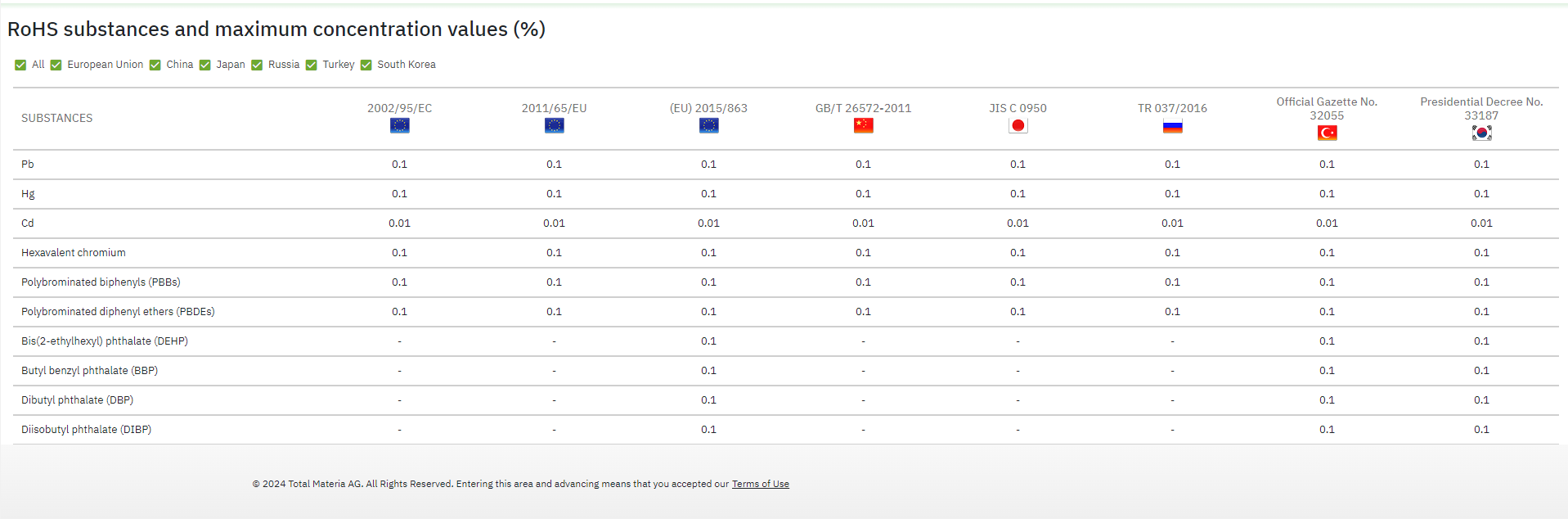
Visualization of the results can be done either in “Table” or “Vertical” view, by using a slider button, depending on the need of result analysis.

1. **Table View**: This is the default view. It shows a list of materials with their cumulative compliance statuses for all selected regulations. You can sort the materials by clicking the regulation header.

<figure><img src="/files/Hh1XlNp39eXQyw4u3OXa" alt=""><figcaption></figcaption></figure>

2. **Vertical View**: Ideal for more detailed analysis. Materials are displayed vertically, with additional visible chemical composition for each material. This view allows you to filter statuses by individual regulations and see the status of each composition component for deeper regulatory analysis.

<figure><img src="/files/NqujxjjdPHQ9VPlPaAe6" alt=""><figcaption></figcaption></figure>

<figure><img src="/files/MFT8EOanl6ZwT8W1BHca" alt=""><figcaption></figcaption></figure>

{% hint style="info" %}
Hint: If the list of materials in Compliance Assessor is large, and user wants to see specific materials in vertical view (in order to skip clicking on right and left arrow buttons a dozen times in vertical view), user should pin these materials in table view (up to 4 materials) and switch to vertical view. Pinned materials will be displayed on the vertical view screen.
{% endhint %}

<figure><img src="/files/CuyOhJOTpKBnViXNsRaC" alt=""><figcaption></figcaption></figure>

<figure><img src="/files/4ofiRooRm0vMGu98UelV" alt=""><figcaption></figcaption></figure>

#### Change chemical condition/reference

Some materials may have multiple conditions or references, sourced from various **Safety Data Sheets (SDSs)** or standards. As a result, the compliance status may vary for the same regulation based on different chemical compositions or compliance statements. You can modify the condition or reference by selecting the button next to the material in the **Condition** column, enabling a more accurate assessment of compliance.

For example: REACH (EC) No 1907/2006, Article 59 for a specific list of materials may lead to findings of non-compliant or unassessed materials. There is an option to modify the condition or reference by selecting the button next to the material in the condition column.

<figure><img src="/files/vcUDRs2ZkimSwGy2KVu0" alt=""><figcaption></figcaption></figure>

This action opens a window displaying choices of available conditions/references along with their respective chemical compositions.

<div><figure><img src="/files/buAUt6j80u89FFQxVP2D" alt=""><figcaption></figcaption></figure> <figure><img src="/files/9w6gJ4IUTBpkriReL54e" alt=""><figcaption></figcaption></figure></div>

Once you save a changed condition or reference, the compliance status of the material will automatically update in the **Compliance Assessor** list. This ensures that the most accurate and up-to-date information is reflected in the assessment, based on the newly selected condition or reference. This real-time update allows for efficient reassessment of materials against the relevant regulations, making it easier to track compliance across multiple materials and regulations.

<figure><img src="/files/T98OTevYjbQgei9MVC0J" alt=""><figcaption></figcaption></figure>

#### Exclude undefined chemical criteria

Some metallic materials contain unspecified residual elements in their chemical composition, designated as ‘Others,’ ‘Others (each),’ and ‘Others (total), which are not individually specified but are collectively grouped and limited within defined values. Since suppliers are typically aware of the identities of these residual elements, there is an option to exclude them from the material assessment in the Compliance Assessor tool by selecting the ‘Exclude undefined chemical criteria’ checkbox next to the regulation drop-down list. This is important because the tool is not designed to assess substances with unspecified chemical identities, which can result in an incomplete or unassessed cumulative status of the material. Enabling this option provides greater flexibility in the assessment process.

<div><figure><img src="/files/qGIOg61qoyBcftzfetiD" alt=""><figcaption></figcaption></figure> <figure><img src="/files/AIgsLtXkRKqsAjhqKvEh" alt=""><figcaption></figcaption></figure></div>

### Save, Load and Export Compliance Assessments

#### Save Compliance Assessments

All compliance assessments performed in the **Compliance Assessor** can be saved for future reference. Upon selecting the **Save** button, you have the option to name the assessment and provide a description. This helps in organizing and managing multiple saved assessments. If no title is provided, a generic title with the save date will be automatically assigned.

<figure><img src="/files/jADmSVXlrtl4aH2n5aAo" alt="" width="563"><figcaption></figcaption></figure>

The saved Compliance Assessment can be found in Material Console -> My Console -> Saved CAs.

<figure><img src="/files/dXnG4tz2N8zftyT2cIa2" alt=""><figcaption></figcaption></figure>

**Loading of saved Compliance Assessments**

All saved assessments are stored under **Material Console -> My Console -> Saved CAs**. When you load a saved compliance assessment, if any material's status has changed since the assessment was saved, information icons will appear next to the material designation and regulation statuses for that material. This ensures that you are aware of any changes that may affect the compliance results.

<figure><img src="/files/eU4RaMjoxvS887e4V8Lr" alt=""><figcaption></figcaption></figure>

Users have to click on the **Assess** button to obtain the new statuses.

#### Export Compliance Assessments

All compliance assessments conducted in the **Compliance Assessor** tool can be easily exported as **Excel files**. Before exporting, you have the option to include additional details, such as the **chemical composition** of the materials, for a more comprehensive report. This export functionality allows for efficient sharing and further analysis of the assessment results, ensuring flexibility in managing compliance data across various platforms.

<figure><img src="/files/ul7NENRLAXXY3PkxRhe4" alt="" width="373"><figcaption></figcaption></figure>

{% hint style="info" %}
**Chemical composition** data can be included only when exporting lists with up to 100 materials. For lists containing between 101 and 1,000 materials, the Excel export will exclude chemical composition—however, the full compliance assessment remains available in both cases.
{% endhint %}


# Find a compliant alternative

## **Finding Compliant Alternatives**

If the chosen material is not compliant or has not been assessed for a specific regulation, you can use "Find equivalent materials" feature to find a compliant alternative. Options for the replacement are based on various equivalency levels and properties and the users can refine their search by country-specific standards or regulations ensuring materials meet required criteria.

To discover compliant alternative materials, utilize the "Find Equivalent Materials" button in the Compliant Assessor module. A window will open with options to explore better alternatives in two key ways:
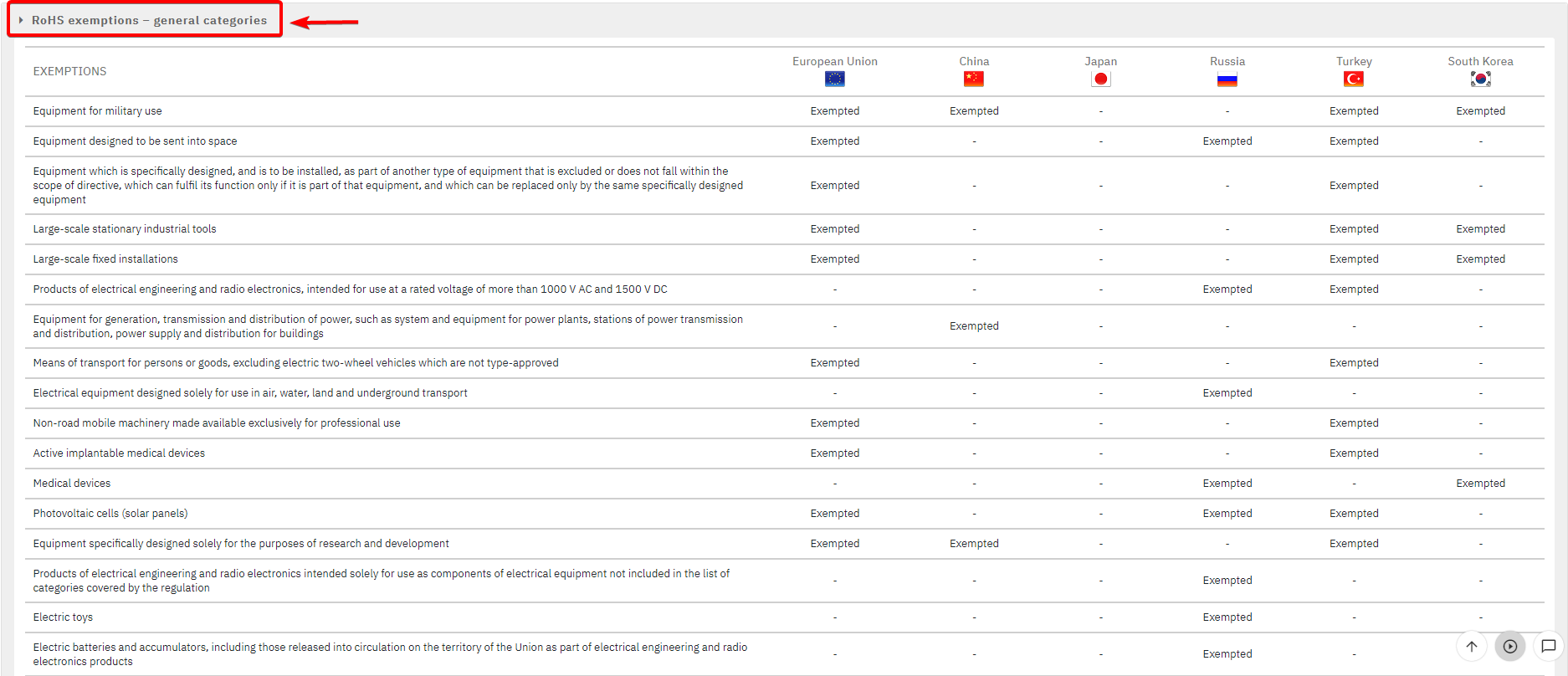
1. **Cross Reference Table:** Identify equivalent materials using Horizon's Cross Reference tables, which provide a curated list of equivalencies recommended by Standard Development Organizations and other reputable sources.
2. **Equivalence Finder:** Search for equivalent materials by adjusting key criteria settings across various properties for a personalized match.

<figure><img src="/files/6NZnHTzVbMYuvWXSzg9Y" alt=""><figcaption></figcaption></figure>

### 1. Cross Reference

Using the **Compliance Assessor** tool, you can find an alternative compliant material through **Cross Reference**. This feature is available in both the **table view** and **vertical view**, where you can select the icon next to the material for which a compliant alternative is needed and then in the pop-up window choose **Cross-Reference Table**.

<figure><img src="/files/2u88Fgtctb9BysVYaJiu" alt=""><figcaption></figcaption></figure>

<figure><img src="/files/7SI9BkzcixVO3Chh8KYs" alt=""><figcaption></figcaption></figure>

In the **Cross Reference** window, several indicators can be used to help find a suitable replacement:

* **Equivalency Category**: You can select the replacement material based on various equivalency levels such as **Identical**, **Official**, **Composition 100%**, **Implicit**, or **SmartCross**. You can also choose to search across **All Categories** to find a material with the closest match to the original (see Cross Referencing for more details).
* **Country/Standard Drop-Down List**: This list allows you to narrow down the search for replacement material by selecting standards from specific countries, helping you find regionally relevant alternatives.
* **Compliant by Regulation**: You can further refine the search by selecting the material's compliant status according to the regulations chosen in the **Compliance Assessor**. By selecting one or more regulations, the list will automatically filter materials that comply with all selected regulations, using the **"AND"** operator to ensure the materials meet multiple regulatory standards.

<figure><img src="/files/U7gbWRX3BnHqm9KV2nYG" alt=""><figcaption></figcaption></figure>

{% hint style="info" %}
If none of the regulations are selected the generated material list will consist of eligible materials that contain these regulations but their status won’t necessarily be complaint.
{% endhint %}

Selecting the chosen material as a replacement is done by clicking the “**Replace material**” button on the right side of the generated material list.

<figure><img src="/files/slLOxI6MEAc3PUiwtKtY" alt=""><figcaption></figcaption></figure>

Once a replaced material is selected in the Compliance Assessor, it will be included in the list but without any compliance statuses initially assigned. This means the material will need to be assessed against the selected regulations, just like any other material. The Compliance Assessor will then evaluate the material based on the relevant compliance criteria, and you can view the results after the assessment is complete.

<figure><img src="/files/SlVaDMbPrl0On86PAyPZ" alt=""><figcaption></figcaption></figure>

Once the assessment confirms the compliant statuses of the alternative material found through **Cross Reference**, the material is considered a viable replacement for the non-compliant one.

<figure><img src="/files/t16YPxUPo6ucD9yCQP66" alt=""><figcaption></figcaption></figure>

{% hint style="info" %}
During the materials selection process within the **Cross reference** pop-up window, users may be presented with a large list of alternatives. To refine the selection, additional analysis can be performed by evaluating key property values. Users can select properties to analyze by clicking the icon located in the header of the table on the left side (see screenshot). This feature allows for better decision-making by comparing the synthetic values of specific properties. Additionally, users can add multiple materials to the **Compliance Assessor** or Material List Builder and finalize their decision later, ensuring flexibility in the material selection process.&#x20;
{% endhint %}

<figure><img src="/files/Ywd03HlTiOQm0fn9x2ci" alt=""><figcaption></figcaption></figure>

Before adding or replacing a material in cross-referencing, users can compare potential alternatives based on chemical composition, mechanical properties, and physical properties of the target material. This comparison helps in selecting the most suitable alternative with greater accuracy.

<figure><img src="/files/i88IfK2ASrCTINepqQ8Z" alt=""><figcaption></figcaption></figure>

The comparison in the Cross Reference can be added to the Report Builder or downloaded as a PDF file, allowing for easier review and analysis of the results.

<figure><img src="/files/ng6eaaOFPFpsBM84QLOd" alt=""><figcaption></figcaption></figure>

### 2. Equivalent Finder

1. **Accessing the Equivalents Finder Tool**: Click the "Find Equivalent Materials" icon next to the material whose compliant alternative you wish to find. A window will appear providing the options for the alternative paths including the Equivalents Finder. Clicking the Equivalents Finder button, allows access to the customization options for the search that will help generate a tailored list of equivalent materials.
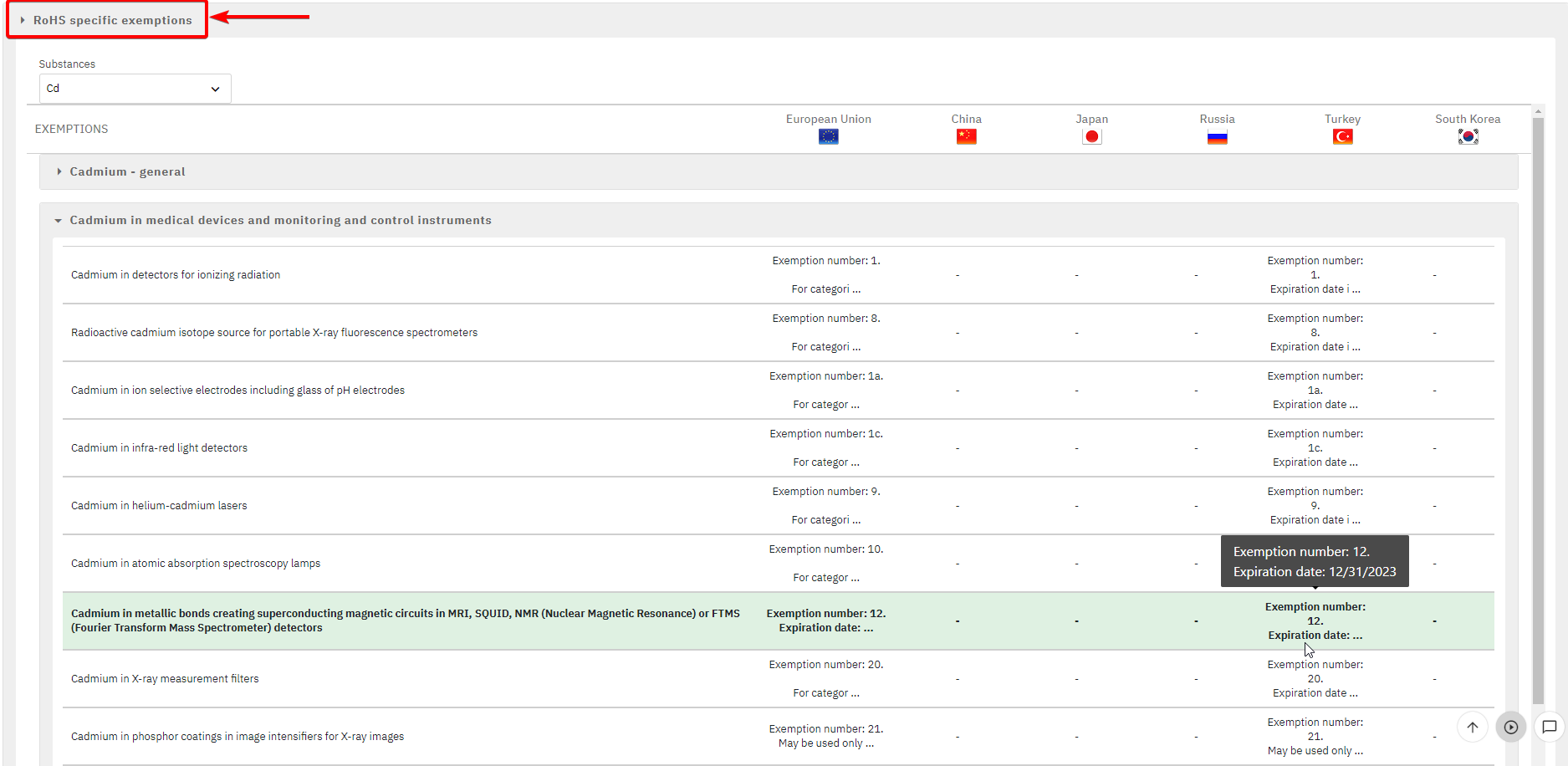
<figure><img src="/files/Xe2wh498T3yAAj8x1gWg" alt=""><figcaption></figcaption></figure>

2. **Select Equivalency Criteria**: Choose an alternative material based on properties (Mechanical Properties, Physical Properties, as well as, Chemical Composition). The search can be refined by selecting multiple properties, depending on the level of equivalency you need for the replacement material. This ensures the alternative has similar properties to the original material.

<figure><img src="/files/zJOtJHHp4gg4tr7A7d08" alt=""><figcaption></figcaption></figure>

3. **Country/Standard Drop-Down**: Use this dropdown list to filter equivalent materials by specific country standards, making it easier to find a suitable replacement that complies with your local regulations.

<figure><img src="/files/EcsI23dFNKBtN69S9vcm" alt=""><figcaption></figcaption></figure>

4. **Generate Alternative Materials List:** The material list generated from the selected property parameters includes materials according to the regulations selected in Compliance Assessor. To further refine the search, Complaint by regulation should be used, as shown in the following text.

{% hint style="info" %}
If none of the regulations are selected the generated material list will consist of eligible materials that contain these regulations but their status won’t necessarily be complaint.
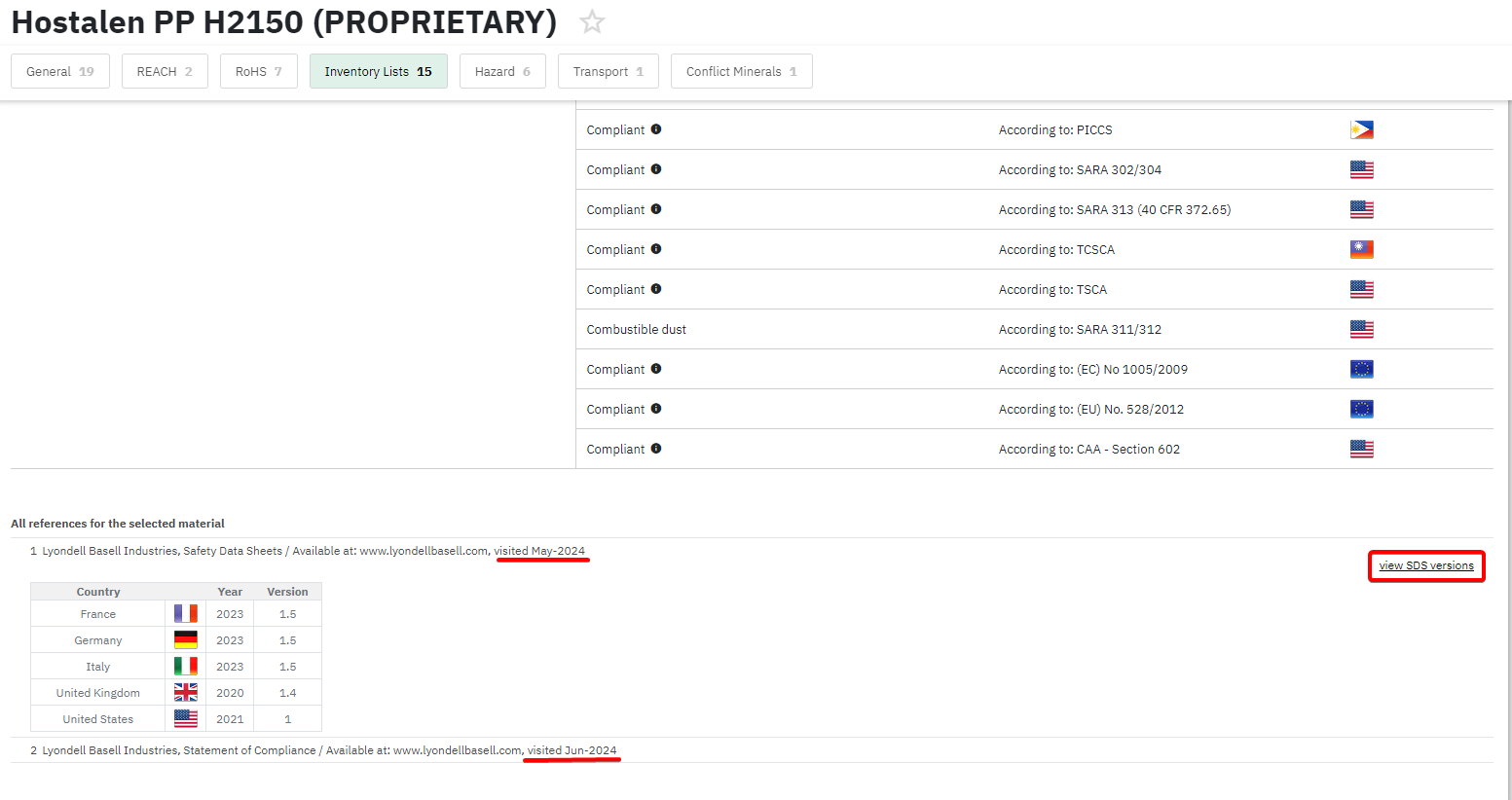
{% endhint %}

<figure><img src="/files/MKgc74TpVuW9baA711PY" alt=""><figcaption></figcaption></figure>

5. **Compliant by Regulation**: Generated material list can be further refined by selecting the material's compliant status according to the regulations chosen in the **Compliance Assessor**. By selecting one or more regulations, the list will automatically filter materials that comply with all selected regulations, using the **"AND"** operator to ensure the materials meet multiple regulatory standards.&#x20;

Selecting the chosen material as a replacement is done by clicking the “**Replace material**” button on the right side of the generated material list.

<figure><img src="/files/e1wuCJV1YQfcBuZfEmwG" alt=""><figcaption></figcaption></figure>

Materials generated from Equivalents finder, can be used as a replacing material or compared with the original, as well as added to the existing Compliance Assessor list or Material List Builder.

<figure><img src="/files/LixPl2O6LaIXrbSxywhN" alt=""><figcaption></figcaption></figure>


# Exemptions

In the **Compliance Assessor**, exemptions are available under **RoHS, ELVs, and REACH Annex XVII** to account for cases where substances or materials cannot currently meet regulatory requirements due to technical limitations, lack of alternatives, or defined legal exceptions. These exemptions allow users to continue using materials in specific or justified applications while maintaining compliance with the applicable environmental and chemical safety regulations.

### **ELVs and RoHS**&#x20;

**ELVs** and **RoHS** regulations include specific exemptions for cases where alternatives are not yet technically feasible. These exemptions help balance environmental goals with the practical considerations of technological limitations, safety requirements, and economic impacts.

In the **Compliance Assessor**, exemptions can be applied to materials that are otherwise non-compliant with ELVs or RoHS regulations, particularly when they serve a special use. Users can access a list of general and specific exemptions by selecting the **"exemption"** button next to a material's non-compliant or unassessed status.

<figure><img src="/files/0dePRdwIQMYWNu8IeqrH" alt=""><figcaption></figcaption></figure>

Exemption window shows the substance that might be exempted and gives the option to specify the exemption whether the material is for general or specific use.

<figure><img src="/files/UPvSJfEs66mMdu6szpU4" alt=""><figcaption></figcaption></figure>

**General exemptions** apply broadly across various products with specific functions (e.g. military equipment); and **specific exemptions** target specific components or applications with their expiration dates (e.g. lead in glass -> 5(a) - Lead in glass of cathode ray tubes).&#x20;

<figure><img src="/files/77TSNIKKGBXJdGUUOogU" alt=""><figcaption></figcaption></figure>

Once a suitable exemption is chosen, click the right arrow to review it.

<figure><img src="/files/acELpQxpb6M9qzvb913D" alt=""><figcaption></figcaption></figure>

After verifying, click the **"apply"** to add the exemption, along with its corresponding icon, to the material's compliance status in the **Compliance Assessor** list. This process ensures that materials with special uses can be accounted for under the appropriate regulatory framework.

<figure><img src="/files/tak5ccp2btX3iDa3Otkz" alt=""><figcaption></figcaption></figure>

<figure><img src="/files/2ADUKv6bgfbYDVAvgWhY" alt=""><figcaption></figcaption></figure>

Note that unknown chemical identities within a material’s composition prevent the selection of specific exemptions for the relevant substances. By enabling the ‘Exclude undefined chemical criteria’ option, the assessment can proceed without these unspecified components, allowing appropriate exemptions to be applied in accordance with the identified elements.

<figure><img src="/files/eKhfWEd81c13pAiUC0YC" alt=""><figcaption></figcaption></figure>

<figure><img src="/files/Teoh7fvldUFop0mXLjBr" alt=""><figcaption></figcaption></figure>

### REACH (EC) No 1907/2006, Annex XVII

The **REACH Annex XVII Regulation** includes **Conditions of Restriction** that, instead of imposing a complete ban on listed substances in every case, limit their manufacture, placing on the market, or use as targeted risk management measures to ensure identified risks are adequately controlled. This approach also considers the availability of suitable alternatives and the socio-economic impacts of the restriction, allowing essential uses to continue where appropriate.

In the **Compliance Assessor**, Conditions of restriction in the form of "exemptions" can be applied to materials that are otherwise non-compliant with **REACH Annex XVII** regulation, particularly when they don't serve a special use. Users can access a list of exemptions by selecting the **"exemption"** button next to a material's non-compliant status.

<figure><img src="/files/vtMKNxwTf2YPairQNAFl" alt=""><figcaption></figcaption></figure>

Exemption window shows the Entries that are applicable to the corresponding material and gives the option to specify the exemption whether the material is intended for the specific use.

<figure><img src="/files/JwH2P590dtdCZjjREGW6" alt=""><figcaption></figcaption></figure>

By proceeding to the next step, each applicable **Condition of Restriction** and its full description will be displayed, enabling the user to determine whether the conditions apply to their use of the substance or material. After carefully reviewing each condition, the user can select a checkbox to confirm that they have read the information and that their application does not fall within the specified restriction conditions.

<figure><img src="/files/ALTqZy8AFtokaZt4H7Ea" alt=""><figcaption></figcaption></figure>

After all exemptions have been reviewed and selected, the final step is to review the chosen options and apply the exemptions by clicking the “Apply exemptions” button.

<figure><img src="/files/IdsSSv4xXuXMI2am24jM" alt=""><figcaption></figcaption></figure>

The status of the exempted material will be updated in accordance with the applicable Entry descriptions and displayed in the tooltip of the updated exempted icon.

<figure><img src="/files/RJsfVPvABaWsyBLdaUVv" alt=""><figcaption></figcaption></figure>

Note that unknown chemical identities within a material’s composition prevent the overall "Exempted" status for the relevant material.&#x20;

<figure><img src="/files/6lkYzgvXvIan6nP0rCyM" alt=""><figcaption></figcaption></figure>

By enabling the ‘Exclude undefined chemical criteria’ option, the assessment can proceed without these unspecified components, allowing appropriate exemption status to be applied in accordance with the identified elements on the material level.

<figure><img src="/files/xB8dptei82qfMrwfaEEO" alt=""><figcaption></figcaption></figure>


# BOM

The **BOM (Bill of Materials)** module is designed to ensure that all components and materials in a product meet the necessary regulatory requirements while aligning with the growing demand for sustainable and eco-friendly solutions. This tool helps manufacturers manage compliance efficiently and supports environmentally responsible practices throughout the product lifecycle.

**Key Features**: &#x20;

* **Regulatory Compliance**:\
  The BOM module automatically checks each item in your BOM against global regulatory databases, ensuring compliance with standards such as **RoHS**, **REACH**, and other relevant regulations. This reduces the risk of non-compliance, preventing legal issues, penalties, or recalls.
* **Sustainability Insights**:\
  The module provides carbon footprint data for each material, covering aspects like manufacturing, processing, and transportation. By offering cross-referenced eco-friendly alternatives, it helps you reduce environmental impact without sacrificing quality or cost efficiency.
* **Up-to-Date**:\
  The module ensures that your BOM remains compliant with the latest regulatory updates and sustainability trends. Regular updates help you stay ahead of regulatory changes, ensuring ongoing compliance and eco-responsibility.
* **Comprehensive Reporting**:\
  Generate detailed reports on both compliance status and sustainability metrics. These reports are clear and easy to understand, allowing you to showcase your commitment to regulatory standards and environmental responsibility to stakeholders and customers.


# Load a Bill of Materials

The starting page is divided into three sections for easy access to recently saved BOMs and Compliance statements (showing the last five with a link to "View all").

<figure><img src="/files/wZtlzEUJBdDFGarUehbM" alt=""><figcaption></figcaption></figure>

Loading a BOM brings you to the BOM main page, where all saved details such as the BOM tree, validation messages, and assessment statuses are displayed. Selecting the "View all" link navigates to the Saved BOMs section in My Console.

In the third section of the BOM starting page, the last five Compliance Statements are listed with options to edit or delete.&#x20;

<figure><img src="/files/3BhLhvh0OZFEf8RAFf0L" alt=""><figcaption></figcaption></figure>

If a statement is in use within a saved BOM, it cannot be deleted (indicated by a greyed-out delete icon).

<figure><img src="/files/5lqL0qFGqgw2oauuFcQq" alt=""><figcaption></figcaption></figure>

Compliance statements are shared among users within the same company, meaning if one user saves a statement, all Green Line users from the same company can see it. However, no one can delete a statement while it is in use. Users can also add a new compliance statement through a link to “View all” Compliance Statements.

Users have the option to download a template file for BOM creation, but the system is flexible, allowing for the import of custom BOM files in any language and column order. While the template provides a suggested structure, only four columns are mandatory:

* **Level**
* **Part Number**
* **Part Name**
* **Material**

All other columns are optional, allowing flexibility. During import, users must map the Excel columns to the Total Materia BOM fields.

<figure><img src="/files/pheVbZOQcMQsT4yGbhYL" alt=""><figcaption></figcaption></figure>

If no standard is specified for the materials in the imported file, users can choose a default standard on the starting page, which will apply automatically to materials without an assigned standard.

<figure><img src="/files/vXLYpYrXNAhjarBb5T62" alt=""><figcaption></figcaption></figure>

For custom materials with unique compositions, ensure the Excel file is formatted properly, with substances listed one level lower than the material. Each substance should have its CAS number, concentration, and unit provided.

<figure><img src="/files/h0AfILeTHrBCHpL3eI5G" alt=""><figcaption></figcaption></figure>

After the file import, the users will land on the BOM main page with the default Compliance mode. If they are interested in sustainability, they have to select Carbon Footprint from the drop-down.

<figure><img src="/files/mIUbSRJW1gUNP7nVqfx1" alt=""><figcaption></figcaption></figure>


# Evaluate the compliance

The BOM tree on the left side provides all necessary information for easy navigation, including Part Name, Part Number, Material Designation, and Standard. Above the tree, there are three dropdowns that display validation messages with filters for:

1. **Information**: Highlights missing or inconsistent data that won't affect the assessment or calculations.
2. **Actions and Warnings**: Identifies potential issues that may need attention but don't prevent further actions.
3. **Errors**: Critical issues that must be resolved before continuing, as they prevent compliance with requirements.

Users can filter the BOM tree using these validation messages, allowing you to correct any issues before proceeding with the compliance assessment.

<figure><img src="/files/2heKu5Hw2ZNV0YwShVmd" alt=""><figcaption></figcaption></figure>

Part and Material details for the selected BOM item are displayed on the right side. The Part tab includes:

* **Part Number** - A unique identifier assigned to each component or material in the BOM, used for tracking and inventory management.
* **Part Name** - The descriptive name of the part or component, providing an easy reference for identifying what the part is.        &#x20;
* **Part Version** - Indicates the revision or version of the part, reflecting any updates or changes made to the original design.
* **Reference Designators** - Identifiers used in schematics or layouts to indicate where each part is used within an assembly or circuit.    &#x20;
* **Quantity** - The number of units of a specific part required for the assembly or product.      &#x20;
* **Item Weight** - Refers to the weight of a single unit of a part or component listed in the BOM. This measurement is crucial for carbon footprint calculations.        &#x20;
* **Description** - A detailed explanation of the part, including its specifications, materials, and any other relevant information.        &#x20;
* **Notes/Comments** - Additional notes or remarks about the part, which may include special instructions, considerations, or exceptions.

<figure><img src="/files/Lg58YnwbHJv7M196Tqqg" alt=""><figcaption></figcaption></figure>

Material tab includes:

* **Designation** - the specific name or code assigned to the material, often used for quick identification.        &#x20;
* **Standard** - the industry standard that the material adheres to, ensuring it meets specific quality and performance criteria.        &#x20;
* **Material type** – identifies the origin of the material data:
  * From Horizon: Data is sourced from Total Materia
  * Custom: Data is provided by the user
* **Material Group** - a taxonomy-based classification that organizes materials into broader categories such as metals, polymers, ceramics, etc. These groups can be further divided, for example, metals into ferrous (iron-based) and non-ferrous (e.g., aluminum, nickel) subcategories.
* **Producer** - the manufacturer or supplier of the material, indicating the source or origin of the material used in the product.
* **Chemical condition** – contains the standard number (unique identifier or code associated with the material standard, referencing the exact document or specification it follows) and its description, along with chemical composition table (specific elements/substances with CAS numbers and their respective percentages or concentrations that make up the material)
* **Original material** – displays details of the imported material if replaced due to non-compliance or environmental impact.

On the right side of the Material tab, you'll find buttons to [replace material](/green-line/bom/evaluate-the-compliance#replace-material), [change chemical condition](#change-chemical-condition), [find equivalent materials](#find-equivalent-materials), [edit material](#edit-material), and remove material.

<figure><img src="/files/tkpYXCo9py1yxqEq7skU" alt=""><figcaption></figcaption></figure>

### **Selection of regulations and assessment**

At the top of the page, above the Part and Material tabs, is a button for adding regulations for assessment.

<figure><img src="/files/GFwSbsDmnyJLzOrk6ucB" alt=""><figcaption></figcaption></figure>

In the Compliance Assessor Module, users can select up to **five regulations** by either using the drop-down list or typing into the search box to see suggestions. Regulations are sorted by country and can be added by checking the corresponding boxes.

Once regulations are selected, clicking the **"Assess"** button initiates the generation of compliance statuses for the selected regulations. Each regulation has a progress bar that shows the percentage of BOM items assessed.&#x20;

Additionally, the **issue date** of the regulation is provided, informing users of which version of the regulation was used, since updates in Total Materia's Green Line system take about one to two months.

<figure><img src="/files/kkcQf4f4mOopMcUkussu" alt=""><figcaption></figcaption></figure>

The compliance statuses for each BOM item are displayed in the **BOM tree**. Clicking on a regulation displays the corresponding statuses for that regulation within the tree (the first regulation is selected by default). Changing the regulation will update the displayed statuses accordingly.&#x20;

In the Materials tab, the statuses of substances are shown in an additional column in the composition table.

Please note that any changes made to a material will reset its compliance statuses, requiring a reassessment by clicking the "Assess" button again to generate updated statuses.

<figure><img src="/files/b0MTfZfJj2IBX1c7CmZM" alt=""><figcaption></figcaption></figure>

Above the BOM tree, validation messages are displayed in three dropdowns: Information, Actions and Warnings, and Errors. By moving the slider to Compliance statuses, six filtering buttons appear, allowing the user to filter the BOM tree by specific statuses such as **Compliant**, **Not compliant**, **Not assessed**, **Declarable**, **Exempted**, and **Compliance statement**. This feature is especially useful for users managing large BOMs, enabling them to focus on critical items, such as those marked **Not compliant**.

<figure><img src="/files/GfrQzEUkIGvW0L8qxOx5" alt=""><figcaption></figcaption></figure>

Once filtered, the user can take further action on these items, including replacing materials, changing chemical conditions, cross-referencing, selecting exemptions, or editing materials.

### **Replace material**

This option is useful when a material is not recognized (e.g. if a generic designation like "steel" is used). Clicking the Replace Material button allows the user to specify search parameters to find a compliant alternative. For instance, users can refine their search by filtering for materials compliant with REACH SVHC and RoHS regulations. Selected regulations will narrow the search results, and only materials that meet all selected regulations will appear (the operator between regulations is AND).

<figure><img src="/files/XQMVCU0Gl1VijA8RRryQ" alt=""><figcaption></figcaption></figure>

### **Change chemical condition**

For materials with multiple references, the first reference is selected by default. Users can click the "**Change Chemical Condition**" button to view a window displaying different references and their chemical compositions. Since different references may yield different compliance statuses for the same regulation, users can compare the compliance statuses for each reference. If the material has only one reference, this button will be disabled.

<figure><img src="/files/JnmiV9dhXv4Za4gnYya2" alt=""><figcaption></figcaption></figure>

### **Find equivalent materials**

The "**Find equivalent materials**" button is visible in the Materials tab when cross-references or equivalent finder materials are available for materials that are Not compliant, Not assessed, or Declarable. It is not available for all materials, but an icon will appear in the BOM tree, allowing users to quickly identify those that have cross-reference options.

<figure><img src="/files/0IiytSUXd94ehoBjHxhv" alt=""><figcaption></figcaption></figure>

Details about Cross References and Equivalents finder are explained in the Compliance Assessor section of this documentation. Click [here ](https://docs.totalmateria.com/green-line/bom/pages/M1VQmsCxmezvvpGXa71s#id-2.-cross-reference)to view them.&#x20;

### **Select an applicable exemption**

The "**Select an Applicable Exemption**" button is located above the Part and Material tabs (on the right side) and is available for materials with a status other than Compliant (e.g., Not Compliant, Not Assessed). By selecting this button, users can apply relevant exemptions to materials that may not meet specific regulatory requirements but have allowable exemptions under regulations like RoHS or ELVs.

<figure><img src="/files/rW7QXItqEv5yX3Ml6rRX" alt=""><figcaption></figcaption></figure>

For more details on how Exemptions work, please refer to the Compliance Assessor section [here ](/green-line/compliance-assessor/exemptions)to view them.

### **Select/Add a compliance certificate**

Compliance certificates, also known as compliance statements, serve as formal documentation from a producer that confirms a specific item, whether a material, part, or assembly, meets relevant regulatory requirements. This feature is especially useful when a BOM item is marked as Not Compliant or Not Assessed. A compliance certificate provided by the producer can validate the item's compliance, even if the system initially flags it as non-compliant.

The "**Select/Add a Compliance Certificate**" button is located above the Part and Material tabs (on the right side) and is available for materials with a status other than compliant (e.g., Not Compliant, Not Assessed, Declarable).

<figure><img src="/files/FzvXA2JgQRwhmgO0LoUS" alt=""><figcaption></figcaption></figure>

When clicked, you are presented with two options:

1. **Create a new compliance statement**.
2. **Select an existing compliance statement**.

<figure><img src="/files/gwWVGQHxBi2Ex6obXrQD" alt=""><figcaption></figcaption></figure>

After selecting or creating a compliance statement and saving it in the pop-up, the BOM tree status will automatically update, showing the compliance statement text in both the tooltip and a blue box above the part details.

**Note**: The compliance statement applies to the material as a whole, so the statuses of individual substances within the material will remain unchanged. This ensures that the compliance certificate is focused on the overall material's regulatory standing rather than on individual components.

<figure><img src="/files/EXngh3UVdEJhwLczTOFY" alt=""><figcaption></figcaption></figure>

### **Edit material**

In the BOM, users have extensive control over materials, allowing them to edit key attributes such as the material’s designation, standard, producer, and material group. These updates provide flexibility in defining material characteristics to better fit specific requirements. Additionally, users can modify the chemical condition and manage the material’s composition by adding, deleting, or editing substances within the material.

Once changes are made and saved, the material type will be marked as Custom, indicating it is no longer sourced from Total Materia's Horizon database but is instead user-defined. This feature is particularly valuable when standard materials do not fully meet the user’s needs, enabling them to create materials with precise specifications. However, it’s important to note that custom materials will require users to manually manage their compliance and properties to reflect the unique characteristics needed for the specific BOM.

<figure><img src="/files/2bjA0BgD7uBoZdhTaYb2" alt=""><figcaption></figcaption></figure>

### **Export**

Exporting a BOM along with its compliance assessment statuses generates a detailed report that includes all relevant information such as **part numbers**, **material details**, and the **compliance statuses** for each selected regulation. The Excel export includes:

* **Compliance statuses** (Compliant, Not Compliant, Not Assessed, Exempted).
* **Chemical composition** of materials, listing substances and their respective compliance statuses.
* Any user-defined customizations, such as material modifications and added compliance certificates.

This report provides a thorough overview of the BOM’s regulatory standing, making it easy to share or analyze across teams.

<figure><img src="/files/p7vYtArasixAD2bxzLLX" alt=""><figcaption></figcaption></figure>

### **Save and Load**

When saving a BOM, all associated data—including part numbers, material details, compliance statuses, and chemical compositions—is securely stored in the system. Users can save their BOM at any point, whether immediately after an import or after significant updates. This ensures that the entire structure, including compliance assessments, validation messages, and custom material edits, is preserved for future access.

The system allows users to quickly load previously saved BOMs, especially after regulatory updates, enabling them to reassess materials against the latest regulations. This feature helps users remain compliant by identifying any non-compliance issues that might arise due to regulatory changes.

For convenience, the last five recently saved BOMs are accessible on the BOM starting page. The complete list of saved BOMs can be accessed by navigating to **Material Console -> My Console -> Saved BOMs**, where all previously saved data is organized for easy retrieval. This functionality ensures ongoing regulatory monitoring and allows for easy updates, making compliance management more efficient.

<figure><img src="/files/eaeCVDuuwkRW9uX2JFhw" alt=""><figcaption></figcaption></figure>


# Evaluate the carbon footprint

*The carbon footprint feature in the BOM provides valuable insights into the environmental impact of materials and components throughout the product lifecycle. By calculating the carbon emissions associated with each item in the BOM, users can assess the overall environmental impact of their products. This functionality helps companies identify high-emission materials, make informed decisions about material sourcing, and take proactive steps to reduce their carbon footprint. Integrating carbon footprint data directly into the BOM allows for more sustainable product development, aligning with environmental regulations and corporate sustainability goals.*

After importing a file, users will be directed to the BOM main page, where the default mode is set to Compliance. To access the Carbon Footprint functionality for sustainability analysis, users simply need to select "Carbon Footprint" from the mode drop-down menu. This will switch the interface, allowing users to view and manage the carbon emissions data associated with their BOM components.

<figure><img src="/files/Tu6DJT2XpNNkbN7OfEZl" alt=""><figcaption></figcaption></figure>

In the Carbon Footprint mode, the **BOM tree** and the **Part** and **Material** tabs remain unchanged from the [Compliance mode](/green-line/bom/evaluate-the-compliance), allowing users to navigate and interact with the BOM structure in a familiar way.

{% hint style="info" %}
The validation messages retain the same dropdowns—**Information**, **Warning**, and **Errors**—but the content of the messages differs, as they are specific to the Carbon Footprint mode. These mode-specific messages are primarily related to the calculation of the carbon footprint for materials and parts in the BOM. They provide insights into any issues or inconsistencies that may affect the accuracy of the carbon footprint assessment, ensuring users can identify and resolve calculation-related problems while maintaining a consistent interface experience focused on sustainability concerns.
{% endhint %}

<figure><img src="/files/d7XWIQlvHSH4oCwasTDz" alt=""><figcaption></figcaption></figure>

In addition to the **Part** and **Materials** tabs, three additional tabs are available in the Carbon Footprint mode: **Manufacturing**, **Processing**, and **Transport**. These tabs provide detailed insights into various stages of the product lifecycle that contribute to the overall carbon footprint.&#x20;

* **Manufacturing**: In this step, users can select the country or region where the material is manufactured, as well as the specific manufacturing route. Depending on the chosen route, additional parameters such as the percentage of scrap content can be factored into the calculation. This ensures that users can reflect more precise environmental data based on the location and method of production, influencing the material's overall carbon footprint.&#x20;

{% hint style="info" %}
If none of the parameters are selected then the global average data for the manufacturing will be used.
{% endhint %}

<figure><img src="/files/73fsxtoJC6Q6zHGkLz1H" alt=""><figcaption></figcaption></figure>

* **Processing**: This tab allows for the selection of a processing method, along with the country or region where the material is processed. Depending on the selected method, users can also input specific data to refine the calculation, such as the amount of material removed during processing (e.g., kilograms of removed material per kilogram of material processed). By customizing these inputs, users can obtain a more granular view of the processing phase's impact on the carbon footprint. Each dataset includes a description and reference, providing detailed explanations of the selected process and the source of each dataset.

<figure><img src="/files/MqvlRvhJKIgABkLi0dEs" alt=""><figcaption></figcaption></figure>

* **Transport**: In this section, users can choose the mode of transportation for the material (e.g., aircraft, train, sea) and specify the distance in kilometers. Multiple transportation parameters can be added to reflect complex logistics chains, such as materials being moved across different regions using various transport modes. Each transport entry contributes to the overall emissions generated during distribution. Similar to processing, each dataset includes a description and reference, offering detailed insights into the chosen transport route and the source of the dataset.

<figure><img src="/files/HOeJ24P9E8dwV3zFSYcb" alt=""><figcaption></figcaption></figure>

{% hint style="success" %}
Additionally, the system allows users to add multiple **Processing** and **Transport** entries, accommodating complex manufacturing scenarios where materials undergo various processing steps or are transported through multiple stages of transport. This comprehensive approach ensures a detailed and accurate assessment of the carbon footprint for each material.
{% endhint %}

These additional tabs help users gain a comprehensive understanding of the carbon footprint beyond just the materials, covering the lifecycle from production to transportation.

<figure><img src="/files/RqTdzrdMNWIg2jWUDXzq" alt=""><figcaption></figcaption></figure>

## **Finding Lower Carbon Footprint Alternatives**

Identifying materials and processes with a lower carbon footprint is essential for sustainable decision-making. All relevant details are already covered in the [Carbon Footprint module](/green-line/carbon-footprint/find-a-lower-carbon-alternative).&#x20;

## Calculation

When users click the **Calculate** button, the system calculates the carbon footprint for all parts in the BOM tree based on the parameters defined for each item (calculated values are displayed in the BOM tree).&#x20;

* For **Terminal parts** (materials), the carbon footprint is calculated using the parameters provided in the **Manufacturing**, **Processing**, and **Transport** tabs. This follows the same calculation method used in the [Carbon Footprint module](/green-line/carbon-footprint/carbon-footprint-calculation).
* For **Assemblies**, the carbon footprint is derived from the total carbon footprint values of the terminal parts within the assembly. The calculation takes into account the carbon footprint, quantity, and weight of each terminal part, combining these factors to calculate the assembly’s overall carbon footprint.

If a carbon footprint value cannot be calculated for a material (terminal part), the system assigns a value of **0** for that material and displays a warning sign with the tooltip **"Not calculated."** For assemblies that contain such materials, the system will still calculate the carbon footprint, but it will be a partial calculation. In these cases, a warning sign with the tooltip **"Partial calculation"** will be shown; the calculated value for the assembly is therefore incomplete and based only on the materials for which valid carbon footprint data is available.

This ensures users are informed of any incomplete data that could affect the accuracy of the overall carbon footprint assessment.

<figure><img src="/files/uxqWd6cPBKl2qhQeqYbB" alt=""><figcaption></figcaption></figure>

Carbon Footprint values are reset in several cases (any change that will affect calculated value):

* After any changes and saving of manufacturing, processing or transport parameters.
* After updating part weight, unit, or quantity.
* After modifying and saving the chemical composition of a material (either by changing the condition or directly the composition).
* After replacing or changing the material.

When switching between **Carbon Footprint** and **Compliance modes**, both carbon footprint values and compliance statuses need to be reset, depending on the type of modification:

* In **Carbon Footprint mode**, if the chemical composition or material is changed, a confirmation dialog will appear stating: **"With this change, Compliance Assessment will be affected and statuses will be removed. Do you want to proceed?"** Once confirmed, compliance statuses will be removed.
* In **Compliance mode**, if the chemical composition, material, part weight, unit, or quantity is changed, a confirmation dialog will display: **"With this change, Carbon Footprint will be affected and calculated values will be removed. Do you want to proceed?"** Upon confirmation, carbon footprint values will be removed.

This ensures users are informed of the impact their changes will have on both carbon footprint calculations and compliance assessments.

## Export

In Carbon Footprint mode, users have the option to export the Bill of Materials (BOM) to an Excel file, capturing all relevant information necessary for comprehensive carbon footprint analysis. The export includes detailed information about each part and material in the BOM, encompassing essential attributes such as part number, part name, quantity, weight, and descriptions.

Additionally, the export outlines the contributions from each stage of the product lifecycle, namely **Manufacturing**, **Processing**, and **Transport**. For the **Manufacturing** section, users will see selected parameters, including the country or region of manufacturing, the manufacturing route, and any associated scrap content percentages. This detailed breakdown allows users to understand the specific manufacturing practices influencing the carbon footprint.

In the **Processing** section, the export will display the chosen processing methods along with relevant details such as the country or region of processing and any additional input parameters, such as kilograms of material removed during processing. This ensures a clear view of how different processing techniques impact the overall emissions.

For the **Transport** parameters, the Excel export will include the selected modes of transportation, distances traveled, and any additional logistics information that contributes to the carbon footprint calculation.

Moreover, all contributions from manufacturing, processing, and transport are presented alongside the corresponding carbon footprint values, enabling users to analyze how each parameter influences the total environmental impact of their product. This robust export functionality not only facilitates sharing and collaboration but also provides users with a comprehensive tool for assessing and improving sustainability within their supply chain.

<figure><img src="/files/Dlb5YRRnF8C2Mz8qHNU7" alt=""><figcaption></figcaption></figure>

## Save/Load

In the Carbon Footprint mode of the BOM interface, users can take advantage of **Save** and **Load** functionalities that facilitate effective management of their BOM data and carbon footprint assessments.

When users click the **Save** button, the current state of the BOM is preserved, capturing all part details, material information, and carbon footprint parameters. This includes all selected **Manufacturing**, **Processing**, and **Transport** parameters, ensuring that users retain critical data related to their carbon footprint calculations.&#x20;

The last five recently saved BOMs are conveniently accessible from the BOM starting page, while a comprehensive list can be found in **My Console.** After loading the saved BOM, users can seamlessly restore all configurations, including the selected manufacturing, processing, and transport parameters. Once loaded, users have the flexibility to continue their selection or make changes as needed.

Moreover, users can recalculate the carbon footprint at any time to see the most up-to-date values, particularly important as the data is refreshed annually with the ecoinvent updates. This ensures that users have access to the latest information, enhancing the accuracy and relevance of their carbon footprint assessments. Save and Load functionalities enhance user experience, allowing for efficient project management and enabling users to refine their calculations with minimal effort.


# Life Cycle Assessment

The LCA module in Total Materia is based on the “Cradle to Gate” model, which evaluates the environmental impacts of a product from the extraction of raw materials (the cradle) to the point when the product leaves the manufacturing facility (the gate). This allows for a comprehensive assessment of the material's environmental footprint up to the production stage.

### Quick guide

*Step 1: What is being assessed?*

To create a list of materials for **Life Cycle Assessment (LCA)**, simply check the boxes next to the materials you want to evaluate and select "ADD TO GREEN LINE". From the drop-down list, choose "LCA" to begin the assessment process.

<figure><img src="/files/JHHxmQCwrDJdvTq4SgWu" alt=""><figcaption></figcaption></figure>

*Step 2: What are materials assessed by?*

In this step, you select the **indicators** used for LCA calculations. There are more than **40 indicators** available, categorized into two types:

* **Midpoint indicators**: Focus on specific environmental impacts (e.g., greenhouse gas emissions).
* **Endpoint indicators**: Measure broader environmental damages (e.g., damage to ecosystems or human health).

Users can choose from 5 different methods to perform the assessment, depending on their enterprise goals.&#x20;

For instance, Carbon Footprint, a central part of the evaluation, is located under the Climate Change category. Ensure you select the indicators that best align with how you want to evaluate your products.

<figure><img src="/files/HKwUt9yJN3uGq397IxoI" alt=""><figcaption></figcaption></figure>

*Step 3: Browse the results*

Once the assessment is completed, a list of materials will be generated along with new columns displaying values for the selected indicators. All data is normalized to a reference of 1 kg of material, allowing for easy comparison of environmental impacts based on the selected indicators.

<figure><img src="/files/fwTeWs7zyqYVOAvUSLy1" alt=""><figcaption></figcaption></figure>

Assessments can be saved in **My Console** and exported as an Excel file for further analysis or reporting.

<figure><img src="/files/ROXV3myWZcN8P2fbucyQ" alt="" width="282"><figcaption></figcaption></figure>

### Advanced options

#### 1. View settings

Clicking the “**View settings**” button allows users to filter the indicators they want displayed in the table and reorder them using drag-and-drop functionality. This provides flexibility in how the assessment data is viewed and prioritized.

<figure><img src="/files/WUvfq6AMiTdjEzCt0A7w" alt="" width="205"><figcaption></figcaption></figure>

<figure><img src="/files/cp74BNeCWsPmaSStL3cH" alt="" width="521"><figcaption></figcaption></figure>

#### 2. Ranking

Pressing the **“Rank”** button generates a total rank column, ordering materials based on their calculated indicator values from lowest to highest. Additionally, each material’s rank for specific indicators is shown within the respective indicator column, giving a detailed view of material performance.

<figure><img src="/files/F4TWgIVsVEsnj4cyTyZp" alt=""><figcaption></figcaption></figure>

#### 3. Report builder

Creating a PDF report can be done by selecting "Add to Report Builder".

<figure><img src="/files/PZUN3KzQeLz0svU44Xnc" alt="" width="188"><figcaption></figcaption></figure>

A selection of indicators can be chosen for the report, and their order can be adjusted using the up and down arrows. The report can be downloaded directly or modified, saved, shared, or downloaded later as a PDF.

<figure><img src="/files/1NsZd88VOmxpc7QepmGC" alt=""><figcaption></figcaption></figure>

#### 4. Pin material

Each material has a “**Pin**” button, allowing it to be used as a reference for benchmarking. When a material is pinned, the other materials are automatically color-coded based on whether their values are higher or lower than the reference material. The difference in value from the reference is also displayed as a percentage.

<figure><img src="/files/OO9oArvd6okXvueKQXxY" alt=""><figcaption></figcaption></figure>

#### 5. Change Condition/Reference

Changing the condition or reference of a material, which alters its composition, can result in changes to the calculated values and rankings of the material.

### Save, Load, and Export Life Cycle Assessments

#### Save Life Cycle Assessments

All assessments made within the LCA tool can be saved. Users can name the assessment and add a description for easier management. If no title is set, a generic title with the save date is automatically assigned.

<figure><img src="/files/qB4NSzOhhrgShhUwvHeb" alt="" width="563"><figcaption></figcaption></figure>

The saved Life Cycle Assessment can be found in **Material Console -> My Console -> Saved LCAs.**

<figure><img src="/files/K3AD9xfhzZhR18g0TEjb" alt=""><figcaption></figcaption></figure>

#### Loading of saved LCA assessments

Saved assessments are found in **Material Console -> My Console -> Saved LCAs**. If a saved LCA contains materials with updated values, warning icons will appear next to the material and affected values, indicating changes. Users can recalculate to obtain updated LCA values by clicking a designated button.

<figure><img src="/files/rFUaXVoduCpJIigQ6iro" alt=""><figcaption></figcaption></figure>

**Export Life Cycle Assessments**

All assessments conducted within the LCA tool can be exported as Excel files. Users have the option to include only visible columns and ranking data details before exporting, ensuring a customizable report.

<figure><img src="/files/gVAqYtbg9lSSrbBD5yvF" alt="" width="524"><figcaption></figcaption></figure>


# Carbon Footprint

The Carbon Footprint module in Green Line is based on the “Cradle to Gate” model, which assesses the carbon footprint of a product from the extraction of raw materials (the cradle) to the point when the product leaves the manufacturing facility (the gate). Additionally, this module includes the processing of the material post-gate and transportation, providing a more comprehensive view of the product’s environmental impact.

### Quick guide

*Step 1: What is being assessed?*

To create a list of materials for Carbon Footprint Calculation, select the desired materials by checking the boxes next to them, then choose **"ADD TO GREEN LINE"** and select **"Carbon Footprint"** from the drop-down menu.

<figure><img src="/files/t5ju5oML6KG4FibA0dQb" alt=""><figcaption></figcaption></figure>

*Step 2: Adding Calculation parameters*

Three types of parameters can be added for calculating CO₂ for each material. If no parameters are selected, the global average data for the manufacturing route will be used by default.

* **Manufacturing**: Choose the **country/region** of manufacturing and the **manufacturing route**. Depending on the route selected, you can also add the **percentage of scrap content** to the calculation.
* **Processing**: Select the **processing method** and the **country/region** of processing. Depending on the method, additional input can be provided (e.g., kg of removed material per kg of material processed).
* **Transport**: Choose the **transportation type** (e.g., aircraft, train, sea) and input the **distance** in kilometers for the transportation route.

{% hint style="info" %}
Multiple Processing and Transportation parameters can be added.
{% endhint %}

Transparency is ensured for all parameters included in the CO₂ calculation. For manufacturing, users can review the calculation methods by accessing an [article](/green-line/carbon-footprint/carbon-footprint-calculation) detailing these methods. Meanwhile, for processing and transportation parameters, each dataset includes a description and reference, providing detailed explanations of the selected process and the source of each dataset.

<figure><img src="/files/Pz86klZNFI5Uzyooi3Yi" alt=""><figcaption></figcaption></figure>

*Step 3: Browse the results*

Once calculated, results are displayed in kg of CO₂-eq per kg of material, with a breakdown showing the contribution from each parameter selected. If no parameters were set, the result is based on global average manufacturing data.

All Carbon Footprint calculations can be saved and exported as an Excel file, making it easy to share the data and track the environmental impact of various materials.

<figure><img src="/files/a6Tuc1Rq3B99Vd65xdSu" alt=""><figcaption></figcaption></figure>

### Advanced options

#### 1. Filtering

Users can quickly narrow down the materials list on the Carbon Footprint page by searching for a specific Material Designation. Additionally, filtering can be done by Material Group and Standard through drop-down menus. This functionality allows for easier management and selection of materials when performing carbon footprint assessments.

<figure><img src="/files/kdsfQOI7js6nFCQAOlTp" alt=""><figcaption></figcaption></figure>

#### 2. Impact visualization

A visual representation of the contributions from selected parameters in the carbon footprint calculation can be accessed by clicking the **chart button** next to the calculations.

<figure><img src="/files/Wqmd9g1Ev84LtFRcRKtp" alt=""><figcaption></figcaption></figure>

This generates a pie chart that vividly illustrates the distribution of the different parameters (such as manufacturing, processing, and transport) contributing to the overall carbon footprint.\
In addition to the chart, a tabular view is displayed below, showing each parameter’s carbon footprint calculation and its total contribution. The parameters in the chart are color-coded and clickable, providing a detailed breakdown of each segment's contribution to the total calculation.

<figure><img src="/files/skYSrxpCh3pxgn22AGIX" alt=""><figcaption></figcaption></figure>

It is possible to add a pie chart to the material report builder. Currently, the data types available for inclusion from the pie chart section are the chart itself and a table showing the contributions of each parameter. This feature allows the contribution chart and table to be saved, shared, and downloaded as a PDF directly through the report.

{% hint style="info" %}
Explore the interactive pie chart by clicking on each segment, or easily cross out parameters to customize your view and focus on what's most relevant to you.
{% endhint %}

#### 3. Duplicate Material

The Duplicate Material feature allows users to replicate a material to explore different scenarios by adjusting processes, transportation methods, and manufacturing routes.&#x20;

After clicking the **"Duplicate Material"** icon, the duplicated material will appear under the original, carrying the same parameters. Users can then individually edit the duplicated material to assess different environmental impacts and make comparisons.

<figure><img src="/files/YbtZJgv5EhzxtVZWPQkC" alt=""><figcaption></figcaption></figure>

#### 4. Change chemical condition/reference

Changing a material’s chemical condition or reference will alter its composition, which can lead to a difference in CO₂ calculations. This is because the carbon footprint calculations are heavily dependent on the material's composition, and any changes in the chemical condition will influence the final results.

<figure><img src="/files/rsKXPP1Ox8vjd6IqZwmH" alt=""><figcaption></figcaption></figure>

<figure><img src="/files/JuFjMUR4YsLhwQWMGcXo" alt=""><figcaption></figcaption></figure>

### Save, Load and Export Carbon Footprints

#### Save Carbon Footprints

All carbon footprint calculations performed within the Carbon Footprint tool can be saved for future reference. After clicking the Save button, users can provide a name and description for the assessment, helping to organize and manage saved data. If no name is set, a generic title with the save date will be automatically assigned.

<figure><img src="/files/COQLyWPBaB8nPrdf0mo1" alt="" width="563"><figcaption></figcaption></figure>

The saved Carbon Footprint can be accessed under **Material Console -> My Console -> Saved Carbon Footprints**.

<figure><img src="/files/tRXLFqW2oH7yqYDUHjgF" alt=""><figcaption></figcaption></figure>

#### Loading saved Carbon Footprints

All saved carbon footprint calculations can be found in **Material Console -> My Console -> Saved Carbon Footprints**. If a loaded carbon footprint contains materials with updated CO₂ values, warning icons will appear next to the material designation and the affected values, showing the updated value in a tooltip. To reflect the latest data, users must click the button to recalculate and obtain the updated carbon footprint values.

<figure><img src="/files/xOhQC4YH8lmEuhDkP26T" alt=""><figcaption></figcaption></figure>

**Export Carbon Footprints**

All calculated carbon footprints can be exported as an Excel file, ensuring that the data can be easily shared, analyzed, or integrated into other reporting systems.


# Find a lower-carbon alternative

## **Finding Lower Carbon Footprint Alternatives**

To discover materials with a lower carbon footprint, utilize the "Find Equivalent Materials" button in the Carbon Footprint module. A window will open with options to help find an alternative material. This feature allows you to explore better alternatives in two key ways:

1. **Cross Reference Table:** Identify equivalent materials using Horizon's Cross Reference tables, which provide a curated list of equivalencies recommended by Standard Development Organizations and other reputable sources.
2. **Equivalence Finder:** Search for equivalent materials by adjusting key criteria settings across various properties for a personalized match.

<figure><img src="/files/21oy7yiEcPlltP3BQ1kU" alt=""><figcaption></figcaption></figure>

For a detailed explanation of how these tools work, please refer to the following sections.

### 1. Cross Reference

1. **Accessing the Cross Reference Tool**: Click the "Find Equivalent Materials" icon next to the material whose carbon footprint you wish to reduce. A window will appear providing the options for the alternative paths including the Cross-Reference Table. Clicking the Cross Reference Table button, allows access to the customization options for the search that will help generate a tailored list of cross-referenced materials.

<figure><img src="/files/b9zUrJBirU5KJab8W3Xk" alt=""><figcaption></figcaption></figure>

2. **Select Equivalency Criteria**: Choose an alternative material based on equivalency categories such as Identical, Official, Composition 100%, Implicit, or SmartCross. You can also choose to search through All Categories, depending on the level of equivalency you need for the replacement material. This ensures the alternative has similar properties to the original material (See [Cross Referencing](/material-pages/find-equivalent-materials#cross-reference-table) for more details).
3. **Country/Standard Drop-Down**: Use this list to filter replacement materials by specific country standards, making it easier to find a suitable replacement that complies with your local regulations.

<figure><img src="/files/tcSuDZDnJPGKTeRLQXkx" alt=""><figcaption></figcaption></figure>

4. **Generate Alternative Materials List**: The Cross Reference tool generates a list of potential lower-carbon alternatives. These materials will have the same calculation parameters (e.g., manufacturing route, transportation) as the original material, ensuring a consistent comparison.

<figure><img src="/files/uQkFR54uFHUHJsTlmKIT" alt=""><figcaption></figcaption></figure>

{% hint style="info" %}
Hint: There is also an option of selecting and adding the material instead of replacing it.
{% endhint %}

{% hint style="info" %}
When selecting materials in the Cross Reference pop-up window, the list of materials can be extensive, so users can refine their search by analyzing the synthetic values of specific properties. Property selection is available by clicking the icon in the table header on the left. Additionally, users can add multiple materials to the Carbon Footprint tool for comparison and decide later, similar to the process in Compliance Assessor.
{% endhint %}

<figure><img src="/files/kzgZEF1SjDzCdDOPRABT" alt=""><figcaption></figcaption></figure>

5. **Comparing materials**

Before adding or replacing a material in cross-referencing, users can compare potential alternatives based on chemical composition, mechanical properties, and physical properties of the target material. This comparison helps in selecting the most suitable alternative with greater accuracy.

<figure><img src="/files/9osPmD6snr11Y46yqr5h" alt=""><figcaption></figcaption></figure>

The comparison in the Cross Reference can be added to the Report Builder or downloaded as a PDF file, allowing for easier review and analysis of the results.

<figure><img src="/files/C6ySQ1IjTrcVgmnMq4Qu" alt=""><figcaption></figcaption></figure>

### 2. Equivalents Finder

1. **Accessing the Equivalents Finder Tool**: Click the "Find Equivalent Materials" icon next to the material whose carbon footprint you wish to reduce. A window will appear providing the options for the alternative paths including the Equivalents Finder. Clicking the Equivalents Finder button, allows access to the customization options for the search that will help generate a tailored list of equivalent materials.

<figure><img src="/files/IDsvzY5PjAaDK71XKoQ7" alt=""><figcaption></figcaption></figure>

2. **Select Equivalency Criteria**: Choose an alternative material based on properties (Mechanical Properties, Physical Properties, as well as, Chemical Composition). The search can be refined by selecting multiple properties, depending on the level of equivalency you need for the replacement material. This ensures the alternative has similar properties to the original material.

<figure><img src="/files/lFFkpXHGjgwmTl6CL6Zd" alt=""><figcaption></figcaption></figure>

3. **Country/Standard Drop-Down**: Use this dropdown list to filter equivalent materials by specific country standards, making it easier to find a suitable replacement that complies with your local regulations.

<figure><img src="/files/1GTR0SDZ7mHTbV6rb96g" alt=""><figcaption></figcaption></figure>

4. **Generate Alternative Materials List:** The material list generated from the selected property parameters includes materials either from a different group than the original, matching the selected criteria, or from the same group as the original, also matching the criteria. It's possible to filter the results to view either of these two groups separately or see the entire list, which includes materials from both the same and different groups.

<figure><img src="/files/WhgXcpip2A8hOLDxa6Oy" alt=""><figcaption></figcaption></figure>

{% hint style="warning" %}
It is important to note that processing parameters are **excluded** from the CO₂ calculations for equivalent materials from **different** material groups listed in the table, as these materials may not always share the same applicable processes.
{% endhint %}

Materials generated from Equivalents finder, can be used as a replacing material or compared with the original, as well as added to the existing Carbon Footprint list or Material List Builder.


# Carbon Footprint Calculation

This section provides a detailed explanation of how the carbon footprint (CF) is calculated specifically for the manufacturing phase of materials.

For the manufacturing of metallic materials, Total Materia utilizes its proprietary composition data combined with ecoinvent's Life Cycle Inventory Assessment (LCIA) datasets for elements, with a focus on composition-based weighting in the calculations. For non-metallic materials, producer-specific data is prioritized over polymer family average calculations, ensuring a more accurate representation.

<figure><img src="/files/WWfvGy9Izhag9FS759Yg" alt=""><figcaption></figcaption></figure>

### Metallic materials

The formula below outlines the specific calculations performed by the algorithm to derive the carbon footprint of the manufacturing of material.

<figure><img src="/files/fd6s5jb3LmzTIUQ2s5pn" alt=""><figcaption></figcaption></figure>

<figure><img src="/files/aOK7Mnki5hehZ7ipcpyB" alt=""><figcaption></figcaption></figure>

Description of the elements of the formula is available below: &#x20;

* ![](/files/YjpO0k3FxToKqlfD68MW) – carbon footprint value of the base element obtained from Ecoinvent
* ![](/files/KaFThN7kYwyKsi36jhZy) – share of alloying element obtained from Horizon
* ![](/files/JVaSwpdT7ywZevcQjG3x) – carbon footprint value of the alloying element obtained from Ecoinvent (it is considered only if the element is above the defined threshold for the selected material group)&#x20;
* ![](/files/qJwQtcZsOC74cCf9SFdP) – country normalization factor – relative factor that accounts for the emission performance of the selected country compared to a reference country. This factor is calculated for each material group using data sourced from relevant [**articles**](#other-references-in-greenline-articles), ensuring that variations in emissions due to geographic differences are accurately reflected in the analysis.
* ![](/files/RLZAUPwZOshYOIt3emh0) – manufacturing route normalization factor. This factor is calculated for each material group using data sourced from relevant [**articles**](#other-references-in-greenline-articles). [**Click here**](#available-manufacturing-routes-for-selected-metallic-materials) to see available manufacturing routes and their description.
* ![](/files/4Y1X0ag9ovK7iP3pH9Y2) – scrap content adjustment – linear interpolation based on emissions data from the [**literature** ](#other-references-in-greenline-articles)for a selected manufacturing route as a function of scrap content
* ![](/files/AS6WlcDFiPqs8NHEPKav) – scrap content
* &#x20;![](/files/jFXIkkd7slTni4gSTSlF) – linear coefficient for specified manufacturing route

#### Chemical composition data in the calculation

The chemical composition data utilized in the calculations originate from material specifications that populate the Horizon database. These specifications are drawn from a variety of references, including standards from Standard Development Organizations (SDOs), scientific articles, handbooks, and other authoritative sources.

Typically, material compositions are presented as ranges or specified with minimum and maximum values. For carbon footprint calculations, a single representative value is needed. A patented method (US20090076739A1), initially developed for the identification of metal alloys, is applied to convert these ranges or minimum and maximum values into a single value. This approach leverages statistical analysis, taking into account the distribution of chemical composition values for each element within a material group.

The following elements are neglected in the calculation: hydrogen, oxygen, and nitrogen.

**Threshold of alloying elements -** For each group of metals, a different set of threshold values is assigned to alloying elements. They are obtained by using metallurgical expertise and have sounded physical meaning. The threshold parameter indicates at which level the element is considered in calculations; elements with value below threshold are treated as impurities and neglected in the calculation.

#### Description of utilized Ecoinvent datasets

Carbon footprint values for both base and alloying elements are sourced from Ecoinvent's LCIA (Life Cycle Impact Assessment) datasets. These datasets are normalized and weighted in accordance with the ISO 14000 standards methodology, helping to ensure consistency and comparability of results across various studies and applications.&#x20;

* *System model: Allocation cut-off by Classification*
* *Geography: Global - representing the average global production*
* *Dataset type: Market*
* *LCIA method: IPCC 2021 no LT*
* *Indicator: Climate change – Global Warming Potential 100 years (GWP100)*

{% tabs %}
{% tab title="System model" %}
The system model “Allocation, cut-off by classification,” or the cut-off system model, is based on the recycled content, or cut-off, approach. In this system model, wastes are the producer’s responsibility (“polluter pays”), and there is an incentivization to use recyclable products, that are available burden free (cut-off).
{% endtab %}

{% tab title="Geography" %}
Global dataset is created to cover the average global production. Ideally, this global dataset is created individually to accurately reflect the global average conditions based on international data. In cases where data on the average global production are not available, the global dataset is created as the weighted average (by production volume) of several local datasets, or it is extrapolated as a copy of a local dataset. The uncertainty information in such extrapolated datasets is adjusted accordingly.
{% endtab %}

{% tab title="Dataset type" %}
A market dataset collects all activities with the same reference product in a certain geographical region. Furthermore, it includes the average transport of that product within the geography, as well as inputs of the product itself to cover losses in trade and transport. In other words, they are consumption mixes of a certain product in a certain geographical region. There are either global or local markets, depending on real-life conditions and the availability of local transforming activities for specific products.

A market activity represents the consumption mix of a product for a given region, accounting for the trade between the producer and consumer, and, when needed, for product losses that occur during the product’s transportation. A market dataset does not transform a product but rather simply transfers it from one transforming activity to another.

In the attributional system models (i.e., the cut-off system model and the APOS system model), markets represent the average consumption mix of the selected product in the relevant region(s). In the consequential system model, a market represents the marginal consumption mix; it is therefore supplied by unconstrained activities with an up-to-date technology level.

Market activities account for the average transport distances and modalities of the product from producer to consumer. Transport information is set by the data provider; when information is not available, default transport assumptions are used.
{% endtab %}

{% tab title="LCIA method" %}
The IPCC is the Intergovernmental Panel on Climate Change by the United Nations. The panel regularly releases Assessment Reports (ARs) containing emissions metrics for Global Warming Potential (GWP) and Global Temperature Change Potential (GTP). These numbers are implemented as the IPCC method.

What does "no LT" mean?&#x20;

In a nutshell: LT stands for long-term and classifies emissions, usually from landfills, which are released into the air or leach into the groundwater more than 100 years after the landfilling happened. "no LT" means without long-term emissions.
{% endtab %}

{% tab title="Indicator" %}
GWP100 is a metric used to compare the global warming impact of different greenhouse gases over a century. It quantifies how much heat a greenhouse gas traps in the atmosphere compared to carbon dioxide (CO2), which has a GWP of 1. For instance, methane (CH4) has a GWP100 of around 25, meaning it contributes 25 times more to global warming than CO2 over 100 years. GWP100 provides a standardized way to assess and compare the long-term effects of various gases on climate change, helping policymakers and businesses make informed decisions about emissions reduction.
{% endtab %}
{% endtabs %}

<details>

<summary>Ecoinvent datasets used for metallic materials calculation:</summary>

– market for aluminium, primary, ingot

– market for antimony

– market for barium oxide

– market for beryllium

– market for borax, anhydrous, powder

– market for cadmium

– market for calcium carbonate, precipitated

– market for cast iron

– market for cerium oxide

– market for chromium

– market for cobalt

– market for copper, anode

– market for copper, cathode

– market for dysprosium oxide

– market for erbium oxide

– market for europium oxide

– market for ferrochromium, high-carbon, 68% Cr

– market for ferromanganese, high-coal, 74.5% Mn

– market for ferronickel

– market for ferroniobium, 66% Nb

– market for gadolinium oxide

– market for gallium, semiconductor-grade

– market for gold

– market for gold-silver, ingot

– market for holmium oxide

– market for indium

– market for lanthanum oxide

– market for lead

– market for lithium

– market for lutetium oxide

– market for magnesium

– market for manganese

– market for mercury

– market for molybdenum

– market for neodymium oxide

– market for nickel, class 1

– market for palladium

– market for phosphorus, white, liquid

– market for platinum

– market for praseodymium oxide

– market for rare earth oxide concentrate, 50% REO

– market for rhodium

– market for samarium oxide

– market for scandium oxide

– market for selenium

– market for silicon, metallurgical grade

– market for silver

– market for sodium

– market for strontium carbonate

– market for sulfur

– market for tantalum powder, capacitor-grade

– market for tellurium, semiconductor-grade

– market for terbium oxide

– market for thulium oxide

– market for tin

– market for titanium, triple-melt

– market for titanium

– market for tungsten concentrate

– market for uranium ore, as U

– market for ytterbium oxide

– market for yttrium oxide

– market for zinc

– market for zirconium oxide

– steel production, converter, unalloyed

</details>

#### Ecoinvent update policy and integration in Greenline

Ecoinvent continuously updates its database to capture the latest advancements in industrial processes, technology, and global supply chains, ensuring the data remains both relevant and precise. These updates are regularly integrated in Green Line, allowing for the most up-to-date carbon footprint calculations for selected materials. This ensures that the analysis reflects current industry standards and provides accurate insights into material emissions.

#### Other references in Greenline - Articles

Data from selected and validated scientific articles is used to significantly broaden the scope of carbon footprint calculations. These valuable sources provide critical information, enabling more comprehensive assessments, particularly in regions or processes where Ecoinvent data is limited or unavailable. This allows for the inclusion of a wider range of countries and manufacturing methods, improved precision in definition of key parameters such as scrap content in material production, and enhanced calculations of environmental impacts for different manufacturing routes across various regions.

{% tabs %}
{% tab title="Steel" %}

1. Carbon Footprint and Energy Transformation Analysis of Steel Produced via a Direct Reduction Plant with an Integrated Electric Melting Unit / J. Suer, F. Ahrenhold, M. Traverso / Springer / 2022 / Journal of Sustainable Metallurgy, 8(2022), pp.1532-1545. Available at: <https://doi.org/10.1007/s40831-022-00585-x>
2. Steel’s recyclability: demonstrating the benefits of recycling steel to achieve a circular economy / C. Broadbent / Springer / 2016 / The International Journal of Life Cycle Assessment, 21(2016), pp.1658-1665. Available at: <https://link.springer.com/article/10.1007/s11367-016-1081-1>
3. Influence of direct reduced iron on the energy balance of the electric arc furnace in steel industry / M. Kirschen, K. Badr, H. Pfeifer / Elsevier / 2011 / Energy, 36(2011), pp.6146-6155. Available at: <https://doi.org/10.1016/j.energy.2011.07.050>
4. Steel Climate Impact: An International Benchmarking of Energy and CO2 Intensities / A. Hasanbeigi / 2022 / Available at: <https://www.globalefficiencyintel.com>
5. Best Available Techniques (BAT) Reference Document for Iron and Steel Production / R. Remus, M. A. Aguado Monsonet, S. Roudier, L. Delgado Sancho / Joint Research Centre of the European Commission / 2013 / Available at: <http://eippcb.jrc.ec.europa.eu>
   {% endtab %}

{% tab title="Aluminum" %}

1. Aluminum Production in the Times of Climate Change: The Global Challenge to Reduce the Carbon Footprint and Prevent Carbon Leakage / G. Saevarsdottir, H. Kvande, B. J. Welch / Springer / 2020 / JOM (The Journal of The Minerals, Metals & Materials Society), 72(2020), pp. 296-308. Available at: <https://link.springer.com/article/10.1007/s11837-019-03918-6>
2. Environmental impact analysis of primary aluminium production at country level / D. Paraskevas, K. Kellens, A. Van de Voorde, W. Dewulf, J.R. Duflou / 2016 / Procedia CIRP, 40 (2016), pp.209-213. Available at: <https://doi.org/10.1016/j.procir.2016.01.104>
3. Aluminum Carbon Footprint: Increased Recycling Reduces Carbon Impact / Available at: <https://www.aluminum.org/>
4. Life-Cycle inventory data for aluminium production and transformation processes in Europe / 2018 / Available at: <https://european-aluminium.eu/>
   {% endtab %}

{% tab title="Copper" %}

1. A Review of the Carbon Footprint of Cu and Zn Production from Primary and Secondary Sources / A. E. Nilsson, M. M. Aragonés, F. A. Torralvo, V. Dunon, H. Angel, K. Komnitsas, K. Willquist / MDPI / 2017 / Minerals 7(2017)168. pp.1-12. Available at: <https://doi.org/10.3390/min7090168>
2. Assessing the future environmental impacts of copper production in China: Implications of the energy transition / D. Dong, L. van Oers, A. Tukker, E. van der Voet / Elsevier / 2020 / Journal of Cleaner Production, 274 (2020) 122825. Available at: <https://doi.org/10.1016/j.jclepro.2020.122825>
3. Copper Environmental Profile / 2023 / Available at: <https://copperalliance.org/>
   {% endtab %}

{% tab title="Zinc" %}

1. A Review of the Carbon Footprint of Cu and Zn Production from Primary and Secondary Sources / A. E. Nilsson, M. M. Aragonés, F. A. Torralvo, V. Dunon, H. Angel, K. Komnitsas, K. Willquist / MDPI / 2017 / Minerals 7(2017)168. pp.1-12. Available at: <https://doi.org/10.3390/min7090168>
   {% endtab %}
   {% endtabs %}

#### Available manufacturing routes for selected metallic materials

{% tabs %}
{% tab title="Steel" %}
The manufacturing routes for steel available in the Green Line module include several key processes, each with distinct characteristics and environmental impacts:

1\.      Blast Furnace-Basic Oxygen Furnace (BF-BOF): This is one of the most widely used methods for steel production. The process begins with the blast furnace, where iron ore, coke, and limestone are heated to produce molten iron. The molten iron is then transferred to the basic oxygen furnace, where it is mixed with scrap steel and oxygen to reduce carbon content, resulting in the production of steel. While this method is efficient for large-scale production, it is energy-intensive and associated with significant CO2 emissions due to the reliance on coal-derived coke as a fuel source.

2\.      Electric Arc Furnace (EAF): This process is primarily used for recycling scrap steel. In an electric arc furnace, high-voltage electric arcs are used to melt scrap steel, which is then refined into new steel. EAF is considered more energy-efficient and environmentally friendly compared to BF-BOF, as it uses significantly less energy and does not require iron ore. Since it heavily relies on recycled materials, its carbon footprint is generally lower, especially when renewable energy is used to power the furnace.

3\.      Direct Reduced Iron-Electric Arc Furnace (DRI-EAF): In this route, iron ore is first reduced to direct reduced iron (DRI) using a reducing gas (typically natural gas or hydrogen) rather than coke. The resulting DRI is then melted in an electric arc furnace to produce steel. This method is more energy-efficient than BF-BOF and produces fewer carbon emissions. When hydrogen is used as the reducing gas, the DRI-EAF process can be nearly carbon-free, making it an increasingly attractive option for green steel production.

4\.      Undefined (Country Average): This represents the average steel production route for a given country. It combines data from various manufacturing methods used within that country, providing a general overview of steel production's environmental impact. This option allows for an average calculation when specific production routes are not defined, offering a useful approximation for carbon footprint assessments based on regional manufacturing practices.
{% endtab %}

{% tab title="Aluminum" %}
For aluminum, the Green Line module includes the Conventional Manufacturing Process, which refers to the traditional method of producing aluminum from bauxite ore. This process involves two main steps:

1\.      Bayer Process: Bauxite ore is first refined to produce alumina (aluminum oxide) through the Bayer process. This involves crushing the bauxite and using a chemical process to extract alumina, which is a highly energy-intensive stage due to the required heat and chemical reactions.

2\.      Hall-Héroult Process: The alumina is then subjected to electrolysis in the Hall-Héroult process, where it is dissolved in molten cryolite and subjected to an electric current to produce pure aluminum metal. This step is extremely energy-dependent, typically powered by electricity, which significantly influences the carbon footprint. When renewable energy sources are used, the environmental impact is greatly reduced, but the conventional process often relies on non-renewable energy.

This conventional method of aluminum production is energy-intensive and contributes significantly to CO2 emissions, primarily from the electricity required in electrolysis. However, efficiency improvements and the use of renewable energy can reduce its carbon footprint.
{% endtab %}

{% tab title="Copper" %}
For copper, the Green Line module includes the following manufacturing processes:

1\.      Pyrometallurgy: This is the most common method for copper production and involves extracting copper from its ores through high-temperature processes. The main steps include smelting, converting, and refining. Copper ore is first heated in a furnace to produce copper matte, which contains copper and iron sulfides. This matte is then processed to remove the sulfur and iron, leaving behind blister copper, which is refined further to obtain pure copper. Pyrometallurgy is energy-intensive and generates significant CO2 emissions due to the reliance on fossil fuels for heating.

2\.      Hydrometallurgy: This process is used for lower-grade copper ores and involves leaching the copper from the ore using an acidic solution. The copper is then recovered from the solution through a series of chemical reactions, including solvent extraction and electrowinning (SX-EW). Hydrometallurgy is less energy-intensive compared to pyrometallurgy, but it typically takes longer and is used in specific contexts, such as for oxide ores or tailings. While this method generally produces fewer emissions, the environmental impact varies depending on the chemicals and energy sources used in the process.

3\.      Undefined (Country Average): This represents the average copper production method for a particular country. It combines data from various processes, such as pyrometallurgy and hydrometallurgy, to provide a generalized overview of copper production's environmental impact within that region. This option is useful for assessing the carbon footprint when the specific production route is not defined, offering an approximation based on regional manufacturing practices.
{% endtab %}

{% tab title="Zinc" %}
For zinc, the Green Line module includes the following manufacturing processes:

1\.      Pyrometallurgy: This process involves extracting zinc from its ores through high-temperature smelting. Zinc ores, typically sulfides, are roasted to produce zinc oxide, which is then reduced to metallic zinc in a furnace. The pyrometallurgical process is energy-intensive, using heat generated from fossil fuels, which contributes to significant CO2 emissions. This method is often employed for zinc production on a large scale, but it has a higher environmental impact due to the energy required for smelting.

2\.      Hydrometallurgy: This process is a lower-temperature method for extracting zinc, typically from oxidized ores. The zinc is leached from the ore using sulfuric acid, creating a zinc sulfate solution. Through a series of steps, including purification and electrolysis, metallic zinc is obtained. Hydrometallurgy is less energy-intensive compared to pyrometallurgy and often produces fewer emissions, making it a more environmentally friendly option depending on the energy sources used.

3\.      Electrometallurgy: This specific type of hydrometallurgical process uses electrolysis to extract zinc from the zinc sulfate solution. Zinc is deposited onto cathodes in an electrolytic cell, producing high-purity zinc. Electrometallurgy is commonly used for large-scale zinc production and is more efficient in terms of energy use when compared to pyrometallurgy. However, the environmental impact depends on the electricity source, with renewable energy greatly reducing the carbon footprint of this process.

4\.      Undefined (Country Average): This option provides an average calculation for zinc production in a given country, combining data from pyrometallurgical, hydrometallurgical, and electrometallurgical methods. It offers a generalized view of zinc manufacturing's environmental impact in that region, which is helpful when specific production routes are not defined. This country average serves as an approximation for carbon footprint assessments based on regional manufacturing practices.
{% endtab %}
{% endtabs %}

### Non-metallic materials

For non-metallic materials, carbon footprint calculations are approached differently due to the nature of the available data. When specific producer data is available, it takes precedence, offering the most accurate reflection of the material's environmental impact based on real-world production conditions. This producer-specific information can include details such as energy consumption, production processes, or regional factors that directly influence emissions. By prioritizing this data over broader industry averages, the calculation can more accurately represent the material’s actual carbon footprint.

However, in many cases, non-metallic materials, such as polymers, do not have fully disclosed chemical compositions. This lack of transparency makes it impossible to base the carbon footprint calculation on precise chemical data. As a result, the system utilizes average data for the material's broader classification. While this approach may not capture the exact emissions profile of a specific product, it provides a reasonable and standardized estimate based on industry-wide trends. This method ensures that even in the absence of detailed composition data, the carbon footprint calculation remains robust, allowing for reliable assessments across a wide range of non-metallic materials.

All references utilized for carbon footprint calculations are meticulously documented and listed at the bottom of the Carbon Footprint page. This comprehensive documentation ensures that users have easy access to the sources of data and methodologies employed in the calculations, promoting transparency and credibility in the analysis. The accompanying screenshot illustrates this feature, highlighting the clear organization of references that supports the accuracy of the carbon footprint assessments.

<figure><img src="/files/zfT1NneMAQ1uTYMG9Bxo" alt=""><figcaption></figcaption></figure>

The data sourced from producers is clearly indicated on the website, with a dedicated label "Producer data" in the Manufacturing column of the table. This labeling allows users to easily identify which data points are derived directly from manufacturers, ensuring transparency and confidence in the accuracy of the information presented. By highlighting producer-specific data, the system facilitates informed decision-making regarding the carbon footprint of non-metallic materials, making it straightforward for users to differentiate between producer data and broader averages. Below is a screenshot illustrating this feature.

<figure><img src="/files/zpUCWBZT3v0aHWvdxPMs" alt=""><figcaption></figcaption></figure>

<details>

<summary>Ecoinvent datasets used for non-metallic materials calculation:</summary>

– market for acrylonitrile-butadiene-styrene copolymer

– market for epoxy resin, liquid

– market for ethylene vinyl acetate copolymer

– market for glass fibre reinforced plastic, polyamide, injection moulded

– market for latex

– market for nylon 6

– market for nylon 6, glass-filled

– market for nylon 6-6

– market for nylon 6-6, glass-filled

– market for phenolic resin

– market for polybutadiene

– market for polycarbonate

– market for polydimethylsiloxane

– market for polyester resin, unsaturated

– market for polyethylene terephthalate, granulate, amorphous

– market for polyethylene, high density, granulate

– market for polyethylene, linear low density, granulate

– market for polyethylene, low density, granulate

– market for polylactic acid, granulate

– market for polymethyl methacrylate

– market for polyphenylene sulfide

– market for polypropylene, granulate

– market for polystyrene scrap, post-consumer

– market for polystyrene, general purpose

– market for polystyrene, high impact

– market for polysulfone

– market for polyurethane adhesive

– market for polyurethane, flexible foam

– market for polyurethane, flexible foam, flame retardant

– market for polyurethane, rigid foam

– market for polyvinyl chloride, unspecified polymerisation, weighted average

– market for polyvinylfluoride

– market for polyvinylidene fluoride

– market for polyvinylidenchloride, granulate

– market for polytetrafluoroethylene

– market for styrene-acrylonitrile copolymer

– market for synthetic rubber

– market for urea formaldehyde resin

– market for cement mortar

– market for cement, CEM II/A-L

– market for cement, CEM II/A-S

– market for cement, CEM II/A-V

– market for cement, CEM II/B-L

– market for cement, CEM II/B-S

– market for cement, CEM II/B-V

– market for cement, CEM III/A

– market for cement, CEM III/B

– market for cement, CEM III/C

– market for cement, CEM IV/A

– market for cement, CEM IV/B

– market for cement, CEM V/A

– market for cement, CEM V/B

– market for cement, Portland

– market for cement, Portland Slag

– market for cement, Pozzolana Portland

– market for cement, unspecified

</details>


# Welcome to Total Materia Predictor

Total Materia Predictor leverages advanced machine learning algorithms to provide highly accurate material property modeling and prediction, drawing from the largest curated dataset of material properties for unmatched precision. With single- and multi-point predictions powered by 160 machine learning models across more than 300,000 materials, it offers a comprehensive solution for engineers and researchers.

This powerful tool supports better decision-making in material selection and performance assessments by which you can:&#x20;

* Predict over 20 properties, including mechanical, physical, stress-strain, and fatigue characteristics.&#x20;
* Generate predictions based on chemical composition, allowing for deeper insights into material behavior.&#x20;
* Benefit from clear statistical confidence indicators that enhance the validation process and give users greater confidence in the predictions.&#x20;
* Easily share results with detailed reports for internal or external use, streamlining collaboration.
* Achieve optimized results through a combination of synthetic, proprietary, and deep learning models, ensuring high accuracy across a wide range of material types.&#x20;


# What is Predictor?

## Predictor: Advanced Machine Learning for Material Properties

Predictor is a machine learning system engineered to forecast material properties across a broad spectrum of materials including steels, non-ferrous alloys, and polymers. Utilizing extensive datasets from [Total Materia Horizon](/) curated database, the system employs proprietary methodologies for data curation, classification, and normalization to predict physical and mechanical properties with high precision.

Key Features:

* **High Accuracy**: Predictor achieves a relative error rate of 5% or less, ensuring precise results for engineering applications, such as CAE (Computer-Aided Engineering) and FEA (Finite Element Analysis), making it ideal for simulations and performance analysis.
* **Data Gap Bridging**: One of Predictor's standout features is its ability to fill in data gaps where experimental data may be missing. By utilizing machine learning, the system provides reliable estimates for material properties that would otherwise be unavailable, significantly expanding the range of usable data.
* **Advanced ML Architectures**: Incorporates cutting-edge machine learning technologies, such as XGBoost and TabNet, to manage large and complex datasets. These advanced architectures ensure high-quality predictions by efficiently handling data variability and improving model performance.
* **Specialized Models**: The development of Predictor involved creating multiple, tailored machine learning models for specific material families and properties. This specialization improves the accuracy and relevance of predictions for different applications, whether you're dealing with metals, polymers, or other material types.

Total Materia Predictor is designed with a user-friendly interface, enabling engineers to easily access and utilize predicted material properties in their analyses and simulations.


# How does it work?

Predictor system by meticulously preparing and analyzing vast amounts of material data, applying state-of-the-art machine learning models, and providing engineers with material property predictions through a user-friendly interface.&#x20;

Detailed breakdown of how it functions:

1. **Data Collection and Preparation**: The system begins by gathering data from an extensive database that includes the physical and mechanical properties of hundreds of thousands of materials. This data includes information on various materials such as steels, non-ferrous alloys, and polymers, along with their properties under different conditions like temperature and heat treatment.
2. **Data Curation and Normalization**: Given the vast amount of data, the system employs a sophisticated data curation process. This involves cleaning the data by eliminating redundant or inconsistent entries, normalizing the data to ensure uniformity, and handling any missing values. A crucial part of this process is transforming categorical data, such as heat treatment conditions, into a numerical format that the machine learning models can process effectively.
3. **Classification and Grouping**: To manage the complexity of the data, the system classifies materials into specific groups based on their type, family, and processing conditions. This step is essential because it allows the system to create more focused and accurate machine-learning models for each material group.
4. **Machine Learning Model Training**: Once the data is curated and classified, the system trains multiple machine learning models, each specialized for a particular material group or property. For this, the system uses powerful algorithms like XGBoost and TabNet, which are known for their effectiveness in handling large, tabular datasets and making accurate predictions.
5. **Model Testing and Validation**: After training, each model is rigorously tested using separate datasets that were not part of the training process. This testing ensures that the models can generalize well and make accurate predictions on new, unseen data. The system evaluates model performance using metrics such as Mean Absolute Percentage Error (MAPE) and correlation coefficient (R2), aiming for high accuracy and reliability.
6. **Prediction Process**: When a user inputs specific material parameters (such as chemical composition, processing conditions, etc.) into the system, the relevant machine-learning model is selected. The model then uses the input data to predict the desired material properties, such as tensile strength or hardness, under the specified conditions.
7. **User Interface and Integration**: The predictions generated by the system are presented to the user through a specialized interface. This interface is designed to be intuitive and user-friendly, allowing engineers to easily select materials, define the properties they need to model, and view the results. The system also provides tools for exporting the data for further use in CAE simulations or other engineering applications.


# Can it?

### Can it predict minimal values of mechanical properties for given material conditions?

Yes, Predictor can predict minimal values such as Ultimate Tensile Strength (UTS) and Yield Strength (YS) for materials under specific conditions. These predictions are typically presented as minimum values, indicated by the ">" symbol on the prediction page. For instance and as shown in the screenshot below, when UTS is predicted for a material at Room Temperature (RT), it may be displayed as "> 400.161 MPa," indicating that the minimum tensile strength is above this value under the given conditions.

<figure><img src="/files/vKHw4sRdiiZw9LRV9ByZ" alt=""><figcaption></figcaption></figure>

### Can it predict key mechanical properties if I don't know how the material is heat-treated or processed?

Yes, Predictor's so called Synthetic models can predict the most likely ranges for mechanical properties such as UTS and YS even without detailed knowledge of the material's heat treatment or processing history. These models use only the chemical composition or material designation to provide property estimates at Room Temperature (RT), making it particularly useful when processing details are unavailable.

### Can it make a difference between the reliability of predictions made by different models?&#x20;

Yes, the reliability of predictions from each model can be assessed using performance metrics values obtained on model testing.&#x20;

To estimate the performance and applicability of a machine learning model, various numerical metrics must be used to evaluate how well the model performs. These metrics help quantify the model's prediction accuracy and provide insight into its strengths, weaknesses, and utility for specific tasks.

Predictor uses [several regression metrics](/predictor/user-guide/ready-steady-predict/understand-your-results), and they each provide a different perspective on model performance:&#x20;

* *MAPE*, *MAE,* and *RMSE* are similar, whereby *RMSE* is more sensitive to high residuals, while MAPE is dimensionless, i.e. it is expressed in %,&#x20;
* Because of being dimensionless, as well as *r* and *R²*, *MAPE* is convenient for comparing the performance of different models, even if they predict different properties,
* *RMSE* and *MAE* provide a more meaningful interpretation because they are measured in the units of the predicted property,
* Also, the MAPE, RMSE, and MAE can be used to calculate the confidence interval,
* Finally, a metric that provides a share of predictions within relative error allows flexible tolerance evaluation (error margin 5%, 10%, or 20%) for different precision requirements, making it easier to understand and communicate the model’s effectiveness.

### Can it make a difference between the reliability of different predictions made?&#x20;

Yes, the reliability of predictions is assessed through two key methods: Model Applicability and Point-Based Confidence Intervals.

1. **Model Applicability**: This determines how well the model applies to the selected material and conditions. There are three levels of applicability, which are highlighted in the system with different colors:

* <mark style="color:blue;">Fully applicable - All inputs are within the model's testing domain.</mark>
* <mark style="color:orange;">Applicable - Values of all inputs are within the model scope (training domain), but one or more inputs are outside of the testing domain.</mark>
* <mark style="color:red;">Extrapolation - Values of one or more inputs are outside the model's scope (training domain), meaning the prediction involves extrapolation beyond the tested range.</mark>&#x20;

<figure><img src="/files/2clrxq7uY9dPaiypdAei" alt="" width="560"><figcaption></figcaption></figure>

2. **Point-Based Confidence Intervals**: Confidence intervals offer statistical measures of prediction accuracy, ranging from 80% to 99.9%. These intervals are calculated by dividing the dataset into regions using the Mahalanobis distance, a method of measuring the distance between a data point and a distribution. Each region has a specific confidence interval based on testing results. When a prediction is made, the system determines the Mahalanobis distance for the input and assigns the corresponding confidence interval to the predicted value.

<figure><img src="/files/7iCQKipit8elQx1lgRDu" alt="" width="536"><figcaption></figcaption></figure>

### Can it distinguish between applicable heat treatments or operating temperatures for selected material?

No, the application does not automatically filter or suggest suitable heat treatments or operating temperatures for specific materials. While the model displays the temperature scope (e.g., "The temperature range is from -273°C to 497°C"), users must understand that not all materials in a given group can withstand the entire temperature range. Therefore, it is up to the user to assess the material's properties and limitations when making predictions.

### Can it give me the chemical composition based on a set of target values for properties?

No, predicting a chemical composition based solely on a set of target values for material properties is a complex challenge due to the multiplicity of solutions. This challenge arises because many different chemical compositions can exhibit similar physical or mechanical properties, meaning there isn't a single, unique composition that corresponds to a particular set of target properties. As a result, numerous potential compositions could satisfy the same property requirements, leading to an almost infinite range of possible solutions.

In contrast, predicting material properties from a known chemical composition and material condition (e.g., heat treatment or form) is more straightforward. When these inputs are provided, the system can often offer a narrowed-down or unique set of predictions for properties, as the problem becomes more deterministic. This stands in contrast to trying to reverse-engineer the chemical composition based purely on desired properties, which introduces significant ambiguity and complexity. Therefore, Predictor does not currently support the process of deducing a chemical composition from target properties.

In the broader field of materials science, this issue illustrates how the relationship between properties and composition is multifaceted and indirect. For instance, when target properties are input into a system like Predictor, it becomes evident that different compositions can lead to similar results. However, when starting with a known chemical composition and specific conditions, the prediction of material properties is much more precise and deterministic, reflecting a more direct relationship between input and output.

### Can it help me select the optimal heat treatment for a material?

Yes, the integration of Predictor with the Diagram Comparison tool provides significant advantages when selecting the optimal heat treatment for a material. This feature allows users to predict material properties under various heat treatment scenarios and compare them side-by-side using the Diagram Comparison tool. This functionality not only facilitates a comprehensive evaluation of how different heat treatments affect material properties but also allows for the juxtaposition of these predictions against actual property curves from the material records within Total Materia Horizon.

**Users can**:

* Run successive predictions of how different heat treatments will impact material properties.&#x20;
* Add these predictions to the Diagram Comparison tool for direct comparison with actual property curves from the Total Materia Horizon database.&#x20;
* Evaluate how each heat treatment affects the material’s mechanical properties, such as tensile strength or hardness, under different conditions.&#x20;

This combination of predictive analysis and real-world data allows for a comprehensive evaluation of the impact of various heat treatments, helping users make informed decisions. By comparing predictions against existing material data, engineers can determine the best possible heat treatment for specific materials to ensure optimal performance in their applications. This functionality is available as part of the user’s subscription to the Total Materia platform, enhancing its utility for material selection and performance optimization.


# Ready, Steady, Predict!

## Quick Overview

Total Materia Predictor simplifies the process of predicting material properties. With advanced machine learning models, it allows users to predict mechanical and physical properties for both metallic and polymer materials, including stress-strain curves and fatigue strength for metallic materials.

Each prediction involves the following steps:&#x20;

### Step 1: Select your material/chemical composition

Begin by selecting either a specific material designation or by entering a chemical composition. You can search for a material using standard designations or filter by material group, standard, or producer. This flexibility ensures that whether you know the material name or only its chemical composition, you can proceed to accurate predictions.

<figure><img src="/files/MZYX5GmnqhluSh2qJlc1" alt=""><figcaption></figcaption></figure>

### Step 2: Select your model - desired property to predict

Once the material is selected, you need to choose the desired property for prediction:

* **Property**: A list of available properties to predict is provided, such as tensile strength, heat capacity, or thermal expansion.&#x20;
* **Model ID**: An internal identification number for the model that will be used for prediction.
* **Applicability**: This indicates how well the model applies to the selected material and inputs. It helps users understand the reliability of the prediction. Applicability levels such as "Fully Applicable" or "Extrapolation" inform whether the input values are within the tested domain of the model.

### Step 3: Input your model parameters

Next, provide specific parameters relevant to your prediction:

* **Product form**: Specify if the material is in bar form, sheet form, etc.&#x20;
* **Dimension**: Input the relevant dimension or size for the product.&#x20;
* **Heat treatment**: Select any applied heat treatments. Temperature: Define the operational temperature or conditions under which you want the property prediction.&#x20;

These details ensure that the prediction is as accurate and applicable as possible for the specific scenario you're evaluating.

### Step 4: Receive your results

Once all parameters have been provided, you will receive the prediction results. The results are based on the machine learning model chosen and provide values for the predicted properties under the given conditions.

**Note**: If you need to modify any of the inputs, such as the material, heat treatment, or other parameters, you can easily go back to the relevant step by navigating through the process. This ensures flexibility in refining your predictions.

<figure><img src="/files/zmKApyGqmsMMmSP3mlpp" alt=""><figcaption></figcaption></figure>


# I know the Designation!

When you already know the material designation, Total Materia Predictor offers a quick and straightforward way to select it from the Horizon materials reference library. Here’s a step-by-step guide on how to select your material.

## Selecting Your Material

### Metals

If you’re working with metals, you can either choose a material designation from the Horizon materials reference library, which contains a vast library of materials, or import an internal chemical composition to continue with property predictions.

Follow these steps when choosing a material from the Horizon library:

1. **Type in your desired material designation**

Start by entering the designation of the material you want to work with. The system will search through the database and suggest relevant materials.

<figure><img src="/files/dFQqqB9VcY0f74i5vwyY" alt=""><figcaption></figcaption></figure>

2. **Choose your desired standard**&#x20;

If your material is linked to multiple standards (e.g., DIN, ASTM, etc.), you can select the appropriate standard using a convenient drop-down menu. This helps you filter the options and ensure that you're working with the correct version of the material standard for your application.

3. **Edit the chemical composition (optional)**

Once you have selected your material, you also have the option to edit its chemical composition by clicking on the designated button below the material’s details. This is particularly useful when you need to modify or adjust specific elements in the composition for custom analysis or to match proprietary variations of the material.

<figure><img src="/files/IVgnnwMR4ZRKWGyasj8s" alt=""><figcaption></figcaption></figure>

### Polymers

When working with polymers, the process of identification differs from metals. Instead of being identified by chemical composition, polymers are classified based on broader attributes, including their material group, density, filler content, and other special characteristics.

**Key Details**:&#x20;

* **Classification**: Polymers are sorted by attributes like material group (e.g., thermoplastics, elastomers), density, and filler content.&#x20;
* **Search capabilities**: You can search for polymers using the same methods applied for metals (e.g., by material designation or standard). However, specific details like filler content and special characteristics are not individually defined in the search.

<figure><img src="/files/LYUWuuu3n8XXilldkdpF" alt=""><figcaption></figcaption></figure>

## Use cases

### Predicting the Tensile Strength for 2075 AA from 0-250°C at T6

Here is a step-by-step guide for predicting the tensile strength of 2075 AA alloy at T6 heat treatment from 0°C to 250°C using Total Materia Predictor:

**Step 1 – Material Composition**

1. **Enter material**: In the search bar, type 2075 to find your desired alloy.&#x20;
2. **Select material**: From the results, select 2075 AA (Aluminum Alloy) from the list.&#x20;
3. **Proceed to the next step**: Click the Next Step button at the bottom of the page to move forward.

<figure><img src="/files/MOtOmqpi03O94gNZ0G0Q" alt=""><figcaption></figcaption></figure>

**Step 2 – Select Model**

1. **Select the desired property**: From the property list, select Tensile Strength.&#x20;
2. **Select model**: Choose Model 1147, which allows you to predict tensile strength at different temperatures.&#x20;
3. **Proceed to the next step**: Click Next Step to configure model parameters.

<figure><img src="/files/ZfW2mwcTm0MCDr39oGu9" alt=""><figcaption></figcaption></figure>

**Step 3: Input Model Parameters**

1. **Product**: Select Bars from the drop-down menu.&#x20;
2. **Dimension Type**: Choose Diameter.&#x20;
3. **Dimension**: Enter 20 mm for the diameter.&#x20;
4. **Heat Treatment**: Choose Temper (T6) from the list.&#x20;
5. **Temperature Range**: Set the temperature range from 0°C to 250°C.&#x20;
6. **Predict**: Click the "Predict" button to generate results based on your inputs.

<figure><img src="/files/Bbzob7Bs8o0fHLja6uYc" alt=""><figcaption></figcaption></figure>

### Predicting Stress-Strain Curve for 17-4PH (SAE)

{% hint style="info" %}
Total Materia Horizon has already an large dataset of stress-strain curves. Before predicting, never forget to check if the stress strain curve that you need is not already available on the material page.
{% endhint %}

**Step 1 – Material Composition**&#x20;

1. **Type in the material**: Begin by typing "17-4 PH" in the material search bar.
2. **Select the material**: From the list, choose **17-4PH SAE** to proceed to the next step.

**Step 2 – Select Model**&#x20;

1. **Select the property**: Under the property tab, choose **stress**.
2. **Select the model ID**: For this example, select **model ID 1236**, which is suitable for predicting stress-strain curves.

**Step 3: Model Parameters**

1. Input Parameters:

* **Product**: Select **Bars**.
* **Dimension type**: Choose **Thickness**.
* **Dimension (mm)**: Enter **120 mm**.
* **Test Temperature (°C)**: Set the temperature to **200°C**.
* **Modulus of Elasticity (GPa) at RT**: Enter **200** or click **Estimate Using AI Model** if you want to predict this value using the AI model.
* **Ultimate Tensile Strength (MPa) at RT**: Set this to **1300**, or use the AI model to estimate it.
* **Yield Strength (MPa) at RT**: Enter **1200**, or use the AI model for a predicted value.
* **Maximum Strain (mm/mm)**: Set to **0.2**.

2. Prediction Type: Choose either single point or multipoint based on your needs.

**Step 4: Prediction Results**&#x20;

Click on the "Predict" button, and the system will generate the stress-strain curve based on the provided input parameters.

**Note**: If you're missing specific properties required for the stress-strain curve, you can either input known values or use the AI models to predict the required properties for you.

<figure><img src="/files/szv8ToF1zwYGGklaayz4" alt=""><figcaption></figcaption></figure>


# I know the Chemical Composition!

#### Importing a Chemical Composition

Here’s how to import a chemical composition using the Predictor tool in Total Materia for internal materials:

1. **Select Composition**: On the Predictor interface, ensure that the "Composition" option is selected rather than "Material."
2. **Import Chemical Composition**: If you already have the chemical composition, use the "Import chemical composition" button to upload your internal data. You can also manually input your chemical composition by selecting the relevant base element (such as Aluminum, Steel, etc.) and specifying the percentage composition of each element in the material.&#x20;
3. **Download Template**: If you need a predefined structure, you can download the template provided by Total Materia. The template will guide you through the correct format for importing your composition data, ensuring it’s properly aligned with the system’s requirements.

<figure><img src="/files/BdtDD7bzEzpuGICtE83u" alt=""><figcaption></figcaption></figure>

All other steps are as described in the "I know the Designation" part.&#x20;


# Explore material variations

**Comparing Multiple Diagrams**&#x20;

Total Materia Predictor provides a comprehensive toolset for engineers to compare the behavior of materials across different conditions. This feature is particularly useful for visualizing temperature-dependent properties, stress-strain curves, and comparing variations in chemical compositions.

To compare diagrams, follow these steps:&#x20;

1. **Add Diagrams to Comparison View**: Once you've performed a prediction for a material property (such as tensile strength at varying temperatures), you can add the resulting diagram to the Comparison View. On the results page of your prediction, there is an option to "Add diagram to Comparison View", which is found in the Material Console section.

<figure><img src="/files/VguOBI4aQdVwTrHKHQdA" alt=""><figcaption></figcaption></figure>

2. **Repeat for Additional Diagrams**: You can repeat the process for different material predictions, such as materials with slight variations in chemical composition or different temperature ranges, by adding more diagrams to the Comparison View.

{% hint style="info" %}
At Step 4 of the Prediction, you can easily return to any previous step to make changes, and then repeat the prediction process.
{% endhint %}

3. **Access Comparison View:** To view and compare these diagrams side by side, navigate to **Material Console → Comparison View → Diagrams**. Here, you can evaluate multiple diagrams simultaneously to assess material performance under various conditions.

<figure><img src="/files/dk8FdniJf5c4Ga1yMssW" alt=""><figcaption></figcaption></figure>

**Example 1**: Comparing Stress-Strain Curves at Different Test Temperatures: 100°C and 370°C

<figure><img src="/files/Fpp45XLgc4Vxz5C1Yawa" alt=""><figcaption></figcaption></figure>

**Example 2**: Comparing Stress-Strain Curves for Different Heat Treatment parameters: Treatment temperatures of 1000°C and 900°C

<figure><img src="/files/lbidZrX77MoWmIRU2HXa" alt=""><figcaption></figcaption></figure>

**Example 3**: Comparing Predictions to Reference Data Found in Horizon&#x20;

Another option is to compare the predicted curve(s) with the ones from Total Materia Horizon. As shown in the image below, the curves generated by Total Materia Predictor are highlighted with a purple circle.&#x20;

<figure><img src="/files/6aPuKesRTSHDlWrpSpLf" alt=""><figcaption></figcaption></figure>

**Single-Point Comparison**&#x20;

Material Console allows users to generate comprehensive reports by combining material details from Total Materia Horizon and Predictor. This feature is ideal for users making multiple single-point predictions or for those needing to combine Horizon's verified material properties with Predictor's forecasted results.

**Steps for Adding Prediction Results to Report Builder**:

1. **Add Prediction to Report Builder**: On the Results Page, in the top right corner, click the “Add to Report Builder” button.

<figure><img src="/files/HyeyqAdlnXPoT68Puw6d" alt=""><figcaption></figcaption></figure>

2. **Customize Report Details**: A pop-up window will appear. Here, you can choose whether to include just the predicted result or add model performance values to the report as well.

<figure><img src="/files/pV4jDdI7wJcKVc01lbd9" alt=""><figcaption></figcaption></figure>

3. **Access and View Reports**: To view the newly built report, navigate to Material Console → Report Builder where you can review and edit the content.

<figure><img src="/files/8uY7D0bFyEHENDO1lLhZ" alt=""><figcaption></figcaption></figure>

**Sharing of Results** &#x20;

Predictor provides three ways to share and collaborate on your prediction results with colleagues:

1. **Export to Excel**: You can directly export prediction data, including key properties and calculations, to an Excel file for further analysis or distribution.
2. **Add to Report Builder**: Combine prediction results with Horizon material data in the [Report](/material-console/report)**Builder** for a comprehensive document. This option is ideal for presenting detailed material information along with predicted performance.
3. **Save in Material Console**: Save your predictions for later access. Saved predictions can be revisited, modified, or shared with colleagues, ensuring continuity in the evaluation process.

{% hint style="info" %}
**Shared Links**: Predictions can be shared through links, allowing any colleague with a Total Materia account to view the prediction results. Note that shared links are view-only, so colleagues cannot modify parameters.
{% endhint %}


# Understand your results

In addition to the prediction results, the Result page displays the model's performance metrics, confidence interval and applicability domain. It's important to note that, unlike confidence interval, other testing metrics reflect the overall model performance, not the specific prediction.

**Testing metrics**

<figure><img src="/files/YTBWArcipxRhuqAtYojC" alt=""><figcaption></figcaption></figure>

Metric coefficients quantify the model’s performance compared to measured (real) values of predicted properties.

List of used performance metrics: &#x20;

1. Mean absolute percentage error (**MAPE**)&#x20;

*Definition*: It is the average of absolute percentage errors between predicted and actual values.&#x20;

*Interpretation*: It provides a measure of how far off the predicted values on average are from the actual values, expressed as a percentage. A lower value indicates a higher-quality model, where 0 means the model made no errors. &#x20;

For example: density models are expected to have a MAPE of around 5% (since density depends only on the chemical composition of materials), but more complex models like the one predicting Fatigue Strength are expected to have a MAPE of up to 20%.

2. Root mean squared error (**RMSE**)&#x20;

*Definition*: The root of squared differences between predicted and actual values.&#x20;

*Interpretation*: It measures the average magnitude of the errors between predicted and actual values. A lower value indicates a higher-quality model, where 0 means the model made no errors. It provides a measure in the same units as the data, making it straightforward to interpret.&#x20;

3. Mean absolute error (**MAE**)&#x20;

*Definition*: The average of absolute differences between actual and predicted values.&#x20;

*Interpretation*: It measures the average magnitude of the errors between predicted values and actual values, without considering the direction of the errors. It indicates how much on average the predictions deviate from the actual values. A low value indicates a higher-quality model, where 0 means the model made no errors. Like RMSE, it also provides a measure in the same units as the data.  &#x20;

4. Coefficient of determination (**R²**)&#x20;

*Definition*: The coefficient of determination indicates the proportion of variance in the dependent variable (predicted property in our case) that is explained by the independent variables (inputs in our case). It is used to evaluate the fit of a regression model. It quantifies how well the independent variables explain the variability of the dependent variable in a regression model.&#x20;

*Interpretation*: It ranges from 0 to 1, where a higher value indicates a higher-quality model. Value 1 indicates that the model perfectly explains all the variability of the dependent variable. All data points lie exactly on the regression line.&#x20;

5. Correlation coefficient (**r**) &#x20;

*Definition*: The Pearson correlation coefficient between the actual and predicted values. It quantifies the strength of the relationship between actual and predicted values.&#x20;

*Interpretation*: It ranges from 0 to 1. The value of 0 implies no relation between the actual and predicted values, while the value of 1 implies a perfect match (predicted and actual values are the same).&#x20;

6. Predictions within relative error (with different error margin 5%, 10% or 20%)&#x20;

*Definition*: The share of predictions within <5%, <10% or <20% relative error.&#x20;

*Interpretation*: For example, a value of 92% for predictions within a relative error of ±5% means that 92% of all predictions made by the model on testing had a relative error of no more than 5%. It ranges from 0% to 100%, where a higher value indicates a higher quality model.&#x20;

To estimate the performance and applicability of the model, the prediction accuracy must be quantified using several numerical measures:

* *MAPE*, *MAE,* and *RMSE* are similar, whereby *RMSE* is more sensitive to high residuals, while MAPE is dimensionless, i.e. it is expressed in %,&#x20;
* Because of being dimensionless, as well as *r* and *R²*, *MAPE* is convenient for comparing the performance of different models, even if they predict different properties,
* *RMSE* and *MAE* provide a more meaningful interpretation because they are measured in the units of the predicted property,
* Also, the MAPE, RMSE, and MAE can be used to calculate the confidence interval,
* Finally, a metric that provides a share of predictions within relative error allows flexible tolerance evaluation for different precision requirements, making it easier to understand and communicate the model’s effectiveness.

**Applicability**

<figure><img src="/files/SJUKRnedvLX23gnWAqBj" alt=""><figcaption></figcaption></figure>

Applicability helps describe the reliability of a performed model’s prediction. It indicates whether the chosen type of material (defined by chemical composition for metals) and conditions (heat treatment, product form, temperature, etc.) are likely to give prediction with higher or lower accuracy.

In general, the applicability domain of the model is the alloys space in which the model makes predictions with a given reliability. It is the specific range of materials and properties characteristics within which the model can predict with certain reliability. Material and property characteristics are information (inputs) used for model training.

In Predictor, applicability is determined using a range-based approach and has three levels. This approach involves defining the position of the chosen material and conditions for prediction in comparison to the data used for training and testing the model.

Levels of applicability range in Predictor are:

1\)   Fully applicable – values of all chosen inputs are in the testing domain of the model. When prediction is fully applicable, it is expected to have high accuracy and reliability.

2\)   Applicable – values of all chosen inputs are in the training domain, but one or more inputs are outside of the model’s testing domain. In other words, the value of some input or inputs chosen for prediction is outside of the range in which the model was tested.

3\)    Extrapolation – values of one or more inputs are outside of the model scope (training domain). This means that the value of one or more inputs is not aligned with the range of values used for training the model. By definition, this domain gives the least reliability BUT does not necessarily mean inaccurate prediction, because some cases can be very close to the model scope.

When prediction is applicable or in extrapolation, it makes a difference if low, medium, or high significance input is out of the scope. Therefore, besides the level of applicability, you can see what type of input is causing this level.

Applicability can be Applicability (LSI), Applicability (MSI), Applicability (HSI), where:

**LSI** - low significant input/s

**MSI** - medium significant input/s

**HSI** - highly significant input/s

In line with the previous, extrapolation can be Extrapolation (LSI), Extrapolation (MSI), and Extrapolation (HSI).

<figure><img src="/files/Sv05zRIbBeJR5mV3NQLH" alt=""><figcaption></figcaption></figure>

**Dataset size rating**

This parameter indicates the amount of data available for training models for certain material group. The dataset size is rated from 1 to 5, with 5 representing larger datasets that are more likely to yield more accurate predictions.

**How is confidence interval set?**

*Definition*: Confidence interval (CI) is range in which true value of variable is expected to be, given with the certain probability (confidence level). In Predictor, CI represents the range of values in which true value of the property you are predicting is expected to be.

*Implementation:*&#x20;

CI is calculated on prediction level (unlike other metrics describing the general model’s performance). The process is:

1. Test set is partitioned into smaller regions determined by the distance of each point from the dataset distribution. The number of regions varies based on the dataset size to ensure that each region: &#x20;

* contains a sufficient number of data points for statistically reliable estimation &#x20;
* contains an approximately equal number of data points.

2. Confidence intervals for errors are computed for each region.&#x20;
3. A new datapoint (input) is initially classified into one of the regions based on its distance from the dataset. Subsequently, the confidence interval corresponding to that region is assigned to the data point.&#x20;

<figure><img src="/files/jW7dUapu2ORjnNMqr18D" alt=""><figcaption></figcaption></figure>

As an example, in this situation confidence interval tells us that the true value of the predicted property lies within the range: 16.196*10-6/°C -16.522*10-6/°C with the 80% probability (confidence level). The higher the confidence level is, the wider the confidence interval you get.


# Abstract

This paper presents a machine learning system aimed at predicting material properties of a wide range of diversified materials, such as steels, non-ferrous alloys and polymers. By using copious training sets provided from a very large database and proprietary methodology for taxonomy, data curation and normalization, the developed system is able to predict physical and mechanical properties for hundreds of thousands of materials, at various temperatures and various heat treatments and delivery conditions. The accuracy achieved in terms of relative error is in most cases above 90%, and frequently above 95%, thus being higher than readily available, statistically derived data sources such as MMPDS B-Basis values, which are routinely used in aerospace industry.


# Introduction

The importance of accurate material properties information for engineering calculations and simulations, such as CAE (Computer Aided Engineering) and FEA (Finite Element Analysis), can never be overstated. Conventional mechanical properties such as yield strength, tensile strength, hardness, and ductility may vary more than tenfold for structural steels at room temperature, depending on the variations of alloying elements, heat treatment and fabrication. With even a moderate change in working temperature, the property’s variations and changes can become even more profound and their approximation using the typical property values for some groups of alloys may lead to very serious errors.

Contemporary large material databases and material selection software can substantially help with these challenges in engineering and simulation, however it is unfortunately technically impossible to have all properties for all materials readily available from experiments and standards. Recent developments in artificial intelligence and machine learning however provide an opportunity to overcome this gap.

Machine learning (ML) has been increasingly applied in material science, including property modelling and prediction. Some examples include modelling the correlation between processing parameters of maraging steels \[1][^1], predicting mechanical properties of AISI 10xx steel bars \[2[^2]] and predicting crack propagation in stainless steels \[3[^3]]. A comprehensive view of ML applications in material science, notably for metallic materials, is provided in \[4[^4]].

While possibly of interest for some particular applications and material groups, in most cases these models are not helpful to provide material properties needed for practical CAE and FEA usage. Their main flaw is the lack of needed capability to simulate the behavior of thousands of diversified structural materials from carbon and stainless steel, to special alloys, nonferrous metals and polymers. Development of such a universal system for material properties prediction would require, besides application of modern ML algorithms, an access to a large pool of datasets for the learning and testing of ML models, as well as innovative and consistent methodology to handle and curate such a quantity of data.&#x20;

[^1]: Guo Z., Sha W.: Modelling the correlation between processing parameters and properties of maraging steels using artificial neural network, Computational Materials Science 29 (2004) 12–28

[^2]: Ozerdem S., Kolukisa S.: Artificial Neural Network approach to predict mechanical properties of hot rolled, nonresulfurized, AISI 10xx series carbon steel bars, Journal of Materials Processing Technology 199 (2008) 437–439

[^3]: Feng S. et al.: "Using deep neural network with small dataset to predict material defects", Materials & Design 162 (2019) 300–310

[^4]: Hart G. et al.: Machine learning for alloys, Nature Reviews Materials 6 (2021) 730–755


# Development Methodology

The required breadth of material property data needed for the development of universal ML system for predicting material properties can be in principle obtained from a large database containing structural material properties, such as Total Materia Horizon \[5[^1]], which comprises more than 500,000 materials. However, there is no single ML model capable of effectively using its 20 million property records for dozens of material properties to deliver predictions of any acceptable quality. Therefore, classifying and grouping materials, normalizing their properties and conditions (a combination of thermic-, mechanical- and other processing patterns of a material), and then applying dataset splitting and division, is essential to enable effective ML on such comprehensive and diversified datasets.

[^1]: Total Materia AG: [www.totalmateria.com](http://www.totalmateria.com), accessed July 2022


# Data Curation Methodology

To get to the scope of data feasible for the application of ML, it is necessary to divide the problem space into smaller subspaces. Criteria for division and classification may vary from self-evident, such as type and family of materials, properties to product forms and thermomechanical treatments of material. Diversified taxonomies already applied in the industry, such as VDA 231-200 \[6[^1]], can be helpful guideline in this process.

&#x20;The division of the problem space leads the creation of dozens and even hundreds of specific ML models for certain families of materials and properties, as it can be seen in Figure 1, for the example of aluminum alloys. For each of them, it is then necessary to prepare datasets appropriate for ML purposes. This data curation process is actually very complex and includes the elimination of redundant and repetitive inputs, exclusion of extreme or inconsistent values and, handling missing data or intervals (e.g. in chemical composition).

<figure><img src="/files/yUPmWcx1oJRjc2n71bq3" alt=""><figcaption><p>Fig 1. An example of the classification of ML models for aluminum alloys.</p></figcaption></figure>

One of particularly challenging parts is the transformation of categorical values, such as heat treatment, into consistent numerical values that can be effectively used by ML models. To achieve that, a nine-digit classification system was used, where the first digit determines larger group of treatments or temper type, e.g. 1 for F state (as fabricated), 2 for H state (Strain Hardened), 3 for O state (Annealed) and 4 for T state (Thermally Treated), and other digits are determined by subdivisions of tempers. For example, T62 temper gets code 462000000, H111 temper products get 211100000, whilst T8E30 gets 480000130. The meaningfulness and consistency of applied classifications is of crucial importance for the quality of models and their results.

&#x20;The representativeness of datasets for training and testing is also important for the performance of the ML models. Even though the datasets for each ML model have a considerably more manageable size than the whole initial database, still obtaining uniform coverage of the application domain of several thousand points in *n*-dimensional space is not a trivial problem. A combination of random splitting and Kennard-Stone algorithm has been applied to achieve that, Figure 2.

<figure><img src="/files/hrP7nKNrsvMlZo7OICHx" alt=""><figcaption><p>Fig 2. Preparation of datasets for training and testing of ML models.</p></figcaption></figure>

[^1]: VDA 231-200: Werkstoffdatensatz - Spezifikation von Werkstoffen und Oberflächen in IT-Systemen / Material record, VDA, 2016


# Machine Learning Architectures

From a large number of possible ML concepts and architectures, XGBoost \[7[^1]] has been selected from tree boosting ML methods, owing to its proven performance in solving similar problems, see \[8[^2]-9[^3]] and references therein. XGBoost, which a scalable, distributed gradient-boosted decision tree algorithm, was first introduced in 2016 by Tianqi Chen and Carlos Guestrin. The structure of XGBoost includes multiple root nodes, internal nodes, leaf nodes, and branches (Figure 3a). Then, the internal nodes make subsequent decisions, the branch points point directly to the decision to be made, and the leaf nodes represent the prediction results of a single three. Finally, the results of all leaf-pointing nodes are combined to obtain the prediction results of the XGBoost model \[8[^2]]. In the search for the best leaf node segmentation, XGBoost uses the basic exact greedy algorithm and the corresponding approximate algorithm to enumerate all the features to ensure accuracy \[9[^3]].

&#x20;Many authors have shown that XGBoost is superior to other algorithms \[10[^4]] in handling tabular datasets, such as artificial neural networks (ANN) and support vector regression (SVR), however, in the last decade, deep learning counterparts, such as TabNet \[11[^5]], have emerged expanding the use of high-performance deep learning architectures from images and videos to tabular data. Its main features can be summarized as follows: (i) uses sparse instance-wise feature selection learned from data; (ii) constructs a sequential multi-step architecture, where each step contributes to a portion of the decision based on the selected features; (iii) improves the learning capacity via nonlinear processing of the selected features; and (iv) mimics ensembling via higher dimensions and more steps \[11[^5]]. The TabNet structure has one encoder and one decoder (Figure 3b). The encoder consists of multiple feature transformers and multiple attentive transformers, which obtain the mask matrix of the current step according to the result of the previous step, and tries to make the mask matrix sparse and non-repetitive. Thus, the attentive transformer plays the function of feature selection. The feature transformer layer does the calculation, and processing of the features selected in the current step, and uses the output of the previous step to determine the importance of the data features. The output of each step is used for the final decision by accumulation \[12[^6]].

<figure><img src="/files/HbDPasvCbV5UeFKqd6Mf" alt=""><figcaption><p>Figure 3. (a) XGBoost architecture [10]</p></figcaption></figure>

<figure><img src="/files/ba3EKjfjOCcVbqZNJg6a" alt=""><figcaption><p>Figure 3. (b) Tabnet architecture [11]</p></figcaption></figure>

[^1]: Chen T., Guestrin C.: XGBoost: A Scalable Tree Boosting System. In Proceedings of the 22nd ACM SIGKDD International Conference on Knowledge Discovery and Data Mining (KDD '16). Association for Computing Machinery, New York, NY, USA, 785–794. 2016. <https://doi.org/10.1145/2939672.2939785>

[^2]: Zou, M.; Jiang, W\.-G.; Qin, Q.-H.; Liu, Y.-C.; Li, M.-L. Optimized XGBoost Model with Small Dataset for Predicting Relative Density of Ti-6Al-4V Parts Manufactured by Selective Laser Melting. Materials 2022, 15, 5298. <https://doi.org/10.3390/ma15155298>

[^3]: S. Yan, D. Chen, S. Wang and S. Liu: Quality prediction method for aluminum alloy ingot based on XGBoost, 2020 Chinese Control and Decision Conference (CCDC), Hefei, China, 2020, pp. 2542-2547, doi: 10.1109/CCDC49329.2020.9164112.

[^4]: Deng, H., Zhou, Y., Wang, L. et al. Ensemble learning for the early prediction of neonatal jaundice with genetic features. BMC Med Inform Decis Mak 21, 338 (2021). <https://doi.org/10.1186/s12911-021-01701-9>

[^5]: &#x20;Arik O.S., Pfister T.: TabNet: Attentive Interpretable Tabular Learning, Cornel University Archive (2020) <https://arxiv.org/abs/1908.07442>

[^6]: Sun J., Yang F.: Multi-factor Investment Model Based on TabNet, J. Phys. (2022) Conf. Ser. 2171 012057


# Analysis and Applicability of Results

Figure 6. (a) Defining input parameters for the tensile strength temperature dependency modelFigure 6. (a) Defining input parameters for the tensile strength temperature dependency modelCopious datasets provide a possibility for comprehensive and unbiased testing of the obtained ML models with data that they haven’t been previously exposed, the same way as it normally would occur in any engineering application. Figure 4 presents the testing results for the TabNet model for the tensile strength temperature dependency for a wide range of 687 titanium alloys, where percentage of titanium varies from 55.3 to 99.8%.

&#x20;While testing results and quality parameters differ from model to model and from property to property, the accuracy achieved in the terms of Mean Absolute Percentage Error (MAPE) has a median value of 4 to 5%, while correlation coefficient R2 is in most cases above 90%, and frequently above 95%. While absolute accuracy and certainty can never be guaranteed, the achieved levels are generally acceptable for most engineering applications and CAE simulations. They are comparable with other data sources that are being frequently used by engineers, such as producers’ specifications and curated data collections, and generally demonstrate higher accuracy than MMPDS B-Basis values, which are used in aerospace industry \[13[^1]].

<figure><img src="/files/kC8dN9tp0EiYRyfFggr1" alt=""><figcaption><p>Figure 4. Results of Tabnet model for the tensile strength temperature dependency of titanium alloys using (a) regular and (b) extended dataset</p></figcaption></figure>

Beside testing of accuracy, model quality assurance includes various other metrics and considerations: applicability domain, sensitivity analysis, feature importance, explainability and confidence intervals at the datapoint level (Figure 5).

<figure><img src="/files/WuYGVaQGv31ftB3kaWTp" alt=""><figcaption><p>Figure 5. a) Sensitivity analysis of temperature effect on the heat capacity of aluminum alloys; b) Feature importance for thermal expansion of copper alloys; c) Features contributions to 50 predictions for the elastic modulus of titanium alloys (TabNet) d) Confidence intervals for shear modulus of stainless steels.</p></figcaption></figure>

For successful applicability of these models, they need to be integrated with an interface that is efficient and easy to use for the engineer. This has been implemented through Total Materia Predictor, a specialized product within the Total Materia family \[5[^2]], where the user can simply select a material or chemical composition, define the mechanical or physical property to be modeled and optionally add some other inputs such as product and heat treatment. As a result, modeled values of the property are obtained, together with all relevant parameters of the quality of the model, Figure 6.

Once obtained, the property points can be simply exported to Excel and then used further. Alternatively, by using tools within Total Materia such as Console, they can be saved, comparted with other materials or conditions, formatted into a report, shared and exported directly into a CAE solver of choice.

<figure><img src="/files/MSWtlAQaeFQb0LmJ2rpr" alt=""><figcaption><p>Figure 6. (a) Defining input parameters for the tensile strength temperature dependency model</p></figcaption></figure>

<figure><img src="/files/vacgNTnxAZVpsYD9gOg9" alt=""><figcaption><p>Figure 6. (b) Defining input parameters</p></figcaption></figure>

<figure><img src="/files/8YsFWmM4I2UsIVsdjxsz" alt=""><figcaption><p>Figure 6. (c) Model results for the tensile strength temperature dependency for an aluminum alloy with 99% confidence interval</p></figcaption></figure>

[^1]: Metallic Materials Properties Development and Standardization (MMPDS) Handbook - 17, Battelle Memorial Institute, 2022

[^2]: Total Materia AG: [www.totalmateria.com](http://www.totalmateria.com), accessed July 2022


# Conclusions

Development of a universal machine learning system for predicting material properties for a wide range of diversified materials is a very large undertaking, which eventually results in the development of hundreds of specific ML models, integrated into one solution. Although novel, the system has already demonstrated capability to effectively model mechanical and physical properties of tens of thousands stainless steels, aluminums, coppers, refractory alloys and polymers, at the accuracy level of property data collections that are typically used in engineering and CAE simulations.

The original methodology used for the development of the system \[14[^1]], provides multiple possibilities for further research and enhancements. One direction is certainly to further enlarge the number and types of materials that can be modeled, for instance to structural and microalloyed steels, as well as some additional types of polymers and composites. The second is to increase the number of properties that are being modeled by involving nonlinear properties such as plasticity, fatigue, creep and crack growth, as well as environmental impacts such as corrosion. Finally, the system can be further enhanced by adding additional ML architectures, such as Boosted Decision Tree and Decision Forest Regression, and putting diversified ML models to work together in committee mode, which can provide even more robust and reliable results.

[^1]: Total Materia AG: System and Method for Processing Material Properties of Structural Materials, European Patent Office (2022) Application Number EP22181302.5


# References

\[1]      Guo Z., Sha W.: Modelling the correlation between processing parameters and properties of maraging steels using artificial neural network, Computational Materials Science 29 (2004) 12–28. <https://doi.org/10.1016/S0927-0256(03)00092-2>

\[2]      Ozerdem S., Kolukisa S.: Artificial Neural Network approach to predict mechanical properties of hot rolled, nonresulfurized, AISI 10xx series carbon steel bars, Journal of Materials Processing Technology 199 (2008) 437–439. <https://doi.org/10.1016/j.jmatprotec.2007.06.071>

\[3]      Feng S. et al.: "Using deep neural network with small dataset to predict material defects", Materials & Design 162 (2019) 300–310. <https://doi.org/10.1016/j.matdes.2018.11.060>

\[4]      Hart G. et al.: Machine learning for alloys, Nature Reviews Materials 6 (2021) 730–755. <https://doi.org/10.1038/s41578-021-00340-w>

\[5]      Total Materia AG: [www.totalmateria.com](http://www.totalmateria.com), accessed July 2022

\[6]      VDA 231-200: Werkstoffdatensatz - Spezifikation von Werkstoffen und Oberflächen in IT-Systemen / Material record, VDA, 2016

\[7]      Chen T., Guestrin C.: XGBoost: A Scalable Tree Boosting System. In Proceedings of the 22nd ACM SIGKDD International Conference on Knowledge Discovery and Data Mining (KDD '16). Association for Computing Machinery, New York, NY, USA, 785–794. 2016. <https://doi.org/10.1145/2939672.2939785>

\[8]      Zou, M.; Jiang, W\.-G.; Qin, Q.-H.; Liu, Y.-C.; Li, M.-L. Optimized XGBoost Model with Small Dataset for Predicting Relative Density of Ti-6Al-4V Parts Manufactured by Selective Laser Melting. Materials 2022, 15, 5298. <https://doi.org/10.3390/ma15155298>

\[9]      S. Yan, D. Chen, S. Wang and S. Liu: Quality prediction method for aluminum alloy ingot based on XGBoost, 2020 Chinese Control and Decision Conference (CCDC), Hefei, China, 2020, pp. 2542-2547, doi: [10.1109/CCDC49329.2020.9164112](https://doi.org/10.1109/CCDC49329.2020.9164112).

\[10]    Deng, H., Zhou, Y., Wang, L. et al. Ensemble learning for the early prediction of neonatal jaundice with genetic features. BMC Med Inform Decis Mak 21, 338 (2021). <https://doi.org/10.1186/s12911-021-01701-9>

\[11]    Arik O.S., Pfister T.: TabNet: Attentive Interpretable Tabular Learning, Cornel University Archive (2020) <https://arxiv.org/abs/1908.07442>

\[12]    Sun J., Yang F.: Multi-factor Investment Model Based on TabNet, J. Phys. (2022) Conf. Ser. 2171 012057 <https://doi.org/10.1088/1742-6596/2171/1/012057>

\[13]    Metallic Materials Properties Development and Standardization (MMPDS) Handbook - 17, Battelle Memorial Institute, 2022

\[14]    Total Materia AG: System and Method for Processing Material Properties of Structural Materials, European Patent Office (2022) Application Number EP22181302.5


# Welcome to Total Materia Integrator

**Total Materia Integrator** is a turnkey enterprise solution for materials information management. It provides seamless integration of private and [global](https://docs.totalmateria.com/) materials information into a single authoritative source of truth connected with your CAX, PLM, and ERP systems. Total Materia Integrator offers various benefits for efficient materials information management. Some of the key benefits of using Total Materia Integrator are: Cost efficiency, enhanced collaboration, seamless integration and increased productivity.&#x20;

The Total Materia Integrator documentation is designed to provide a deeper understanding of all its diverse possibilities and functionalities. Mastering its vast functionalities is easy with this documentation, and it works seamlessly with the Total Materia Horizon documentation. Whether you are a new user or an experienced professional seeking advanced functionalities, this documentation is designed to provide valuable insights and support your needs.

### What is Total Materia Integrator?

Total Materia Integrator is an effective solution designed for managing and integrating company materials with Total Materia Horizon. It seamlessly connects internal company material data to CAX, PLM, and ERP systems. Total Materia Integrator includes all the functionalities, data, and modules of [Total Materia Horizon](https://docs.totalmateria.com/). Additionally, it introduces two powerful components for customization and control: the [CREATOR](/total-materia-integrator/creator) section for managing proprietary dataallows users to easily create, audit, and maintain company materials, and the [TOTAL VIEWER](/total-materia-integrator/total-viewer) section for comprehensive searching and analysis.

Utilizing Total Materia Integrator will allow you to:

* Create, manage, and audit your materials across various departments, users, and material groups, or based on other specific requirements.
* Search, view, compare, find alternatives, export, and create lists of materials.

### What Can I do?

#### **Create, manage and audit your materials across various departments, users, material groups or other specific requirement**

Using the [CREATOR](/total-materia-integrator/creator) section of Total Materia Integrator will enable you to:

* Create Company departments, Roles and Users with specified user profiles (Power user, CAD user, Material expert etc.)
* Create Materials, Material groups, Properties, Property groups, Units, Condition and Property parameters (heat treatment, product form, testing direction, comments specimen etc.), References, Suppliers, Document and diagram types etc.
* To limit access to materials based on specific company department or material group
* To easily maintain and track changes of created Materials, Properties, Property groups, Units etc.
* To bulk export in common format (XPM, XML, Cross-Reference)
* To have user log and track of all the changes made in the system by area, user or date

#### Search, view, compare, find alternatives, export or create list of materials

Using the [TOTAL VIEWER](/total-materia-integrator/total-viewer) section, you will be able to:

* Search for your and/or Total Materia Horizon materials by Material designation, Material groups, Company departments, Standards, Property Values, Condition parameters (heat treatment, product form etc.) or any other specific requirements
* Compare materials by composition, mechanical, physical or other properties
* To create and save list of desired materials
* To find similar or alternative materials
* To export materials using some of the numerous export formats (Abaqus, ANSYS, CATIA, Excel, OptiStruct, Siemens NX, SolidWorks, XML etc.)
* To have materials workflow and request update of company materials

#### **Quick Links:**

Discover how to unlock and master the diverse features of Total Materia Integrator from the following sections

* [Searching for Materials](/total-materia-integrator/total-viewer)
* [Accessing your Material Data](/total-materia-integrator/total-viewer/material-pages)
* [Creation and Configuration of Materials](/total-materia-integrator/creator/materials-management)
* [Export and Integration with CAD/CAE Software ](/total-materia-integrator/total-viewer/export-data)
* [User Management and Access Controls](/total-materia-integrator/creator/user-management)
* [Audit ](/total-materia-integrator/creator/data-maintenance/audit-log)and [Logging functions](/total-materia-integrator/creator/user-management/user-log)
* [Materials Workflow](/total-materia-integrator/creator/materials-management/material-workflow)

Explore Total Materia Integrator to enhance your material data management process today.

#### Explore Total Materia

Explore more Total Materia products by clicking the links:

[**Total Materia Horizon**](https://docs.totalmateria.com/)

[**Total Materia Predictor**](https://docs.totalmateria.com/predictor/)

[**Total Materia Green Line**](https://docs.totalmateria.com/green-line/)


# Total Viewer

Powerful tool for finding your material

Total Viewer is the key resource for finding desired internal and Total Materia Horizon materials. It provides various [search tool](/total-materia-integrator/total-viewer/search-tools) options, allowing users to search for internal materials, [Total Materia Horizon](https://docs.totalmateria.com/) materials, or both.

The core of the search functionality is a three-position slider that lets you instantly control your data source:

* **Internal Materials:** The slider is positioned on the left.
* **Internal and Horizon Materials:** The slider is positioned in the center.
* [**Total Materia Horizon**](https://docs.totalmateria.com/) **materials:** The slider is positioned on the right.

This mechanism ensures you are always searching the correct authoritative source for your needs.

<figure><img src="/files/xXPYMkzEQ5luqR9tO7ta" alt=""><figcaption><p><strong>Figure 1:</strong> Screenshot of Total Viewer's Quick Search configured for internal materials search only</p></figcaption></figure>
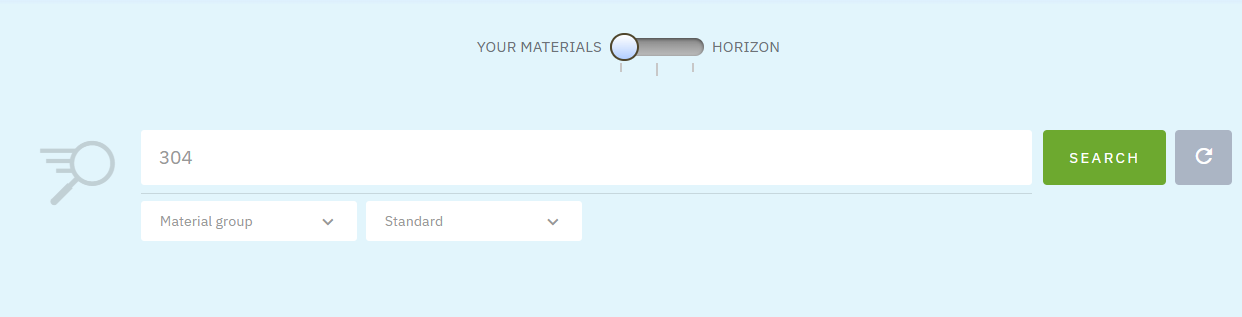
<figure><img src="/files/cBBecgQ67VB4M6oMlfs1" alt=""><figcaption><p><strong>Figure 2:</strong> Screenshot of Total Viewer's Quick Search configured for internal and Horizon materials search</p></figcaption></figure>

<figure><img src="/files/x47Tav3ar5bAQ9Oyga6C" alt=""><figcaption><p><strong>Figure 3:</strong> Screenshot of Total Viewer's Quick Search configured for Horizon materials search only</p></figcaption></figure>


# Search Tools

Total Materia Integrator Search Tools for Users

Total Materia Integrator provides powerful search tools designed to help you quickly locate desired material properties and standards across both your internal database and Total Materia Horizon:

* [Quick Search](/total-materia-integrator/total-viewer/search-tools/quick-search): Easily find materials by using basic criteria such as material designation, material group and standard. For more detailed information on how to use this functionality for searching Total Materia Horizon materials,  click on link [Quick Search](/search-tools/quick-search).
* [Advanced Search](/total-materia-integrator/total-viewer/search-tools/advanced-search): Filter materials based on specific properties and requirements. For more detailed information on how to use this functionality for searching Total Materia Horizon materials,  click on link [Advanced Search](/search-tools/advanced-search).

{% hint style="info" %}
To see a list of search tools for [Total Materia Horizon](https://docs.totalmateria.com/) materials, click the [link](/search-tools).
{% endhint %}


# Quick Search

Quick search as efficient way for accessing your material information

## **What is Quick Search?**

Quick Search is a simple and convenient method for finding desired materials. It allows users to search materials by Material Designation, Material Group, and Standard. Its ease of use ensures that users can swiftly input minimal search criteria (such as Material Designation) to receive comprehensive results. Since no search criteria are mandatory, users can click the Search button to retrieve a list of all available materials. With Quick Search, users can choose to search only internal materials (slider on the left), both internal and Horizon materials (slider in the middle), or only [Horizon](https://docs.totalmateria.com/) materials (slider on the right). For more information on using Quick Search for finding [Horizon](https://docs.totalmateria.com/) materials, click on the [link](/search-tools/quick-search).

<figure><img src="/files/lnMAFFdVjdK1HGvkfF9R" alt=""><figcaption><p><strong>Figure 1</strong>: Screenshot of Total Viewer's Quick Search</p></figcaption></figure>

## **Perform Your First Quick Search**

To perform your first Quick Search, simply enter the material name in the Material Designation text box (e.g., 304) and click the Search button.

<figure><img src="/files/5cHyvBxv0LHaHiMxQL0V" alt=""><figcaption><p><strong>Figure 2:</strong> Screenshot of Total Viewer's Quick Search interface, configured for searching the internal material <em>304</em></p></figcaption></figure>

The search results will be presented in an organized list just below the defined search criteria (see [Results and Material lists](/total-materia-integrator/total-viewer/search-tools/results-and-material-lists) for more details).&#x20;

<figure><img src="/files/UIbsuFfI6tQYND11vj6b" alt=""><figcaption><p><strong>Figure 3:</strong> Screenshot of Total Viewer's Quick Search result list after searching for the internal material 304</p></figcaption></figure>

## **Refine Your Search**

To refine your results, additional criteria can be defined using the dropdown menus:

* **Material Group:** Use this dropdown to filter results by material group (metals, polymers, aluminium, polyesters, etc.) or refine search results for specific material designation.
* **Standard:** Use this dropdown to filter results by a defined Standard (Standard Development Organization, e.g. ASTM, EN, SAE etc.) or refine results for specific material designation and/or material group.

<figure><img src="/files/xqpkCsLnGzmXGrqrp2HK" alt=""><figcaption><p><strong>Figure 4:</strong> Screenshot of Total Viewer's Quick Search when searching for the internal material <em>304</em>, with Ferrous Alloys as the material</p></figcaption></figure>

**Important Prerequisites**

{% hint style="danger" %}
Before using Quick Search, ensure that Materials, Material Groups, and Standards are added and configured in the [CREATOR](/total-materia-integrator/creator) section of Total Materia Integrator.&#x20;

**Note on access control:** Depending on the [account settings](/total-materia-integrator/creator/user-management/account-settings) and [user configuration](/total-materia-integrator/creator/user-management) set in the [CREATOR](/total-materia-integrator/creator) section, some material groups may be locked or inaccessible to certain users.
{% endhint %}

## Q\&A

To view frequently asked questions about using Quick Search, click on the following [link](/search-tools/quick-search), section "Q\&A".

**How does the Quick Search work?**

To view how the Quick search works, click on the following [link](/search-tools/quick-search), section "How does this search work".

**Quick Search for Total Materia Horizon materials**

To see how to apply Quick Search for searching Horizon materials, click on the following [link](/search-tools/quick-search).


# Advanced Search

Advanced Search: Find the Right Material with Ease

## **What is Advanced Search?**

Advanced Search is a powerful tool designed to help users identify the best material for their needs by using extensive, configurable search criteria. It offers virtually limitless possibilities by combining multiple constraints on both material properties and parameters.\
\
**Criteria you can filter by include:**

* **Material Properties:** Chemical composition, mechanical properties, physical properties, user-defined properties, etc.
* **Material Parameters:** Material groups (e.g., stainless steels, polymers, fibers), company departments, material status, form, material dimension, material price, etc.

## **Configuring your first Advanced Search**

{% hint style="warning" %}
In Advanced Search, only properties and parameters defined in the [CREATOR](/total-materia-integrator/creator) section will be searchable. Ensure all required properties and parameters are thoroughly set before attempting an Advanced Search.
{% endhint %}

**Executing an Advanced Search**

Follow these steps to configure and run your first Advanced Search:

1. **Access Advanced Search:** From the Total Viewer top menu, click the Advanced Search link. This opens a new window displaying all available search criteria.
2. **Define Search Scope:** Choose your material source from the "Search in" dropdown list located in the Advanced Search page header. (By default, it is set to search internal materials.)
3. **Define Criteria:** Fill in or select your desired search criteria (e.g., *Material Designation: 304*, *Standard: Internal*, *Material Groups: Metals*, *Department: CAD*).
4. **Apply Criteria:** Click the ADD TO SEARCH button in the footer of the Advanced Search page to apply the defined criteria.
5. **Execute Search:** Click the SEARCH button to display the list of results. (For a detailed explanation of how lists and results are displayed, click here.)

**Managing Criteria**

* **Add Search Criteria:** Click the Add Search Criteria button to add an additional set of filtering rules to your existing search.
* **Clear Search:** Click the CLEAR button to remove all existing search criteria and start a new search.

<figure><img src="/files/rXq6jAz1GPOcbwhIQUZS" alt=""><figcaption><p><strong>Figure 1:</strong> Screenshot of Total Viewer with Advanced Search as the selected searching option</p></figcaption></figure>

<figure><img src="/files/ndaepNuRB85ek3uCgUn9" alt=""><figcaption><p><strong>Figure 2:</strong> Screenshot of Total Viewer's Advanced Search with its search options and defined criteria</p></figcaption></figure>

<figure><img src="/files/JHuIdNiH5uHf5DB7sskv" alt=""><figcaption><p><strong>Figure 3:</strong> Screenshot of Total Viewer's Advanced Search result list for the defined search criteria</p></figcaption></figure>

## **Search data by specific condition and its parameter**

Advanced search and its subsection "Conditions" allows user to search for data by specific property group and condition parameters.

The condition search consists of two search criteria named "[Property Groups](/total-materia-integrator/creator/data-maintenance#property-groups)" and "[Parameters](/total-materia-integrator/creator/data-maintenance#parameters)".&#x20;

Defining search criteria in the "Property Groups" multi-select drop-down list allows users to narrow the search to specific Property group(s) (e.g., "Welded Materials"), while selecting desired options in the "Parameters" multi-select list further refines the search results to the selected parameters. Both filters can be used independently of each other.

<figure><img src="/files/TFynlrTlthCuUr3peJBE" alt=""><figcaption><p><strong>Figure 4:</strong> Screenshot of "Conditions" in "Advanced Search" with defined search criteria</p></figcaption></figure>

## **Further Reading and Support**

***How does the Advanced Search work?***

To view how the Advanced Search works, click on the following [link](/search-tools/advanced-search), section "Configuring your first Advanced Search".

To view how to define searching criteria for Mechanical or Physical properties, click on the following [link](/search-tools/advanced-search), section "Defining a criteria on a Mechanical or Physical property".

To view how the search results are displayed, click on the following [link](/total-materia-integrator/total-viewer/search-tools/results-and-material-lists).

***Advanced Search for Total Materia Horizon materials***

To see how to apply Advanced Search for searching Horizon materials, click on the following [link](/search-tools/advanced-search).


# Results and Material Lists

Material Lists are the central output of Total Materia Integrator, appearing whether you are using [Quick Search](/total-materia-integrator/total-viewer/search-tools/quick-search), [Advanced Search](/total-materia-integrator/total-viewer/search-tools/advanced-search), [Saving/Sharing](/total-materia-integrator/total-viewer/material-console), [Comparing](/total-materia-integrator/total-viewer/material-console/comparison-view), or [Exporting](/total-materia-integrator/total-viewer/export-data) materials. These lists offer many possibilities and advantages for filtering, sorting, and selecting the exact materials you need. They are designed to streamline post-search activities like comparison and data export.

<figure><img src="/files/5xIgpxcwoTrG1tBQakaC" alt=""><figcaption><p><strong>Figure 1:</strong> Screenshot of the Total Viewer's Quick Search result list, showing multiple materials selected for further action (e.g., comparison or export)</p></figcaption></figure>

For a detailed explanation of how search results are structured, how to use the list functionalities (such as filtering, sorting, and custom views), and all other options available within Material Lists, click on the following [link](/search-tools/results-and-material-lists).


# Other Search tools

Other Search tools help users in finding the desired [Total Matria Horizon](https://docs.totalmateria.com/) material data by searching through specific modules like Standard, Supplier, or modules like Extended Range (Stress-Strain, Fatigue, Fracture mechanics, Formability),  Green Line (Compliance data), Corrosion etc.

Some of the searching options are listed below:

* [**Standard List Search**](/search-tools/standard-list): Search using a specific standard name, standard number, or ICS number.
* [**Supplier Search**](/search-tools/suppliers): Access detailed information on material suppliers and product forms etc.
* [**Extended Range Search**](/search-tools/other-search-tools): Obtain comprehensive data, including stress-strain curves, fatigue, and creep data etc.

For a detailed explanation of each of these search tools and how to utilize them, please click the following [link](/search-tools/other-search-tools).

{% hint style="danger" %}
Other Search tools are applicable only when searching data for [Total Materia Horizon](https://docs.totalmateria.com/) materials.
{% endhint %}


# Material Pages

Material Pages: View, Group, Filter, Save and Export your data

Material pages act as a central hub for viewing and analysing material data. Each page provides a user-friendly interface for exploring key characteristics of materials, essential for engineering design, material selection, and verification. Material pages provide a detailed overview of material information, conditions, properties, property values, parameters, and various tools and options for filtering, adding, exporting and searching specific properties, products, or parameters. In Total Materia Integrator, the Material pages encompass the complete functionalities of Total Materia Horizon. Additionally, they can be customized depending on the user needs and requirements.

{% hint style="warning" %}
Material pages can be accessed through both the [Total Viewer](/total-materia-integrator/total-viewer) and the [Creator](/total-materia-integrator/creator) sections of the Total Materia Integrator. The key difference is that the [Creator](/total-materia-integrator/creator) section enables editing and customization of material pages depending on the certain user profile, account settings, departments etc.

Make sure to configure the [Account Settings](/total-materia-integrator/creator/user-management/account-settings), [User Management](/total-materia-integrator/creator/user-management), [Data Maintenance](/total-materia-integrator/creator/data-maintenance), and other relevant parameters in the [Creator](/total-materia-integrator/creator) section of Total Materia Integrator, as these will directly affect the layout and the functionalities of the material pages.
{% endhint %}

To view detailed documentation on Material pages for Total Materia Horizon, click [here](/material-pages).


# Overview

This section provides an in-depth overview of the layout and core functionalities of the Material Pages.

### **Material page: General material Information**

When selecting a material, users will see the General Material Information at the top of the page. This section contains essential material identifiers and is accompanied by a set of action buttons. The mandatory and optional parameters displayed here can be customized and prioritized in the [Parameters section](/total-materia-integrator/creator/data-maintenance/parameters) of [Data Maintenance](/total-materia-integrator/creator/data-maintenance) section.

**Mandatory material information:**

* **Material Designation:** The name or identifier of the material (e.g., 304, 1.1004).
* **Material Group:** The core classification of the material (e.g., ferrous material, polymer, composite).
* **Country/Standard:** The associated standard (e.g., ASTM, DIN, JIS). "INTERNAL" is used for company-specific materials.
* **Data Modified:** The last modification date of the material (automatically assigned).

**Optional material information:**&#x20;

This data can be customized to display details relevant to your organization (e.g., alternative designation, department, material status, company project). To learn how to add and configure this information, click [here](/total-materia-integrator/creator/data-maintenance/parameters).

<figure><img src="/files/dD2epStfyEznWjn5Sukr" alt=""><figcaption><p><strong>Figure 1:</strong> Screenshot of the internal material <em>304 1/8 Hard</em>, showing its General Information section in the Total Viewer</p></figcaption></figure>

**Action buttons:**

A set of action buttons provides quick access to key functionalities:

* [Add to favorites](/total-materia-integrator/total-viewer/material-console/my-console): Adds selected material to the list of favorite materials <img src="/files/MjzJXjygtg66JyjXkYCt" alt="" data-size="line">.
* [View changes](/total-materia-integrator/total-viewer/material-pages/track-material-changes): Allows users to view all the changes for selected material by date and property group<img src="/files/AOOcQ5njJzbWWGgMhFUT" alt="" data-size="line">.
* Copy URL: Allows users to copy and share the URL of the selected material for each selected [property group](/total-materia-integrator/creator/data-maintenance/property-groups) (e.g. URL of the mechanical properties for the selected material) <img src="/files/TGYeW3o0sDETNoTcStwj" alt="" data-size="line">.
* [Copy to Total Materia Integrator](/total-materia-integrator/total-viewer/material-pages/copy-data): Allows users to copy material data to desired material <img src="/files/iu6q0QTEEvpqomKtzN9x" alt="" data-size="line">.
* [Add to Material List Builder](/total-materia-integrator/total-viewer/material-console/material-list-builder): Adds the current material to user's customized list, helping it to keep track of multiple materials for comparison or reporting <img src="/files/mmzHJGT5VprC3lmHIavQ" alt="" data-size="line">.
* [Export to CAx](/total-materia-integrator/total-viewer/export-data/one-click-export): Allows users to export material data in different formats (e.g.ANSYS, CATIA,  XML etc.), ensuring compatibility with various software or engineering tools <img src="/files/YpmcGPMvOmX9ISmD8bj5" alt="" data-size="line">.
* [Request material update](/total-materia-integrator/creator/materials-management/material-workflow): Activates request for material update and material work flow.

<figure><img src="/files/hyxRmPwCMatOdPwMInam" alt=""><figcaption><p><strong>Figure 2:</strong> Screenshot of the internal material <em>304 1/8 Hard</em>, showing the Action Buttons positioned in the upper right corner of the Total Viewer</p></figcaption></figure>

### Material page: Navigating material properties (right menu navigation)

The Material Page contains various types of material properties and data. Sections for navigating these properties are positioned on the right side of the page.

Each section represents a Property Group (e.g., Material description, Chemical composition, Mechanical properties, Physical properties, User defined properties). The number next to each group indicates how many specific data points are currently available within that category (e.g., 199 Mechanical Properties). \
\
This navigation menu allows you to:

* Quickly access and view different property categories, like Composition or User defined properties.
* Group selected data by conditions or properties.
* Filter selected data by specific reference, heat treatment, product form or any other parameter previously defined in [Creator](/total-materia-integrator/creator).

<figure><img src="/files/nDMrXs9ZuMRhOnkJWNjL" alt=""><figcaption><p><strong>Figure 3:</strong> Screenshot of the material's properties selection menu (right menu navigation)</p></figcaption></figure>


# Group and Filter Data

Material Pages allow you to easily locate specific data by filtering and grouping results based on properties, references, temperature ranges, or any other pre-defined parameter (e.g., form, heat treatment, dimension, etc.).

**Filtering Data**

You can filter data using several selectors and dropdowns available on the Material Page:

* **Reference selector:** Enables selection of desired reference(s).
* **Temperature selector:** Enables selection of various temperature ranges (e.g. 0 - 30°C, 30 - 100°C, 100 - 300°C, etc.).
* **Parameter drop down lists:** Enables selection by available condition parameters, like heat treatment, form, property or any other predefined parameter.
* **Condition selector:** Enables selection of desired data by desired condition.

<figure><img src="/files/5R5XgB4952RY1c11sB0K" alt=""><figcaption><p><strong>Figure 1:</strong> Screenshot of filtering options for material <em>304 1/8 Hard</em> and its mechanical properties (1 - Temperature selector, 2 - Reference selector, 3 - Parameters drop down lists, 4 - Condition selector)</p></figcaption></figure>

**Grouping Data**

Data grouping helps users organize information according to specific conditions or properties, based on their preferences and needs.

* **Group by Condition:** Organizes the property data by the condition parameters under which the data was tested.
* **Group by Property:** Organizes the property data by the name of the property itself.

<figure><img src="/files/zhoGgFR7L978LuvTRX69" alt=""><figcaption><p><strong>Figure 2:</strong> Screenshot showing property data grouped by Condition for material <em>304 1/8 Hard</em></p></figcaption></figure>

<figure><img src="/files/TuGPIrp0Mc7grxEaKUBz" alt=""><figcaption><p><strong>Figure 3:</strong> Screenshot showing property data grouped by Property for material <em>304 1/8 Hard</em></p></figcaption></figure>

For detailed documentation on how to group and filter data within Total Materia Horizon, click[ here.](/material-pages/look-deeper-filter-the-data)


# Track Material Changes

Monitor all material changes

Monitoring changes in material records can be challenging. The "View Changes" feature allows users to track changes in material records by date, specific fields, and status of the change.

Clicking the "View Changes" <img src="/files/mRBouEoG4FZ0k3UmrLTw" alt="" data-size="line"> button will open a new pop-up window in which users can track all the changes made in a material. Additionally, users can select a specific field ([property group](/total-materia-integrator/creator/data-maintenance/property-groups)) where the change is made and/or date when that change is made. This feature is available on material pages in both the [Total Viewer](/total-materia-integrator/total-viewer) and the [Creator](/total-materia-integrator/creator) of Total Materia Integrator.

{% hint style="warning" %}
Before any changes are reflected in [Total Viewer](/total-materia-integrator/total-viewer), the material needs to be [released](/total-materia-integrator/creator/materials-management/release-materials) in [Creator](/total-materia-integrator/creator).
{% endhint %}

<figure><img src="/files/MLJs9ds9F8TIUAIDXa2b" alt=""><figcaption><p><strong>Figure 1:</strong> Screenshot of View changes for material <em>304 1/8 Hard</em></p></figcaption></figure>


# Copy Data

Easily copy multiple data sets

The Copy to Total Materia Integrator feature allows users to either copy internal data between materials or copy extensive datasets from [Total Materia Horizon](https://docs.totalmateria.com/) to [Internal](https://docs.totalmateria.com/total-materia-integrator/) materials, both using [Total Viewer](/total-materia-integrator/total-viewer) and [Creator ](/total-materia-integrator/creator)section.\
\
**How to Copy Data**\
\
This tool is easy to use and all it takes is to click the "Copy to Total Materia Integrator"<img src="/files/EF2P3XxWvE8ybaYtnvws" alt="" data-size="line"> button located in the upper right corner of [Material Pages](/total-materia-integrator/total-viewer/material-pages) (both in [Total Viewer](/total-materia-integrator/total-viewer) and [Creator](/total-materia-integrator/creator)). Clicking this button will open a pop-up window where the users can select the desired property group to be copied. "Next Step" <img src="/files/1NO46Pz5gwcKhV4nFObq" alt="" data-size="line"> button will allow users to select desired conditions to be copied (narrowing the list of desired condition for copy is possible by filtering conditions by [Property Group](/total-materia-integrator/creator/data-maintenance/property-groups), [Parameters](/total-materia-integrator/creator/data-maintenance/parameters) and [Reference](/total-materia-integrator/creator/data-maintenance/references)). Selecting the desired condition(s) and clicking the "Next Step" <img src="/files/1NO46Pz5gwcKhV4nFObq" alt="" data-size="line"> button will take users to the page where they can select the material(s) to copy the data to.

After selecting the desired material(s) to which the data will be copied, clicking the "Copy" <img src="/files/CCuZbr6gVqwgnNzE4t0t" alt="" data-size="line"> button will enable the copy of selected data sets and allow users to view the copied data directly by clicking the link to the material(s).

<figure><img src="/files/hNcouyuwFGx7r5AzqnxT" alt=""><figcaption><p><strong>Figure 1:</strong> Screenshot of <em>2024 (AA)</em> Total Materia Horizon material and Copy to Total Materia Integrator feature</p></figcaption></figure>

<figure><img src="/files/qOFI0pPr4xxlyU5zwrvo" alt=""><figcaption><p><strong>Figure 2:</strong> Screenshot of Copy to Total Materia Integrator for material <em>2024 (AA)</em> and its selected condition for copying</p></figcaption></figure>

<figure><img src="/files/l1TkRHWhhzhqVZKQ6c6P" alt=""><figcaption><p><strong>Figure 3:</strong> Screenshot of Copy to Total Materia Integrator and materials to which data will be copied</p></figcaption></figure>

<figure><img src="/files/riBwWP38e1Z4jGiNuUoP" alt=""><figcaption><p><strong>Figure 4:</strong> Screenshot of Copy to Total Materia Integrator and materials to which data is copied</p></figcaption></figure>


# Export Data

Total Materia Integrator's export functionalities ensure data compatibility with various engineering tools, covering both single-material and bulk data transfer.\
\
**Export Methods**\
\
Integrator provides flexible options for transferring your material data:

* [One click export](/total-materia-integrator/total-viewer/export-data/one-click-export) allows users to export desired data in more than 25 available formats. To see a full list of the export formats, click the following [link](/total-materia-integrator/total-viewer/export-data/one-click-export), section "Export formats available in Total Materia Integrator".
* [Bulk export](/total-materia-integrator/total-viewer/export-data/bulk-export) allows users to export all internal data in bulk in XML, XPDM format, etc. or utilize customized formats tailored to your specific needs.

**Direct Software Integration (Plug-ins)**

For seamless, direct data integration, the Integrator offers dedicated plug-ins:

* **ANSYS Plug-in:** Directly integrate data for your desired material into the ANSYS software environment.
* **Creo Plug-in:** Directly integrate data for your desired material into the Creo software environment.
* **SolidWorks Plug-in:** Directly integrate data for your desired material into the Creo software environment.
* **Siemens NX and SimCenter**: Have your materials available both for CAD and CAE
* **Altair Hyperworks**: Get your material data for OptiStruct, Radioss or Abaqus simulations

\
**Further Reading**

To view detailed documentation on the Export functionalities and the complete list of available formats in [Total Materia Horizon](https://docs.totalmateria.com/), click [here](/material-console/export).


# One Click Export

Data export to various CAx software

The One Click Export functionality allows you to select specific material data for a simulation and generate a file that is directly compatible with your simulation software.

**Initiating Export**

The Exporter for materials is accessed via [Material Pages](/total-materia-integrator/total-viewer/material-pages) of [Total Materia Viewer](/total-materia-integrator/total-viewer), by clicking the button "Export to CAx" <img src="/files/ALHVUSBOb6qlAsgvpP4R" alt="" data-size="line"> positioned in the upper right corner of material page. Clicking this button opens a pop-up window in which users can select the desired export format. A list of available export formats is provided below. Depending on user requirements, the export formats can be expanded and adjusted.

<figure><img src="/files/v8Jn1w7Fbj87oDy2TSsA" alt=""><figcaption><p><strong>Figure 1:</strong> Screenshot of Material page and Export to CAx button in Total Materia Viewer for material <em>EN AW-AlMg3H18 (DIN EN 573-3/485-2)</em></p></figcaption></figure>

<details>

<summary>Export formats available in Total Materia Integrator</summary>

* CAD: CATIA, Creo, SolidWorks, SolidEdge, Siemens NX.
* Generic: Excel, XML.
* Manufacturing: Autoform, ColdForm/Forge, Deform, Hyperform, Pam-Crash, Pam-Stamp, ProCast, QForm, Simufact.
* Simulation tools: Abaqus, Ansys Workbench, Comsol Multiphysics, Electrical Desktop, Femap, Fluent, LS-DYNA, Nastran (MSC, Inventor), nCode, Optistruct, Radioss, Simcenter, Star CCM+.

</details>

**Configuring and Finalizing Export**

Once the desired export format is selected, click the "Next Step" <img src="/files/HT17dQQ1rg6FkdGuK2Wq" alt="" data-size="line"> button, to configure the data. \
The user will see a list of applicable parameters, such as form, heat treatment, and reference, presented in a drop-down menu and a list of available conditions, properties and its values for the selected export format in the form of multi-selectable list.

<figure><img src="/files/tyFSzGUw1xXKL73XHgqt" alt=""><figcaption><p><strong>Figure 2:</strong> Screenshot of ANSYS export page for selected reference and properties for material <em>EN AW-AlMg3H18 (DIN EN 573-3/485-2)</em></p></figcaption></figure>

After the desired selection is made, a summary screen will be presented, allowing users to verify the selected data before proceeding with the export. Clicking on the "Export" <img src="/files/NqwjetZrTm5E8dWGbCN1" alt="" data-size="line"> button will generate and download the file to be further imported into the CAE software.
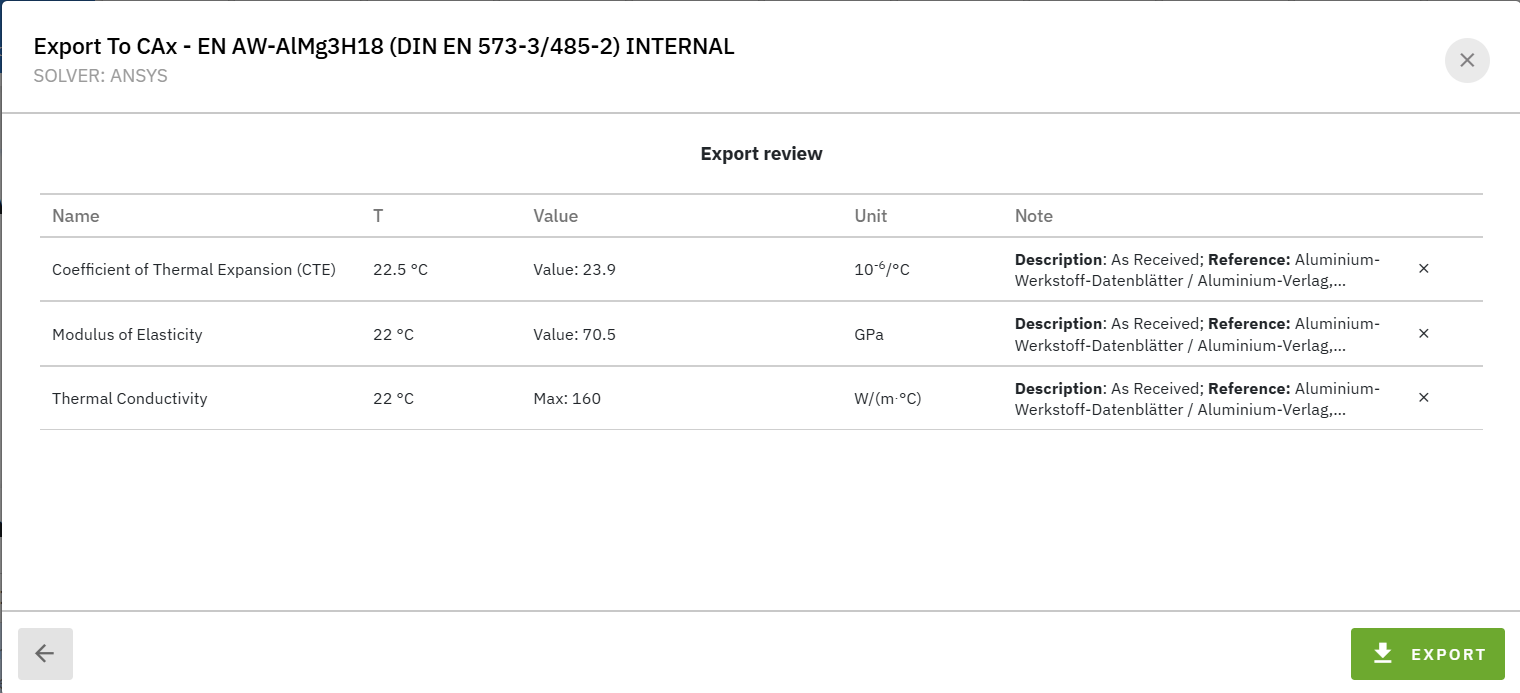
<figure><img src="/files/pkRlEKVsX07gShciO5U8" alt=""><figcaption><p><strong>Figure 3:</strong> Screenshot of ANSYS export review page for selected reference and properties for material <em>EN AW-AlMg3H18 (DIN EN 573-3/485-2)</em></p></figcaption></figure>

<figure><img src="/files/Pnh1FfB1Rof6D5VbSEvm" alt=""><figcaption><p><strong>Figure 4:</strong> Screenshot of ANSYS export for selected reference and properties for material <em>EN AW-AlMg3H18 (DIN EN 573-3/485-2)</em></p></figcaption></figure>


# Bulk Export

Export all your materials in bulk

The Bulk export functionality enables users to export all internal materials in XML, XPDM format. This functionality is an integral part of the [Creator](/total-materia-integrator/creator) section of Total Materia Integrator.&#x20;

Formats available:

* **XPDM**: Import your materials into 3DExperience PLM
* **Teamcenter or IMM XML**: Get your materials available in your Siemens CAD and PLM environment
* **XML**: Takeout all your material data for a custom system, an internal engineering LLM assistant or any of your project. The data is yours.
* **Crossreferences**: easily export your cross-references, e.g. to communicate the equivalence of your internal material standard with commercial or international standard materials with your suppliers

#### Exporting is a simple process:

1. Choose the desired format
2. Decide if documents and images should be included for XML bulk export or select a specific deparment, and/or material groups for XPDM bulk export&#x20;
3. Click the "Export" <img src="/files/38khxE79RQcJPIrzb9U6" alt="" data-size="line"> button.

<figure><img src="/files/mCE66f0PQX4w9uQp7pX5" alt=""><figcaption><p><strong>Figure 1:</strong> Screenshot of XML Bulk Export in Total Materia Creator</p></figcaption></figure>

<figure><img src="/files/O5nuusykbHk32KPPOMy0" alt=""><figcaption><p><strong>Figure 2:</strong> Screenshot of XPDM Bulk Export in Total Materia Creator</p></figcaption></figure>

<figure><img src="/files/5GtWOWwi65uXtxhYMuqY" alt=""><figcaption><p><strong>Figure 3:</strong> Screenshot of XML Bulk export</p></figcaption></figure>


# Material Console

Personalized hub for managing and organizing materials

**Material Console Overview**

Material Console is a module within Total Materia Integrator, designed to assist users in effectively managing, organizing, reporting and analyzing material data. The module consists of four distinct sections, each offering a comprehensive suite of features that can significantly enhance the workflow for engineers, researchers, and anyone involved in material science.

<figure><img src="/files/CVvalunLLJ7vHfjS6Ykf" alt=""><figcaption><p><strong>Figure 1:</strong> Screenshot of Material Console and its sections</p></figcaption></figure>

<details>

<summary><a href="/pages/bsYjBXTfvb3FwqcyglUU">Material List Builder</a></summary>

Designed for creation of detailed material lists for efficient data analysis.

For detailed explanation on material list builder for Total Materia Horizon materials, click this [link](/material-console/save-and-share).

</details>

<details>

<summary><a href="/pages/wnV2ffEOjWpki3aS4CFb"><strong>Comparison View</strong></a></summary>

Designed for comparing materials and material properties.

For detailed explanation on comparison for Total Materia Horizon materials, click this [link](/material-console/compare).

</details>

<details>

<summary><a href="/spaces/LWlPrXdEl8ppnkKl1Uy7/pages/CeN6eGuqD6ZscmcGrNqQ"><strong>Report Builder</strong></a></summary>

For detailed explanation on how to generate straightforward and consistent material reports for Total Materia Horizon materials, click this [link](/material-console/report).

</details>

<details>

<summary><a href="/pages/FgOgGpY4ikUaYZMWXVvB"><strong>My Console</strong></a></summary>

Central hub for storing material information.&#x20;

Access your favourite materials, saved searches, material lists, saved predictions, LCAs, carbon footprints, or CAs.

</details>

To see detailed information on Material Console for Total Materia Horizon materials, click this [link](/material-console).


# Material List Builder

**Material List Builder Overview**

Material List Builder serves as a tool for managing material data. It allows users to create unlimited customized material lists. Using this tool will enable users to:

* Add desired material to multiple lists
* Select desired materials from predefined lists
* Save multiple material lists
* Access material lists
* Add selected materials to the comparison view

For a detailed overview of the Material List Builder functions in Total Materia Horizon, click this [link](/material-console/save-and-share).

**Adding Materials to Material List Builder**

Adding desired materials to the Material List Builder is a simple task - click the "Add to Material List Builder" <img src="/files/NnGjn3YEzlMElhhKXAvK" alt="" data-size="line"> button located in the upper right corner of the [Material Pages](/total-materia-integrator/total-viewer/material-pages) or select desired materials and click the "Add to Material List Builder" <img src="/files/nFD6SrqS50kSWe8gln8G" alt="" data-size="line"> button located in the upper right corner of the[ Material Lists](/total-materia-integrator/total-viewer/search-tools/results-and-material-lists) .&#x20;

By doing this, a new pop-up window will open, allowing users to directly access Material List Builder. Another way for accessing the added material in Material List Builder is via [Material Console](/total-materia-integrator/total-viewer/material-console).

**Saving Material Lists**

Once the desired materials are added to the Material List Builder, they can either be saved as a new Material List or added to an existing one by clicking the "Save" <img src="/files/3bkhN8vgdKJxK68UTe48" alt="" data-size="line"> button located in the upper left corner of the Material List Builder. This action will open a pop-up window, allowing users to either create a new Material List  by specifying a name and description, or to add the materials to an existing list.

<figure><img src="/files/mwgW0GWWrdc5aX1c6H5Y" alt=""><figcaption><p><strong>Figure 1:</strong> Screenshot of Material List Builder</p></figcaption></figure>

<figure><img src="/files/ZkdKSoAW6D2ISatq4bKv" alt=""><figcaption><p><strong>Figure 2:</strong> Screenshot of pop-up window Save Material List</p></figcaption></figure>

**Accessing Material Lists**

Clicking the "See all saved lists" <img src="/files/z3baoNs1RRxEF9L9caVi" alt="" data-size="line"> link directs users to the "Material Lists" section in "My Console", where they can view, access, and edit all previously saved lists.

<figure><img src="/files/Lxh2e2G2Dt8cbmms57i7" alt=""><figcaption><p><strong>Figure 3:</strong> Screenshot of Material List Builder and link See all saved lists</p></figcaption></figure>

<figure><img src="/files/1uyYWsXeu1gGUvLchZF2" alt=""><figcaption><p><strong>Figure 4:</strong> Screenshot of Material Lists in My Console</p></figcaption></figure>

**Selecting and Comparing Materials**

Clicking the checkbox <img src="/files/YmDCBfY7LI0xsGpqE4c1" alt="" data-size="line"> on the right side of the page allows users to select or deselect individual materials or all materials available in the Material List Builder. This enables users to either delete <img src="/files/N9KrhgrQNAx9tqvKO2EY" alt="" data-size="line"> selected materials from the list or to add them to the [Comparison View](/total-materia-integrator/total-viewer/material-console/comparison-view).

<figure><img src="/files/t5hV9lUNZ0OKoNri4Y6t" alt=""><figcaption><p><strong>Figure 5:</strong> Screenshot of selected materials in Material List Builder and Add to Comparison View button</p></figcaption></figure>


# Comparison View

The material comparison tool allows users to conduct precise one-to-one material comparisons or gain an in-depth overview of multiple materials' compositions and properties.

To use Comparison View tool, the user should add desired materials to the [Material List Builder](/total-materia-integrator/total-viewer/material-console/material-list-builder), click the "Add to Comparison View" <img src="/files/LBeIEaYbapGvDwNOIBP0" alt="" data-size="line"> button and select "Materials" from the drop-down list.

<figure><img src="/files/gFqYdcMzcQnleHFb0inh" alt=""><figcaption><p><strong>Figure 1:</strong> Screenshot of Material List Builder and Add to Comparison View and its drop down list</p></figcaption></figure>

{% hint style="warning" %}
Drop down list item named "Materials" must be selected to successfully compare iternal materials.
{% endhint %}

## **Comparison View features**

The comparison display can show up to five materials at a time. However, the tool can load up to one hundred materials allowing users to compare Chemical composition, Mechanical property and Physical property data. To navigate in larger materials lists, use the top central arrows <img src="/files/MvX2hncmFjdeSrAr8PdM" alt="" data-size="line"> to scroll either left or right. Use the pin button "Pin material" <img src="/files/5eLE8AjqxcWeIRshHmRH" alt="" data-size="line"> to keep one or more materials visible when scrolling. A material can be easily removed from the comparison view by clicking the icon "Remove from Comparison" <img src="/files/mNCeADO51HC2kiyCeiZM" alt="" data-size="line"> positioned in the top right corner of each material.

By default, the Mechanical and Physical property values are presented in their synthetic form at room temperature, with ranges of all available values regardless of a specific shape or heat treatment. To view the values for specific form or specific standard, switch to Details View and use the drop-downs to select the desired reference or delivery condition of the material <img src="/files/EwnRZ8MEHGbeXzHRk51N" alt="" data-size="line">. Comparison View allows various property group comparison, like chemical composition, mechanical properties or any desired user defined property group can be compared.

<figure><img src="/files/sPsxGmO4zK1SU2BcMP0h" alt=""><figcaption><p><strong>Figure 2:</strong> Screenshot of Comparison View</p></figcaption></figure>

## Diagram Comparison

The diagram comparison functionality provides a graphical comparison of material data for multiple selected materials. It supports comparisson of temperature-dependent diagrams for Mechanical, Physical and Custom properties, as well as Stress-Strain, Fatigue and Custom diagrams.

To compare the desired diagrams, users should navigate to the desired [material](/total-materia-integrator/creator/materials-management/create-materials), [property group](/total-materia-integrator/creator/data-maintenance#property-groups) and [diagram](/total-materia-integrator/creator/materials-management/add-edit-material-data-properties-diagrams-and-documents), then click the "Add to Diagram Comparison" <img src="/files/cgOeceAmbwvXrQQQfZva" alt="" data-size="line"> button positioned on the right hand side of the each diagram. This action will add the selected diagram to the Diagram Comparison list, where it can be compared with other previously selected diagrams.  Users can directly access the diagram comparison view by clicking the "Go to Diagram Comparison"<img src="/files/ZdqVnuCnPCPBIkA0FykZ" alt="" data-size="line"> link, which is available in the pop-up message displayed after clicking the "Add to Diagram Comparison" button, or by navigating to "Diagrams" in the Comparison View of [Material Console](/total-materia-integrator/total-viewer/material-console). It is possible to compare up to eight diagrams simultaneously.

<figure><img src="/files/HkqIOtrMob1Pd6IBx30G" alt=""><figcaption><p><strong>Figure 3:</strong> Screenshot of Stress-Strain diagram for material "15-5PH" with the "Add to Diagram Comparison" functionality</p></figcaption></figure>

<figure><img src="/files/wOmVRTHw1Vivq7cCJ96A" alt=""><figcaption><p><strong>Figure 4:</strong> Screenshot of Diagram Comparison for added diagrams in the Comparison View of Material Console</p></figcaption></figure>


# My console

**My Console** is the personalized place in which all saved items, classified in the different sections, are stored. From here, users can view and share lists of favourite materials, saved searches, saved material lists, reports as well as, elements saved from Total Materia Horizon [Green Line](https://docs.totalmateria.com/green-line/) and [Predictor](https://docs.totalmateria.com/predictor/) products. Using My Console will allow users to access (load) <img src="/files/xqQa7yUJ9XW79kcO1vT2" alt="" data-size="line">, edit <img src="/files/a91iF0DxHsvUAgnOFJQY" alt="" data-size="line">, share <img src="/files/TAmaOYCnvjfPrG7JTbz8" alt="" data-size="line">, select <img src="/files/pS7LdfJPDEby3NDqcLDw" alt="" data-size="line"> and delete <img src="/files/svNouQbuZxc330fnmqgR" alt="" data-size="line"> elements.

My console consists of seven distinct sections, each designed to assist users in organizing material data:

* **Favourites:** Access and share your list of favourite materials
* **Saved Searches:** Access and share your list of saved searches
* **Material Lists:** Access and share your material lists
* [**Saved Predictions**](https://docs.totalmateria.com/predictor/)**:** Access and share a list of saved predictions for [Total Materia Horizon](https://docs.totalmateria.com/) materials
* [**Saved LCAs**](/green-line/life-cycle-assessment)**:** Access and share a list of saved LCAs for [Total Materia Horizon](https://docs.totalmateria.com/) materials
* [**Saved Carbon Footprints**](/green-line/carbon-footprint)**:** Access and share a list of saved carbon footprints for [Total Materia Horizon](https://docs.totalmateria.com/) materials
* [**Saved CAs**](https://docs.totalmateria.com/green-line/)**:** Access and stare a list of saved CAs for [Total Material Horizon](https://docs.totalmateria.com/) Materials
* Previous Exports: Access the list of the previous [one click exports](/total-materia-integrator/total-viewer/export-data/one-click-export) that you have performed

<figure><img src="/files/kGSUuu9dfIqYCoGqQZaj" alt=""><figcaption><p><strong>Figure 1:</strong> Screenshot of My Console and its sections</p></figcaption></figure>

### Favourites

Access, edit and share a list of favorite materials previously added from the [Material Pages](/total-materia-integrator/total-viewer/material-pages/overview).

### Saved Searches

Access, edit and share a list of saved searches from [Advanced Searches](/total-materia-integrator/total-viewer/search-tools/advanced-search).&#x20;

To view saved searches, users should first configure and run the search, then, click the "Save Search" <img src="/files/OIYFgzXaNhTI1FsAuHYX" alt="" data-size="line"> button located in the upper right corner of the [advanced search](/total-materia-integrator/total-viewer/search-tools/advanced-search) page.
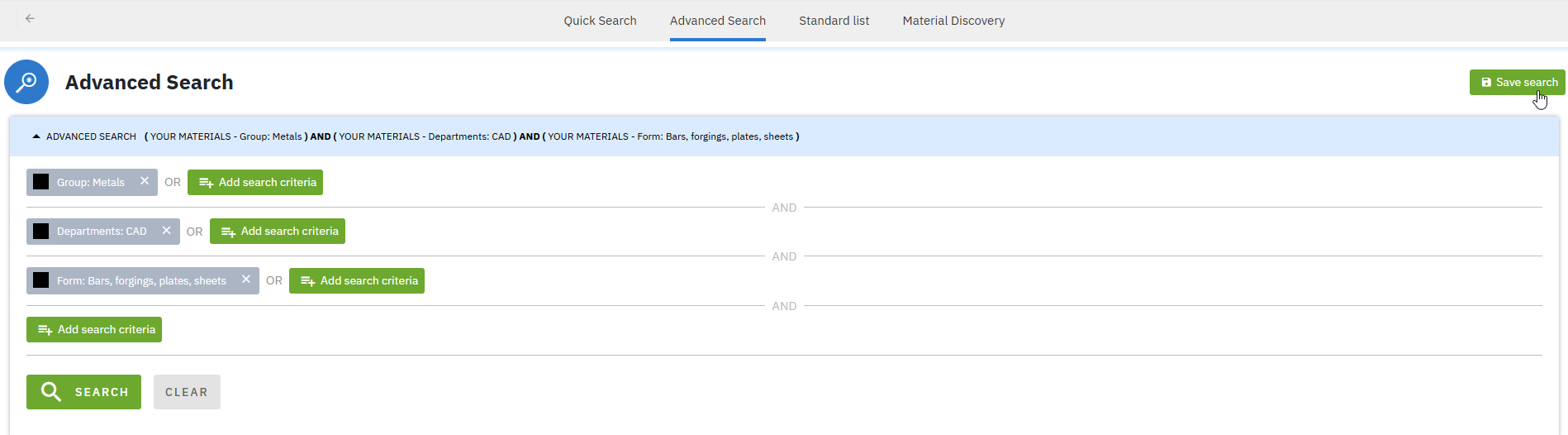
<figure><img src="/files/Xn2u0DCZ4LXgkWgpCYWi" alt=""><figcaption><p><strong>Figure 2:</strong> Screenshot of Advanced search and Save search button for defined searching parameters</p></figcaption></figure>

<figure><img src="/files/Hp39Vtt1pQiffj7y0ueP" alt=""><figcaption><p><strong>Figure 3:</strong> Screenshot of Saved Searches in My Console</p></figcaption></figure>

### Material Lists

The **Material Console** tool allows users to view and manage and share materials by selecting a specific material list previously created in [Material List Builder](/total-materia-integrator/total-viewer/material-console/material-list-builder).

<figure><img src="/files/SavaZEydDkHMyhpJnyJd" alt=""><figcaption><p><strong>Figure 4:</strong> Screenshot of Material Lists in My Console</p></figcaption></figure>


# Creator

Customized data management system

#### Creator Section Overview

The Creator section of Total Materia Integrator is a customized and personalized data management system. It offers extensive tools and options for configuring desired data management functions. Whether you need to [create materials](/total-materia-integrator/creator/materials-management/create-materials), [track material changes](/total-materia-integrator/total-viewer/material-pages/track-material-changes), [define custom parameters](/total-materia-integrator/creator/data-maintenance/parameters), adjust [properties](/total-materia-integrator/creator/data-maintenance/properties) or [units](/total-materia-integrator/creator/data-maintenance/units), [set user profiles](/total-materia-integrator/creator/user-management), [restrict material access by department](/total-materia-integrator/creator/user-management/user-profile), or [export data in bulk](/total-materia-integrator/creator/materials-management/bulk-export), the Creator section provides the tools you need.

<figure><img src="/files/Emt6GG2hwgYSZT95UDWY" alt=""><figcaption><p><strong>Figure 1:</strong> Screenshot of Creator section and Materials subsection</p></figcaption></figure>

The Creator section is structured into six subsections, each enabling users to configure the desired data system:

<details>

<summary><a href="/pages/M94Wpf3zSo67rmSGzTUY">Account Settings</a></summary>

Configure the account by setting data access permissions and assigning company departments.

</details>

<details>

<summary><a href="/pages/SHf3gY14BIMJX7oexuMR">User Management</a></summary>

Add or edit users, assign different user profiles, and track user activity log.

</details>

<details>

<summary><a href="/pages/il5X7T2NANFIm3VkitVH">Materials</a></summary>

Search, create, edit, release, and track changes to materials, assign its testing parameters, properties, and property values.

</details>

<details>

<summary><a href="/pages/jZqG0xSZOjSvNbaKwvyP">Data Maintenance</a></summary>

Configure your material data system by setting up desired material and property groups, properties, parameters, references, and more.

</details>

<details>

<summary><a href="/pages/uDNpJ5dfyFZsJnBeiY9H">Bulk Export</a></summary>

Export data in bulk in XML, XPDM format.

</details>

<details>

<summary><a href="/pages/ZRBbwPjqrSreejmI3iRh">Audit Log</a></summary>

Track and review all changes made within the system, including user actions and data modifications.

</details>


# Materials Management

Central place for material management

The Materials subsection of the Creator section is the place where materials and their data are created and managed. Accessing the Creator section will take you directly to the Materials subsection.&#x20;

**Searching** of a desired material is available by entering material name in "Material Designation" <img src="/files/zF4DZjFnWLODlX5r2WGL" alt="" data-size="line"> text box, and additionally by selecting available items from drop down lists: "Standard" <img src="/files/GbMvqm9oKY7IM8jQJJRG" alt="" data-size="line">, "Material Group" <img src="/files/LAG91NfmPwhSfO5419Gn" alt="" data-size="line">, "Release Status" <img src="/files/aaHpYppAlsmLVX3BkoqG" alt="" data-size="line"> and "Department" <img src="/files/dwmSRTLHgpUVbLXOLY7x" alt="" data-size="line">. Clicking the "Search/Clear "buttons will display or reset the list of results based on the defined search criteria. Selecting the "Show deleted materials" <img src="/files/dhWiYX7zXEwS8K43PIxD" alt="" data-size="line"> checkbox will include previously deleted materials in search results.

[**Creation**](/total-materia-integrator/creator/materials-management/create-materials) of the desired material is done by clicking the "Create New Material"<img src="/files/99OScbxsWS2BHFghQiJI" alt="" data-size="line"> button. This action opens a new pop-up window where the desired material information is inserted.

<figure><img src="/files/gTILSaTm8karBK0VDQB9" alt=""><figcaption><p><strong>Figure 1:</strong> Screenshot of Creator section and Materials subsection when searching for material <em>316</em></p></figcaption></figure>

<figure><img src="/files/Yaa6W5Du2e54XZYqd5rw" alt=""><figcaption><p><strong>Figure 2:</strong> Screenshot of Creator section and Create New Material page</p></figcaption></figure>


# Create Materials

Working with materials and their data begins by creating a material entry with a defined taxonomy, assigned company departments, and all necessary information, which will ensure efficient material management and searchability throughout the system.

{% stepper %}
{% step %}

### Navigate to Materials in Creator section

Navigate to the Materials section under the Creator section in Total Materia Integrator. Before proceeding with material creation, make sure the material does not already exist in the system by performing a search.

<figure><img src="/files/NOLchWJkXhfDjsofAcup" alt=""><figcaption><p><strong>Figure 1:</strong> Screenshot of Creator section and Materials subsection</p></figcaption></figure>
{% endstep %}

{% step %}

### Click the "Create new material" button

Click "CREATE NEW MATERIAL" <img src="/files/1yWRSUSTpfsMSudNwNY4" alt="" data-size="line"> located at the upper-right of the [Materials](/total-materia-integrator/creator/materials-management) section.
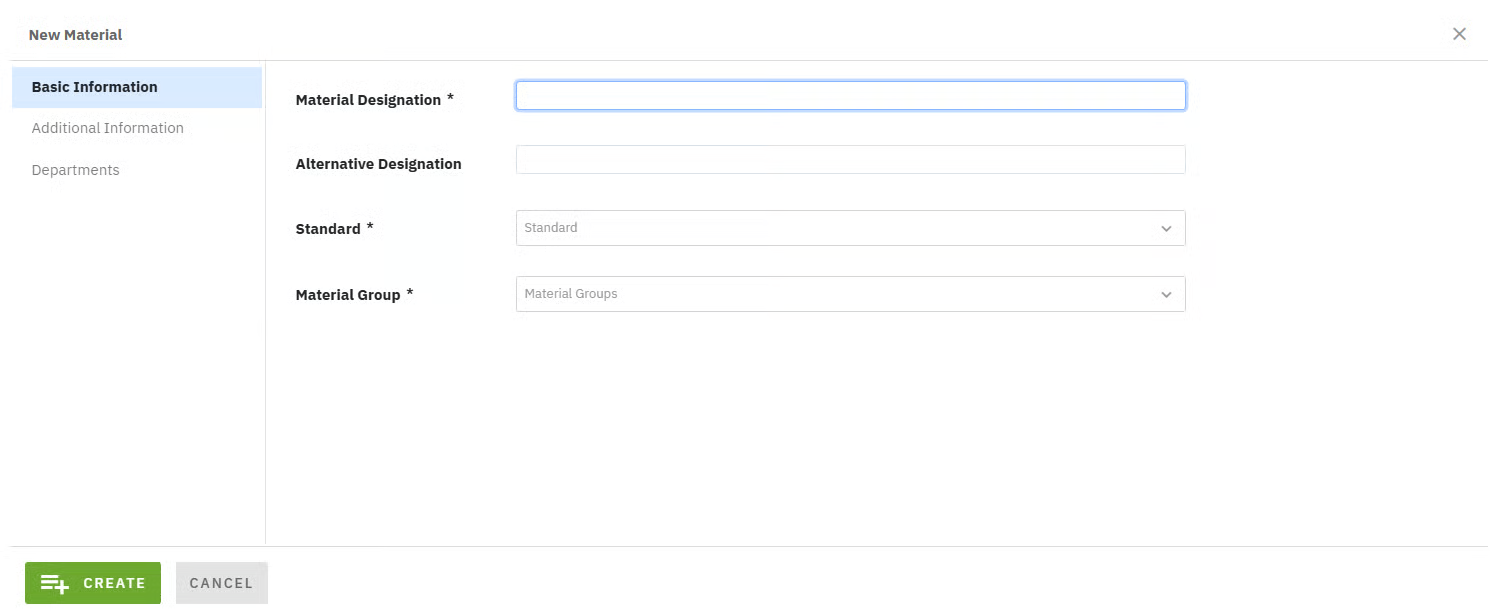
<figure><img src="/files/R4kc5IHjo8viXEGyyqID" alt=""><figcaption><p><strong>Figure 2:</strong> Screenshot of Creator section and Create New Material window</p></figcaption></figure>
{% endstep %}

{% step %}

### Specify Material designation and other key data

Populate mandatory and optional material information.

#### Basic Information

* **Material Designation** (mandatory): Unique material designation (e.g. 316, 2024, Makrolon 3107) serving as a primary identifier within the system.
* **Alternative Designation** (optional)**:** An additional or alternative designation — such as a supplier, local, or trend-specific name, that can improve material searchability within the system.
* [**Standard**](https://docs.totalmateria.com/total-materia-integrator/~/revisions/nMAs7A7zgKnbQMWMShfV/creator/data-maintenance/standards) (mandatory): Indicates the specific material standard. Typically labeled as "Internal" for materials governed by internal standards.
* [**Material Group**](https://docs.totalmateria.com/total-materia-integrator/~/revisions/nMAs7A7zgKnbQMWMShfV/creator/data-maintenance/material-groups) (mandatory): Specifies the material’s classification within the defined drop down structure. It enables greater material consistency, more effective filtering and search, and ensures that appropriate property sets are automatically assigned to the material. Multiple material group levels can be defined (up to four levels) to provide more detailed granularity. (e.g. Metals / Ferrous Alloys / Stainless steels, Metals / Nonferrous Alloys / Nickel / Nickel alloy or Polymers / Plastics, thermoplasts). To see in more detail how to add/edit material group, click this [link](/total-materia-integrator/creator/data-maintenance/material-groups).

<figure><img src="/files/zQgiUcHN27nKRyoLN22w" alt=""><figcaption><p><strong>Figure 3:</strong> Screenshot of Basic Information from the Material Information window</p></figcaption></figure>

{% hint style="warning" %}
It is crucial to make an accurate selection of the material group during this process (the first level of classification). Although both the first and other classification levels can be modified, changing the first classification level is only allowed if the previously selected and newly selected [material groups](/total-materia-integrator/creator/data-maintenance#material-groups) contain the same [property groups](/total-materia-integrator/creator/data-maintenance#property-groups) and [condition parameters](/total-materia-integrator/creator/data-maintenance#parameters).
{% endhint %}

{% hint style="danger" %}
Before proceeding to the next step, the material must be created by clicking the "Save" <img src="/files/JoZe6ke5yGSlj7Qd91kH" alt="" data-size="line"> button. By saving the material, it will be automatically assigned with a "Material ID", "Data Modified" and "Version". For detailed explanation on versions and release status of material, click this [link](/total-materia-integrator/creator/materials-management/release-materials).
{% endhint %}

#### **Additional Information**

Additional Information encompasses all optional, customizable data fields defined by users. These fields can include text entries, numeric values, hyperlinks, or multi-select dropdown lists. Common examples of Additional information data are material status, part number, material code, material price, SAP links, and reference numbers, etc. To see in detail how to add/edit parameters, click this [link](/total-materia-integrator/creator/data-maintenance/parameters).

<figure><img src="/files/j1OJuf3eYWTOgmrQSnHq" alt=""><figcaption><p><strong>Figure 4:</strong> Screenshot of Additional Information from the Material Information window</p></figcaption></figure>

#### **Departments**

Departments are customizable material&#x20;departments defining the company-specific governance for managing materials. Assigning different[ Department](/total-materia-integrator/creator/user-management/account-settings) values (CAD, CAE, Quality etc.) limits material visibility to designated company departments only. For more details on how to configure departments, please click this [link](/total-materia-integrator/creator/user-management/account-settings).

<figure><img src="/files/IOrxYdELdzeEiNMVPn0K" alt=""><figcaption><p><strong>Figure 5:</strong> Screenshot of Departments from the Material Information window</p></figcaption></figure>

{% endstep %}
{% endstepper %}


# Add/Edit Material Data, Properties, Diagrams and Documents

This section provides instructions for adding and editing material information (properties, testing parameters, diagrams, documents, etc.). To get started, select the material you wish to edit from the [Materials menu](/total-materia-integrator/creator/materials-management) of Creator section.

{% hint style="warning" %}
Before editing any material data, the material data system **must be** primary configured in the [Data Maintenance section](/total-materia-integrator/creator/data-maintenance). This ensures the availability of material groups, property groups, properties, units, parameters, references and more.
{% endhint %}

## Add/Edit General Material Information

{% stepper %}
{% step %}

### Select Material

Select desired material from the search result list by using available searching options ("Material Designation", "Standard", "Material Group", "Release Status", "Department"). If the desired material isn't available in the search results, be sure to create the material using "[CREATE NEW MATERIAL](/total-materia-integrator/creator/materials-management/create-materials)" <img src="/files/DpKREioMatcfcWvZiIBE" alt="" data-size="line"> button.
{% endstep %}

{% step %}

### **Click the "Edit" button**

Once the desired material is selected/created, general material information can be easily added using the "EDIT" <img src="/files/ow3PPepLgbzBBjIbFFH3" alt="" data-size="line"> button located to the right to Material designation.
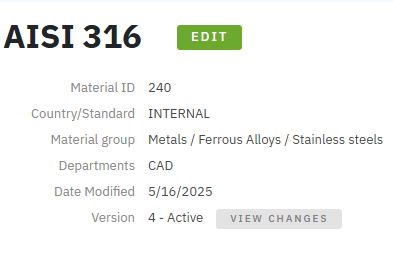
<figure><img src="/files/UwyxUyfKhb2dh20nsryJ" alt=""><figcaption><p><strong>Figure 1:</strong> Screenshot of material <em>AISI 316</em> in Creator section and EDIT button</p></figcaption></figure>

{% endstep %}

{% step %}

### Add/Edit General Material Information

Clicking the "EDIT" button (step 2) will open a new pop-up window, with one default (Basic Information) and two optional (Additional Information and Departments) sections displayed on the right side of the window:

**Basic Information**: Basic material information (Material designation, Alternative designation, Standard and Material group).

**Aditional Information**: Additional configurable material information (E.g. Material status, Part number, Material code, Price of material etc.).

**Departments**: Configurable material departments indicating which company department the material is used in (E.g. CAD, CAE, Test, Simulation department etc.).

In the each of these sections desired additions and changes can be made (except for the main "Material Group", which can not be deselected).

The content and each content item in Basic, Additional Information and Departments sections are configurable in the [Data Maintenance](/total-materia-integrator/creator/data-maintenance) section [Parameters](/total-materia-integrator/creator/data-maintenance/parameters).

All mandatory items are marked with an asterisk (\*).

<figure><img src="/files/mLmDNkqiFS59DLZfjL3r" alt=""><figcaption><p><strong>Figure 2:</strong> Screenshot of Edit General Material Information window</p></figcaption></figure>
{% endstep %}
{% endstepper %}

## Add/Edit a Conditions

{% stepper %}
{% step %}

### Select Material

Select desired material from the search result list by using available searching options ("Material Designation", "Standard", "Material Group", "Release Status", "Department"). If the desired material isn't available in the search results, be sure to create material using [CREATE NEW MATERIAL](/total-materia-integrator/creator/materials-management/create-materials) button.
{% endstep %}

{% step %}

### Select Property Group

Utilize the menu on the right to access the desired property group in which property value will be added/edited.

<figure><img src="/files/zI1PS4oh4AkMw9VVxeqe" alt=""><figcaption><p><strong>Figure 3:</strong> Screenshot of Property Group Section</p></figcaption></figure>
{% endstep %}

{% step %}

### Select Material Condition

After selecting the desired property group, a new condition can be created by clicking the "ADD NEW CONDITION" <img src="/files/2ptydiOueMhjymZgrmhH" alt="" data-size="line"> button or an existing one can be edited by selecting the desired condition and clicking the <img src="/files/BPV3Mi9MvtEKARi6mZKQ" alt="" data-size="line"> button, located to the right of the each Condition. A pop-up window with a list of available [condition parameters](/total-materia-integrator/creator/data-maintenance/parameters) (e.g. heat treatment, dimension, form, test method, reference, etc.) will appear, allowing the users to select the desired parameters.
{% endstep %}
{% endstepper %}

## Add/Edit a Property

{% stepper %}
{% step %}

### Select Condition

To add a property, select the desired condition to which property data will be added (See section "Add/Edit a Conditions" above) and click the <img src="/files/oO8hMimS2su4F7cP3XfL" alt="" data-size="line"> button, located to the left of each Condition and select "Add property".

<figure><img src="/files/lHcuCVaDUy7DalsPZ3OK" alt=""><figcaption><p><strong>Figure 4:</strong> Screenshot of selected Condition and Add Property button</p></figcaption></figure>

To edit a property, select the desired condition to which the property data will be added (See section "Add/Edit a Conditions" above) and click the button, located to the right of existing [Property](/total-materia-integrator/creator/data-maintenance/properties).

<figure><img src="/files/x0hkZOXJB0gNzhynp2IF" alt=""><figcaption><p><strong>Figure 5:</strong> Screenshot of selected Condition and Edit Property button</p></figcaption></figure>
{% endstep %}

{% step %}

### Select Property

Select the desired property by using the searchable drop-down list. If the property is not available in the list, make sure to add it in the [Data Maintenance - Properties](/total-materia-integrator/creator/data-maintenance/properties) section of Creator.

<figure><img src="/files/1RzeCkIsx32nNNbKZcjA" alt=""><figcaption><p><strong>Figure 6:</strong> Screenshot of Add Property window</p></figcaption></figure>
{% endstep %}

{% step %}

### Add/Edit Property Value(s)

Enter approximate, minimum, or maximum values for property and testing temperature in the provided number fields. Select the appropriate property unit (e.g. MPa) and temperature unit (e.g. °C) from the "Unit" dropdown menus. If applicable, add any additional information in the "Comment" text box and choose a "Test method" from the dropdown.

To save changes and close the "Add Property" window, click the <img src="/files/9iQ4HgFqHX9z0InxKbxJ" alt="" data-size="line"> button, located in the lower middle of the "Add Property" window.

To save changes and open the new "Add Property" window, click the <img src="/files/zRVqhZsGzZbSXiOJBggP" alt="" data-size="line"> button, located in the lower center of the 'Add Property' window.

To save changes and duplicate the "Add property" window, click the <img src="/files/IRKKqvZ8iP3ZbMIymaKO" alt="" data-size="line"> button, located in the lower right of the "Add Property" window.

To add multiple property data points for the same temperature (e.g., multiple lab results), check the "Multiple Measurements" checkbox <img src="/files/9B4sfKp3PDeLPctXWKH3" alt="" data-size="line"> and add as many data points (with specific comments) as needed by clicking the <img src="/files/UICYyr6Re8qKzbDTwJj4" alt="" data-size="line"> button. This feature is not automatically enabled for all properties and needs to be configured for each property individually.

<figure><img src="/files/b0KioMwknj3ortCZmr8u" alt=""><figcaption><p>Figure 7: Screenshot of Add Property Values window with inserted values of multiple measurements</p></figcaption></figure>

The same steps are followed when editing property values.

<figure><img src="/files/KuIscprpSGcp3bNhs0sS" alt=""><figcaption><p><strong>Figure 8:</strong> Screenshot of Add Property Values window</p></figcaption></figure>
{% endstep %}
{% endstepper %}

## Add/Edit a Diagram

{% stepper %}
{% step %}

### Select Condition

To add a diagram, select the desired condition to which diagram will be added (See section "Add/Edit a Conditions" above) and click the <img src="/files/oO8hMimS2su4F7cP3XfL" alt="" data-size="line"> button, located to the left of each Condition and select "Add Diagram".
<figure><img src="/files/IwKR9XKxj6ZcwwW1vdCr" alt=""><figcaption><p><strong>Figure 9:</strong> Screenshot of selected Condition and Add Diagram button</p></figcaption></figure>
{% endstep %}

{% step %}

### Select Diagram

* Select the desired [diagram type](/total-materia-integrator/creator/data-maintenance/diagram-types) by using the searchable drop-down list (e.g. “Modulus of Elasticity - Temperature”).&#x20;
* Populate "Note" text box with the name of the curve.&#x20;
* Define curve type: Spline, Straight line or Points.
* Select available [unit groups](/total-materia-integrator/creator/data-maintenance/units) for both axis (preselected on metric units).

If the diagram type is not available in the list, make sure to add it in the [Data Maintenance - Diagram Type](/total-materia-integrator/creator/data-maintenance/diagram-types) section of [Creator](/total-materia-integrator/creator).

<figure><img src="/files/6TPH21TUL7yyndOHdlvA" alt=""><figcaption><p><strong>Figure 10:</strong> Screenshot of Add Diagram window</p></figcaption></figure>
{% endstep %}

{% step %}

### Add/Edit Diagram values

Diagram values can be added/edited in two ways:

* By populating desired data by clicking the “ADD POINT” <img src="/files/Cb1Eu8TXaVQaD5r7V5ay" alt="" data-size="line"> button (insert of data by each point).
* By importing points - Click the "IMPORT POINTS" ![](/files/XYwssRN3A4bxUZ4iv2fS) button. Populate the file template (sample.xls, sample.xlxs, sample.txt), choose desired populated file – "Choose file" <img src="/files/t4BfqXPsMpmdeQyFfwkr" alt="" data-size="line"> and click the “Import” <img src="/files/aROsq0wCSUkxCOlZaHAU" alt="" data-size="line"> button for importing populated file (If existing points should be overwritten, select the "Overwrite existing points" <img src="/files/tgo773HQ3Q4rEfHC2Vgx" alt="" data-size="line"> checkbox).

To save changes and close the "Add Diagram" window, click the "SAVE" <img src="/files/U6S2eXSo01gHw50OLjMB" alt="" data-size="line"> button, located in the lower left of the "Add Diagram" window.&#x20;

To setup the diagram axis, click the "SETUP DIAGRAM" <img src="/files/xwBoDUff89jV21BhEmln" alt="" data-size="line"> button located in the lower left corner of created diagram.&#x20;

To edit points, click the <img src="/files/9SixpLMdfL2tExidZmVb" alt="" data-size="line"> located in the right corner of the created diagram.
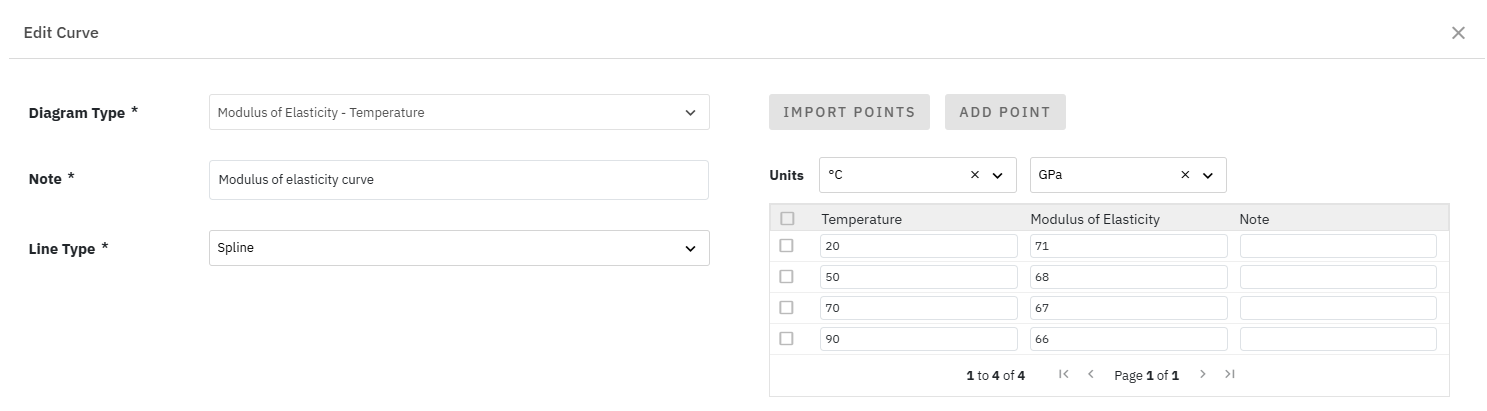
<figure><img src="/files/a6XF41IOG7gsJtKqhNb2" alt=""><figcaption><p><strong>Figure 11:</strong> Screenshot of populated data in Add/Edit Curve window</p></figcaption></figure>

<figure><img src="/files/8yEY4PhE4CZMy366IgU3" alt=""><figcaption><p><strong>Figure 12:</strong> Screenshot of populated data in Add/Edit Curve window for importing points</p></figcaption></figure>

<figure><img src="/files/fZEASrvPNCwKCo2iJTW8" alt=""><figcaption><p><strong>Figure 13:</strong> Screenshot of created 'Modulus of Elasticity – Temperature' diagram and Setup diagram and Edit buttons</p></figcaption></figure>

The same steps are followed when editing diagrams.
{% endstep %}
{% endstepper %}

## Add/Edit a Documents/Links

{% stepper %}
{% step %}

### Navigate to Documents

Navigate to the Documents subsection of the Properties section.

<figure><img src="/files/OhAPt0RV2KxfKtd94UrT" alt=""><figcaption><p><strong>Figure 14:</strong> Screenshot of Properties section and Document subsection</p></figcaption></figure>

<figure><img src="/files/yhISekOiNzGYuQ9oKEb9" alt=""><figcaption><p><strong>Figure 15:</strong> Screenshot of Documents subsection with available action buttons</p></figcaption></figure>

{% hint style="info" %}
Order and location of Documents section in [Material pages](/total-materia-integrator/total-viewer/material-pages/overview) is changable and can be adjusted and changed in [Data Maintenance'](/total-materia-integrator/creator/data-maintenance) [Property Groups](/total-materia-integrator/creator/data-maintenance/property-groups).
{% endhint %}
{% endstep %}

{% step %}

### Add Documents

To add a new document, click the "ADD DOCUMENT" <img src="/files/PNBGCNcZC7MUeeKPN2Yo" alt="" data-size="line"> button. A pop-up window will appear. Follow the steps below:

1. Select a file by clicking the "Choose File" <img src="/files/z2xUbSOF4XL7sC9b2SX6" alt="" data-size="line"> button (maximum upload size of document is 20 MB).
2. Enter the document's display name in the "Display Name" <img src="/files/4srCGwslsSWVBMFuCvr8" alt="" data-size="line"> textbox (the uploaded document's name will automatically populate this field).
3. Provide a description in the "Description" <img src="/files/maGAqzUayQvw70fPPUoI" alt="" data-size="line"> textbox (optional).
4. Choose the document type from the [Document Type](/total-materia-integrator/creator/data-maintenance/document-types) <img src="/files/mZAvgC0yRZpBEyi9qmVz" alt="" data-size="line"> drop-down list.
5. Specify the property group(s) from [Property Group](/total-materia-integrator/creator/data-maintenance/property-groups) <img src="/files/hu9XbFJB8rBsLEnGAWsq" alt="" data-size="line"> drop-down list for which uploaded document will be visible (optional). Document will be displayed on each page of the selected property groups.
<figure><img src="/files/ePXKPIpqcGxYcLhqpIhP" alt=""><figcaption><p><strong>Figure 16:</strong> Screenshot of Add Document window</p></figcaption></figure>

{% endstep %}

{% step %}

### Add Links

To add a new link, click the "ADD LINK" <img src="/files/9XNGG672yicN9PNXBnRo" alt="" data-size="line"> button. A pop-up window will appear. Follow the steps below:

1. Provide URL of the link in "URL" <img src="/files/HfY5smd0KBAryksQAxD5" alt="" data-size="line"> textbox.
2. Provide link name to be displayed in "URL text" <img src="/files/17fFawBuzv2rxV0Yca8U" alt="" data-size="line"> textbox.
3. Choose the link type from the "Link Type" <img src="/files/DdKDyCRWf4oebBxtlyh4" alt="" data-size="line"> drop-down list.
4. Specify the property group(s) from "[Property Group](/total-materia-integrator/creator/data-maintenance/property-groups)" <img src="/files/hu9XbFJB8rBsLEnGAWsq" alt="" data-size="line"> drop-down list for which specified link will be visible (optional). Link will be displayed on each page of the selected property groups.
<figure><img src="/files/DNTqrtcPjooObGhYxIIH" alt=""><figcaption><p><strong>Figure 17:</strong> Screenshot of Add Link window</p></figcaption></figure>
{% endstep %}
{% endstepper %}


# Release Materials

Releasing a material enables version control and ensures that changes are reflected in [Total Viewer](/total-materia-integrator/total-viewer) only after the material has been officially released. Clicking the <img src="/files/YoQYRdBwAp7pMHgydiKG" alt="" data-size="line"> button located in the right corner of "Material Designation" within [Creator ](/total-materia-integrator/creator)section will open a new pop-up window displaying text box "Version" and "Description" and check box "Remove material from Viewer".\
Text box "Version" allows insert of desired version of material (e.g. “version 4” or “version on 04/25/2025”) which will be displayed after release of material both in [Total Viewer](/total-materia-integrator/total-viewer) and [Creator ](/total-materia-integrator/creator)section.\
Text box "Description" allows insert of desired description of material version or any other specifics. If the text box "Description" is specified, its content will be displayed as a tooltip in [Total Viewer](https://docs.totalmateria.com/total-materia-integrator/~/revisions/eWfKOpWxE4eZDetzMTyo/total-viewer) and in [Track Material Changes](https://docs.totalmateria.com/total-materia-integrator/~/revisions/DZrESNWZC5RohQG7UE2g/total-viewer/material-pages/track-material-changes) section when the material is released.\
The "Remove material from Viewer" check box limits the visibility of the material to the [Creator](/total-materia-integrator/creator) section only, after it has been released. If this check box is not selected, the material will be visible in both the [Total Viewer](/total-materia-integrator/total-viewer) and [Creator](/total-materia-integrator/creator) section.

Clicking the button <img src="/files/E8gKpZ01Uf53dECOwAKI" alt="" data-size="line"> will release the material with the specified release information. Upon release, a version is automatically assigned and displayed on the material page within the Creator section. If a version has already been populated, both the predefined and the automatically assigned versions will be shown one to the other.

<figure><img src="/files/hNV1VJx2it1IXFw3u4sB" alt=""><figcaption><p><strong>Figure 1:</strong> Screenshot of Release Material window with defined "Version" and "Description"</p></figcaption></figure>

<figure><img src="/files/BSJ6PrGUEzza531nuRJS" alt=""><figcaption><p><strong>Figure 2:</strong> Screenshot of released material and material information with defined "Version" and "Description" in Total Viewer </p></figcaption></figure>


# Copy Data

Copy multiple data sets for internal materials

Copying data from one internal material to another material(s) in the Creator section is a time-saving and effective way to replicate and multiply different data sets across multiple materials.

To learn how to copy data from one internal material to another and how to copy extensive datasets from [Total Materia Horizon](https://docs.totalmateria.com/) to an [Internal](https://docs.totalmateria.com/total-materia-integrator/) material, please follow this [link](/total-materia-integrator/total-viewer/material-pages/copy-data) for detailed instructions.


# Delete Materials

Deletion of materials allows users to remove a material from both [Total Materia Viewer](/total-materia-integrator/total-viewer) and [Creator](/total-materia-integrator/creator).&#x20;

To delete a material, click the <img src="/files/le0ASR6VWfZL0P7nDuqV" alt="" data-size="line"> button (located to the right of the material designation), then click the <img src="/files/fxFRal9M3hagAhlBwnR8" alt="" data-size="line"> button (located at the bottom right of the [Create](/total-materia-integrator/creator/materials-management/create-materials)/[Edit](/total-materia-integrator/creator/materials-management/add-edit-material-data-properties-diagrams-and-documents) Material page) in the Creator section. This action will remove the material from both the [Total Materia Viewer ](/total-materia-integrator/total-viewer)and [Creator](/total-materia-integrator/creator) section.

Do not confuse the "[Remove material from Viewer](/total-materia-integrator/creator/materials-management/release-materials)" and "Delete" material button - the first only hides the material from the [Total Materia Viewer](/total-materia-integrator/total-viewer), while deletion affects both [Total Materia Viewer](/total-materia-integrator/total-viewer) and [Creator](/total-materia-integrator/creator) section.

<figure><img src="/files/erxtnBoqFbpEp5vivzwq" alt=""><figcaption><p><strong>Figure 1:</strong> Screenshot of Material Information window when deleting material</p></figcaption></figure>


# Material Workflow

Workflow-Driven Control Over Material Publishing

Material Workflow is an optional add-on for your [Integrator ](https://docs.totalmateria.com/total-materia-integrator/)data system and can be enabled upon request. It facilitates the material workflow by allowing requests for adding and releasing materials in [Total Viewer](/total-materia-integrator/total-viewer), by assigning each request to a specific user responsible for material creation/release. Material Workflow enables complete control over tracking and approving any changes made to the material, helping to streamline processes, improve accuracy, and ensure compliance across multiple users and departments.

When enabled, Material Workflow appears on the [Quick Search](/total-materia-integrator/total-viewer/search-tools/quick-search) page of [Total Viewer](/total-materia-integrator/total-viewer) in the section named "REQUESTS".&#x20;

The "REQUESTS" section contains two subsections: "Request New Material" and "My Requests". Additionally, for each material in the [Creator](/total-materia-integrator/creator) section that has been modified, a "REQUEST RELEASE" <img src="/files/jngMEKO1HpEgdA8TynHi" alt="" data-size="line"> button will appear instead of "[RELEASE MATERIALS](/total-materia-integrator/creator/materials-management/release-materials)" button (for Integrator data system where the material workflow is not enabled).

<figure><img src="/files/8X7sgjHUgNTJppmwqiSs" alt=""><figcaption><p><strong>Figure 1:</strong> Screenshot of REQUESTS section in Quick Search page of Total Viewer</p></figcaption></figure>

<figure><img src="/files/GekXQXY36NuN1lS4hIUc" alt=""><figcaption><p><strong>Figure 2:</strong> Screenshot of REQUEST RELEASE button for Teflon material in Creator section</p></figcaption></figure>

### Request New Material

The "Request New Material" section allows users (if previously enabled, applicable to all types of [user profiles](/total-materia-integrator/creator/user-management/user-profile)) to request the addition of a new material and data in the [Integrator ](https://docs.totalmateria.com/total-materia-integrator/)system.

Clicking the "Request New Material" link opens a new pop-up window in which requester must define mandatory and optional fileds:

* Power User\*: Power user to which new material data request will be assigned.
* Department\*: Specific deprtment.
* Material designation\*: Designation of requested material.
* Material condition\*: Specific condition of material.
* Vendor: Specific vendor of material.
* Type(s) of analysis\*: Type of analysis (chemical composition, mechanical properties etc.).
* Specific propeties\*: Specific property to be added for material (e.g. Heat capacity).
* Link: Specific link for material.
* Description: Any desired description.

All mandatory items are marked with an asterisk (\*).

<figure><img src="/files/qqWx9Mfh0FrnvKJ4g3Cl" alt=""><figcaption><p><strong>Figure 3:</strong> Screenshot of Requests and marked Request New Material section</p></figcaption></figure>

<figure><img src="/files/Jxs757r7dMr89KmUrZRk" alt=""><figcaption><p><strong>Figure 4:</strong> Screenshot of Request for New Material window</p></figcaption></figure>

Clicking the SUBMIT <img src="/files/BdbskK1xKmmYNWWZb8LO" alt="" data-size="line"> button completes the material request process, and the assigned person will be notified via e-mail.
<figure><img src="/files/1cTqShRsEjXUBi0StyCM" alt=""><figcaption><p><strong>Figure 5:</strong> Screenshot of e-mail for Request of new material</p></figcaption></figure>

### My Requests

The "My Requests" section allows users to see list of all requested materials and track the status of each of the request. Clicking the "My Requests" link (numbers in the brackets indicate the count of "In review" and "New" requests as well as the total number of requests) opens a new page with the full list of requests. Users can filter the list by using "Status" multi-selectable drop-down and selecting "Closed", "In review" and/or "New". By defaults "Status" drop-down list is set to "In review" and "New" requests.

* Closed status: Requests that have been fully processed and require no further action.
* In review status: Requests currently under review.
* New status: Newly created requests.

Each of the requests contains "Request ID" link that, when clicked, opens a pop-up window with the request details. Additionally in the list of requests users can see "Request ID" - The identity of request, "Type" - The request type, "Material" - The material designation, "Created by" - The creator of the request, "Assigned to" - The user to whom the material data request is assigned, "Date Created" - The creation date of request, "Date Modified" - The modification date of request, "Status" - The current status of the request (Closed, In review, New)

<figure><img src="/files/14mCX5BNMEOjk9xO9GGt" alt=""><figcaption><p><strong>Figure 6:</strong> Screenshot of Requests and marked My Requests section</p></figcaption></figure>

<figure><img src="/files/FyBVNcu4u1ggA54L8iuh" alt=""><figcaption><p><strong>Figure 7:</strong> Screenshot of My Requests section with the lists of all requests</p></figcaption></figure>

<figure><img src="/files/kDmxJaG7IFhvD8KXRX8N" alt=""><figcaption><p><strong>Figure 8:</strong> Screenshot of Request details in My Request section</p></figcaption></figure>

### Material Release Requests

Each edited materials in the [Creator ](/total-materia-integrator/creator)section of [Total Materia Integrator](https://docs.totalmateria.com/total-materia-integrator/) must be requested for release and approved by the assigned user in order for all edits and updates to be visible in the[ Total Viewer](/total-materia-integrator/total-viewer) section of [Total Materia Integrator](https://docs.totalmateria.com/total-materia-integrator/).  Clicking the "Request Release" <img src="/files/6yhPX5KDwHHeJUj2y3HH" alt="" data-size="line"> button opens a new pop-up window where users can populate the optional description for material releasment, choose whether the material should be visibile in Total Materia Viewer (optional) and select a user from "Request release from user" drop-down list (mandatory), who will approve the changes made to the material.

{% hint style="info" %}
To see how material releasment works for data systems without an enabled Material workflow, click the following [link](/total-materia-integrator/creator/materials-management/release-materials).
{% endhint %}
<figure><img src="/files/ndD4CZnvjZqCGXC0zFR3" alt=""><figcaption><p><strong>Figure 9:</strong> Screenshot of <em>Ultramid 8202</em> material and marked Request Release button in Creator section of Total Materia Integrator</p></figcaption></figure>

<figure><img src="/files/QgAEaoeyEAhcLUfWz7Pp" alt=""><figcaption><p><strong>Figure 10:</strong> Screenshot of Request Material Release window with populated fields</p></figcaption></figure>

Materials that have already been submitted for approval/release cannot be further edited during the approval/release process.

Search of materials by the status of release is available by using "Release Status" drop-down list in Creator section of Total Materia Integrator.

<figure><img src="/files/IBn1KMssAVfeCcWqREU4" alt=""><figcaption><p><strong>Figure 11:</strong> Screenshot of material <em>Bycolene 2710</em> that has been submitted for approval in the Creator section</p></figcaption></figure>

<figure><img src="/files/KAxytZ00cPwGHWoSUpVk" alt=""><figcaption><p><strong>Figure 12:</strong> Screenshot of the Creator section and Release Status drop-down list</p></figcaption></figure>


# Bulk Export

Bulk export functionality allows users to simply export all internal material data in XML, XPDM format.

To learn how to use bulk export functionality, please follow this [link](/total-materia-integrator/total-viewer/export-data/bulk-export) for detailed instructions.


# Data Maintenance

Configure your material data system by setting up desired [material groups](/total-materia-integrator/creator/data-maintenance/material-groups), [property groups](/total-materia-integrator/creator/data-maintenance/property-groups), [properties](/total-materia-integrator/creator/data-maintenance/properties), [parameters](/total-materia-integrator/creator/data-maintenance/parameters), [references](/total-materia-integrator/creator/data-maintenance/references), and more. Data Maintenance section is structured in two sections: General and Sync Horizon Copies section.&#x20;

[Sync Horizon Copies](/total-materia-integrator/creator/data-maintenance/sync-horizon-copies) allows users to update and synchronize materials that contain copied data from Total Materia Horizon.

The General section contains twelve different subsections, each allowing for personalized configuration of the material data system. They include the following:

<details>

<summary><a href="/pages/TBOZt9Mxbvq3Ze5qGTSF">Material Groups</a></summary>

Set up and order material groups, assign property groups to each defined material group and configure up to four levels of material classification.

</details>

<details>

<summary><a href="/pages/IaEUK5jXNJuwJuQ8TT2z">Property groups</a></summary>

Define and structure property groups along with their subgroups.

</details>

<details>

<summary><a href="/pages/ZkrE0BvfFs1x4Sab1CiC">Properties</a></summary>

Set up unlimited options for creating properties. For each defined property, assign various property groups (chemical composition, mechanical properties, compliance, CAD data, etc.) and multiple unit groups. Configure properties as links, drop-down lists, and more.

</details>

<details>

<summary><a href="/pages/BxBi29bNKNbBJmjEsCGn">Parameters</a></summary>

Configure parameters as drop-down lists, free-text fields, numbers, or links. Set their visibility for specific material groups, add custom parameter items as needed, and organize them into categories for easier selection and use.

</details>

<details>

<summary><a href="/pages/HiMTyOrpmRdN9csL0m3S">Suppliers</a></summary>

Add supplier data, including detailed contact information such as company name, address, website, and other relevant details.

</details>

<details>

<summary><a href="/pages/a0k4mzf2hjpzWvQVogs2">References</a></summary>

Configure your references and set different reference types (literature, supplier date etc.).

</details>

<details>

<summary><a href="/pages/V9iJi0EVtHghkqP4bJjf">Reference Types</a></summary>

Define new reference types.

</details>

<details>

<summary><a href="/pages/Gd0DO3LAZRgblmAxgxMf">Document Types</a></summary>

Define new document types.

</details>

<details>

<summary><a href="/pages/8SzlA8rgsvBexxSpgnRE">Diagram Types</a></summary>

Create and manage different diagram types to visualize material data and properties effectively.

</details>

<details>

<summary><a href="/pages/5eBAoxQeiRoP2GKCM0HX">Standards</a></summary>

Create and organize different Standards for materials.

</details>

<details>

<summary><a href="/pages/t2hQ4RjjhR1k1RHvuqHU">Units</a></summary>

Add various unit groups and configure their items. Define units as metric or imperial and enable unit conversions.

</details>

<details>

<summary><a href="/pages/2xxYnswJcuujkSn0NfNe">Material Info Setup</a></summary>

Order relevant material information in the desired way.

</details>


# Material Groups

The Material Groups section of the Data Maintenance allows users to create and edit material groups, define their display order in material drop-down lists, and assign [property groups](/total-materia-integrator/creator/data-maintenance/property-groups) to each material group. The system also allows users to configure up to four levels of material classification (e.g. Metals / Ferrous Alloys / Steels / Stainless Steels) or define only top-level material groups, such as Metals, Polymers, etc.

To create a new material group or edit/delete an existing one, simply click the "ADD MATERIAL GROUP" <img src="/files/sFIQFDQRRUZBj8MQ35q2" alt="" data-size="line"> or <img src="/files/gZVQvKOaachot6qs8lPO" alt="" data-size="line"> buttons in the interface.&#x20;

To search for existing material groups, enter the full or partial material group name in the <img src="/files/aLqKeKxiB6t5iT93Dlk2" alt="" data-size="line"> text box.

Clicking the "ADD MATERIAL GROUP" <img src="/files/kIGT9cXTZNrPVzXvEIRc" alt="" data-size="line"> button opens a new window in which users can either assign a subgroup (2<sup>nd</sup>, 3<sup>rd</sup>, or 4<sup>th</sup> classification level) to an existing main material groups or define a main material group by clicking <img src="/files/kpopz9WhmrpIniL4ZtyS" alt="" data-size="line"> slider to the right.&#x20;


{% hint style="warning" %}
After adding the new material group, assign it to the appropriate [User Profile](/total-materia-integrator/creator/user-management/user-profile#material-groups) in "Material Groups" section to ensure its visibility.
{% endhint %}

"Material group" text box, in which the material group name is defined, is mandatory and must be populated when adding both parent and child material groups. To add a material subgroup (child group), the main material group must be selected in drop-down list.
<figure><img src="/files/2DU0RQE0Z2wPDsRODTJ7" alt=""><figcaption><p><strong>Figure 1:</strong> Screenshot of Material groups in Data Maintenance section</p></figcaption></figure>

<figure><img src="/files/s58ck9rEwftfZU7uUR9q" alt=""><figcaption><p><strong>Figure 2:</strong> Screenshot of Add Material Group window when adding child group</p></figcaption></figure>

To assign desired [property groups](/total-materia-integrator/creator/data-maintenance/property-groups) to existing material groups, click the <img src="/files/83w2SHZIu3FkISxeZnUM" alt="" data-size="line"> link for each material group. This will open a window in which multiple property groups can be selected.
<figure><img src="/files/ePBjxRIKuggbL62FLPG5" alt=""><figcaption><p><strong>Figure 3:</strong> Screenshot of Add property groups window</p></figcaption></figure>

To order main material groups, click the <img src="/files/IwDEF9UC553v2rLSKK4U" alt="" data-size="line"> link, located in the upper-right corner. This will open a window in which ordering of material groups is done by clicking the arrows on the right.
<figure><img src="/files/NZXkrqZ08KY2sS6NoEsg" alt=""><figcaption><p><strong>Figure 4:</strong> Screenshot of Order main material groups window</p></figcaption></figure>

{% hint style="warning" %}
Deletion of materials groups is not possible if the group is already assigned to a material.

Ordering of material groups is only available for main material groups.
{% endhint %}


# Property Groups

The Property Groups part of the Data Maintenance section allows users to create and edit property groups, define their display settings, and set their order on [material pages](/total-materia-integrator/total-viewer/material-pages/overview). Users can also configure main property groups and define child (subgroups) under them. Additionally, the system allows assigning colors to main property groups in order to improve their visibility and help users more easily distinguish them on [material pages](/total-materia-integrator/total-viewer/material-pages/overview).

To create a new property group or edit/delete an existing one, simply click the <img src="/files/SfKsl5UpzYdC7gS8Pg2U" alt="" data-size="line"> or <img src="/files/gZVQvKOaachot6qs8lPO" alt="" data-size="line"> buttons in the interface.

Clicking the "ADD PROPERTY GROUP" <img src="/files/lonnr1Drq944HunHVciJ" alt="" data-size="line"> button opens a new window in which users can either assign a child property group to an existing main property groups or define a main material group by clicking <img src="/files/kpopz9WhmrpIniL4ZtyS" alt="" data-size="line"> slider to the right.&#x20;

{% hint style="warning" %}
After adding the new property group, assign it to the appropriate [User Profile](/total-materia-integrator/creator/user-management/user-profile#property-groups) in "Property Groups" section to ensure its visibility.
{% endhint %}

"Property group" text box, in which the property group name is defined, is mandatory and must be populated when adding both parent and child property groups. To add a property subgroup (child group), the main property group must be selected in drop-down list.
<figure><img src="/files/Yvs9EJhQYbUV6rNhlayn" alt=""><figcaption><p><strong>Figure 1:</strong> Screenshot of Property groups in Data Maintenance section</p></figcaption></figure>

<figure><img src="/files/WithjpgZs2EerTbU8QBe" alt=""><figcaption><p><strong>Figure 2:</strong> Screenshot of Add Property Group window when adding Main group</p></figcaption></figure>

<figure><img src="/files/XbXMA8zKiDQnFajFVaZ8" alt=""><figcaption><p><strong>Figure 3:</strong> Screenshot of Add Property Group window when adding Child group</p></figcaption></figure>

"Enable condition filters" checkbox, when adding child group is optional. When and if selected, three additional checkboxes will appear, each used to control the display of filtering options on [material pages](/total-materia-integrator/total-viewer/material-pages/overview). When the checkbox "Show thermometer in filters" is selected, temperature ranges will be displayed. "Show references in filters" will enable the display of references, while "Show properties in filters" will enable showing and filtering propererties on material pages for defined property group.

<figure><img src="/files/ZersEP4miu7r60vEbySb" alt=""><figcaption><p><strong>Figure 4:</strong> Screenshot of Enable condition filters checkboxes when adding Child group</p></figcaption></figure>

To order property groups, click the link ![](/files/eho8ZgiGS26ukSvQEr7u), located in the upper-right corner. This will open a window in which ordering of property groups is done by clicking the arrows on the right.

<figure><img src="/files/fQdOhTI6dCuuXVRa6KI7" alt=""><figcaption><p><strong>Figure 5:</strong> Screenshot of Order property groups window</p></figcaption></figure>

{% hint style="warning" %}
Deletion of property groups is not possible if the group is already assigned to a material.

Ordering of property groups is available both for main and child property groups.

Each existing property group will display its assigned material group. To learn how to assign a property groups to material groups, click the [link](/total-materia-integrator/creator/data-maintenance/material-groups).
{% endhint %}


# Properties

The Properties section is the central place for defining and managing material properties. Each property can be assigned to a [property group](/total-materia-integrator/creator/data-maintenance/property-groups) and a [unit group](/total-materia-integrator/creator/data-maintenance/units), and configured with a specific type (number, text, dropdown list, link) along with its related items. Additionally, property value formatting is handled within this section.&#x20;

Along with [Property Groups](/total-materia-integrator/creator/data-maintenance/property-groups) and [Units](/total-materia-integrator/creator/data-maintenance/units) sections, it forms a complete framework for fully defining material properties, including their [desired values](/total-materia-integrator/creator/materials-management/add-edit-material-data-properties-diagrams-and-documents) as specified in [Materials](/total-materia-integrator/creator/materials-management/add-edit-material-data-properties-diagrams-and-documents) section.

To create a new property or edit/delete an existing one, simply click the "ADD PROPERTY" <img src="/files/53f8aPyL36lp6hpwvqUe" alt="" data-size="line"> or <img src="/files/gZVQvKOaachot6qs8lPO" alt="" data-size="line"> buttons in the interface.

To search for existing properties, enter the full or partial property name in the <img src="/files/mZJ1W4BTk01FcySC91iT" alt="" data-size="line">  text box and/or choose the relevant property group from <img src="/files/FvtMk1U67U3jEeQT26yO" alt="" data-size="line"> drop-down list.

<figure><img src="/files/nwiQy4JX0bpX2LUiqjdi" alt=""><figcaption><p><strong>Figure 1:</strong> Screenshot of Properties in Data Maintenance section</p></figcaption></figure>

### Add/Edit a Property

Clicking the "ADD PROPERTY" <img src="/files/Mt3IeSPospCYea7qw1Ai" alt="" data-size="line"> button opens a new window where users must first define the property group by selecting it from the [Property Group](/total-materia-integrator/creator/data-maintenance/property-groups) drop-down list.&#x20;

"Property" text box, in which the property name is defined, is mandatory and must be populated.&#x20;

<figure><img src="/files/Bb0FDAD1VKLanzYaqSam" alt=""><figcaption><p><strong>Figure 2:</strong> Screenshot of defined Property Group and Property fields</p></figcaption></figure>

Property type is mandatory and it is selected from "Property Type" drop-down list (by default property type is set as "Number"). Property can be set as one of five different types: "Date" - Property as generic date picker field, "Dropdown" - Property as dropdown list with defined items, "Link" - Property as web link field,  "Number" - Property as generic number filed and comment or as "Text" - Property as generic text input field.

<figure><img src="/files/4qF2Hom9VdrOEWzMZxkm" alt=""><figcaption><p><strong>Figure 3:</strong> Screenshot of Property Type drop-down list</p></figcaption></figure>

Optionally, property values can be color-coded by selecting the preferred color from the color picker palette.

To select property units, choose the desired unit group from the [Unit groups](/total-materia-integrator/creator/data-maintenance/units) drop-down list. Use the unit group search text box to more easily find the desired unit group(s). If needed, multiple unit groups can be selected for one property.&#x20;

If a temperature field should be defined for the property, check the <img src="/files/YxJmGxqep0zG77GvAGmr" alt="" data-size="line"> checkbox.

If a standard deviation field should be defined for the property, check the <img src="/files/5SW3IDmbyzQGKx2UX4Fg" alt="" data-size="line"> checkbox.

If a link field should be defined for the property, check the <img src="/files/LravR8hJr5Uapejakq7y" alt="" data-size="line"> checkbox.

Click the <img src="/files/2yt74CKd9jLNRdFhrdC5" alt="" data-size="line"> button for saving new properties and <img src="/files/f1GgLAovl1QYlCsIw5rY" alt="" data-size="line"> button for saving edited properties.

<figure><img src="/files/cgkcrtbsFEHMgxHCe7f0" alt=""><figcaption><p><strong>Figure 4:</strong> Screenshot of Add property window with with populated fields</p></figcaption></figure>

### Add/Edit Property Item

To add or edit a new property item (applicable only for properties in the form of drop-down) click <img src="/files/i4HAwckWp1qHf8ORv04N" alt="" data-size="line"> link. A new window will open, where new property items entries can be created by clicking<img src="/files/aHDCmyHi2PyGyhivFDL0" alt="" data-size="line"> button or edited/deleted using <img src="/files/KCa41rASGhodEEGOUlKw" alt="" data-size="line"> buttons.

To search for an existing property items enter the full or partial property item name in the <img src="/files/uZtfr4IstIMVCptAydhJ" alt="" data-size="line"> text box.&#x20;

To return to the "Properties" page, click the <img src="/files/NEfFXeIKitE56BuYcB5O" alt="" data-size="line"> button, located in the upper left corner of the "Property Item" page.

<figure><img src="/files/4vXdpNjNEf14Ez9p7OmD" alt=""><figcaption><p><strong>Figure 5:</strong> Screenshot of Property Item in Properties section</p></figcaption></figure>

### Format Display of Property Values

To format properties in the form of number use the <img src="/files/VoOuHSFNzNS0kPQtIKN3" alt="" data-size="line"> link to the right of each property. This will open a "Format Number" window where the formatting of property values is defined.

Number formatting can be applied both for metric and imperial units separately (click the slider to the right for imperial unit setting). Four format types can be applied, as follows:

* "None": Property values are displayed as inserted - no formatting is applied.
* "STD(d)": Property values are formatted with defined number of decimals (including 0 decimals) inserted in "Number of decimals" box. Use trailing zeros option can be applied by checking "Use trailing zeros" checkbox.
* "EXP(s)": Property values are formatted with defined number of significant digits inserted in 'Number of significant digits' box and displayed in E-labeled scientific notation.
* "EXP3(s)": Property values are formatted using a defined number of significant digits inserted in "Number of significant digits" and displayed in E-labeled scientific notation, with the significand as a three-digit integer.

{% hint style="warning" %}
If multiple unit groups are defined for one property, make sure to select the desired one for formatting from "Unit Group" drop-down list.

Each metric and imperial unit requires individual formatting set-up.
{% endhint %}

<figure><img src="/files/430ByUEFjO6vh8OXrhZx" alt=""><figcaption><p><strong>Figure 6:</strong> Screenshot of Format number window when selecting STD(d) as formatting type</p></figcaption></figure>


# Parameters

Use the Parameters section to configure and organize parameters at either the material, material description, condition or export level. This section also allows users to select different parameter types (text, drop down lists, number, link etc.), define desired parameter items for parameters in the form of drop-down lists, and customize parameter colors.

To create a new parameter or edit/delete an existing one, simply click the "ADD PARAMETER" <img src="/files/Ykosf3hVzQkeg90pGzx9" alt="" data-size="line"> or <img src="/files/gZVQvKOaachot6qs8lPO" alt="" data-size="line"> buttons available in the Parameters page.

To search for existing parameters, use one of the three available options:

* Enter the full or partial parameter name in the <img src="/files/aLqKeKxiB6t5iT93Dlk2" alt="" data-size="line"> text box.
* Search by parameter type by selecting one or more items from <img src="/files/Tgkz0GmZcy09R6jBaRRP" alt="" data-size="line"> multi-selectable drop-down list.

* Search by where the parameter is used (e.g. condition, material description) by selecting one or more items from <img src="/files/YxEvVXkhSohnT6OKqDYQ" alt="" data-size="line"> multi-selectable drop-down list.

Assignment of parameter to specific[ property](/total-materia-integrator/creator/data-maintenance/property-groups) and [material groups](/total-materia-integrator/creator/data-maintenance/material-groups) is done by clicking the link <img src="/files/B1QxcKd9bn0GqmJjUlr5" alt="" data-size="line"> positioned in the upper right corner of Parameters page.

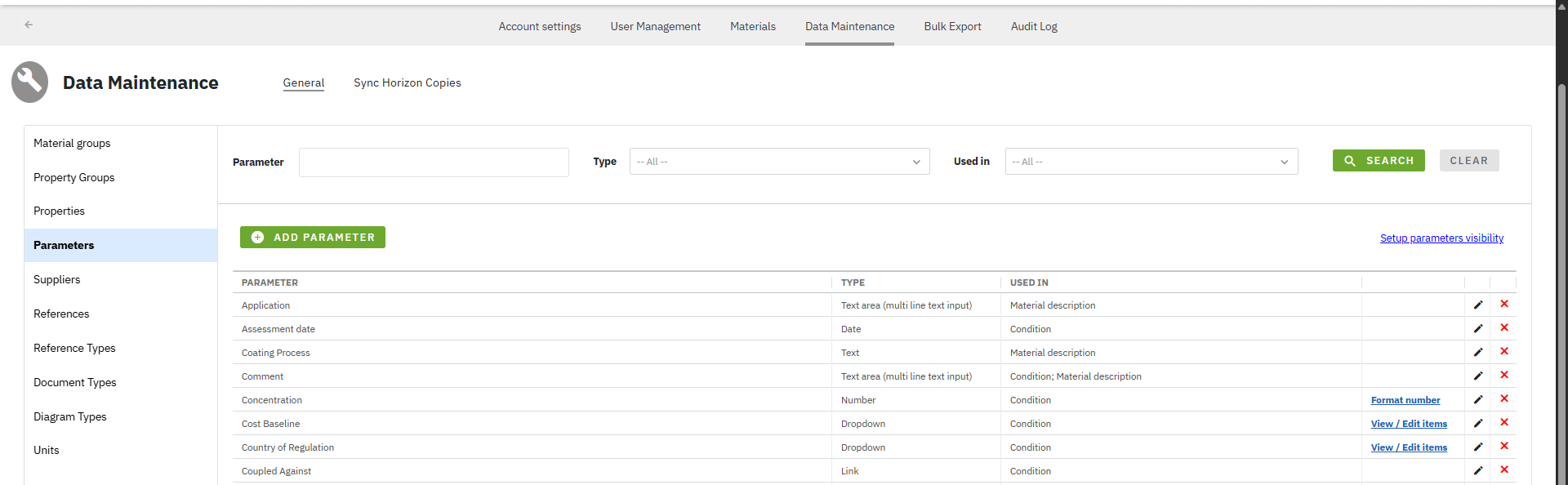
<figure><img src="/files/Y4nX5sAoz4YqJl37UCNK" alt=""><figcaption><p><strong>Figure 1:</strong> Screenshot of Parameters in Data Maintenance section</p></figcaption></figure>

{% stepper %}
{% step %}

### Configuring Parameters

Clicking the "ADD PARAMETER" button opens a new window for creating a new parameter. Users are obligated to define: Parameter name in "Parameter" text box, parameter type in "Parameter type" drop-down list and where parameter is used in "Used in" multi-selectable check boxes. Setting the parameter color is optional and can be configured by clicking color picker from "Font color" palette.

<figure><img src="/files/S11vEbhILAUu5KnnBiU5" alt=""><figcaption><p><strong>Figure 2:</strong> Screenshot of Add Parameter window when adding Form'as parameter</p></figcaption></figure>

The First step in defining a new parameter is to set its name in the 'Parameter' text box. Once the desired parameter name is entered, users should define parameter type (by default parameter type is set as "Text") by selecting the appropriate item from the "Parameter Type" drop-down list: "Date" - Parameter as generic date picker field, "Dropdown" - Parameter as drop-down list with defined items, "Link" - Parameter as web link field, "Number" - Parameter as generic number field and comment, "Text" - Parameter as generic text input field in a single line or as "Text area" - Parameter as generic text input filed in multi-line.

<figure><img src="/files/blHXCBnXO7PqO2qHumV1" alt=""><figcaption><p><strong>Figure 3:</strong> Screenshot of Parameter Type drop-down list</p></figcaption></figure>

To enable multiple selection of parameter items in a parameter type defined as drop-down list, check the <img src="/files/hzw7DVBwahb8qp4klMnj" alt="" data-size="line"> checkbox.

When "Number" is selected as the parameter type, a new drop-down list named [Unit Groups](/total-materia-integrator/creator/data-maintenance/units) appears, containing predefined unit items. This allows the users to select a unit group (e.g. Density - \[kg/dm³]) for defined parameter. Selecting a [unit group](/total-materia-integrator/creator/data-maintenance/units) is optional and can be left unpopulated.

{% hint style="warning" %}
Before adding new parameters as number parameter types, ensure unit groups are configured in the [Units](/total-materia-integrator/creator/data-maintenance/units) section of Data Maintenance.
{% endhint %}
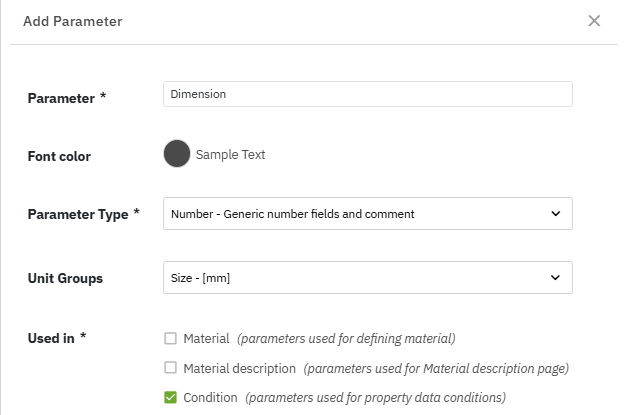
<figure><img src="/files/CllXrM6wpCV0DCjRxB6B" alt=""><figcaption><p><strong>Figure 4:</strong> Screenshot of Add Parameter window when adding Dimension as parameter and Number as parameter type</p></figcaption></figure>

The next step in completing the parameter setup is to define its usage by selecting "Used in" check boxes. The parameter can be applied in the three material sections: "Material" - used for defining material, "Material description" - used for material description page and  "Condition"  - used for property data conditions. These levels can be selected individially or all together.&#x20;

When "Material" is selected as "Used in" type, the optional "Basic Info" check box is available. Selecting it will impact the parameter visiblibility in the materials [Basic Information section](/total-materia-integrator/creator/materials-management/create-materials). Optionally, if this parameter is mandatory, make sure to check the "Mandatory" check box.&#x20;

When "Condition" is selected as "Used in" type and parameter type is set as "Dropdown list",  the optional "Exporter" check box is available. Selecting it will impact the parameter visibility with inserted parameter items in the selected [export page](/total-materia-integrator/total-viewer/export-data/one-click-export).

<figure><img src="/files/GI5Krjxrzq9PLsjk4U69" alt=""><figcaption><p><strong>Figure 5:</strong> Screenshot of Add Parameter window when adding Standard Number as Material - Basic Info parameter</p></figcaption></figure>

<figure><img src="/files/fHehQ9iPZaV0S7k3oNoo" alt=""><figcaption><p><strong>Figure 6:</strong> Screenshot of Basic information material window with Standard Number as mandatory parameter</p></figcaption></figure>

<figure><img src="/files/aa6toHO3Mj1WEdKkU8Ku" alt=""><figcaption><p><strong>Figure 7:</strong> Screenshot of Add Parameter window when adding Test sample as Condition - Exporter parameter</p></figcaption></figure>

<figure><img src="/files/yZZBXe9xRVFnu6SiECiq" alt=""><figcaption><p><strong>Figure 8:</strong> Screenshot of Export to CAx window with Test sample as filtering parameter</p></figcaption></figure>

#### Configuration of parameters in the form of drop-down list

Configuration of parameters in the form of drop-down lists is done by clicking the link <img src="/files/2UqYRiLohKefULHCSpgm" alt="" data-size="line"> positioned to the right of "Used in" on the Parameters page. This action opens a new page for editing and creating parameter items.

<figure><img src="/files/Va8mICRQN6v5nIMrQuBV" alt=""><figcaption><p><strong>Figure 9:</strong> Screenshot of Parameters page for parameter type Dropdown and View/Edit items link</p></figcaption></figure>

To add a new parameter item, click the <img src="/files/63uCpiTDhuD56LBicS8r" alt="" data-size="line"> button. This action opens a window where the user can define the item's name and color.

To search existing parameter items, enter the full or partial parameter item name in the <img src="/files/rXDzQltCokEMRObsF4hm" alt="" data-size="line"> search box.

To delete or edit an existing parameter item, click the <img src="/files/gZVQvKOaachot6qs8lPO" alt="" data-size="line"> button on the 'Parameter Items' page.

To return to the "Parameters" section, click the <img src="/files/vdXbZrg9QUijQNzkBT3o" alt="" data-size="line"> button located in the upper-left corner of the "Parameter Items" page.

#### Configuration of parameters in the form of number

Configuration of parameters in the form of number is done by clicking the link <img src="/files/lvEIe70VfouwTYNPjnsl" alt="" data-size="line"> positioned to the right of "Used in" on the "Parameters" page. This action opens a new page for formating of parameter.

<figure><img src="/files/CUNVbsSroKIrOORWYMXL" alt=""><figcaption><p><strong>Figure 10:</strong> Screenshot of Parameters page for parameter type Number and Format number link</p></figcaption></figure>

Number formatting can be applied both for metric and imperial units separately (click the slider to the right for imperial unit setting). Four format types can be applied, as follows:

* "None": Property values are displayed as inserted - no formatting is applied.
* "STD(d)": Property values are formatted with defined number of decimals (including 0 decimals) inserted in "Number of decimals" box. Use trailing zeros option can be applied by checking 'Use trailing zeros' checkbox.
* "EXP(s)": Property values are formatted with defined number of significant digits inserted in "Number of significant digits" box and displayed in E-labeled scientific notation.
* "EXP3(s)": Property values are formatted using a defined number of significant digits inserted in "Number of significant digits" and displayed in E-labeled scientific notation, with the significand as a three-digit integer.
  {% endstep %}

{% step %}

### Setting Parameters' Visibility

Adjusting parameter visibility is crucial for setting its display within certain [property](/total-materia-integrator/creator/data-maintenance/property-groups) and [material groups](/total-materia-integrator/creator/data-maintenance/material-groups). Each parameter can be assigned to a specific property group (e.g. mechanical properties, chemical composition) and a material group (e.g., metals, polymers).

To assign a parameter to specific property and material groups, click the link <img src="/files/B1QxcKd9bn0GqmJjUlr5" alt="" data-size="line"> in the top right corner of the "Parameters" page. This opens the "Setup Parameter Visibility" page. This page includes two search options: a multi-selectable drop-down list <img src="/files/7EI6UXksHpv2dEtR6S8i" alt="" data-size="line"> for narrowing the search of property groups and a search field<img src="/files/S6S0hLHTQ7fXyVOhCNh3" alt="" data-size="line"> for filtering already assigned parameters within specific property groups.&#x20;


<figure><img src="/files/oOVtAwfkuPhCOi64LK9e" alt=""><figcaption><p><strong>Figure 11:</strong> Screenshot of Setup Parameter Visibility page</p></figcaption></figure>

After determining the desired property group to which parameter should be assigned, click the <img src="/files/gKrEjmPa3ixAyA7x0dQP" alt="" data-size="line"> link. A new pop-up window named "Assign Parameters" will open, where the desired parameters for selected property groups should be checked.
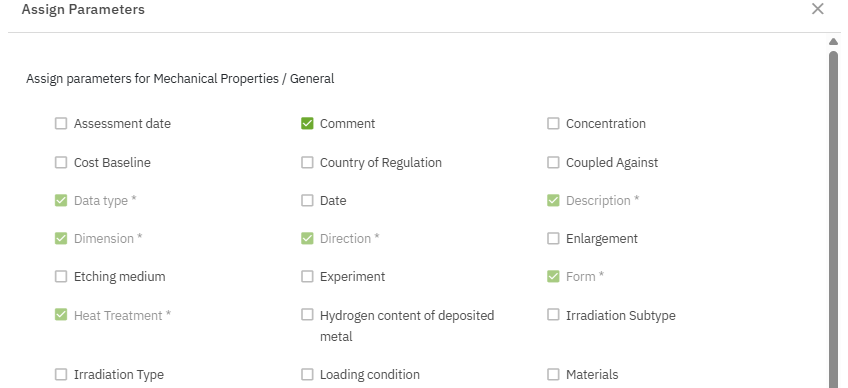
<figure><img src="/files/RBKkcf1gaKrqD0XY58DQ" alt=""><figcaption><p><strong>Figure 12:</strong> Screenshot of Assign Parameters page</p></figcaption></figure>

The final step in completing the parameter visibility setup is to assign the desired material groups by clicking the <img src="/files/7WXyYM2b4FfcJUVfYZ9H" alt="" data-size="line"> link. A new pop-up window titled "Assign Material Groups" will open. You can assign parameters to specific material groups by clicking the check box to the left of each parameter name corresponding to the desired material group. Additional options for setting parameter visibility for each material group are available, including:

* "Show parameter name in condition": When "ON" enables display of parameter name in condition.
* "Show parameter in condition filter": When "ON" enables display of parameter in condition filters (available only for parameters in the form of drop-down list).
* "Mandatory": When "ON" parameter is set as mandatory.
* Up/down arrows: Set up the parameter order by clicking the arrows up or down for each parameter.
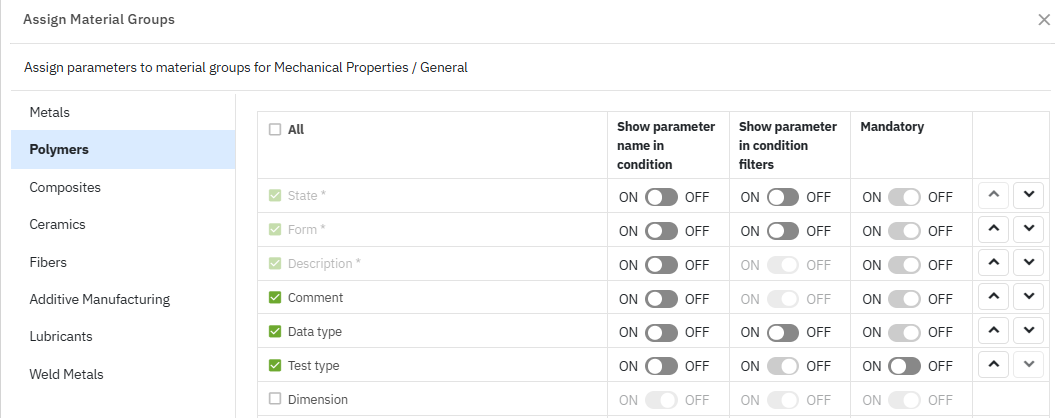
<figure><img src="/files/zMAKxYNKxrCFxD6rtfGr" alt=""><figcaption><p><strong>Figure 13:</strong> Screenshot of Assign Parameters page</p></figcaption></figure>

<figure><img src="/files/q6JJMUO7ay1bJNJl7pgY" alt=""><figcaption><p><strong>Figure 14:</strong> Screenshot of Mechanical properties page for Xegreen polymeric material with available conditions and assigned condition parameters</p></figcaption></figure>
{% endstep %}
{% endstepper %}

{% hint style="warning" %}
Parameters assigned to material, material description, or condition level can not be deleted until the connected data is removed.

Setting parameter visibility is not required for parameters used at the "Material" and "Material Description" levels.

Only parameters in the form of drop-down list could be used to filter data.

Parameters cannot be deselected from previously assigned property and material groups if released materials have connected data.
{% endhint %}


# Suppliers

Utilize the Suppliers module to input detailed supplier information, including company name, country, address, website, and other relevant contact details.

To create a new Supplier or edit/delete an existing one, click the "ADD SUPPLIER" <img src="/files/p8Dq80ClNDhG9O64LZFv" alt="" data-size="line"> or <img src="/files/gZVQvKOaachot6qs8lPO" alt="" data-size="line"> buttons in the interface.

To search for an existing Supplier by supplier name or country, enter the full or partial supplier name in the <img src="/files/bJXZMEC0Dc1qs2ioe2qQ" alt="" data-size="line"> textbox and/or select one or more countries from the multi-select <img src="/files/Xt01AHjZo3fdGy14p6LC" alt="" data-size="line"> drop-down list.


Clicking the "ADD SUPPLIER" button opens a new window for assigning "Supplier name" (mandatory), "Country" (mandatory), "City" (optional), "Address" (optional), "Website" (optional), "Contact" (optional) and "Comment" (optional).

If the added Supplier has a populated Website field, its website can be opened by clicking the supplier name.

<figure><img src="/files/j3x5TBVxft7pLa1EtUBP" alt=""><figcaption><p><strong>Figure 1:</strong> Screenshot of Edit Supplier in Data Maintenance section</p></figcaption></figure>


# References

Referencing your data is essential for ensuring traceability, credibility, and easier validation of information. By assigning your materials or entries to relevant sources, you help maintain data integrity and improve overall system transparency. Reference your data by providing a name, selecting a [Reference type](/total-materia-integrator/creator/data-maintenance/reference-types) (e.g., literature, supplier data, standard), and optionally adding a website or document link.

To create a new Reference or edit/delete an existing one, click the "ADD REFERENCE"<img src="/files/ibqvGoWarZFaXSArMyvM" alt="" data-size="line"> or <img src="/files/gZVQvKOaachot6qs8lPO" alt="" data-size="line"> buttons in the interface. This action opens a window for entering the mandatory "Reference" name and selecting "[Reference type](/total-materia-integrator/creator/data-maintenance/reference-types)", with optional fields for a website or document link.
<figure><img src="/files/jbdD6aOejpoKKqwyDxH6" alt=""><figcaption><p><strong>Figure 1:</strong> Screenshot of Edit Reference in Data Maintenance section</p></figcaption></figure>


# Reference Types

Organize and customize your material data by categorizing it into various reference types like Experimental, Standard, Internal standards or any desired name.

To create a new Reference type or edit/delete an existing one, click the "ADD REFERENCE TYPE"<img src="/files/FjRPN5pWphbt4K6WDzmn" alt="" data-size="line"> or <img src="/files/gZVQvKOaachot6qs8lPO" alt="" data-size="line"> buttons in the interface. This will open a window in which the "Reference type" (mandatory) and optional "Description" are defined.

<figure><img src="/files/3SktD91BAUch6U1uu82f" alt=""><figcaption><p><strong>Figure 1:</strong> Screenshot of Edit Reference Type in Data Maintenance section</p></figcaption></figure>


# Document Types

Organize your documents by specificing the document type. Define any desired document type name and assign to document attached for material.


# Diagram Types

Utilizing Diagram Types enables users to add and configure various property curves, allowing large datasets and test data to be added to the desired materials, thus improving data organization and visualization.

### Configuring Diagram Types: A Step-by-Step Guide

{% stepper %}
{% step %}

#### Click the [Data Maintenance ](/total-materia-integrator/creator/data-maintenance)section

{% endstep %}

{% step %}

#### Click the Diagram Types&#x20;

{% endstep %}

{% step %}

#### Search for existing diagram types

Check if the desired diagram type is available in the existing list by typing its name in text box "Diagram type". To narrow the search, the desired property group can be selected from the drop-down list [Property group](/total-materia-integrator/creator/data-maintenance/property-groups).

<figure><img src="/files/f7mqnms33dnMqAMJli7O" alt=""><figcaption><p><strong>Figure 1:</strong> Screenshot of Diagram Types search</p></figcaption></figure>
{% endstep %}

{% step %}

#### Add new diagram type

If the desired diagram type is not available in the existing "Diagram type" list, click the "ADD DIAGRAM TYPE" button. This action will open a new pop-up window, which will allows users to add a new diagram type.

<figure><img src="/files/L5KXNfNfrif9CIjxMym2" alt=""><figcaption><p><strong>Figure 2:</strong> Screenshot of Add diagram type window</p></figcaption></figure>
{% endstep %}

{% step %}

#### Define your diagram type

* Define desired diagram type in "Diagram Type" text box (e.g. “Modulus of Elasticity”).
* Define desired [Property Group](/total-materia-integrator/creator/data-maintenance/property-groups) from the property group drop-down list (e.g. “Physical Properties / General”).
* Define desired "Display name".
* Specify the position of the diagram legend.
* Define minimum number of points for setting the diagram (three points by default).
* Check if Y2 axis should displayed by selecting "Show Y2 axis".
* Define "Axis name" (both for X and Y-axis) or Y2 if previously defined.
* Define "Axis Unit Groups" name (both for X and Y-axis) or Y2 if previously defined. E.g. X-axis = “Temperature – \[°C]”, Y-axis = “Modulus/Hardness – \[GPa]”. For more details on Units configuration click the [link](/total-materia-integrator/creator/data-maintenance/units).
* Define if the axis is logarithmic by selecting check box "Logarithmic" for each axis.

<figure><img src="/files/r2WMDBY2dCpkLJ1WSFOf" alt=""><figcaption><p><strong>Figure 3:</strong> Screenshot of Add diagram type window with populated fields</p></figcaption></figure>

* Set desired formatting of values for each axis (X, Y, Y2) by clicking "Format number" link. By default, “None” as format type is selected, which represents that no formatting is applied. Numbers are displayed as entered. Formating can be set for both metric and imperial units by clicking the slider.

<figure><img src="/files/QGdVsWrhUhxbFO0YRtai" alt=""><figcaption><p><strong>Figure 4:</strong> Screenshot of Format number window</p></figcaption></figure>
{% endstep %}

{% step %}

#### Add diagrams for materials

To see how to add a created diagram and its data to the desired material, click the following[ link](/total-materia-integrator/creator/materials-management/add-edit-material-data-properties-diagrams-and-documents), and go to the "Add/Edit a Diagram" section.
{% endstep %}
{% endstepper %}


# Standards

The Standards section allows users to define the desired standards and countries for the materials.

To create a new Standard or edit/delete an existing one, click the "ADD STANDARD"  <img src="/files/NCtUQSMY0hQKC6Hb2Srj" alt="" data-size="line">or <img src="/files/gZVQvKOaachot6qs8lPO" alt="" data-size="line"> buttons in the interface.

Clicking the "ADD STANDARD" button opens a new window for assigning "Standard" (mandatory) and "Country" (optional).

<figure><img src="/files/8Ba6CHYetfv6oJQ4zxDI" alt=""><figcaption><p><strong>Figure 1:</strong> Screenshot of Edit Standard in Data Maintenance section</p></figcaption></figure>


# Units

The Units section serves as a unit management section for storing, sorting, and organizing units and unit groups efficiently. It enables users to consistently create desired unit groups and associate multiple units with them. Configure multiple metric and imperial units, set default preferences for both, assign conversion factors, and convert [property](/total-materia-integrator/creator/data-maintenance/properties) values between metric and imperial unit systems.

To create a new unit group or edit/delete an existing one, simply click the "ADD UNIT GROUP" <img src="/files/DPL97DbiWtVtnxzuBCd7" alt="" data-size="line"> or <img src="/files/gZVQvKOaachot6qs8lPO" alt="" data-size="line"> buttons in the interface.

To search for existing unit group, enter the full or partial unit group name in the <img src="/files/ozW8UJ0pk93d0CeGipD4" alt="" data-size="line"> text box and/or enter the full or partial unit name in the<img src="/files/zSm84jiC8WHkvW8W3NMp" alt="" data-size="line"> text box.

<figure><img src="/files/PneuXnYyEEmecPwSn0gX" alt=""><figcaption><p><strong>Figure 1:</strong> Screenshot of Units in Data Maintenance section</p></figcaption></figure>

Clicking the "ADD UNIT GROUP" button opens a new window where the user defines the desired unit group name (optionally including a unit in brackets for clarity). The desired unit group is saved by clicking the "ADD" button.

<figure><img src="/files/Nwoi0zDuu2OLabPinBTu" alt=""><figcaption><p><strong>Figure 2:</strong> Screenshot of defined Unit Group</p></figcaption></figure>

The next step in setting up the desired unit group is to assign related units by clicking the <img src="/files/i4HAwckWp1qHf8ORv04N" alt="" data-size="line"> link and <img src="/files/tIyY8XwFPYcyGHhSPr8C" alt="" data-size="line"> button or <img src="/files/gZVQvKOaachot6qs8lPO" alt="" data-size="line"> buttons for editing/deleting available units.

Clicking the "ADD UNIT" button opens a new window where the desired units are defined, with each field representing the following:

* "Unit name": Name of the unit (e.g. kg/dm³). Mandatory field.
* "Factor": Conversion factor (by default = 1, if no conversion is needed). E.g. conversion factor = 27.6799 when converting from kg/dm³ to lb/in³. Mandatory field.
* "Offset": Conversion factor for properties where conversion involves mathematical operations such as + or − (e.g. offset = −17.7776 for conversion from °C to °F). Mandatory field.
* "Default Metric": Check box to mark the unit as the default metric unit (e.g. kg/dm³ for Density). Optional field.
* "Default Imperial": Check box to mark the unit as the default imperial unit (e.g. lb/in³ for Density). Optional field.

<figure><img src="/files/vYsB8F5yjVYRjJ7HX8LD" alt=""><figcaption><p><strong>Figure 3:</strong> Screenshot of Edit Unit window with fields populated for °F as a unit</p></figcaption></figure>

<figure><img src="/files/W3liSY8GnVYaDSNX9kxN" alt=""><figcaption><p><strong>Figure 4:</strong> Screenshot of Units page for unit group Temperature - [°C]</p></figcaption></figure>

<figure><img src="/files/ngSlnZE3jHsv79GvMjIR" alt=""><figcaption><p><strong>Figure 5:</strong> Screenshot of Units page for unit group Strength - [MPa]</p></figcaption></figure>

{% hint style="warning" %}
**Multiple units can be assigned for one unit group.**&#x20;

**Only one unit can be set as default metric and default imperial unit.**

Examples:

Unit group: Temperature; Units: °C (Default metric), °F (Default imperial), K and R.&#x20;

Unit group: Strength; Units: MPa (Default metric), N/mm², ksi (default imperial), psi, kN/m², kgf/mm², GPa.

**Conversion factors ('Factor' and/or 'Offset') must be specified for each unit conversion.**
{% endhint %}

{% hint style="info" %}
The most common unit groups, with both metric and imperial units, will already be available and predefined in your Total Materia Integrator system. In most cases, you will not need to define anything manually, as the predefined options are ready to be used and cover the majority of typical scenarios.
{% endhint %}


---

[Next Page](/llms-full.txt/1)