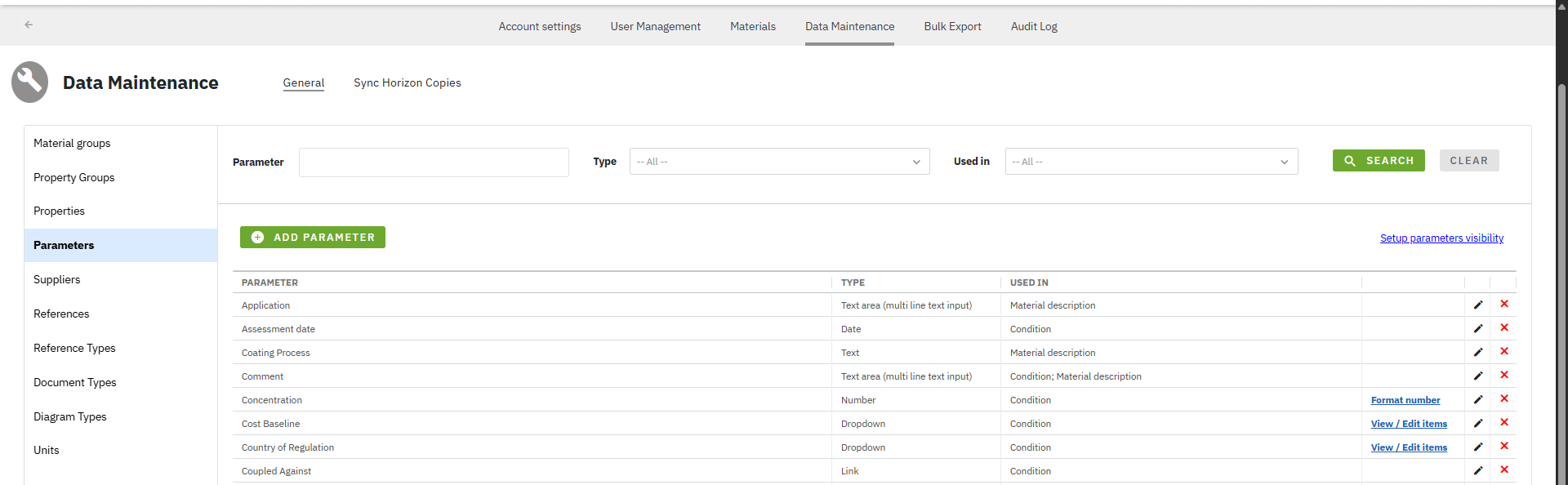
Figure 1: Screenshot of Parameters in Data Maintenance section
 or
or  buttons available in the Parameters page.
To search for existing parameters, use one of the three available options:
* Enter the full or partial parameter name in the
buttons available in the Parameters page.
To search for existing parameters, use one of the three available options:
* Enter the full or partial parameter name in the  text box.
* Search by parameter type by selecting one or more items from
text box.
* Search by parameter type by selecting one or more items from  multi-selectable drop-down list.
* Search by where the parameter is used (e.g. condition, material description) by selecting one or more items from
multi-selectable drop-down list.
* Search by where the parameter is used (e.g. condition, material description) by selecting one or more items from  multi-selectable drop-down list.
Assignment of parameter to specific[ property](/total-materia-integrator/creator/data-maintenance/property-groups.md) and [material groups](/total-materia-integrator/creator/data-maintenance/material-groups.md) is done by clicking the link
multi-selectable drop-down list.
Assignment of parameter to specific[ property](/total-materia-integrator/creator/data-maintenance/property-groups.md) and [material groups](/total-materia-integrator/creator/data-maintenance/material-groups.md) is done by clicking the link  positioned in the upper right corner of Parameters page.
Figure 1: Screenshot of Parameters in Data Maintenance section
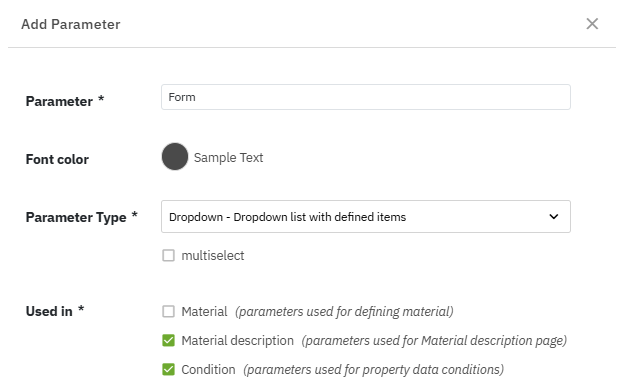
Figure 2: Screenshot of Add Parameter window when adding Form'as parameter
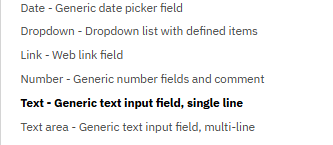
Figure 3: Screenshot of Parameter Type drop-down list
 checkbox.
When "Number" is selected as the parameter type, a new drop-down list named [Unit Groups](/total-materia-integrator/creator/data-maintenance/units.md) appears, containing predefined unit items. This allows the users to select a unit group (e.g. Density - \[kg/dm³]) for defined parameter. Selecting a [unit group](/total-materia-integrator/creator/data-maintenance/units.md) is optional and can be left unpopulated.
{% hint style="warning" %}
Before adding new parameters as number parameter types, ensure unit groups are configured in the [Units](/total-materia-integrator/creator/data-maintenance/units.md) section of Data Maintenance.
{% endhint %}
checkbox.
When "Number" is selected as the parameter type, a new drop-down list named [Unit Groups](/total-materia-integrator/creator/data-maintenance/units.md) appears, containing predefined unit items. This allows the users to select a unit group (e.g. Density - \[kg/dm³]) for defined parameter. Selecting a [unit group](/total-materia-integrator/creator/data-maintenance/units.md) is optional and can be left unpopulated.
{% hint style="warning" %}
Before adding new parameters as number parameter types, ensure unit groups are configured in the [Units](/total-materia-integrator/creator/data-maintenance/units.md) section of Data Maintenance.
{% endhint %}
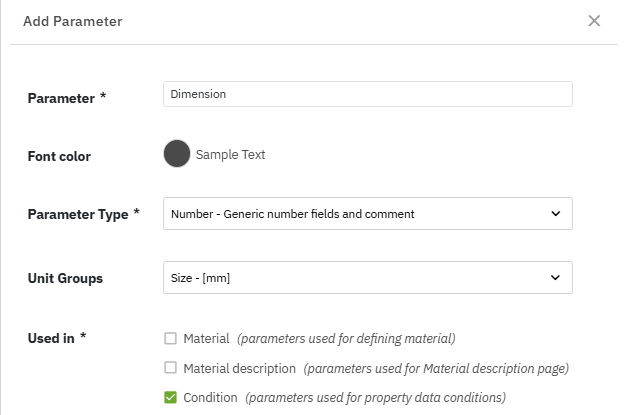
Figure 4: Screenshot of Add Parameter window when adding Dimension as parameter and Number as parameter type
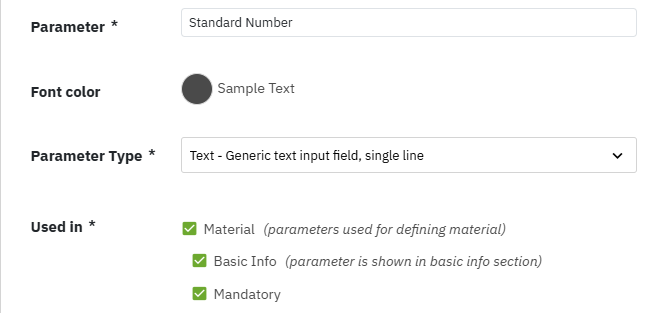
Figure 5: Screenshot of Add Parameter window when adding Standard Number as Material - Basic Info parameter
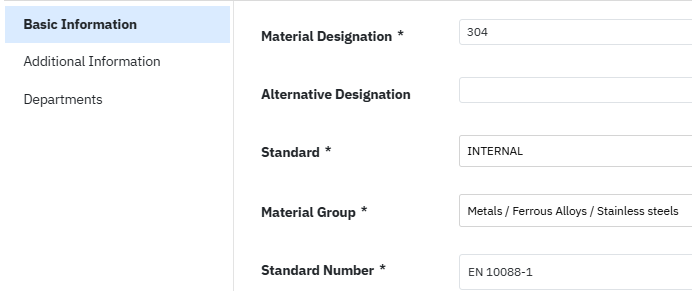
Figure 6: Screenshot of Basic information material window with Standard Number as mandatory parameter
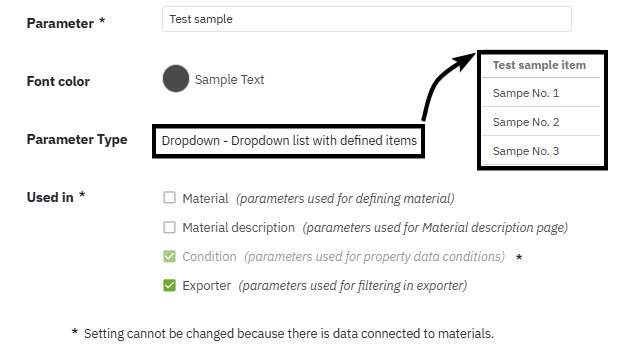
Figure 7: Screenshot of Add Parameter window when adding Test sample as Condition - Exporter parameter
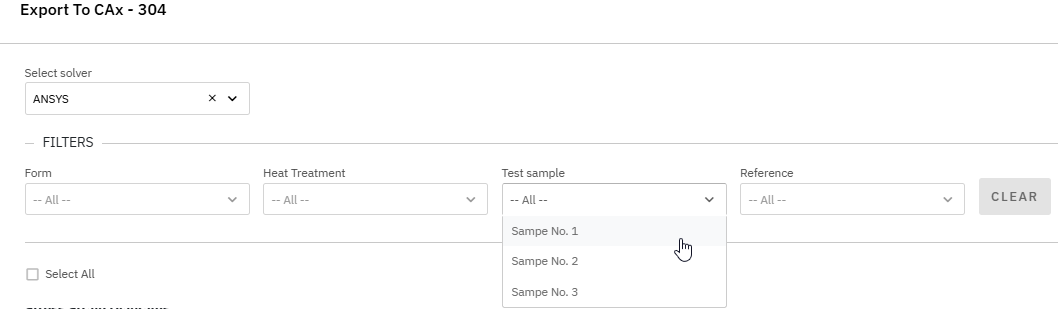
Figure 8: Screenshot of Export to CAx window with Test sample as filtering parameter
 positioned to the right of "Used in" on the Parameters page. This action opens a new page for editing and creating parameter items.

Figure 9: Screenshot of Parameters page for parameter type Dropdown and View/Edit items link
 button. This action opens a window where the user can define the item's name and color.
To search existing parameter items, enter the full or partial parameter item name in the
button. This action opens a window where the user can define the item's name and color.
To search existing parameter items, enter the full or partial parameter item name in the  search box.
To delete or edit an existing parameter item, click the button on the 'Parameter Items' page.
To return to the "Parameters" section, click the
search box.
To delete or edit an existing parameter item, click the button on the 'Parameter Items' page.
To return to the "Parameters" section, click the  button located in the upper-left corner of the "Parameter Items" page.
#### Configuration of parameters in the form of number
Configuration of parameters in the form of number is done by clicking the link
button located in the upper-left corner of the "Parameter Items" page.
#### Configuration of parameters in the form of number
Configuration of parameters in the form of number is done by clicking the link  positioned to the right of "Used in" on the "Parameters" page. This action opens a new page for formating of parameter.

Figure 10: Screenshot of Parameters page for parameter type Number and Format number link
in the top right corner of the "Parameters" page. This opens the "Setup Parameter Visibility" page. This page includes two search options: a multi-selectable drop-down list  for narrowing the search of property groups and a search field
 for filtering already assigned parameters within specific property groups.
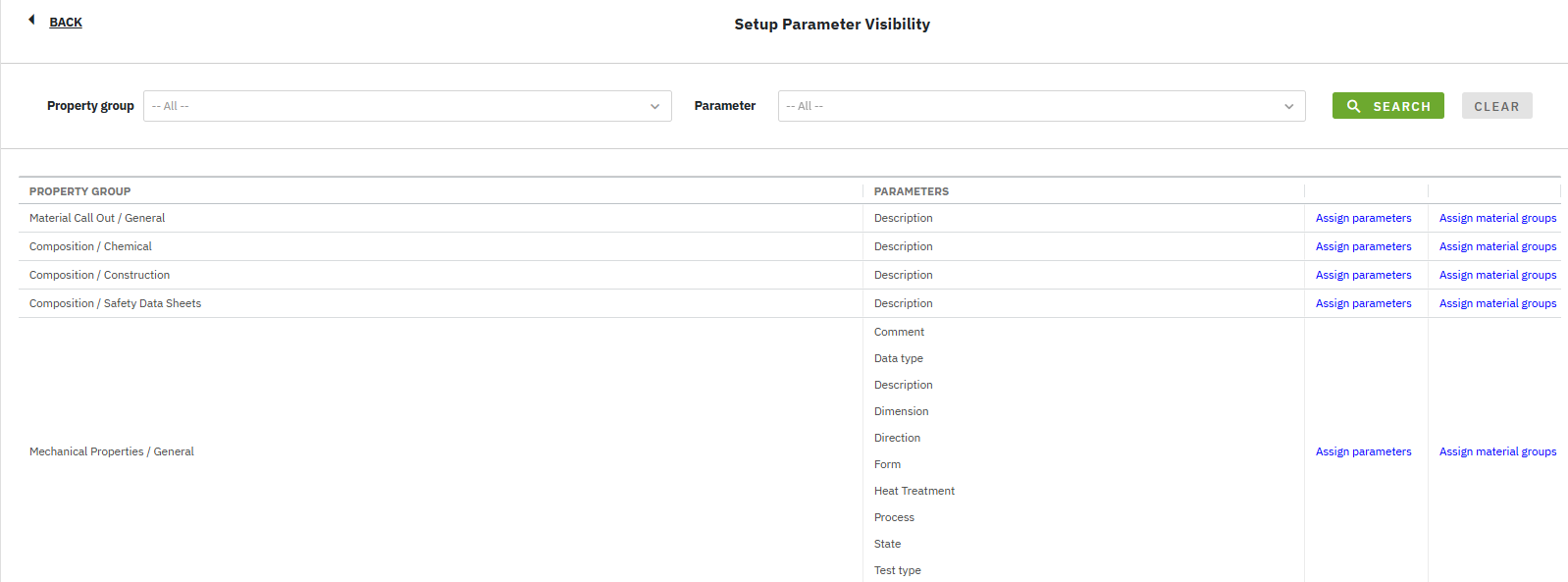
Figure 11: Screenshot of Setup Parameter Visibility page
 link. A new pop-up window named "Assign Parameters" will open, where the desired parameters for selected property groups should be checked.
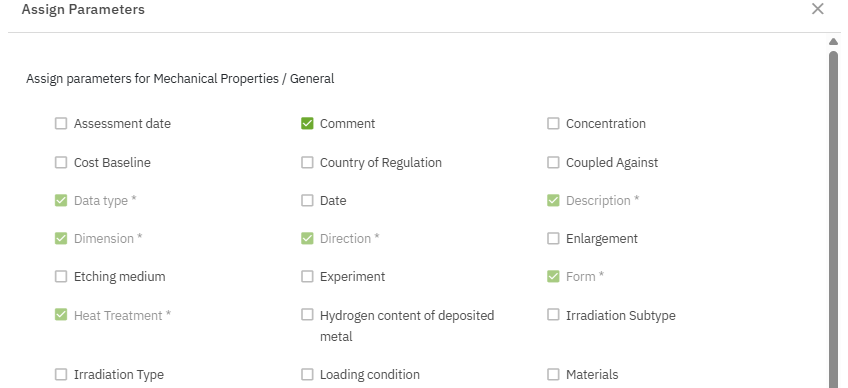
Figure 12: Screenshot of Assign Parameters page
 link. A new pop-up window titled "Assign Material Groups" will open. You can assign parameters to specific material groups by clicking the check box to the left of each parameter name corresponding to the desired material group. Additional options for setting parameter visibility for each material group are available, including:
* "Show parameter name in condition": When "ON" enables display of parameter name in condition.
* "Show parameter in condition filter": When "ON" enables display of parameter in condition filters (available only for parameters in the form of drop-down list).
* "Mandatory": When "ON" parameter is set as mandatory.
* Up/down arrows: Set up the parameter order by clicking the arrows up or down for each parameter.
link. A new pop-up window titled "Assign Material Groups" will open. You can assign parameters to specific material groups by clicking the check box to the left of each parameter name corresponding to the desired material group. Additional options for setting parameter visibility for each material group are available, including:
* "Show parameter name in condition": When "ON" enables display of parameter name in condition.
* "Show parameter in condition filter": When "ON" enables display of parameter in condition filters (available only for parameters in the form of drop-down list).
* "Mandatory": When "ON" parameter is set as mandatory.
* Up/down arrows: Set up the parameter order by clicking the arrows up or down for each parameter.
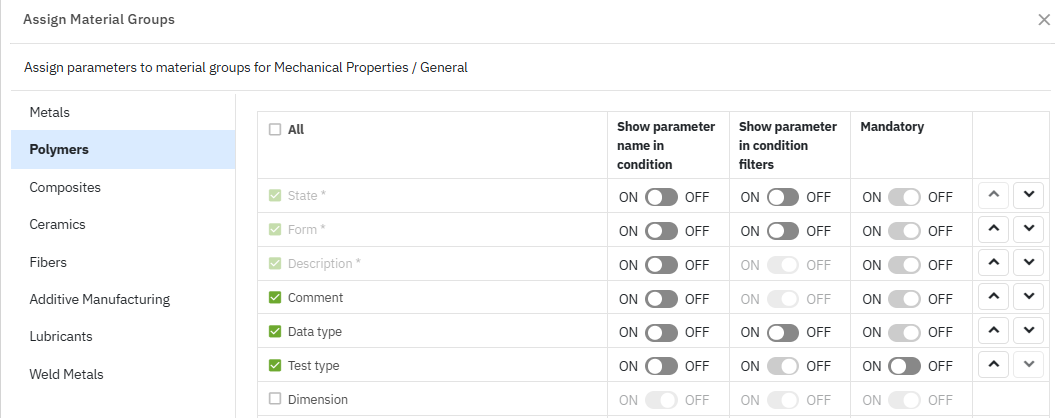
Figure 13: Screenshot of Assign Parameters page
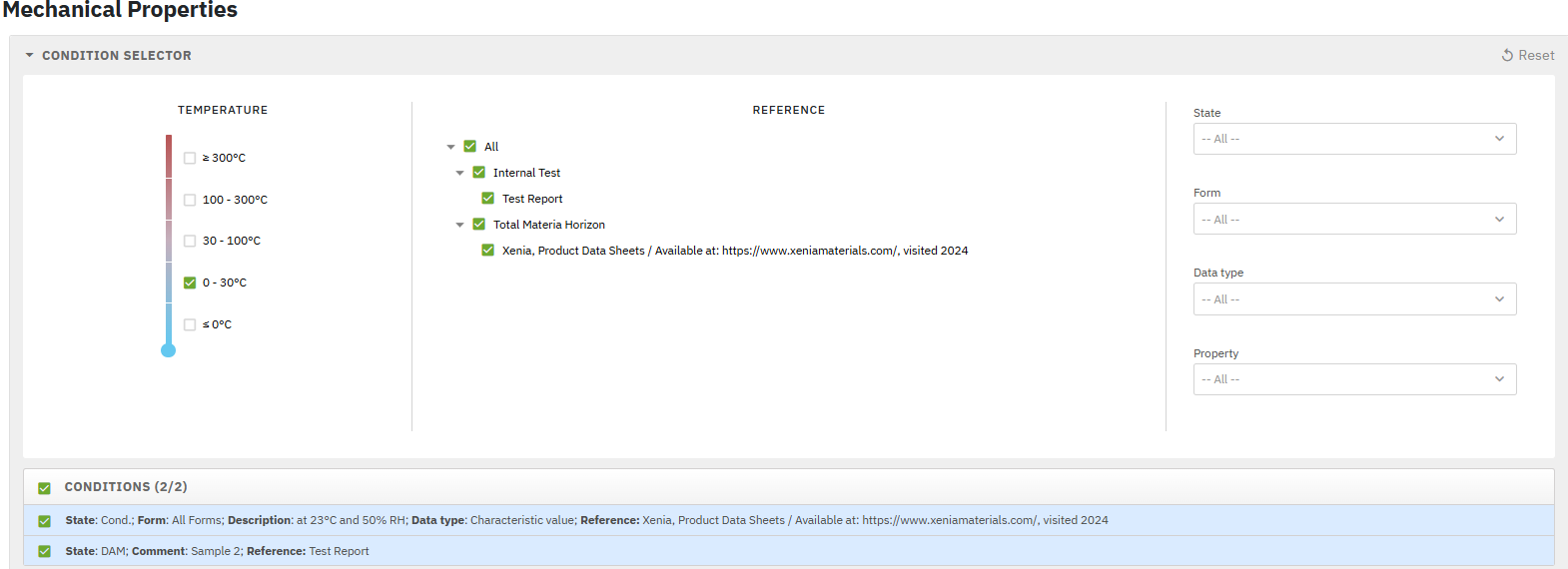
Figure 14: Screenshot of Mechanical properties page for Xegreen polymeric material with available conditions and assigned condition parameters