# Account Settings

The Account Setting section provides an initial step in setting Integrator accounts rights. It allows specific [user profiles](/total-materia-integrator/creator/user-management/user-profile.md) (most commonly the Administrator) to set data access rights based on departments and [material groups](/total-materia-integrator/creator/materials-management/add-edit-material-data-properties-diagrams-and-documents.md), as well as to configure [export filters](/total-materia-integrator/total-viewer/export-data/one-click-export.md) and add departments.

#### Section Overview

**General:** Configure data access rights and set up export filters.

**Departments:** Set up and add the desired company departments.

* "Data Access": Restrict material access by department. Select the first checkbox to enable users to view only materials designated for their departments.

<figure><img src="/files/7FtjlMSJbqtCsxs1qcNA" alt=""><figcaption><p><strong>Figure 1:</strong> Screenshot of Data Access page with selected preferences in Account Settings - General section</p></figcaption></figure>

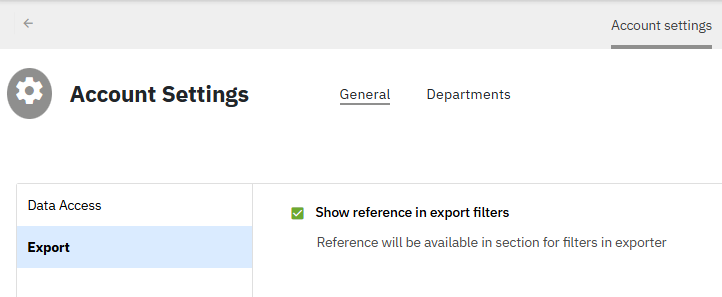
* "Export": Enable showing reference in export filters.

<figure><img src="/files/XLcLbNujCr537o7lY9WF" alt=""><figcaption><p><strong>Figure 2:</strong> Screenshot of Export page with selected preferences in Account Settings - General section</p></figcaption></figure>

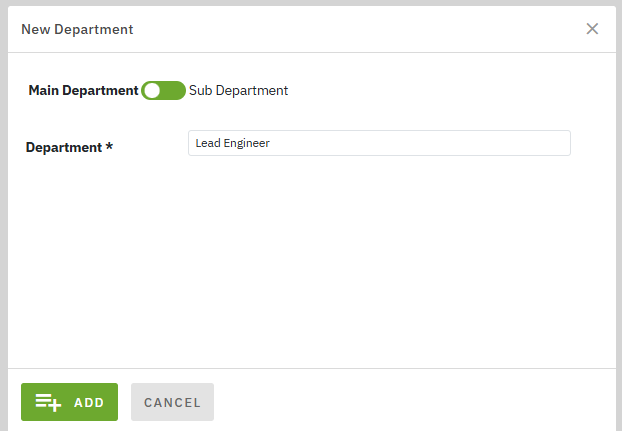
* "Departments": Add as many desired departments as needed.Create a new department or sub-department or edit/delete an existing one by click the "NEW" <img src="/files/ZJX5uGDuJRpWxBpAH2xr" alt="" data-size="line"> or <img src="/files/gZVQvKOaachot6qs8lPO" alt="" data-size="line"> buttons in the interface. To define a sub-department, move the slider to the right.
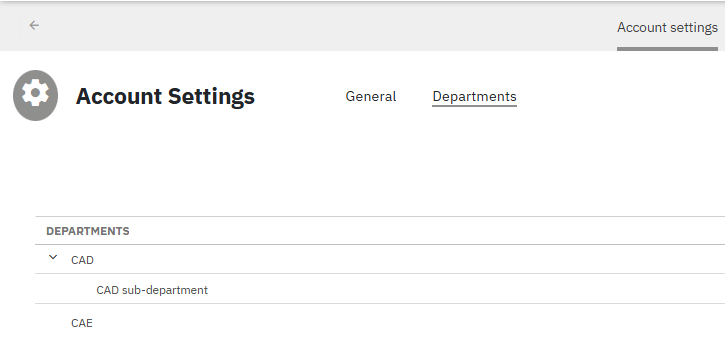
<figure><img src="/files/y6BrwDSeWm6ZAblH6QFu" alt=""><figcaption><p><strong>Figure 3:</strong> Screenshot of Departments page and created departments and sub-departments in Account Settings - Departments section</p></figcaption></figure>

<figure><img src="/files/ATl4zGABAEFsoDjWTUex" alt=""><figcaption><p><strong>Figure 4:</strong> Screenshot of New Department page with defined main department name in Account Settings - Departments section</p></figcaption></figure>

{% hint style="warning" %}
After adding the new department, assign it to the appropriate [User Profile](/total-materia-integrator/creator/user-management/user-profile.md#departments) in "Department" section to ensure its visibility.
{% endhint %}


---

# Agent Instructions: Querying This Documentation

If you need additional information that is not directly available in this page, you can query the documentation dynamically by asking a question.

Perform an HTTP GET request on the current page URL with the `ask` query parameter:

```
GET https://docs.totalmateria.com/total-materia-integrator/creator/user-management/account-settings.md?ask=<question>
```

The question should be specific, self-contained, and written in natural language.
The response will contain a direct answer to the question and relevant excerpts and sources from the documentation.

Use this mechanism when the answer is not explicitly present in the current page, you need clarification or additional context, or you want to retrieve related documentation sections.